** WORK IN PROGRESS ** This section is yet to be updated to the newer version of IMS Feature location, commands, instructions, and screen shots may not appear the same if you are using a newer version of IMS |
Many drop down fields in IMS can be managed through the Combo Box functionality.
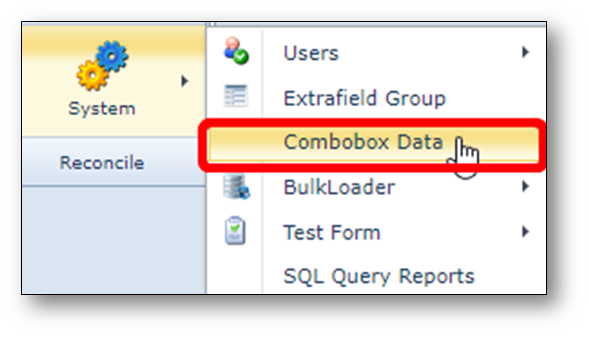
The form can be opened via System > Combobox Data.
Each pull down field has a related name in the database.
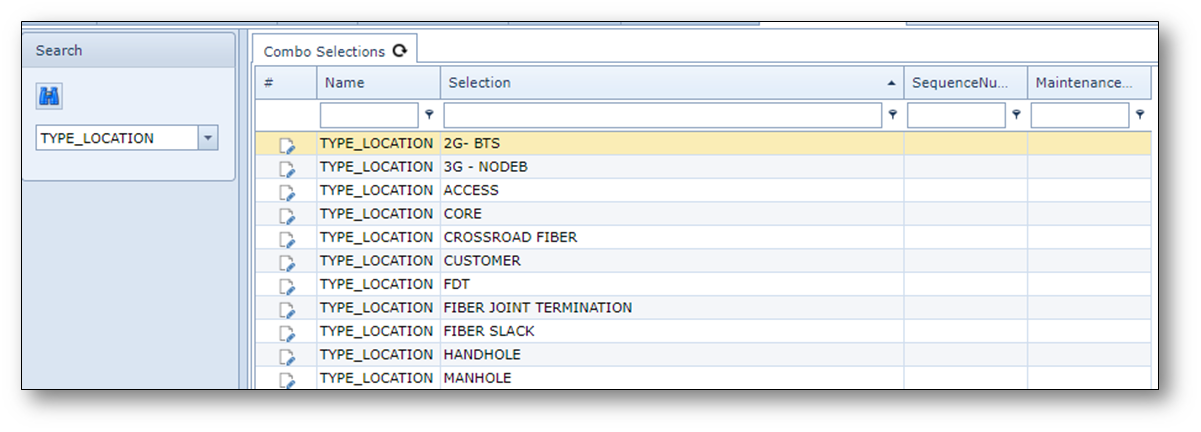
For example the pull down “location type” in location form, has combobox name “TYPE_LOCATION”
The search area can be used to search for existing combobox names.
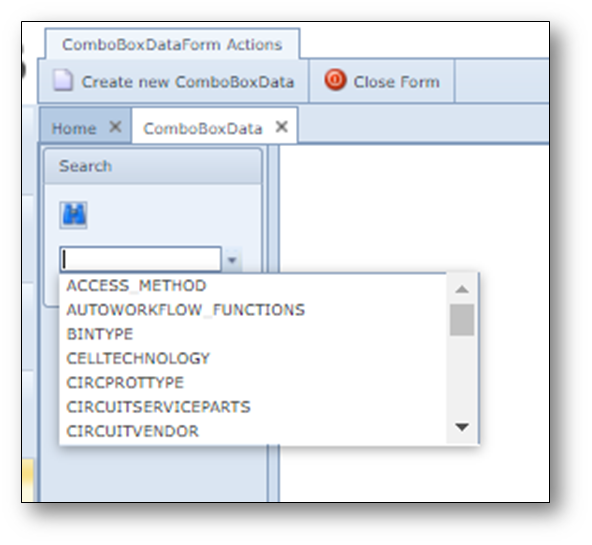
After the combobox is opened the details become visible.
Below an example screenshot
To add new values into existing pull down menus, click on the Create new ComboBoxData button.
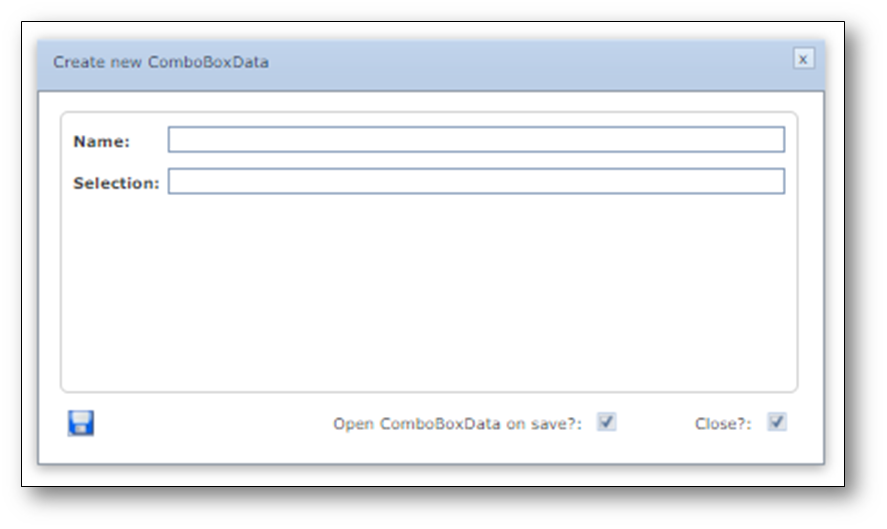
In the Name field, the name of the pull down must be filled in.
In the Selection field, the (pull down) value that must be added.
Press save.