This topic describes:
oLocating the Combobox Data name from an IMS object
oHow to access the Combobox Data feature
oSearching for a Combobox Data instance
oAdding a new list item to an existing Combobox Data instance
oRemoving an existing list item
Introduction
Some drop down fields in IMS can be managed through the Combo Box functionality i.e., list items can be added or subtracted as required. There is a pre-defined association between certain IMS list type fields and Combobox Data instances.
Some list type fields in IMS are part of real objects in the database [Sites, Node, Circuit, etc] and their lists can be managed through the Combobox Data feature - sometimes the names for these fields differ between DB field and Combobox name - for example the pull down Location Type field in the Site form, has an equivalent Combobox name of Type_Location.
Other list type fields that are not a direct part of a real database object, are also managed through the Combobox Data feature - these type of fields display a hover-over tool-tip message - as shown below in the next screen shot. |
Locate a Combobox Data name from an IMS Object
To determine the Combobox Data name from an IMS object form follow these steps:
▪Hover over a Combobox-valid field in the IMS object's form - in this example the Network Role field
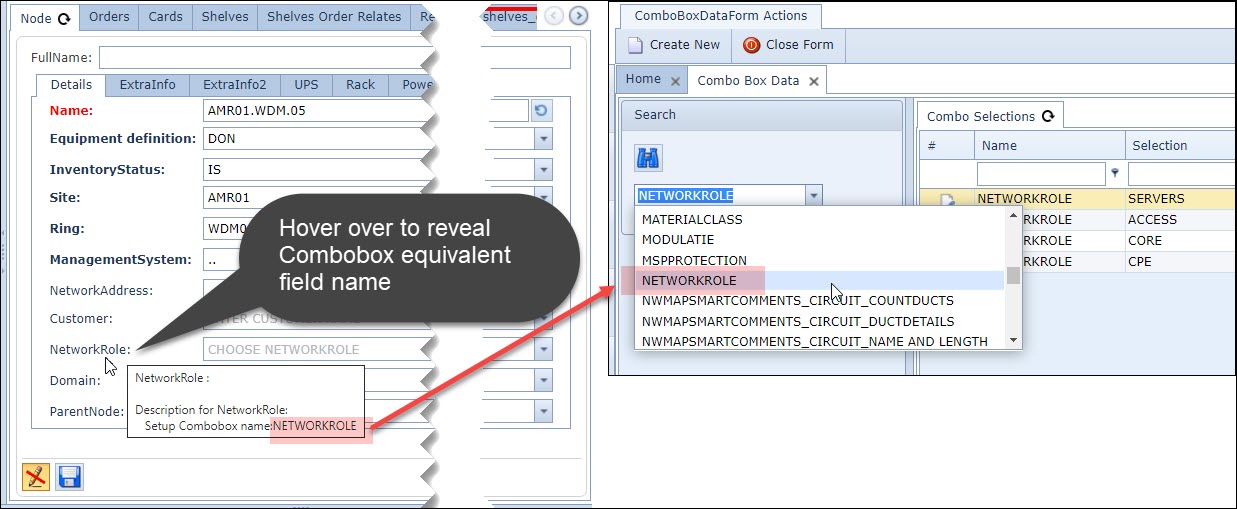
▪Make a note of the Combobox Name in the tool-tip - as this will be the Combobox Data instance to search for.
Accessing Combobox Data
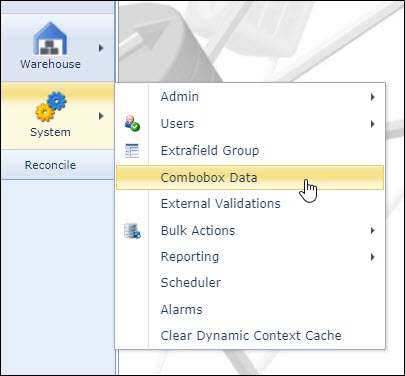
From the IMS Main Menu:
▪Select System
▪then select Combobox Data
Searching Combobox Data
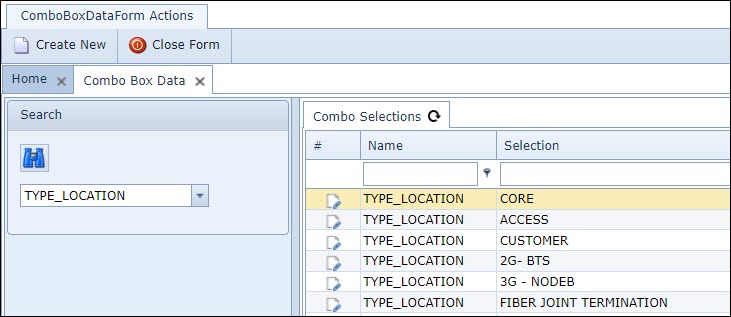
The search area can be used to search for existing Combobox Data names.

Once selected, the Combobox Data details are displayed in the main panel.
Add new list item
To add new values into an existing Combobox list:

|
Select the Create New option from the Combobox Data Form Actions button bar - this opens up the Add Combo... popup window |
|
Type in the exact Combobox Name in the popup's Name field - in this example Type_Location |
|
In the popup's Selection field type in the new list entry name - in this example Cable Landing Site |
|
Select the Save icon to complete the action |




Validate: return to an IMS object instance this Combobox Data field, test the relevant drop down list field and ensure that the new list item is visible.
Delete a list item
To remove a list item from a Combobox Data instance:
▪Right click on the list item in the Selection column
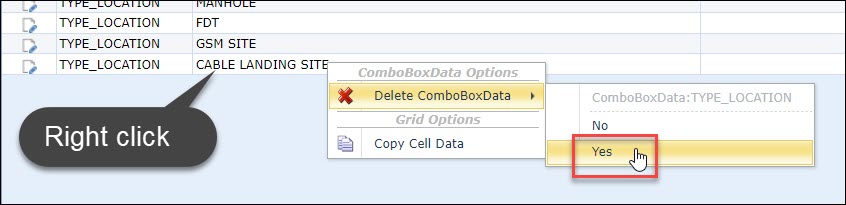
▪Select the Delete Combobox Data option
▪Select Yes from the options list provided
This will remove the list item from the Combobox Data form.