A Product Code is a name of a service related to a connection.
Not only can a product code be customer service related, but also to do with a network technology and even platform specific, for example:
oVoice
oEnterprise 10G
oMPLS
oSDH Section
oDSL Service
oDCN
oNNI Interconnect
Open Products
The Product Codes form can be opened from the IMS Main Menu:
▪From the Circuit option, click on the Products option from the list provided

Search for a Product
Existing Product Codes can be found using the search field on the left of the screen.
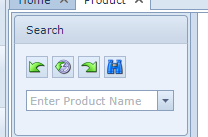
Product Form
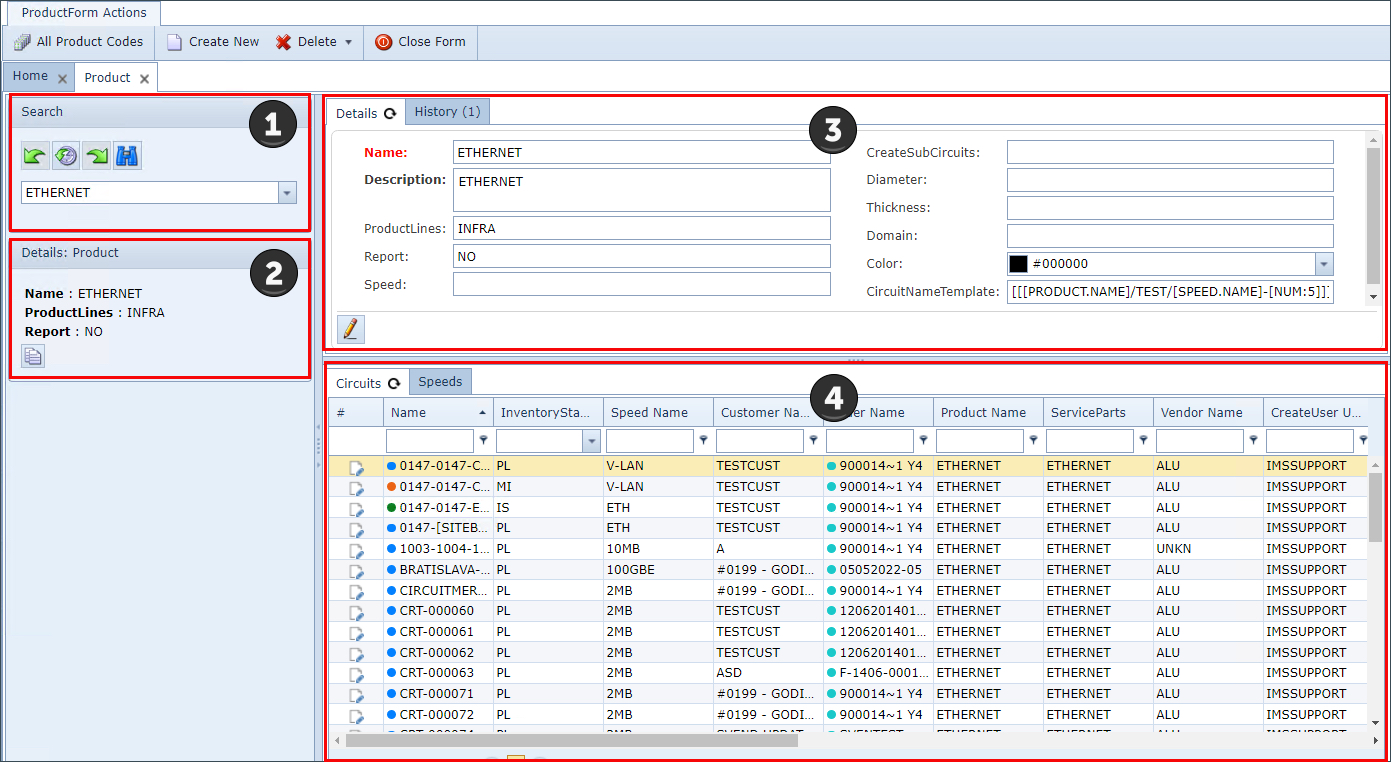
The Product form consists of 4 main information areas and a button bar. The information areas are explained here:
|
Search Area - to locate existing Product entries |
|
Summary details of the Product |
|
Product main Details area |
|
Related Circuit and Speed items to the open Product |

The following is a list of column information available under the Circuits Tab:
Name |
Connection name |
Inventory Status |
Status of connections |
Speed Name |
Speed of connections |
Customer Name |
Name of the customer - can be an internal or external customer name |
Order Name |
Order number/name related to connections |
Product Name |
Product code name |
Service Parts |
Technology |
Vendor Name |
Vendor Name or Unknown |
CreateUser User Name |
User name who created the connection |
Create date |
Date when connection was created |
Delivery date |
Date when connection was set to In Service |
Migration Date |
Date when connection was migrated |
SiteA Name |
Name of Site A of connection |
SiteB Name |
Name of SiteB of connection |
Measured length |
Length of connection as designed |
Calculated Length |
Length of connection as calculated by IMS |
Carriers Count |
Number of carrying circuits |
Sub Circuits Count |
Number of sub-circuits |
Port Counts |
Number of connected ports |
Internal Port Count |
Number of connected internal ports |
Percentage Used |
Percentage of used capacity |
Create a new Product
From the ProductForm Actions button bar:
▪Click on the Create new option

This opens up the Create new Product popup window
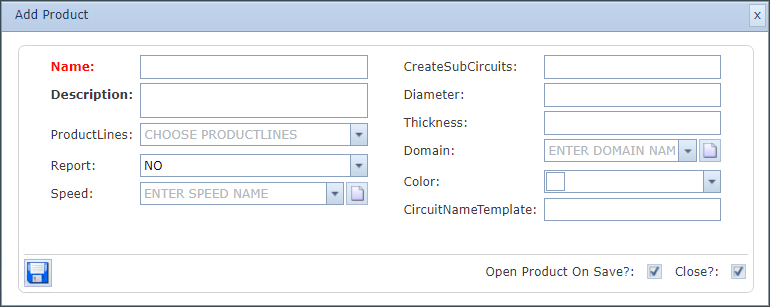
▪Fill in the required information in particular the Name and Description (mandatory fields)
Name |
Name of the new Product Code |
Description |
Description of the new Product Code |
Product Lines |
Type of Product Code - some defaults as follows: |
|
Infra - optional - for all infra and transport related product codes |
|
Data - optional - for all data related product codes i.e., IP, MPLS, DCN, etc. |
|
OLO - should be chosen for products that are related to leased lines and interconnects |
|
Rest - Any other |
|
Voice - optional - for all voice related products |
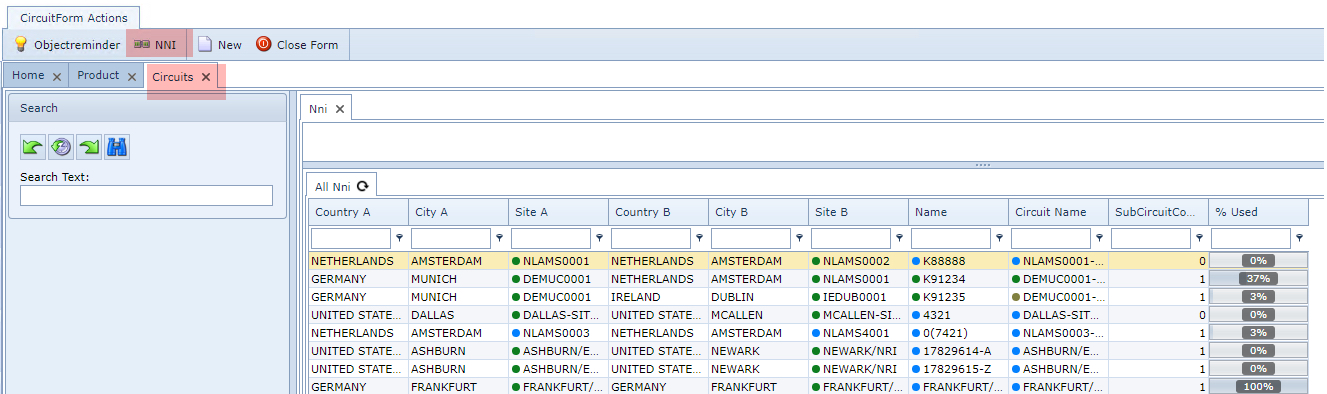
The OLO setting must be used for connections that must appear in the NNI Interconnect Form |
Report |
setting in case there are pre-defined reports related to the product |
Speed |
optional setting in case product is related to only one speed (validation rule will automatically apply) |
CreateSubCircuits |
Automatically create sub-circuits when a circuit of this product type is created |
Diameter |
Diameter of the product - i.e., cable related information |
Thickness |
Thickness of the product - i.e., cable related information |
Domain |
Specific network domain - as setup by the business case i.e., geographic, technology, customer, etc. |
Color |
Color of the product - shown in network maps |
Circuit Name Template |
Used for creating a related Circuit's name when creating a new Circuit - refer to section in: IMS Basics - naming Conventions/ Circuit / Products for more details |
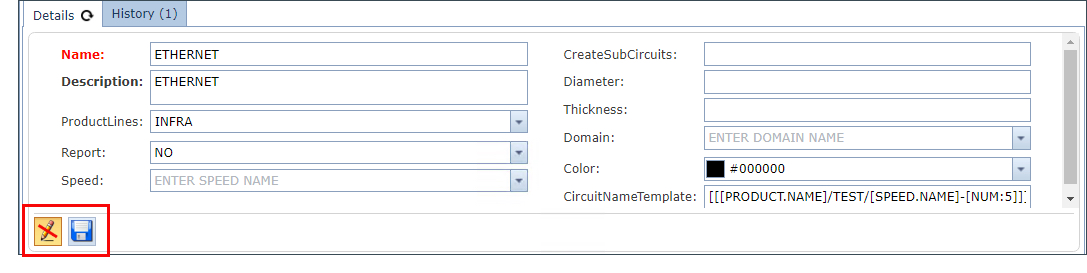
Edit a new Product
To modify an existing product code:
▪From the Product Main Details area, click on the Edit (pencil) icon in the lower left corner
▪Modify or add new information in the fields provided
▪Then click the Save icon, in the lower left corner, when finished
Delete a Product Code
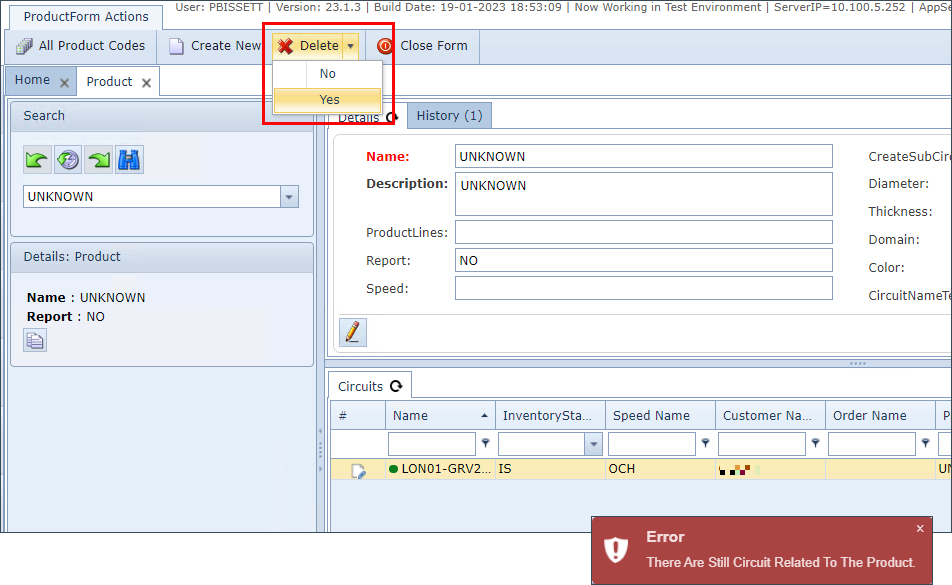
To delete a Product Code from an existing opened Product Form, ensure that all related Circuit and Speed items are removed
▪From the Product Form Actions button bar click on the Delete option
▪From the dropdown list select Yes
All related Product items must first be removed from the Product - Failure to do so will produce the error message as seen in the next screen shot - lower right corner |