The Ring Form is used to create and view new SDH, SONET, or WDM Rings.
This Topic covers the following:
oAccessing the Rings feature
oThe Ring Form and Button Bar
oSearch area
oDetails area
oMain panel with Tabs of information
oCircuits Tab Tool Bar options
oCreate a Ring
Accessing the Rings feature
The Ring feature is accessed from the IMS Main Menu:
▪Select the Circuit option and in the drop down list of further options select Rings
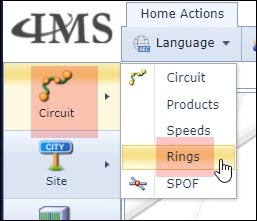
This opens up a blank Ring Form page.
The Ring Form
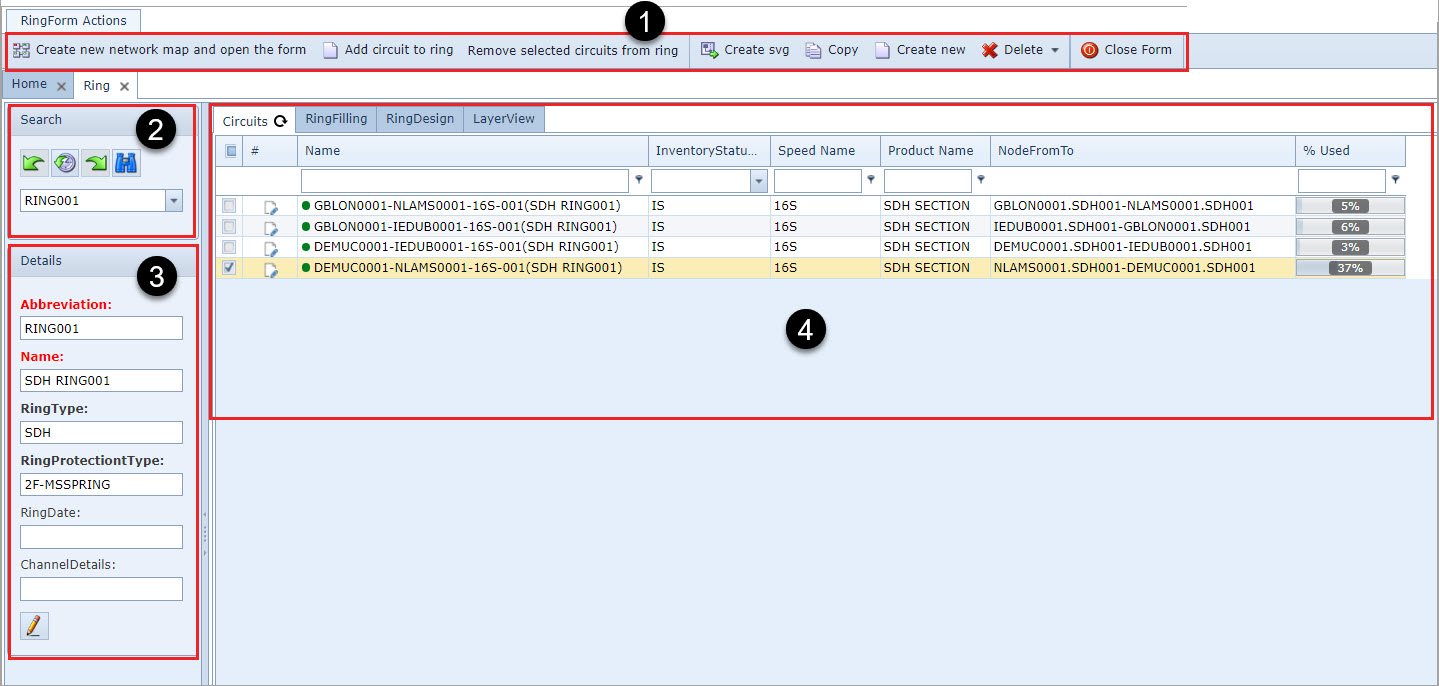
An open Ring Form contains the following sections:
|
The Ring Form Actions button bar containing various options |
|
Search area to locate existing Ring instances |
|
Ring Details area |
|
Main panel containing Tab Information - up to 6 tabs, depending on the type of information available i.e., if the related site instances contain GIS coordinates, then the Network Map tab appears. |




Ring Form Actions button bar
The Ring Form offers the following options:

Open Network Map Forms |
Option to open the Network Maps module to display the Ring |
Add Circuit to Ring |
Opens a popup window to search for and select Circuit instances to add to this Ring |
Create SVG |
A PDF file is generated containing a graphical representation of the Ring (SVG quality) - at least one Circuit must be connected to ports for this option to be enabled |
Copy |
|
Create New |
Opens a popup window to create a new Ring instance |
Delete |
Deletes the Ring instance in the open form. It does not delete any associated circuits |
Close Form |
Closes the Ring module (form) |
Search Area
From the Search area in the Ring form:
▪Type in the name, or part of the name, of the Ring or select one from the drop down list
This will open the Ring form with any given information tabs in the Ring Details area.
Details Area
This area contains the main information of the Ring as described below:
Abbreviation |
A shorter form of the full name of the ring. Ring and Circuit names are often very long. |
Name |
The full / long name of the Ring |
Ring Type |
Drop down list option - describes the Ring's protocol i.e., SDH, WDM, etc. |
Ring Protection Type |
Drop down list option - describes the protection mechanism used in this Ring i.e., 1+1, SNCP, etc. |
Ring Date |
Optional field to select a date that represents a business or operational case i.e., Commissioned, Activated, Planned dates etc. |
Channel Details |
Optional user defined field to describe what content the channels of this Ring are likely carrying i.e., Broadcast Network, Government, Military, Corporate Data, etc. |
Main Panel with Tab information
Up to 6 tabs of information can appear in the Ring Form's main panel. These are as follows:
Circuits Tab
The Circuits tab contains a list of all associated Circuit instances for the Ring.

The Circuits Tab columns of information are as follows:
Name |
The name of any associated Circuit/s |
Inventory Status Id |
The inventory status of the Circuit |
Speed Name |
The Speed associated with the Circuit |
Product Name |
The Product instance associated with the Circuit - see topic called Products (Product Codes) for more details about Products |
Node From To |
The source and destination nodes of the Circuit |
Percentage Used |
The capacity used by any sub-circuit/s |
Circuits Tab Tool Bar options
The Circuits Tab also contains 3 further options in its tool bar and work in conjunction with any of the selected (enabled) circuits in the Circuits tab grid, as shown in the next screen shot:
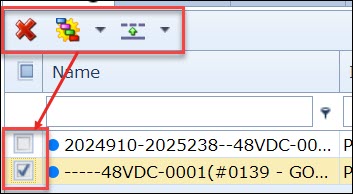
Remove Selected Circuits From Ring |
will remove any selected (enabled) circuit/s from the ring |
Change Status |
will change the status of the selected (enabled) circuit/s to the status selected from the list - refer to the next screen shot for list details |
Add/Delete to Carrier in Focus |
Worker / Protection option - will add the selected circuit/s from the Carrier Circuit that is In Focus. If the Worker or Protection option is selected, then IMS will attempt to add the selected Circuit/s to the Carrier Circuit that is In Focus as Worker or Protection Circuits. Disconnect option - will remove the selected circuit/s from the Carrier Circuit. |
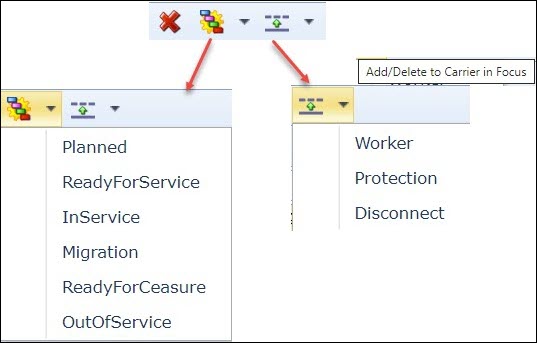
Circuits Tab Tool Bar Options
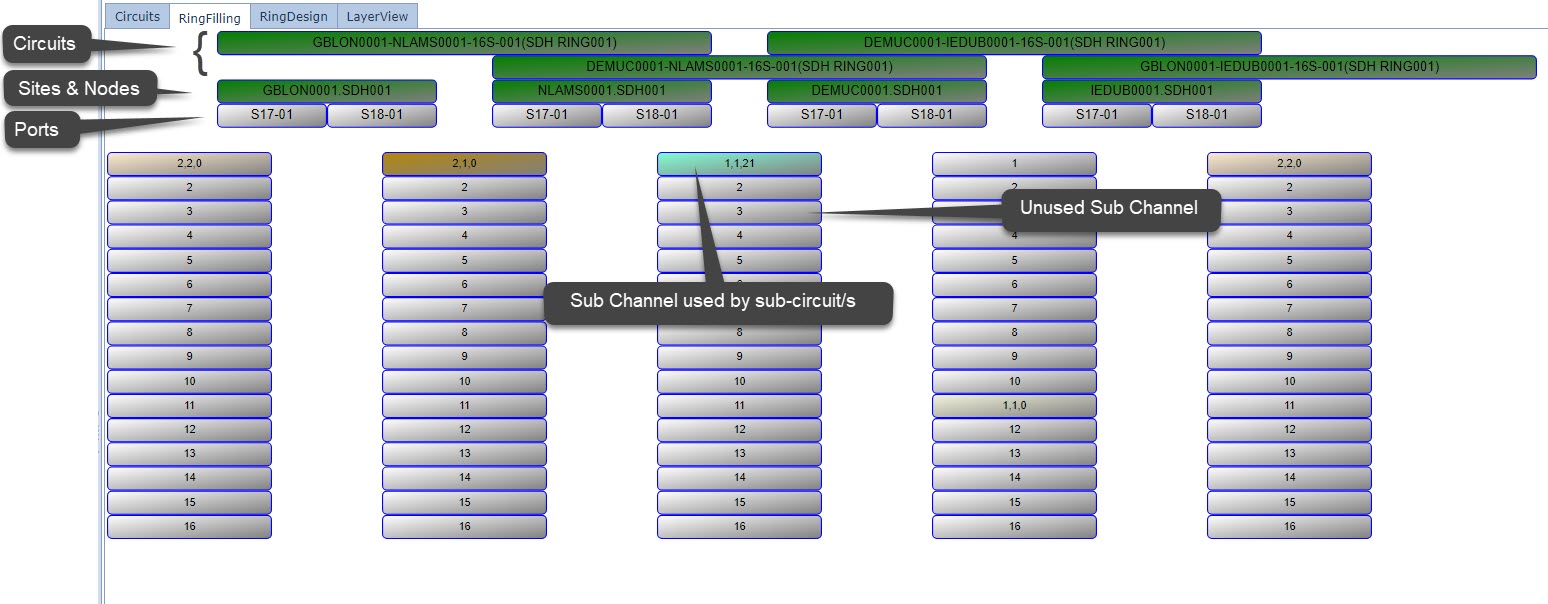
Ring Filling Tab
A schematic overview of the ring capacity and utilization including the nodes and ports.
Ring Design Tab
A graphical rendering of the ring with a view of associated carrier circuits, nodes, cards, and ports.
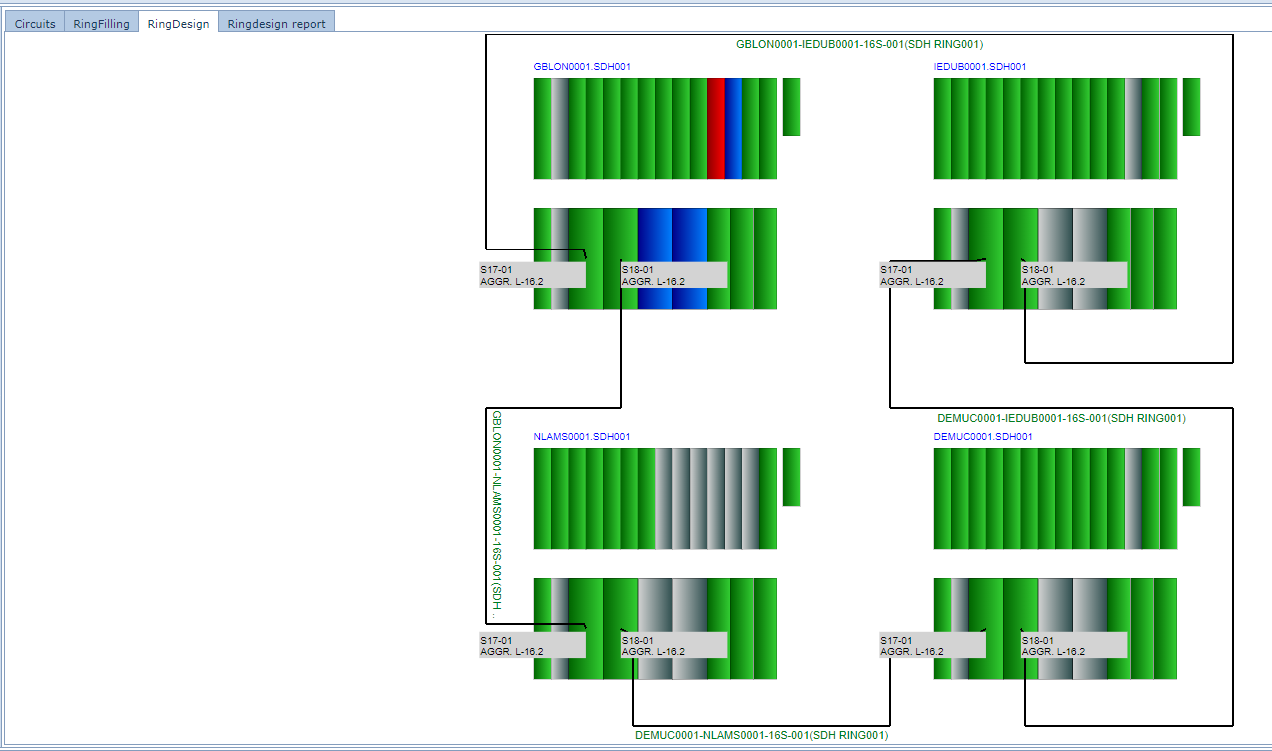
Carrier Circuits that are not terminated at port level, will not show in this Ring Design tab. |
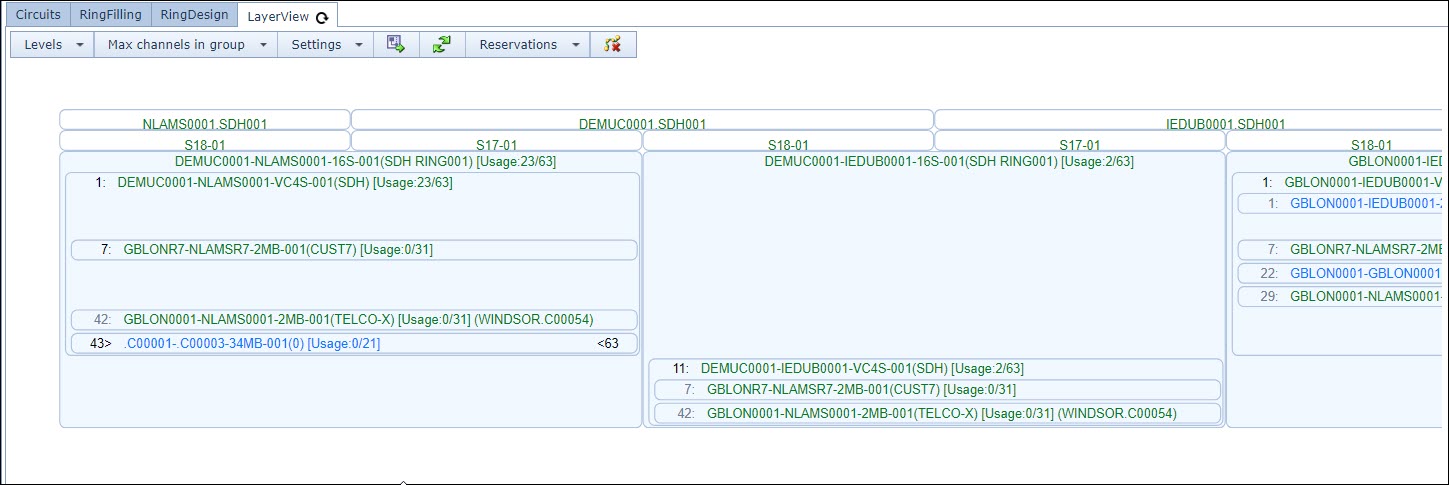
Layer View Tab
This tab shows a variety of information at different levels of the ring and also several number of viewing options that can be selected as required by each user. These viewing options are contained in an options ribbon and described below:
Display Option |
Description |
Levels |
Number of nested levels of sub circuit hierarchy to display - Levels 1 through to 5 |
Max Channels in Group |
Place a max limit on the number of channel to display as a group of channels. This is to save screen space, especially with circuits with large number of sub-channels i.e., CBL192, OC192. Refer to the screen shot below called Max Channels in Group example ... |
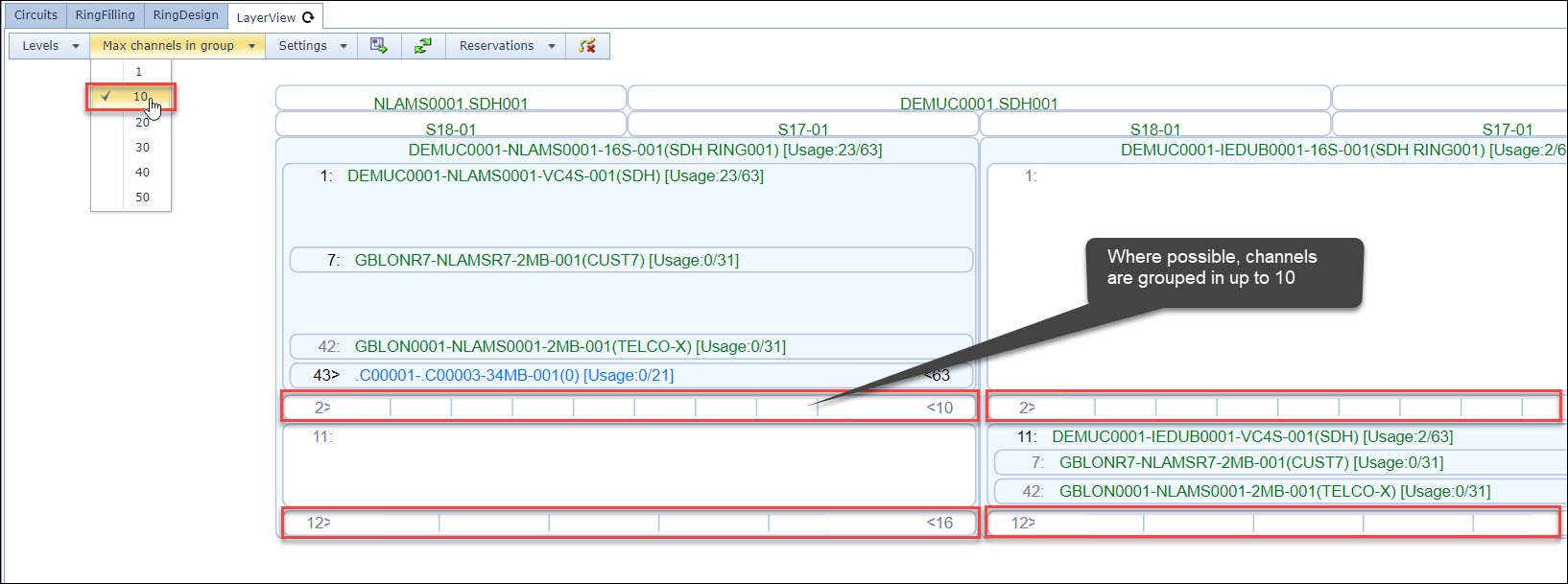
Max Channels In Group example of 10
Settings |
Various display settings to be made available or hidden in the LayerView pane - Settings described bellow: |
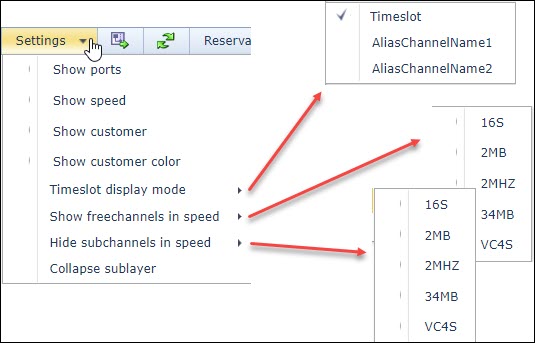
Setting Options
Show Ports: Display port details for each Circuit |
|
Show Speed: Display the Speed name for each Circuit |
|
Show Customer: Display the Customer name for each Circuit |
|
Show Customer Color: If applicable, shows the color associated with a Customer name - See Customer topic form options for more details |
|
Timeslot display mode: Options available are: Timeslot, Alias Channel Name 1 or 2 - should the speed have Channel Alias' set |
|
Show freechannels in speed: Option to display any unused channels throughout each available speed layer. The Speed options shown relate directly to the Speeds used in the given Ring |
|
Hide Subchannels in Speed: Hides any subchannels related to the selected Speed/s from the drop down option given. The Hide Subchannels in Speed feature of any Speed chosen, will override any equivalent Show Freechannels in Speed options selected. |
|
Collapse Sublayer: Collapses from view any Sublayer circuits that are 100% utilized |
Create SVG |
Creates a PDF file, of software vector graphic quality, of the current Layer View, and exports it to the local machine's Download folder |
||
Refresh |
Refreshes the Layer View window |
||
Reservations |
Provides a means of adding user defined Text (reservation message) to a channel name to indicate it is Reserved. The options given are: Add/Update or Delete. ▪Click on a free channel or one already with reservation text ▪Click on the Reservations option ▪Select the Add/Update option to add new text or modify existing text or ▪Select Delete to remove any existing reservation text |
||
Remove Circuits from selected channel/s |
Delete sub Circuit/s by first left clicking on a sub Circuit in a channel and then selecting this Remove Circuits from selected channel/s option.
|
Create a Ring
From the Ring Form Actions button bar:
▪Select the Create new icon
This opens up the Add Ring popup window.
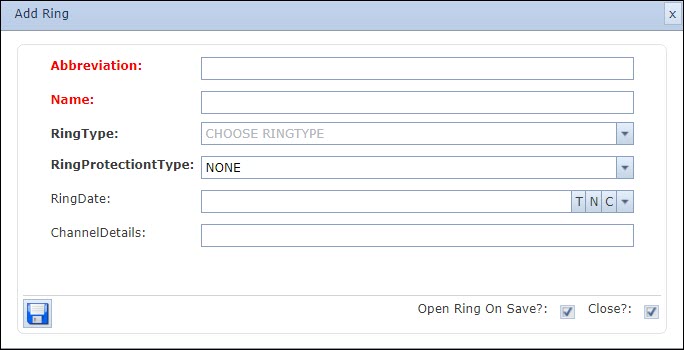
▪Fill in the required fields, in particular the mandatory ones
Refer to the section above called Details Area for a description of all the fields.
▪Click on the Save icon in the lower left corner to finish