An appropriate User Group instance is required prior to this process. For more information, refer to the topic called User Groups. |
From the User Form Actions button bar:
▪Select the Create New option
This opens up the Add User popup window. Fill in the required fields of information, in particular the mandatory ones. For field information please refer to the previous topic called User Form.
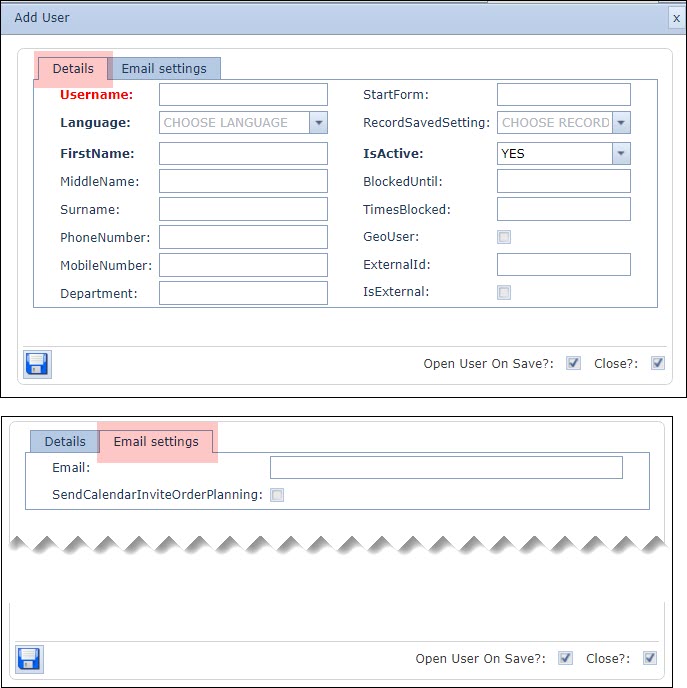
▪When finished select the Save icon in the lower left corner of the popup window and leave the User form open with all the new details.
The next step is to associate this new User Account with the required user rights for the IMS system.
▪From the User Form Actions button bar select the Add Permissions option
This opens up the Add User Rights popup window.
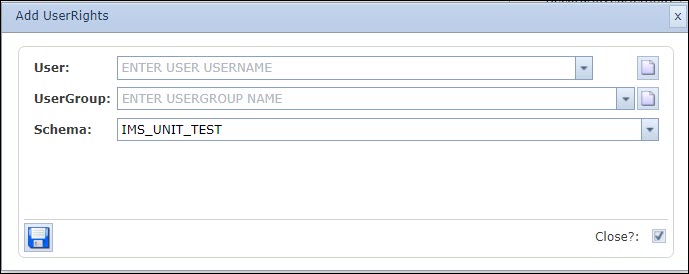
The User field should already be auto populated.
▪Select the required User Group entry from the drop down list
▪The Schema field should already be populated, if not the appropriate IMS schema will be required from the drop down list
▪When finished select the Save icon in the lower left corner of the popup window
Test the new User Account by logging back into IMS.
Logging in for the first time with the new User Account will be: Username: <new user account name> - upper case Password: <new user account name> - upper case Once in, you will be requested to log in again to create a new password. |