This Topic covers the following:
oIntroduction to Alarms
oAccessing the Alarms module
oRelating Alarms to IMS-data
oAlarm functionality
Introduction
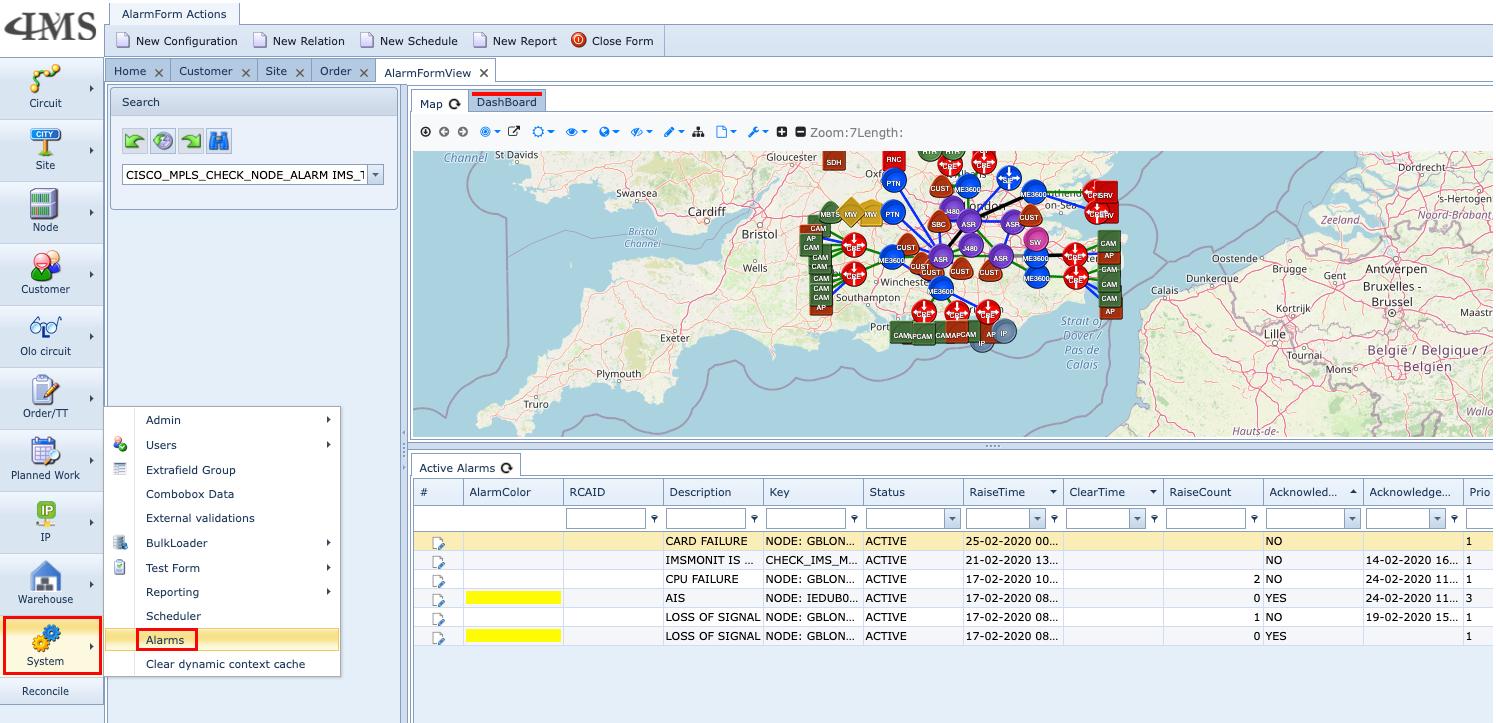
When IMS is setup to interface with a network, the Alarms module displays all relevant and filtered incoming alarms from the network in a grid format as well as displaying a graphical layout (with or without background maps). When combined with the Reporting tool, a report dashboard can be associated to it as well.
Alarm management
The following table highlights some of the main points in how IMS processes incidents reported from the network:
oAlarms relating to network elements in IMS that are not in service (non active) or belong to a Planned Work instance will be suppressed
oRoot cause analysis is performed by processing incoming network alarms and finding relationships between these alarm and network elements contained in the IMS database. All related alarms are given a common root cause analysis identifier (RCAid)
oIMS uses the Network Map to display all active alarms that are not acknowledged. The Network Map can be in Geo or non-Geo mode.
Accessing the Alarms Module
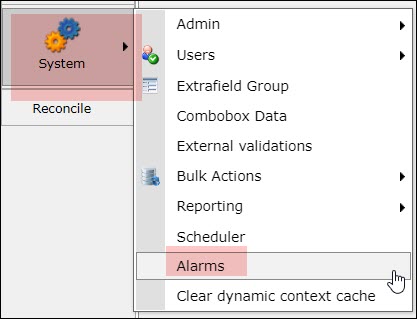
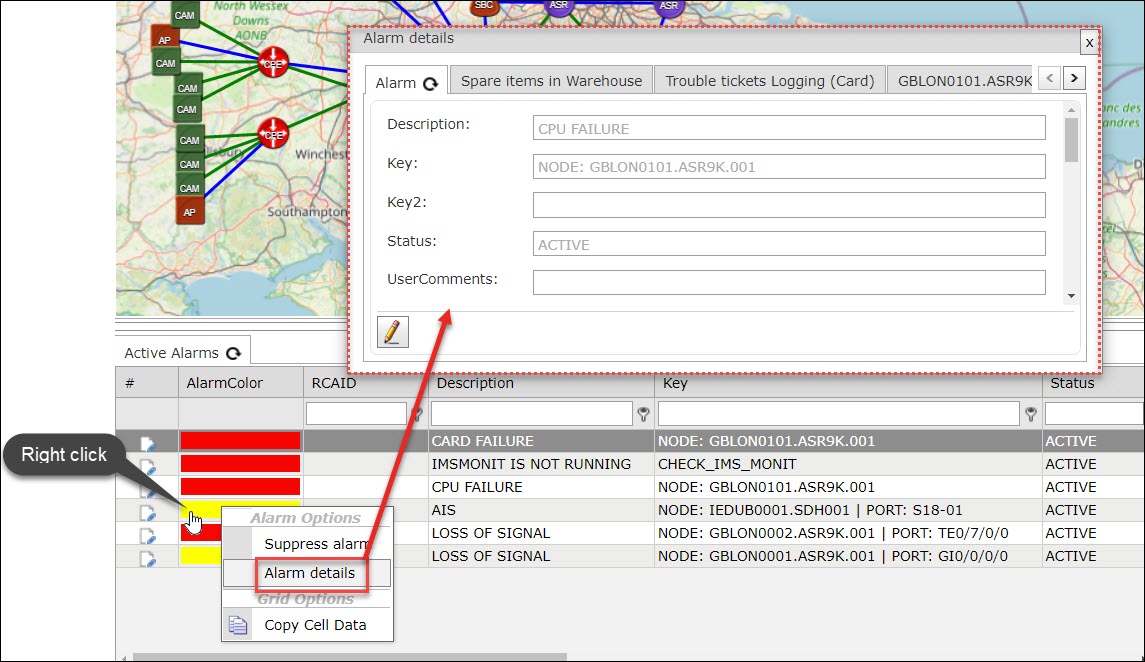
Accessing the Alarms module is through the IMS Main Menu by clicking on:
▪Systems and then Alarms option
Relating alarms to IMS-data
For Each alarm, the alarm processing engine will try to find a relation to a Node/Port/Card/Site. When this relation is made, the operator can directly find the following related IMS data:
oSite access control list - Which engineer was on the site where the alarm took place
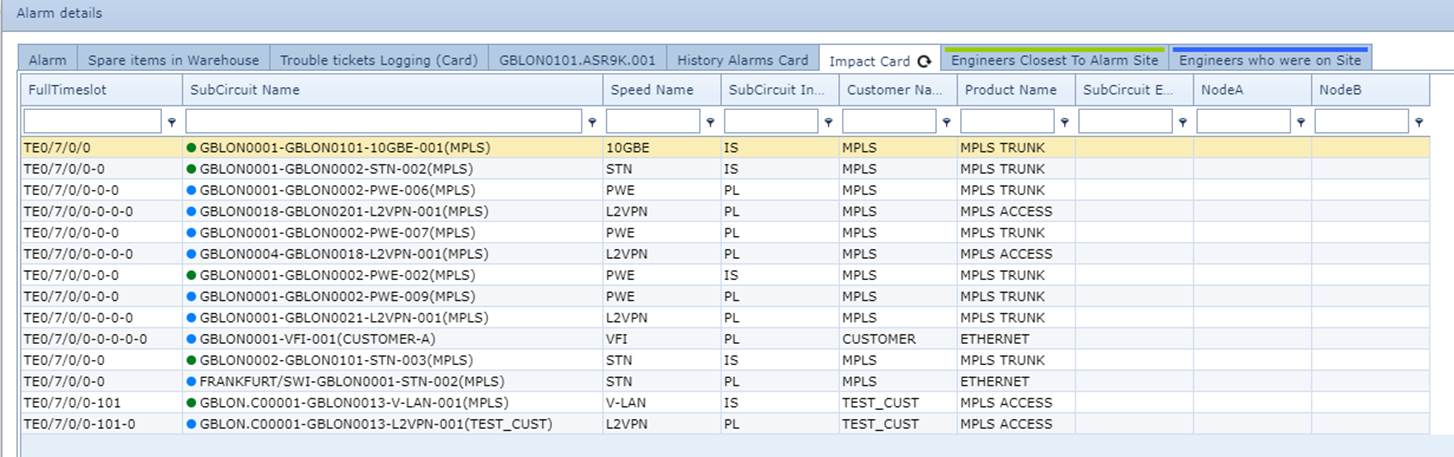
oWhich customer services are impacted by this alarm
oHistory of alarms related to this object including the Trouble tickets related to previous alarms
oFull trouble ticket logging of the current alarm + the history alarms trouble ticket logging.
oA list of available spare parts, so the operator knows where to find a replacement (card/Node etc.) for this issue (If needed)
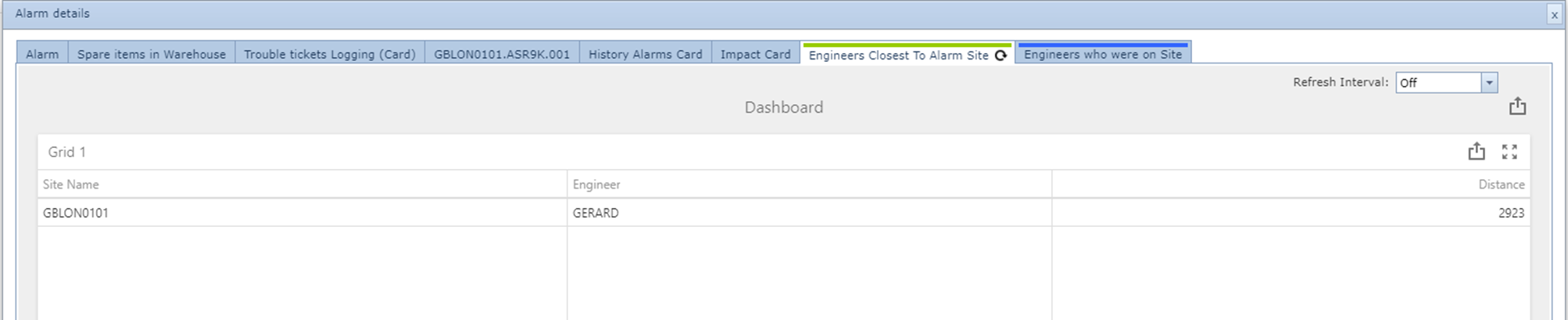
oA list of engineers who are nearest to the site where the alarm is.
Alarm functionality
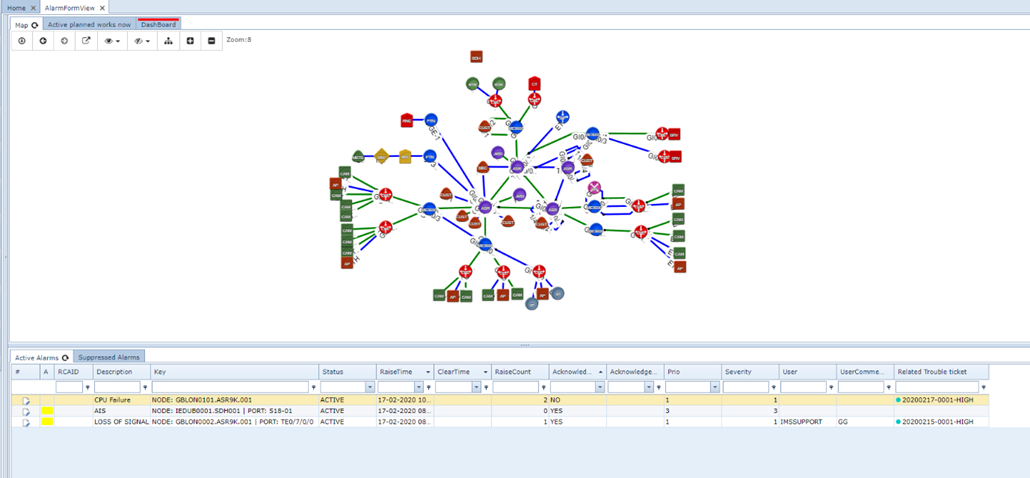
In the main alarm screen, the operator can find a tab showing all planned works that are active right now.
On the active alarm list, trouble tickets related to this alarm can be seen and the operator can add comments to the alarm.
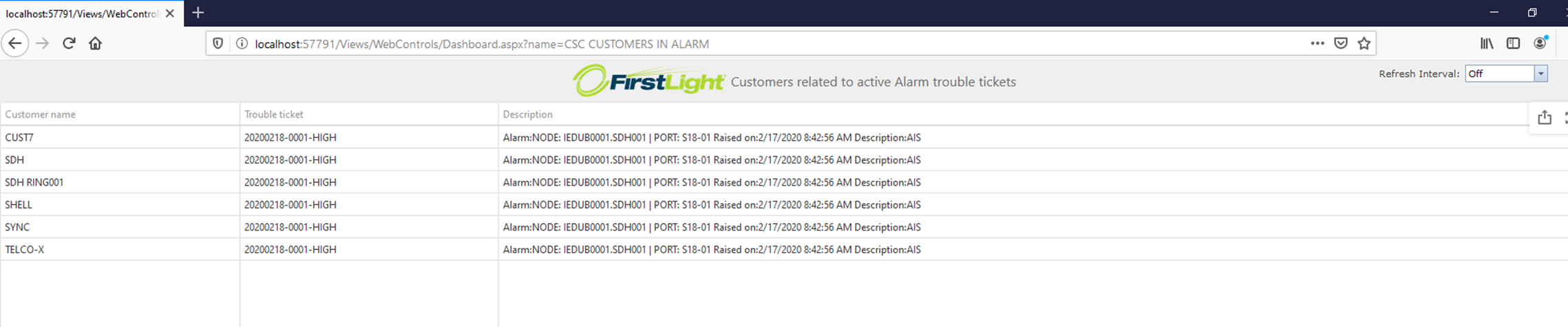
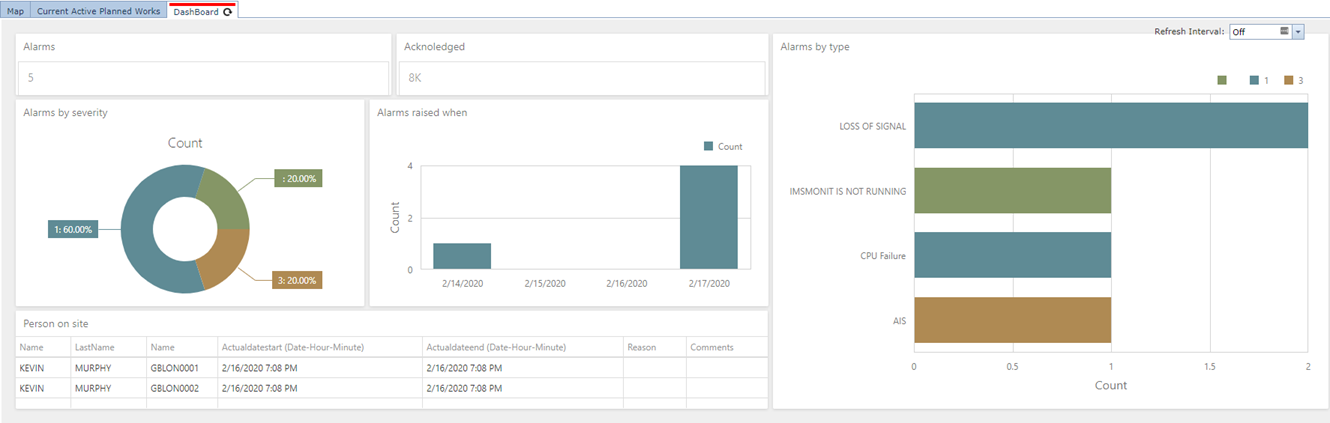
A fully customizable dashboard is available in IMS but also as a separate website this dashboard (And many more) can be viewed.

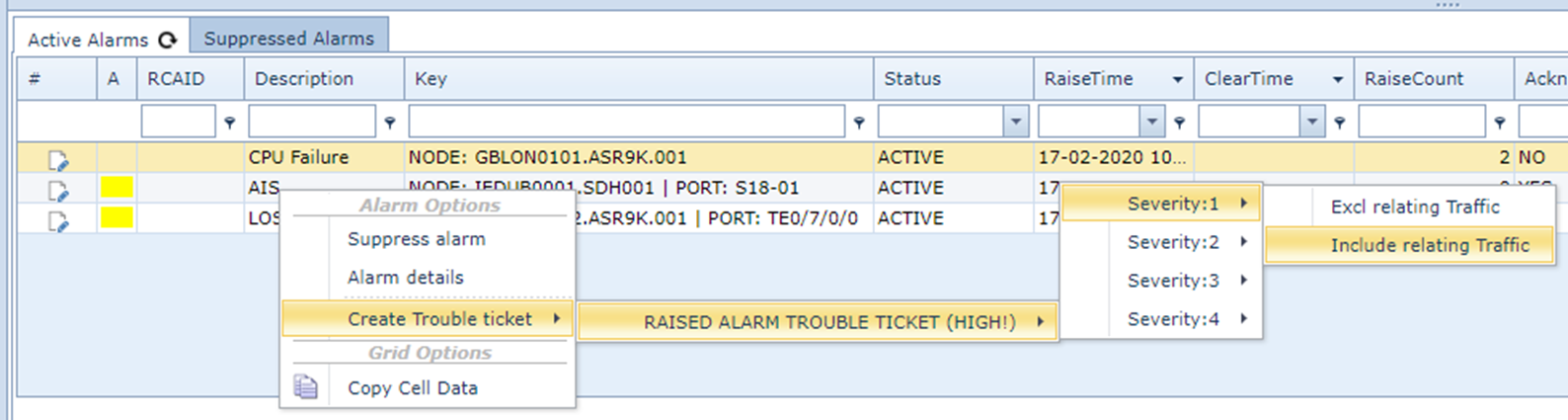
oCreate a trouble ticket from an Alarm.
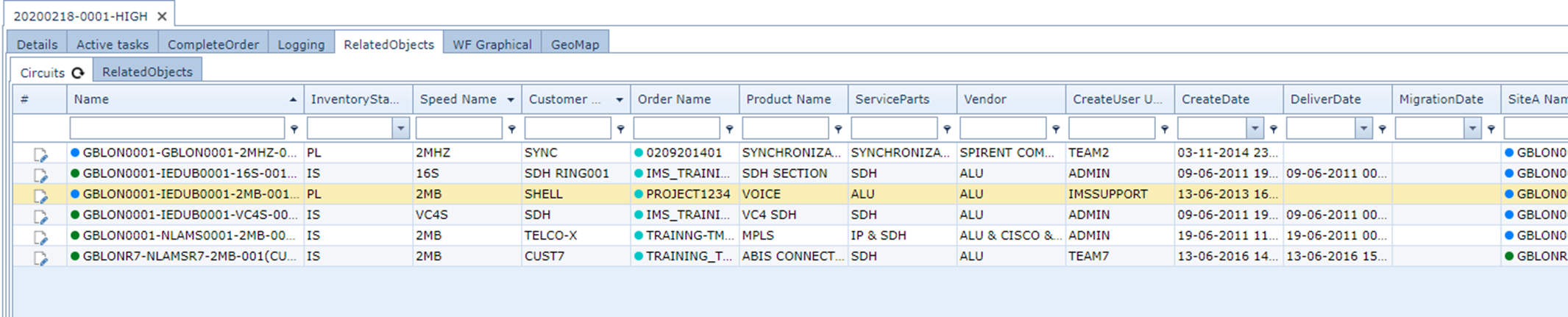
oAll related traffic (circuits) to the object will be related in the Trouble Ticket.
oIn the customer form users can see active trouble tickets related to the customer.

oFrom the Trouble Ticket form in IMS, operators will find all active trouble tickets.
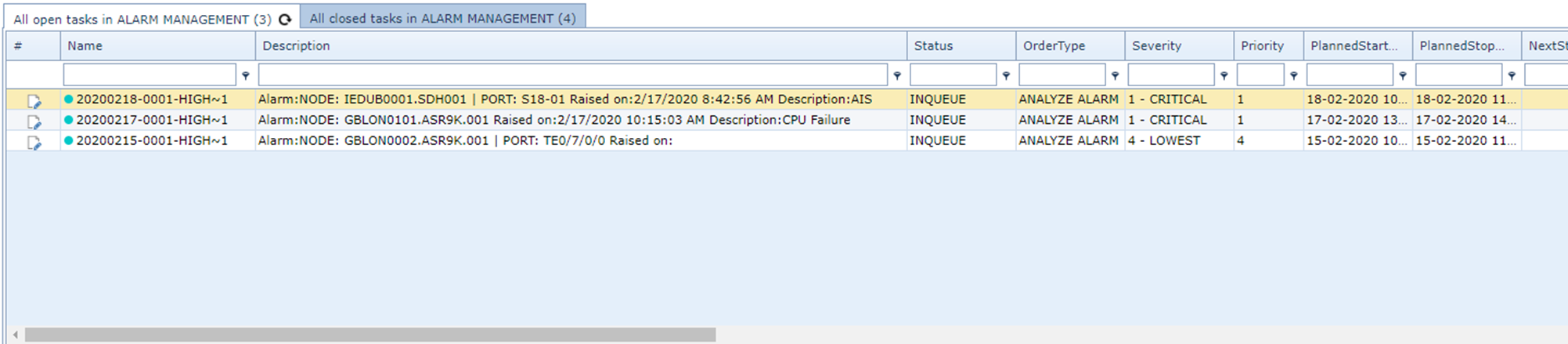
oView Alarm details.
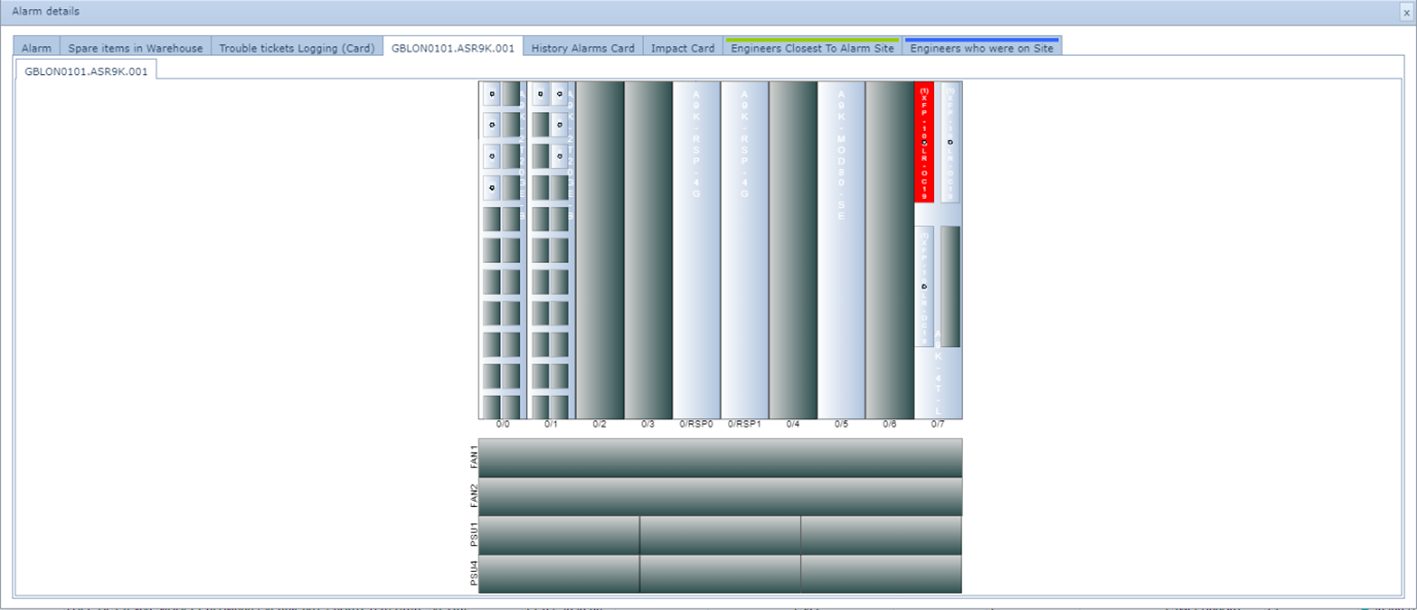
oHighlighted card.
oTraffic impact.
oHistory of all alarms previously on this object (Including related trouble ticket)

oAll trouble ticket logging on current and history alarm trouble tickets.

oTab that shows Spare items in stock.

oWhen the GPS position of the engineer is known in IMS, the following tab will also appear. (The operator knows which engineer is closest to this site)
oWhen site access control data is in IMS the following tab will show which engineer was in the site and for what reason.

oCustomer service dashboard (Fully customizable).