IMS enables the Google Keyhole Markup Language (KML), and its compressed version KMZ, feature to be available in the Network Maps module.

Initial Setup for
Access KMZ/KML
The KMZ/KML feature is accessed from the NetworkMap Actions button bar.
The options available in the drop down list are:
Export to KMZ |
Exports the current network map view to a KMZ file to the user's download folder |
Export to KML |
Exports the current network map view to a KML file to the user's download folder |
Export to SHAPE |
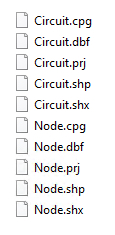
Exports the current network map into multiple shape files (circuits, DDF/ODFs, Nodes, Sites) to a zipped file to the user's Download folder. These in turn can be incorporated into other third party systems or tools. |
Import from KML/KMZ |
Imports other VC4-IMS generated KML/KMZ files
|
Upload KML/KMZ |
Uploads non VC4-IMS KML/KMZ files to the application server - these become a background layer. |
Export KML/KMZ
The Export to KML/KMZ feature allows Network Map users to quickly make a copy of an existing map into a KML or KMZ version.
From the Network Map Actions button bar:
▪Select the KMZ/KML option followed by either the Export to KMZ or KML options
The file should download to the local machine's download folder.

This can then be imported into a new or existing map.
Import KML/KMZ
This function is to import VC4-IMS generated KML/KMZ files - from the same IMS application where the file was exported from.
A use case is for fiber subcontractors who can work with VC4-IMS generated KML files and make small adjustments in routing and equipment positioning.
Note: this function cannot import non-VC4 IMS generated KML/KMZ files, as those files will not have the correct IMS object and object types. Should there be a need for importing and converting non-VC4 IMS KML/KMZ files, please contact VC4 for a consultation on the possibility of creating a specific import tool.
The Import from KML/KMZ feature allows Network Map users to quickly import a copy of a previously exported map using the Export to KMZ or KML options - see the previous section in this chapter.
From the Network Map Actions button bar:
▪Select the KML/KMZ option followed by the Import from KML/KMZ option
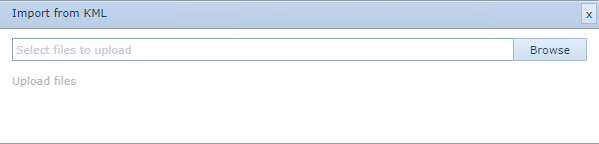
This opens up the Import from KML popup window.
▪Select the Browse button
This opens up a file explorer popup window.
▪Locate and select the appropriate KML or KMZ file and click on the Open button - this closes the file explorer popup window and populates the Import from KML popup window with the selected file name
▪In the Import from KML popup window, click on the Upload files text link
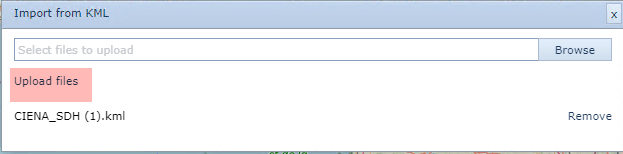
This popup window closes and in the IMS lower right corner a Success message is given.
The Network Map should now display the same IMS objects that were established in the exported map file.
Upload KML/KMZ
Upload KML/KMZ is a function to upload non-VC4 IMS KML/KMZ files to the application server to have the KML/Z file as a background layer.
Having selected the KMZ/KML option from the Network Map Actions button bar:
▪Select Upload KML/KMZ option from the drop down list which opens the Upload KML/KMZ popup window
▪Select the upload KML/KMZ option icon [yellow up arrow] from the menu bar
This opens up the file explorer window
▪Locate the required non-VC4 IMS KML/KMZ file and click the Open button - this file will now be referenced in the Upload KML/KMZ popup window
▪Click on the Upload option in the Upload KML/KMZ popup window
The file is now registered on the IMS Server

Deploying the non-VC4 map file
Once the non-VC4 file has been uploaded to the IMS server it can then be referenced and used in existing or new maps created in IMS.
Note: be aware that any uploaded file from another system which may contain geographical network representations, i.e., trenches, sites, cabling, etc, these will be flattened and just form part of the overall background map image. No interaction will be possible with these items i.e., clicking on them to reveal information.
From the map feature button bar:
▪Click on the Show Icon and Line Types icon - as shown circled in the screenshot below

▪Now click on the KML FILES option
▪From the dropdown list provided, make an individual or multiple selection of map files by clicking the required one/s
Alternatively click Select All to use all the maps provided - useful if there is a long list of files. Deselect All is also an option to clear the map of all KML files.