** WORK IN PROGRESS **
This section is yet to be updated to the newer version of IMS
Feature location, commands, instructions, and screen shots
may not appear the same if you are using a newer version of IMS
VC4-IMS has GIS capabilities to show the geographical routing of fiber and copper network (Outside plant).
A schematic overview gives the network layering:

Trench |
Lowest network layer, can be the hole in the ground or aerial route via poles |
Duct |
Fiber/copper cable duct. A duct can have multiple sub ducts, which is managed as fixed channels in the duct, e.g. a DUCT24 has 24 sub-ducts. Sometimes a duct is not used where a cable is directly put into the ground or routed via poles |
Fiber/copper cable |
Fiber/copper cable with a certain capacity, for example CBL96 for a 96fiber cable, CBL24 for a 24fiber cable, etc. Fiber tubes and fiber colors are managed within the definition of these fiber cables. |
Fiber/Copper |
Each single fiber/copper string is being managed as a CBL1 connection carried by the fiber/copper cable. |
Active Network connection |
The active network connections, such as WDM, MPLS, SDH connections will be layered into the fiber/copper (CBL1) connections. |
Below a schematic overview in case of fiber connectivity towards a building using manholes/handholes,
spliceboxes and ODF’s.

VC4-IMS application can manage each OSP (outside plant) element, including the spliceboxes and splices.
Also xPON networks are supported. In this case 1 or multiple splitters are used within the route from OLT to customer ONT.

In case of GPON/xPON the connectivity layer is (starting from fiber):
Fiber |
Each single fiber is being managed as a CBL1 connection carried by the fiber cable |
GPON |
The GPON circuit (speed = GPON) is the first active network connection layer. A GPON connection runs from OLT to Splitter, from Splitter to Splitter or from Splitter to ONT |
ETH |
An ETH (Ethernet) connection will be layered into the GPON carrier connections, from OLT to ONT |
V-LAN |
A V-LAN will route into the ETH from ONT towards the OLT and ending on a MPLS node |
Services |
Dependent on the configuration next connection layers will be services or ethernet connections |
Additional information about OSP/Geo modeling:
1. A so-called “Transition Point” is being used in case of a TRENCH route change location, for example in scenario as pictured below:
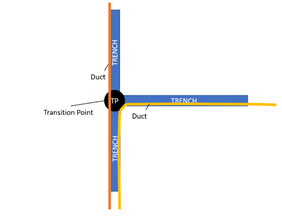
A Transition Point (TP) is managed as a TP site as well as a Node Object. This is to be able to terminate TRENCH connections on it
2. A manhole or handhole is managed as a manhole/handhole site/location, but also as a Node object in IMS. This is to be able to terminate TRENCH connections on it and optionally DUCTS in case of butterfly overview is needed.
3. To be able to terminate the fiber route into a building or BTS site, the building or BTS site must have a Cable Entry point. A Cable Entry is modeled as a Node object in IMS linked to the Building or BTS site.
Create Cable Entry point
To be able to terminate the TRENCH route into a building or BTS site, the building or BTS site must have a Cable Entry point.
A cable entry point can be created in the following ways:
➢the node form, press “new node” button, choose node definition with “CABLE ENTRY” in the name
and select the site name of the building / BTS site.
➢the Network Map, on a site/node, right click and choose option “SITE” > NEW > Node. Choose node definition with “CABLE ENTRY” in the name.
➢Easiest way:
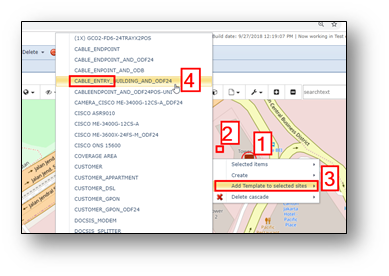
- Make sure a Site template exists with a CABLE ENTRY
- In Network Map, click once (left mouse button) [1] on a node (where the Cable Entry must be placed), a red circle will become visible.
- Then right click in the background (not the node!) and choose “Add template to selected sites” [3], select a template with a CABLE ENTRY.
Create Manholes/Handholes
To create manhole or handholes, easiest is to have a Manhole or Handhole site template ready. The site template should contain a Manhole/Handhole node and one or multiple Joints/Spliceboxes.
Go to the Network Map and select the point option. Select with the point marker the locations where the manholes/handholes should come. See screenshot.

Then upload the information, see screenshot:
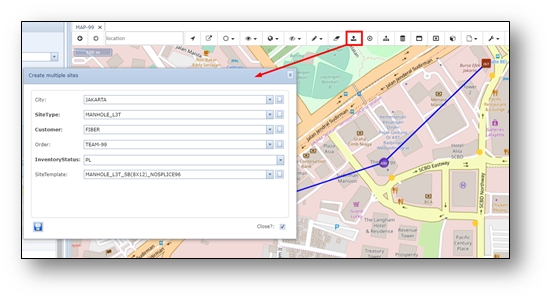
Use a site template that creates the manhole and spliceboxes.
Press save.
Create Transition Points
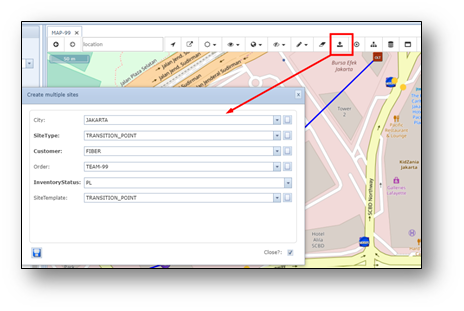
Transition Points are created via similar way as manholes/handholes. Below is an explanation shown in the screenshot.
•First select the point option to identify the locations
•Then mark the locations for the new Transition Points (see arrows)
•Save the information, similar as below.
•Use a site template that is used for creating Transition Points.
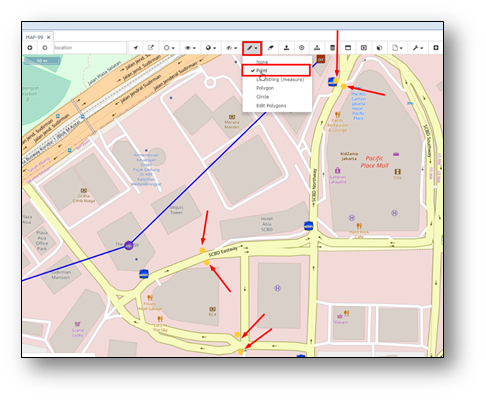
Press save.
Create Poles
Poles are created via similar way as Transition Points and Manholes. Just select a site template that have the pole as site & node object and potentially a splicebox for splicing purposes.
Create Trench
Before creating the TRENCH connections, the TRENCH endpoints must exist. These are:
-Cable entry points in buildings/BTS site
-Manholes/Handholes
-Transition Points (TP)
-Poles
To create trenches, it can be done one by one, but it is recommended to do multiple in 1 go.
Follow these steps:
1. Make sure you only have the Cable Entries, Man-/handholes, Transitionpoints (and poles if applicable) visible on the screen. Also disable any non-trench connection. Do this by disabling all DDFs, see screenshot below.
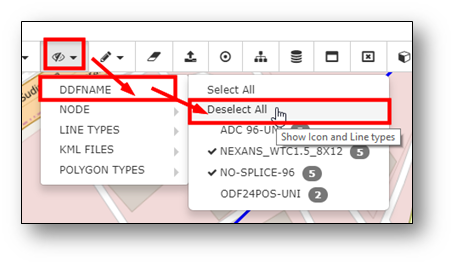
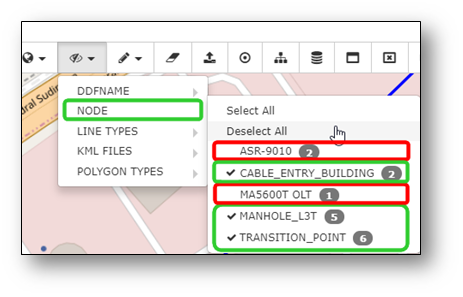
Then deselect all non-geo related nodes
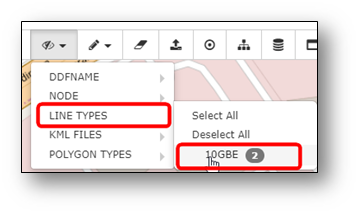
And also de-select any non-TRENCH connection
2. Select nodes – IN CORRECT LOGICAL ORDER (!) – to create string of serial trenches - see example below. After selecting the first node, hold your SHIFT key to multi-select the nodes on the screen.

It should look similar as:

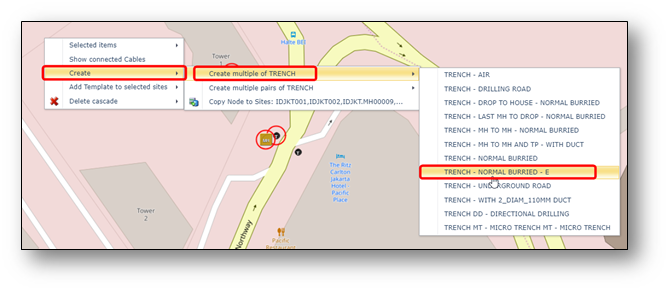
Then in the background of the network map, choose option:
Create > Create multiple of TRENCH > [ correct product code / type of trench ]
After saving the selection, IMS will create the TRENCH connections. It should look like:
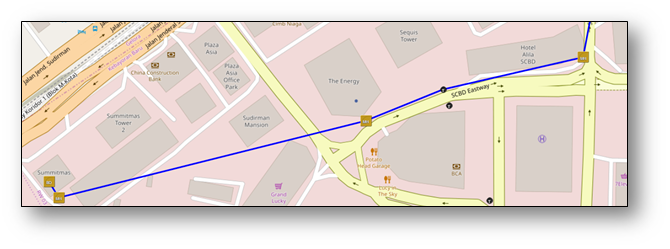
The lines in the map are straight lines.
To give the lines a geographical route, place your mouse on the line and press CTRL button. A blue dot appears in the line. This dot you can position on the right geographical location. You can add as many dots/geo-locations as needed.
See example screenshot below.

Below screenshot shows how the end result for the first set of TRENCH connections could look like.
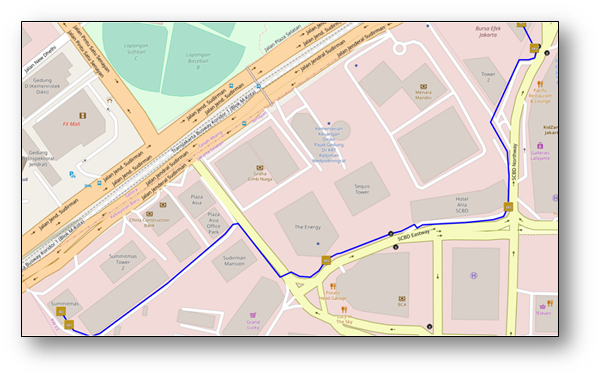
Create Parallel Trenches
In previous explanation, TRENCH connections where created that are serial. But sometimes you need to create multiple TRENCH connection that are “parallel”. See example below.
In below example screenshot there is need for 1 TRENCH between Transition Point (TP) 1 and 2, another TRENCH between TP 3 and TP 4 and again another between TP5 and TP6
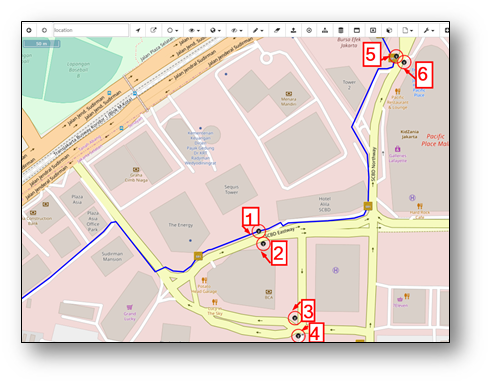
Steps for creating the “parallel” TRENCH connections:
1.Click TP 1 (see screenshot) with left mouse button. A red circle will appear around the TP icon.
2.Then hold your SHIFT key down while selecting the other TP’s.
•It is very important to understand that IMS will use the sequence of clicking to determine
between which TP’s the TRENCH connections will be created.
By clicking first 1 then 2 then 3 then 4, IMS will create a TRENCH between 1 and 2.
And another between 3 and 4.
Click TP 1 to 6 in correct order with your SHIFT button pressed down.

3.Next press with right mouse button in the Network Map background somewhere.
Choose option: Create > Create multiple PAIRS of TRENCH > <type of trench you are creating>
Here is it important to select the PAIR option
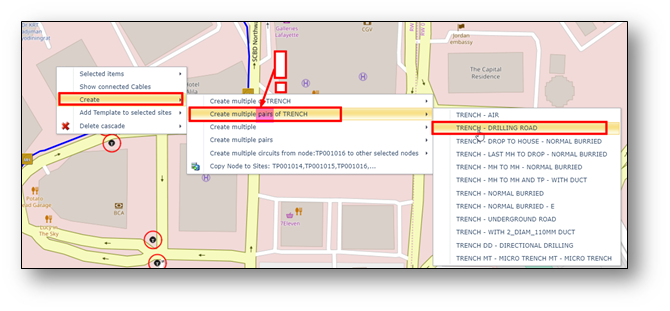
The end result should be something like screenshot below:
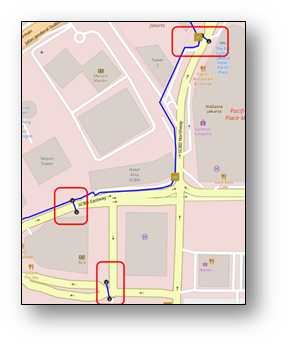
Complete the trench connections to finalize the route

Create DUCTs
The DUCTs will be routed via (into) the TRENCH connections.
There are 3 options/methods to do that. It will be depending on the situation what is best method to take.
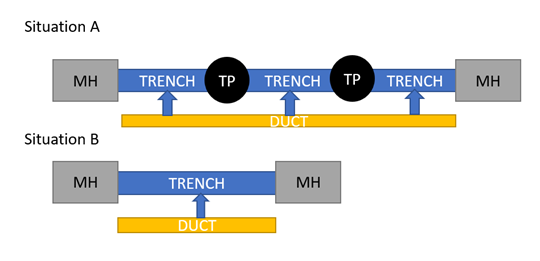
In situation A, the duct will run from Manhole to Manhole (MH) via multiple Transition Points.
So, the duct must run via multiple TRENCH connections.
If there is no existing DUCT connection yet, method 2 (below) is easiest method.
If there is already an existing DUCT, or auto routing is not going to be used, method 3 is best option.
In situation B, the duct is only to be positioned into 1 TRENCH.
Because of this simple routing, method 1 (below) is easiest for the user.
Below explanation of the 3 methods.
Method 1) – to be used when duct is only going into 1 TRENCH
Right click on the trench, choose option: Add new > correct duct type > channel 0
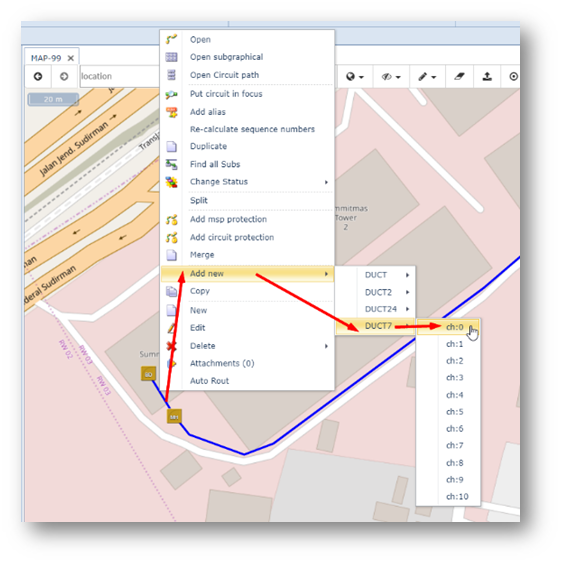
A pop-up window appears for creating the DUCT connection details. Fill in fields and press save.
Method 2) – use auto route option.
If the new DUCT connection will have multiple hops, easiest is to use auto routing option.
Select the two end points of the duct, see example below. Select the first one with left mouse button,
then hold the SHIFT key down and select the 2nd end point with left mouse button.
In background, choose option Create > Auto Routing > correct DUCT speed.

A routing form will open. Use the calculated routing to create a circuit.
A new pop-up window appears with the routing ID number filled in (taken from the auto routing)
Fill in all details of the new duct, such as order number, correct product code, etc.
Press save.
Method 3) – alternative to method 1 and 2.
If DUCT connection already exists, set this one in focus. If duct is not existing and you don’t want to use
auto routing, first a create DUCT name via selecting the 2 endpoints, similar as selecting as described in
method 2, then choose option, Create > Open create form / or choose option Create >
do create on free ports > (select ports).
Then in Network Map right click on the correct TRENCH connection(s) and choose option add to channel > 0.
After creating the duct, check the result by clicking once on the trench.
You should see a small table on the left indicating the DUCT into the TRENCH.
Create CABLES
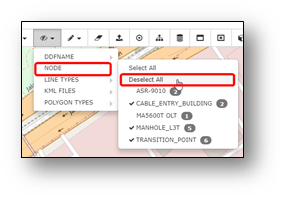
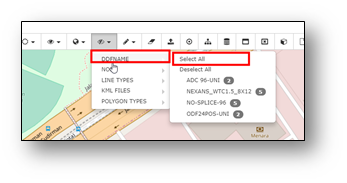
To create cables (using the Network Map), best is to de-select (make invisible) all nodes and enable
(make visible) all ODF’s and Spliceboxes.
You can do that via:
Make Nodes invisible: Make ODF’s/Spliceboxes visible:
Icon clusters
If there are multiple nodes or ODF’s in same location, then it is not always convenient that all icons
are plotted on top of each other.
For this reason, there is an option “Icon Clusters”, which means the icons are separated on the screen
when your mouse pointer is on the icon cluster.
To enable (and disable) use option as per screenshot
on the right 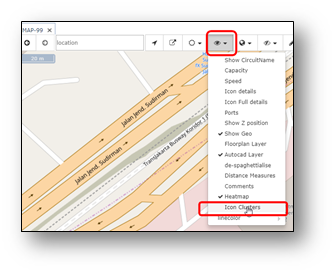
Explanation NOSPLICE (NO SPLICE) splicebox
When a cable is running straight though a manhole without any splicing, there is no need for a splicebox.
But when one or multiple fibers are spliced to another cable, there is need for a splicebox.
There are several types of spliceboxes, for example 8x12, which means 8 trays of 12 cassettes.
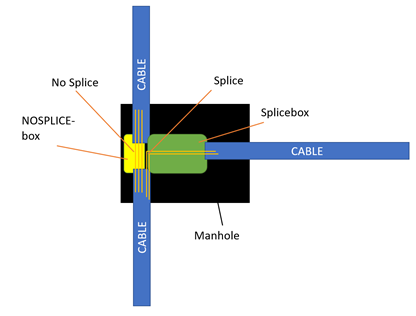
In many cases some fibers will be spliced, but others will run through without any splice, see drawing.
The fibers that will run through without any splice will be connected to a so-called “NOSPLICE” splice box,
indicating that they are not spliced.
Create cables via Cableconnect function
To create a new cable using the CableConnect function, first select the two endpoints. This can be:
-An ODF
-A Splicebox in a manhole/handhole or pole.
If you have multiple ODF’s/Spliceboxes in the same location, easiest is to enable the icon cluster function,
as explained earlier.
Then select the first ODF or splicebox with the left mouse button, see screenshot on the left below.
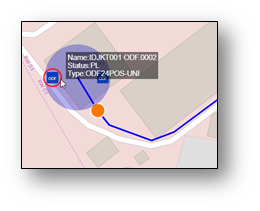
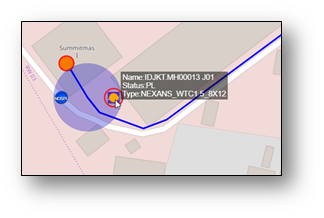
To select the second end point, hold your SHIFT key down and select the second ODF/Splicebox,
see screenshot above on the right.
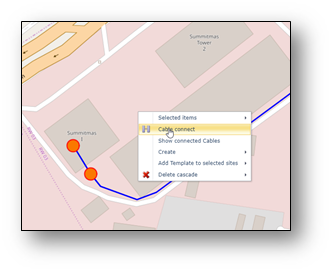
Once the two end points are selected, in the Network Map background, select with right mouse button
menu option: Cable Connect.
A pop-up window appears with the following fields:
Order |
Order number of the work order you are working on. |
Speed |
Speed of cable you are going to use, for example CBL24, CBL96 |
Connect Cables |
This indicate all sub CBL1 cables that should be connected to the end points. For this activity, normally it should have all fiber numbers, separated by a “ | “ (piper) symbol |
Product |
Type of cable. These types (product codes) can be set in product code form. The default value can be set in speed form. |
InventoryStatus |
Status of the cable, default is PL |
Measured Length |
Optional field to store the length of the cable that is measured by your fiber work contractor. |
From Type |
DdfOdf or Equipment. With creating a cable between ODF/Splicebox and another ODF/Splicebox, make sure both From Type and To type fields are set to DdfOdf. |
From |
This is a non-editable field that give you a list of ports that will be used for connecting the sub fibers (CBL1) |
From Site |
Start site/location name |
From FrontBack |
Indicates the FRONT or BACK side of the ODF / Splicebox position |
From DdfOdf |
The start DdfOdf name |
From DdfOdfPosition |
The start DdfOdf position |
To Type |
DdfOdf or Equipment. With creating a cable between ODF/Splicebox and another ODF/Splicebox, make sure both From Type and To type fields are set to DdfOdf. |
To |
This is a non-editable field that give you a list of ports that will be used for connecting the sub fibers (CBL1) |
To Site |
End site/location name |
To FrontBack |
Indicates the FRONT or BACK side of the ODF / Splicebox position |
To DdfOdf |
The end DdfOdf name |
To DdfOdfPosition |
The end DdfOdf position |
Route over ducts |
When “ticked”/selected, IMS will create the cable plus it will also route the new cable over ducts (if available).
For this fiber cable creation, make sure it is ticked/selected. |
Route Over Same Channels |
When “ticked”/selected, IMS will add the fiber cable into the same duct channels in case there are multiple serial ducts of the same duct type. This option is mainly used for fiber to the home networks.
For this fiber cable creation, it does not matter if it is ticket/selected or not. |
Press save.
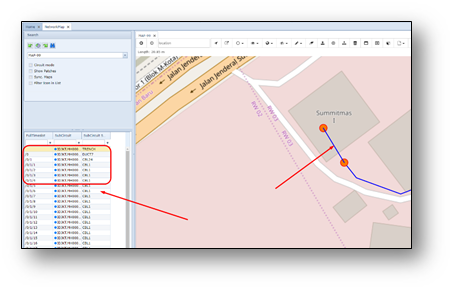
After finish, please click once with left mouse button on the trench with cable.
You should be able to see the hierarchy on the left, see example below.
Add additional Splice box or NOSPLICE in a site
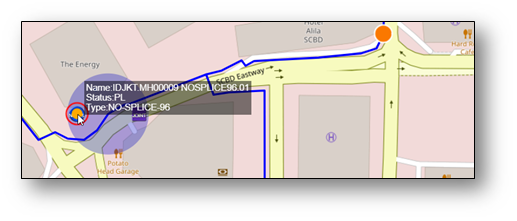
If a new SPLICEBOX or NOSPLICE box is needed in a site, click with left mouse button on an existing
node or DDF/ODF/Splicebox in the site, as per screenshot below.
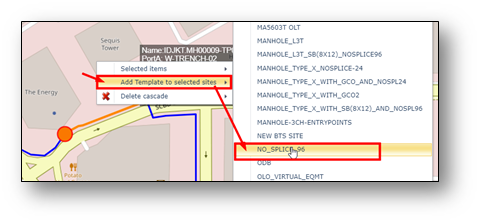
-Click with right mouse button in the Network Background and select
“Add Template to selected sites > <splicebox template you want to add>
Create SPLICES in Splicebox/Joint
When there are no splices in a manhole/handhole or pole site yet, the cables will be connected to
a NOSPLICE splicebox.
See example screenshot below, explaining two situations.
Situation 1: Cables are connected to a different NO-SPLICE box
Situation 2: Cables are connected to the same NO-SPLICE box (to front and back positions)

To splice (connect) fiber (CBL1) connections to a real splicebox, the fiber cables must be disconnected
from the NOSPLICE box first.
When disconnected from NOSPLICE box, you can connect them to the SPLICE box.
Steps for disconnecting from NOSPLICE:
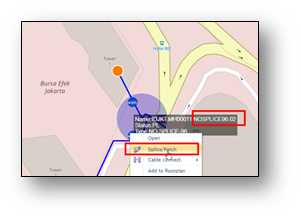
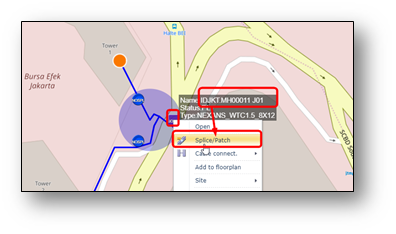
1- On a NOSPLICE, right click and choose option “Splice/Patch”, see example screenshot
2-A pop-up form appears. This form is used to connect and disconnect splices & patches.
When disconnecting only the middle part need to be used.
See screenshot below.

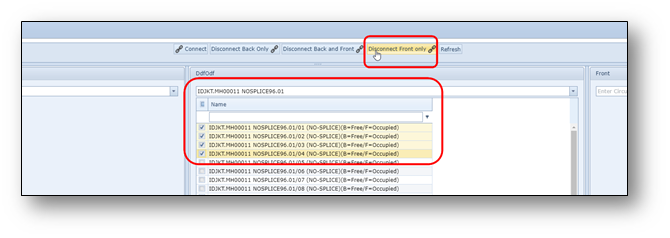
In the example, in the red circle it is highlighted that the B (Back) side is occupied from
position 1 to 24. The F (Front) positions are available/Free. To disconnect the positions,
select it via the tick-boxes in the middle column on the left side of the positions (see
highlighted in blue). Then use the one of the disconnect buttons on the top, also highlighted in
blue. In example screenshot, 4 positions of the back side need to be disconnected, so click on
“Disconnect BACK only” button (highlighted in purple).
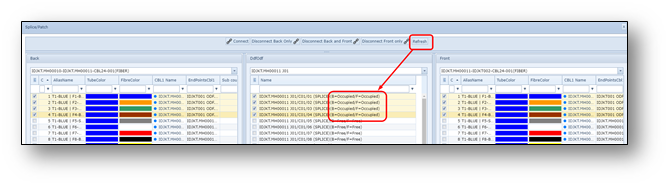
3-Once the positions are disconnected, the screen need to be refreshed. This can be done by button
“refresh”, see below screenshot.
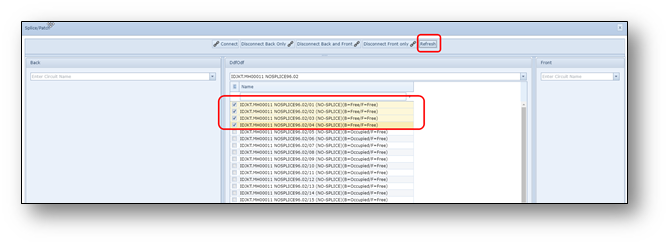
4-Make sure the positions of the other cable are also disconnected. Open the related NOSPLICE
and disconnect those connections. Execute same steps as 1-3.
But please note the positions can be connected to the FRONT, so then disconnect from FRONT,
see screenshot below.
Steps for connecting to SPLICE box:
5-Make sure the positions you need to splice, are not connected to a NOSPLICE. See previous steps.
6-Open the (real) splicebox/joint. See example screenshot.
1.The Splice/Patch pop-up form appears on the screen.
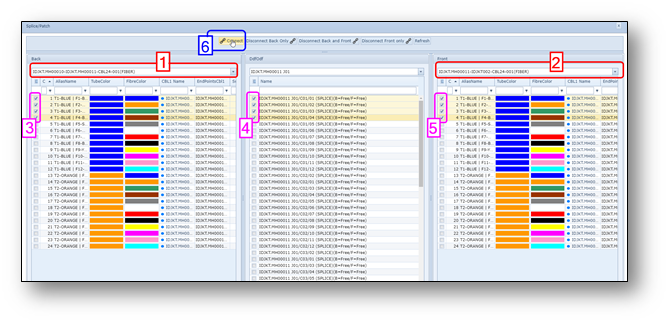
1.First select the 2 cables of which you want to splice some of the fibers.
2.See screenshot -highlight 1 & 2 (red).
3.Then select the fiber positions you want to connect and to which cassette position of the splice box.
4.See highlight 3,4 & 5 (purple)
5.To connect (splice) those fibers, press button Connect – see screenshot highlight 6 (blue).
6.Press refresh button to see that the fibers are connected/spliced.
9-
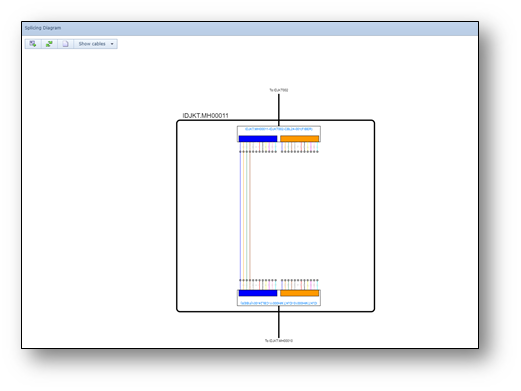
Open splicing diagram
The splices can also be checked via the splicing diagram.

To open this, open the option “Splicing diagram” via the right mouse option on the SPLICEBOX/JOINT
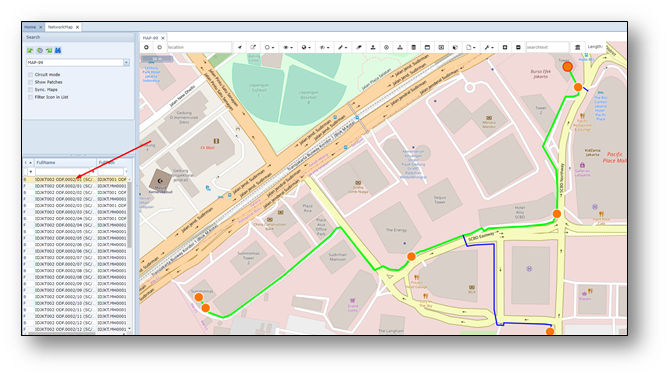
Highlight fiber route on screen.
Any fiber route can be highlighted on the screen/Network Map.
Click on an ODF, the positions will be visible on the left of the screen.
Then click on one of the patch positions.
Add SLACK
A Fiber cable can have extra length in the manhole. This is called “slack”.
In IMS this slack is being registered on cable + (manhole/handhole/pole) site.
Easiest way of registering the slack. Find the correct cable, right click on cable circuitname (for example a
CBL24, CBL96, etc), and choose “set circuit in focus”.
Then in the network map, on a manhole, handhole or pole, right click and choose Site > new > slack.
If you only know the length, just fill in 1 value indicating the meters.
If you use the markers on the cable, fill in the start and end marker value. IMS will subtract them to calculate
the slack length.