The search (pull-down) field is used to search for racks matching the entered string in the field
or
when clicking the pull-down icon and using the search fields at the top of each field column to filter your search
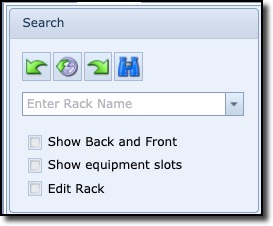
The Show back and Front check box, when enabled, will display in the graphical layout pane both the front and rear view of the rack. If the check box is unselected (default), then only the front rack graphic is displayed.
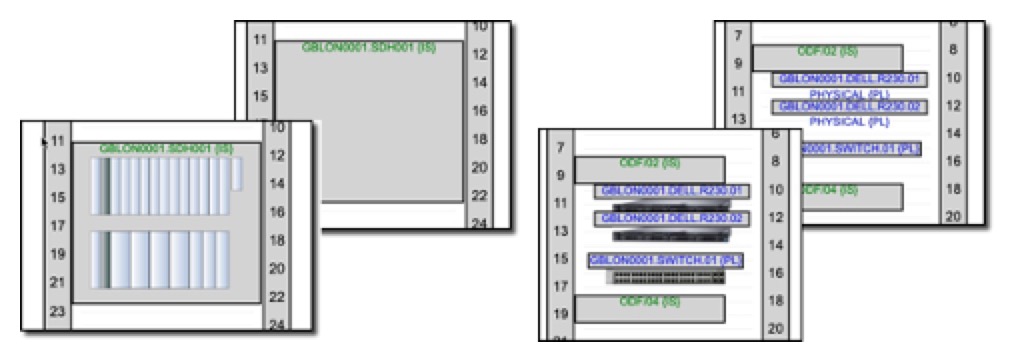
The Show equipment slots check box, when enabled, will display in the graphical layout pane the rack with all related equipment. Their slots with cards are revealed. Some equipment with an attached graphic of the equipment, will be revealed as well. If the check box is unselected (default), then only empty equipment graphic is displayed. Compare the two pairs of diagrams of shelves below – with and without slots showing.
The Edit Rack check box, when enabled, will display in the graphical area pane, all equipment in the rack with the option to then right click individual pieces of equipment, and rearrange their rack positions.
Once you locate and open the required rack instance from the search area, the Rack main window is displayed.
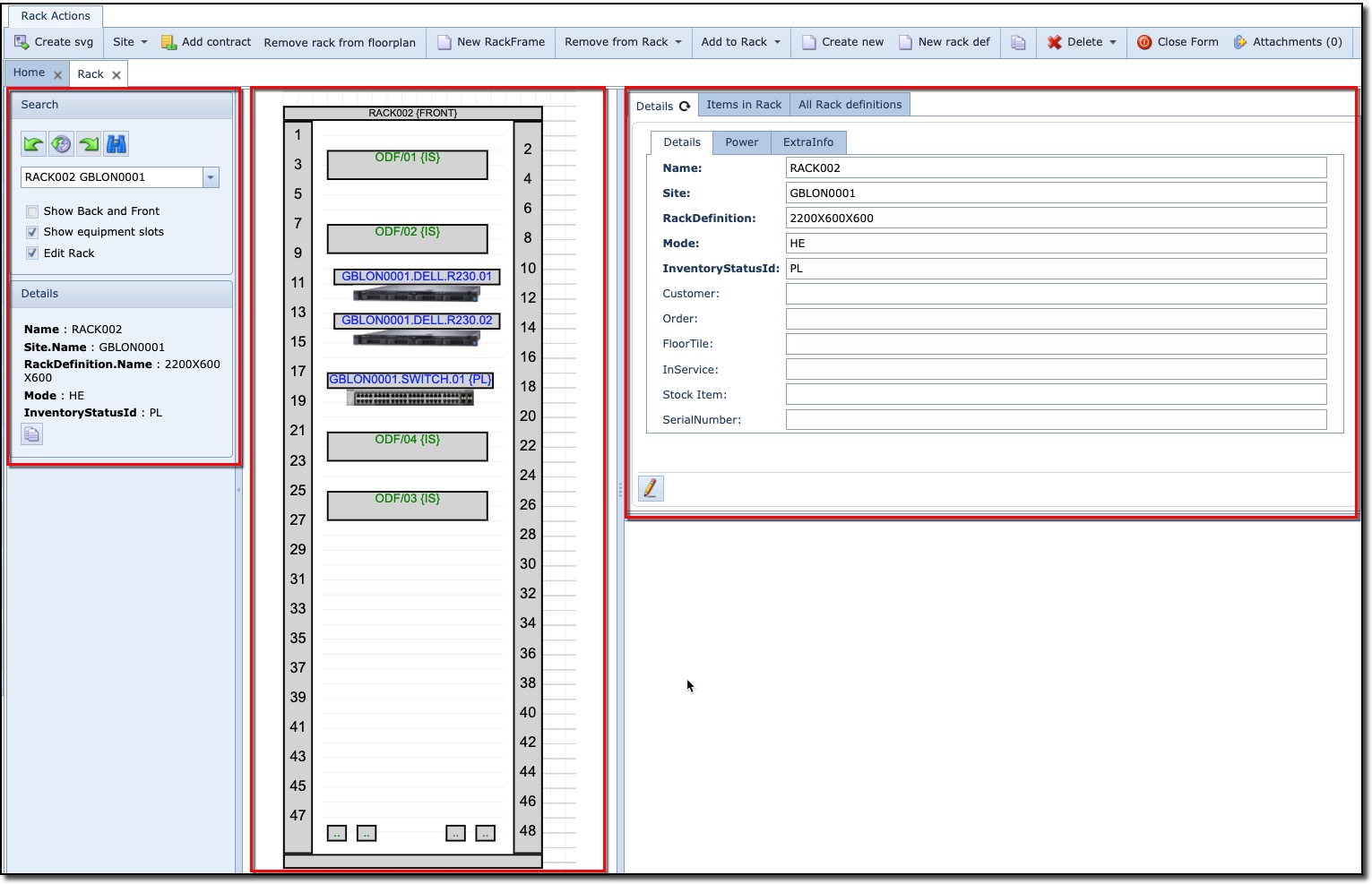
Three areas of information are available in the Rack window:
Left pane |
Summary details of the rack |
Middle pane |
Graphical representation of the rack and its contained equipment |
Right pane |
In-depth information of the rack |