The Stock feature provides management of all the different material - material type - contained in the Warehouse and is at the heart of the Warehouse system.
Remember that these material type assets can be distinct from the conventional IMS network assets like equipment, routers, switches, and mux-es, connections like paths and services, customers and contacts, distribution frames and racks, etc. An example of these distinct material types could be: office table and chairs, computers or laptops, mobile phones, printers, etc.
As well as a series of processes, the Warehouse feature involves applying and using a set of actions and statuses for every material item as it moves through the warehouse system. A material item is known as a material type i.e., 1GBE-SFP99 could be a Gigabit Ethernet Small Form Pluggable (SFP) module.
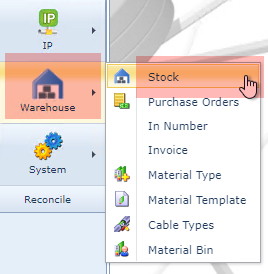
The Stock feature is accessed from the IMS Main Menu under the Warehouse module.
Use the Search area to locate any existing Stock instance i.e. SPARES, USED MATERIAL, etc. Once a Stock instance is opened the Stock Dashboard contains several areas of information described as follows:

1 |
Stock Form Actions button bar |
2 |
Search area for locating existing Stock instances |
3 |
The main Stock instance details for quick reference |
4 |
The Stock details pertaining to its Site or location |
5 |
The main display area related to the various tabs of information |
One of the important tabs of information is the StockLevels tab and worthy of further description in the following table:
Field name |
Description |
MaterialType Name |
Name of this material type |
MaterialClass |
Related class of the material type i.e., furniture, IT equipment, etc. |
Vendor Name |
Vendor or manufacturer of the material |
MaterialType Description |
Brief description of the material |
InStock |
Amount of the material in stock |
Reserved |
Amount of reservations for the material |
InOrder |
Amount in order for the material - commonly known as On Order |
NotInStock |
Negative stock for the material |
VirtualInStock |
Result of amount Instock minus Reserved plus InOrder - related to 'Order Advise' field mentioned below. |
AvailableStock |
Current available stock, e.g. Instock minus Reserved |
OrderAdvise |
Amount to be ordered for this material based on the configured rules (minimum and maximum stock values). Should the amount of VirtualInStock become less than the configured minimum stock, then the OrderAdvise will be the amount of maximum stock minus the amount of VirtualInStock |
Stock Name |
The name of the Stock this tab refers to |
As Stock material moves through the Warehouse, it's Status will change. These Statuses are described below.
Stock Item Statuses
The following is a list of all the statuses that can be applied to a material item in the Warehouse:
Status name |
Description |
Ordered |
Material that has already been ordered |
In Stock |
Material that has been signed into Stock - usually from having been ordered |
Order Cancelled |
Material that was placed on order but now has been cancelled |
Returned to Supplier |
Material that was found defective and has now been returned to supplier |
Ready for Sale |
Material that has been selected for disposal - sale or Waste |
Warehouse other |
-- deprecated -- not in use anymore |
Sold |
Material that has been disposed of after the status of Ready for Sale |
Lay out |
Material that has been laid out from stock supplies ready for the booking out process |
Offer |
-- deprecated -- not in use anymore |
Defect |
Material that has been placed in a defective status ready for returning to supplier or vendor |
Not in Stock |
Material has been booked out - i.e., sent to a network location |
To be Returned |
Return an item that has been sent to a site, back to the warehouse stock - using the 'Move to Stock' action. The item's status will be changed to 'To be Returned'. The next step would be to book it back into stock. |
In Transfer |
A status for material that is in stock and the Stock Item Action of "Move To Site" has been applied to it |
Stock Form Actions Button Bar
The StockForm Actions button bar has the following options:
All StockItems |
Displays a complete list of all stock items contained in the IMS database |
Stockitems history |
Displays a complete list of all stock items' history contained in the IMS database |
Stock item Action |
Opens a popup window from which to 'move' material in and out of stock and into its relevant status as it transitions the Warehouse |
Reserve Materials |
The process for reserving material from a particular section of Stock and related to an Order/TT instance. This is the initial step prior to Laying Out the material, followed by Booking Out which is then allocated to Network Inventory |
Book in/out Cables |
A form for managing actions on cables - relates to section on "Cable Stock Handling" |
New MaterialTicket |
A Material Ticket is created when preparing stock items for pick-up |
Create Stockrule |
Define minimum and maximum stock levels - relates to VirtualInStock and OrderAdvise fields in the Stock tab called StockLevels |
Create New Purchase Order |
Creating New P.Os for ordering material - relates to section on "Getting Material Into Stock" |
Add material to stock |
Add material to stock manually - relates to section on "Getting Material Into Stock" |
Create new |
Create a new stock location within the Warehouse relates to section on "Different Stock Locations" |
Delete |
Delete a specific stock location |
Close Form |
Close the Warehouse form altogether |