The following IMS objects may have IP addresses assigned to them: Circuit, Site, Country, Node, Card, Port, Customer
▪ |
The first step in IP Address assignment is to ensure the IMS object is placed in focus and in a Domain. The next screenshot shows a piece of equipment assigned to a domain already, and has an IP number assigned to it at Node level. |
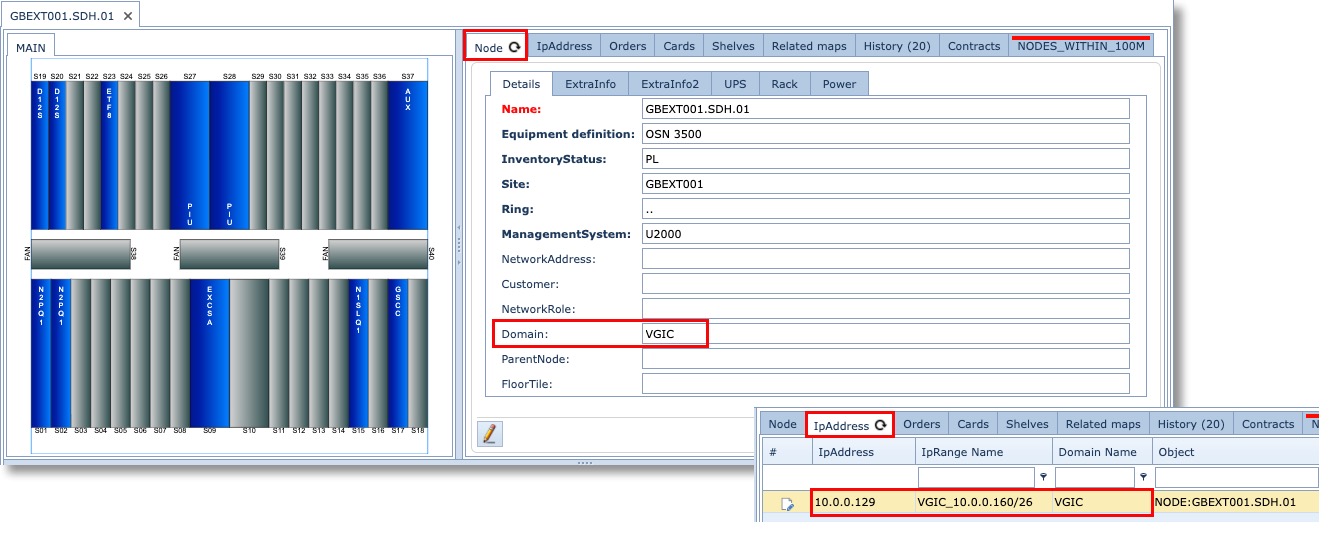
In this example another IP number from another range will be assigned to an individual port on this node. As the Node is already in a domain, all related objects like cards and ports inherit that domain as well, so there is no further action needed regarding the domain.
▪ |
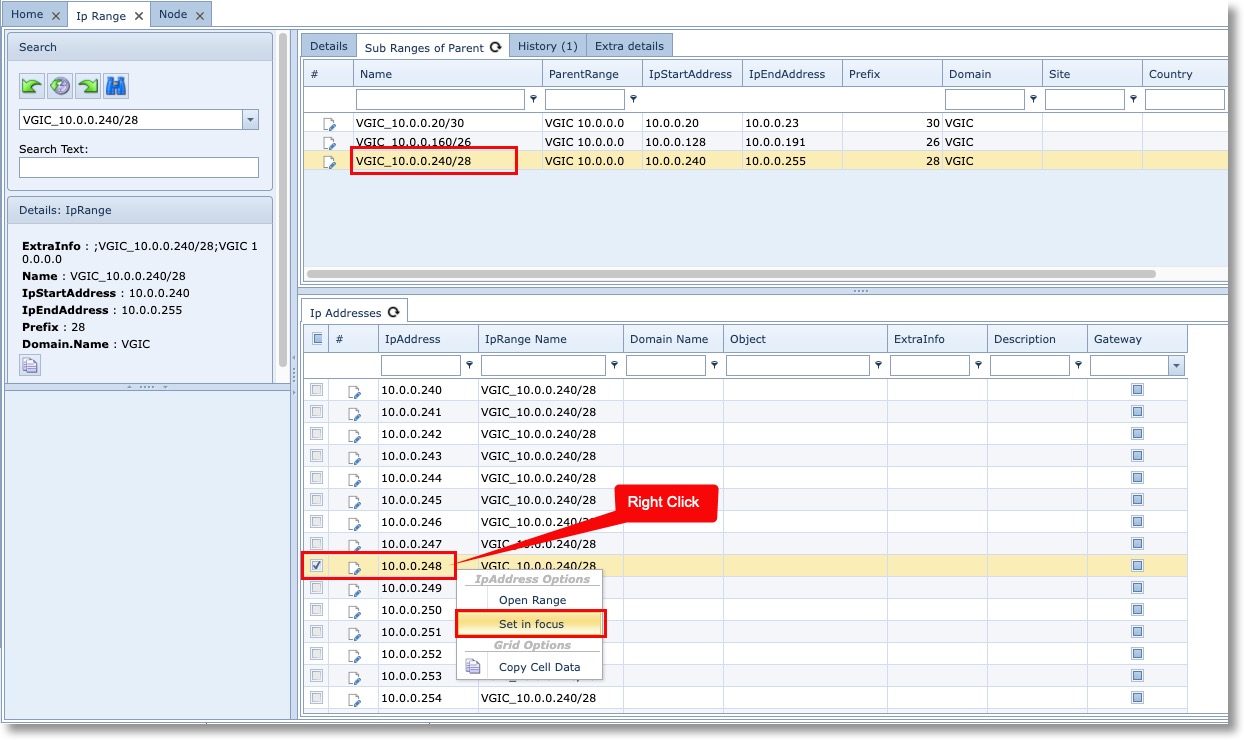
The second step is to put the required IP Number into focus, this is achieved as shown in the next screenshot |
▪ |
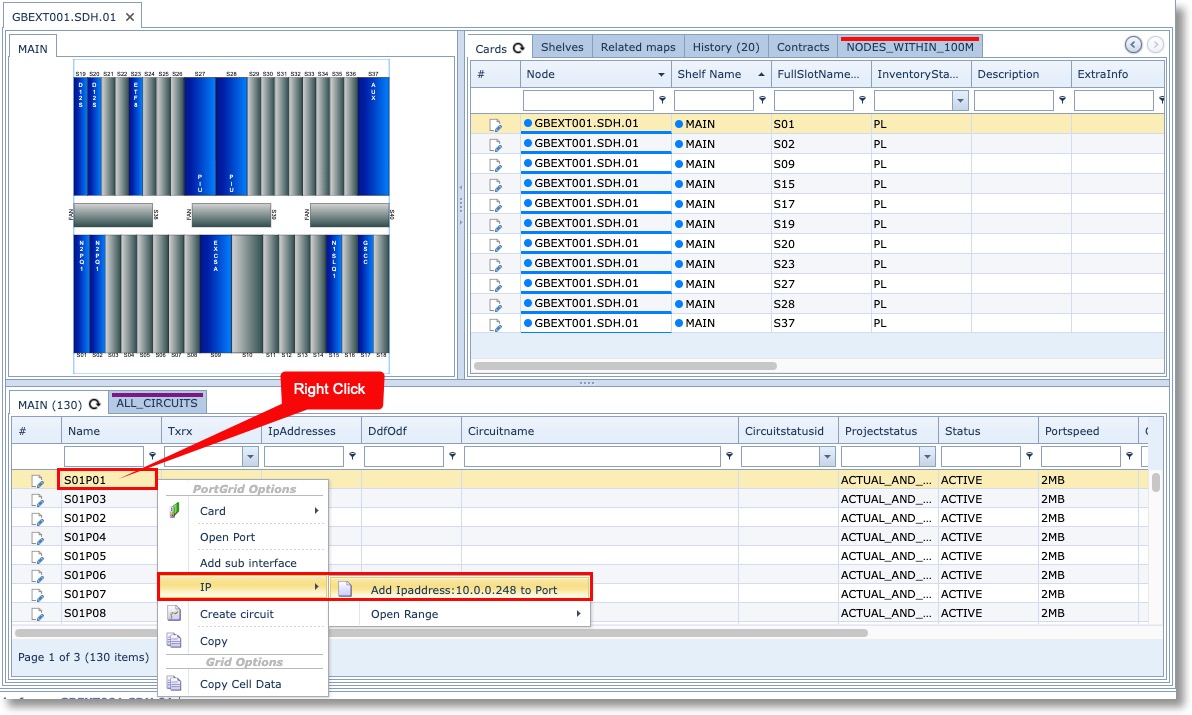
Select the required port from the Node object form, and Right Click on it to reveal the options list popup |
▪ |
Select IP and then Add Ipaddresses … options to assign the IP number to the port |
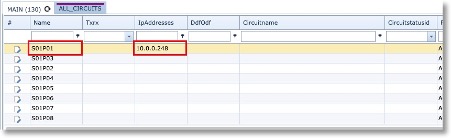
The new IP Number assignment should then be visible in the ports tab as can be seen in the next screenshot, but remember first to refresh the Node object by clicking the binocular icon in the search pane.