This feature allows the user to search for multiple IMS objects (entities) in one spreadsheet file. Once loaded into IMS and processed, the output can be displayed on the screen or written to another spreadsheet file.
An alternative to loading a search spreadsheet file, would be to load the contents of the search spreadsheet directly into the upper Input section. This section describes the former method.
Bulk Searching Permissions
In order to use the Bulk Searcher feature, a User Group's Permission Settings must first be enabled. This is achieved by accessing the UserGroupPermission Tab as follows:
From the IMS Main Menu:
▪Select System | Users | User Groups
This opens up the UserGroup Form
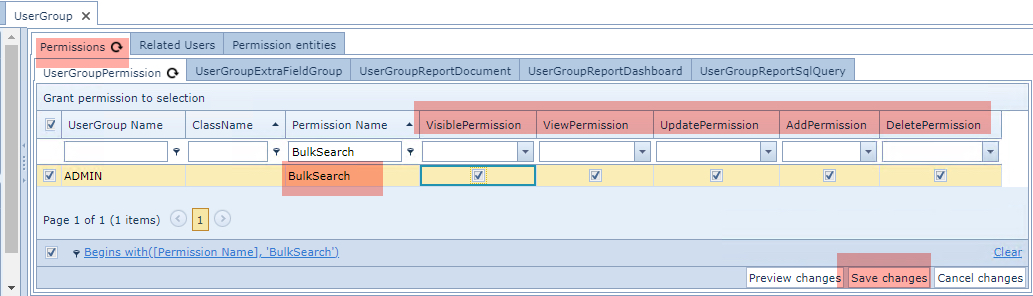
From the Permissions Tab and then in its nested Tab called UserGroupPermission ...
▪Type BulkSearch in the Permission Name column filter field and press the Enter/Return key - you should see the Permission Name listed as in the above screen shot
▪Ensure that the various required Permission columns are enabled
▪Click on the Save Changes option button in the lower right corner
Accessing the Bulk Searcher
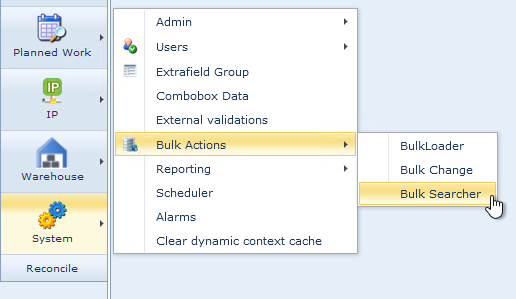
Accessed from the IMS Main Menu by selecting the System option:
▪ then select Bulk Actions followed by Bulk Searcher
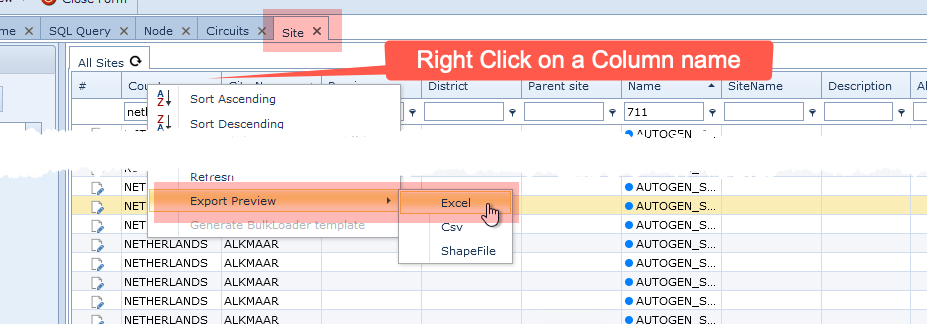
To obtain an entity's list of column names, perform an Export Preview on the Tab name of the required IMS entity - refer to the following screen shot for a reminder. This will generate a spreadsheet file containing all the column names. |
Creating a Search Spreadsheet
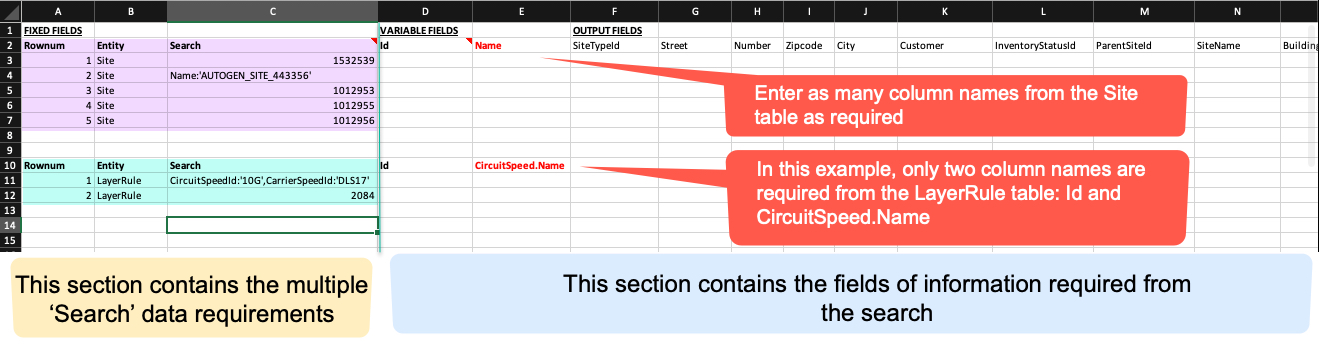
Create a spreadsheet with the required columnar information that will be required from each entity.
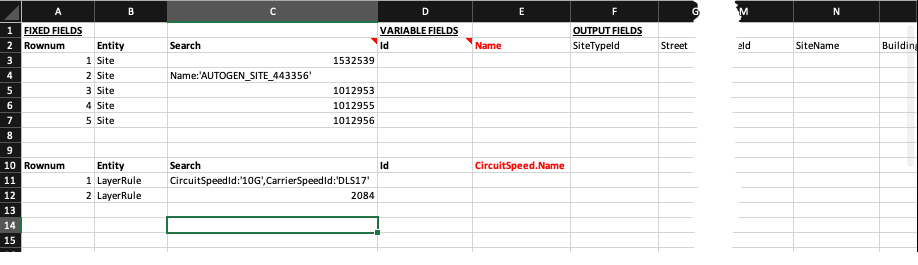
The following 2 screen shots give an example of two IMS entities that will be searched for at one time; the Site and Layer Rule. The second of the 2 screen shots describes the various sections of the file.
Once the search spreadsheet has been created then it is ready to be loaded into the Bulk Searcher.
Loading and running the Search File
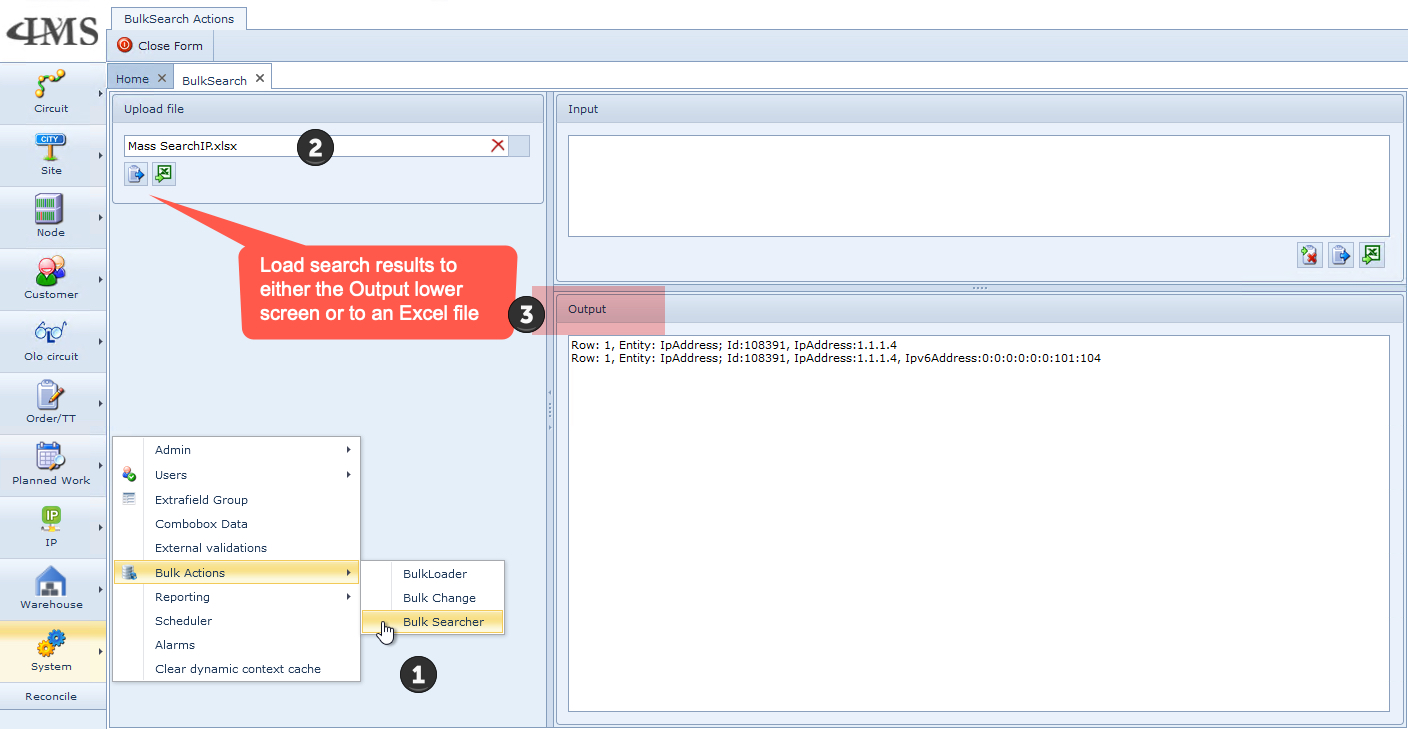
Having opened the Bulk Searcher module as described above and in step 1 in the screen shot below ...
2 |
Load the search spreadsheet using the File Search field in the Upload File section |
3 |
Select either output formats from the 2 icons below the File Search field |
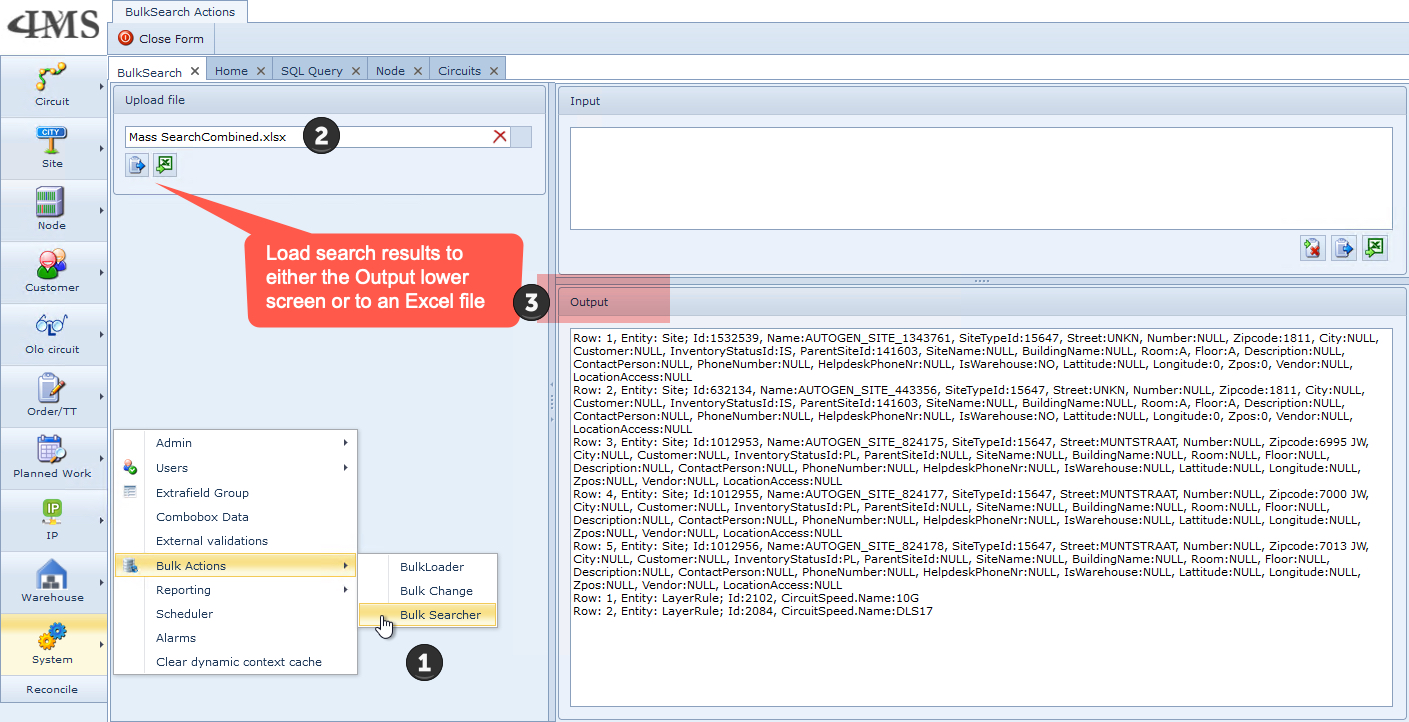
The Blue icon will load the results from the search directly into the Output screen, whereas the Green icon will write the results to file - typically to the Download folder on the local machine.
Bulk Searching IP Addresses
The same process applies for searching valid IP addresses - IPv4 and v6 - refer to the section above for process instructions.
The following screen shot shows a spreadsheet with requirements to search for both versions of IP numbers:
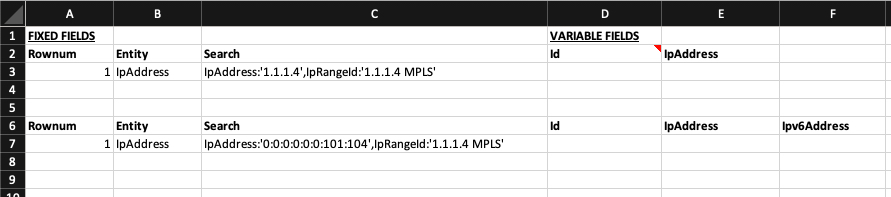
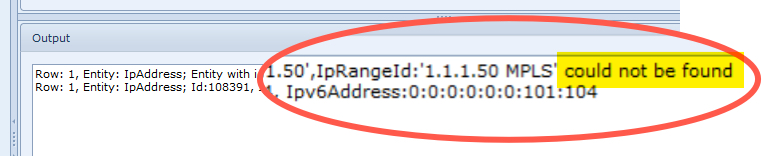
In the event of searched for IP numbers not in the database, then a 'not found' message is given on the relevant output line: