From the Order Actions menu bar:
If no existing orders are already open:
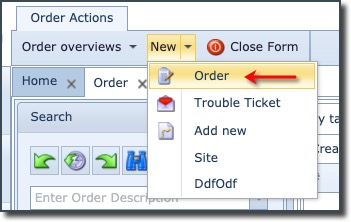
If existing orders have been opened:

•Click on the New option
This opens the Create new Order popup window
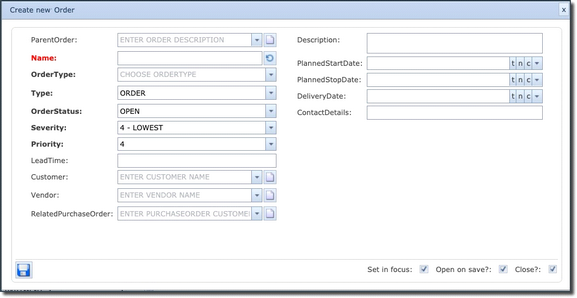
Fill in the following details:
Parent Order |
Name of Parent Order if applicable – i.e., this order is a sub-order |
Name |
Name of this new Order |
OrderType |
Select an order type – i.e., “Construct fiber and update design” |
Type |
Select type – i.e., Order or Fault (Trouble Ticket) |
OrderStatus |
Select this Order’s status: Closed, Open, or Cancelled – default is Open |
Severity |
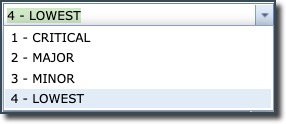
Refers to the problem/issue raised i.e., how serious this issue is. Select from 1 to 4. |
Priority |
Refers to how the problem/issue is to be treated for resolution i.e., Tech Support. Select a value from 1 to 4 – 1 being the highest priority |
LeadTime |
Time in days/hours this problem/issue should take to resolve |
Customer |
Customer name this Order relates to |
Vendor |
Name of the Vendor of the IMS object related to this Order |
RelatedPurchaseOrder |
Purchase Order reference related to this Order |
Description |
Text field to add further description about this Order |
PlannedStartDate |
Date when order is planned to be started |
PlannedStopDate |
Date when order is planned to be finished |
DeliveryDate |
Date when order must be delivered to customer |
ContactDetails
|
Text field to add any additional contact details for this Order |
•Click the Save button
|
If the Order Type is configured, then fill in the Order Name last, as this will be generated automatically based on the Order Type name generator. |
|
Prior to creating an Order, selecting the In Focus option will ensure that it is placed in focus, which is a convenient way to automatically assign new network objects to that order. This saves time having to search for and assign the new network objects to the order. |