From the OrderTypeForm Actions button bar:
▪ |
Click on the New Task icon option, this opens up the New Task OrderTask popup window |
▪ |
The OrderType field is already populated |
▪ |
Type in the Name field the name of this task in keeping with the overall aim of this Order Type i.e., ‘Update Card Status To Out Of Service’ |
▪ |
Type in the TaskSort field, a number that represents the sequence in which this task will be carried out in relation to all the other tasks in the Order Type i.e., if it is to be the first task then enter 1 |
▪ |
Type in the Lead-time field, a number that represents the overall number of days or minutes in which tis task should be accomplished in. This is not to be confused with the Hours Work field.
|
▪ |
In the Queue field, select from the dropdown list an appropriate Queue for this task i.e., given the above task of ‘Update Card Status To Out Of Service’, you may want to associate this with the Network Build queue. |
▪ |
Select from the TaskSetting dropdown list, Normal, Yes_No_Loop, or Backloop |
▪ |
Type in the HoursWork field the total number of hours estimated to accomplish this task |
▪ |
In the Description field, type in a brief instruction about this task i.e., given the above task of ‘Update Card Status To Out Of Service’, you may want to write ‘From the Node instance, Click on Card Tab, Right click on port, select OOS’ |
▪ |
Click on the Save icon in lower left of the popup window |

In the OrderTasks tab there will be an entry for this new task:

The Id column fields are autogenerated by IMS.
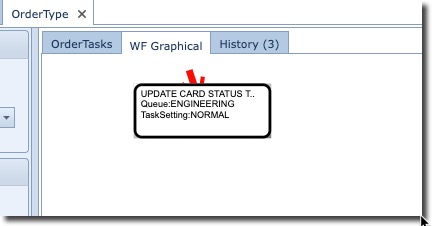
In the WF Graphical tab you will also notice this new task represented in a visual format.
From this point, further task instances can be created to build up an entire OrderType.