The Customers form is where internal and external customer details are registered. This chapter
explains how to find and register customer details.
The “Customer” object can be seen as the “owner” of objects.
So:
- |
in case of a (customer) service, the “customer” is your company’s customer |
- |
in case of a physical network connection, the “customer” is your company’s name but also often the platform name is being used like “DWDM” or “MPLS” |
- |
in case of a location/site, the “customer” is your company’s name or your real customer or any other location owner, like another Service Provider |
Open Customer Form
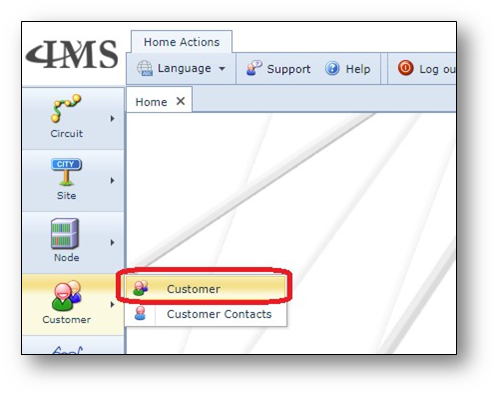
Navigate to the “Customer” form by clicking on the “Customer” button on the bar of the left side of the
screen and clicking the “Customer” option the opens as shown in the screenshot below.
Find a customer
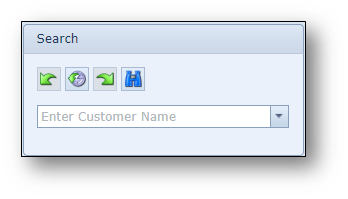
To find a customer name with its details, the search field can be used.
When the customer form is opened the following button bar is visible.
Customers Actions button bar

•Relate Customer To |
Relate the customer to a Group or Contact |
•Attachments |
Add an attachment to the Customer opened |
•Create new Customer |
Create a new Customer |
•Delete |
Delete the Customer |
•Close Form |
Close the Customer form |
Create a new customer
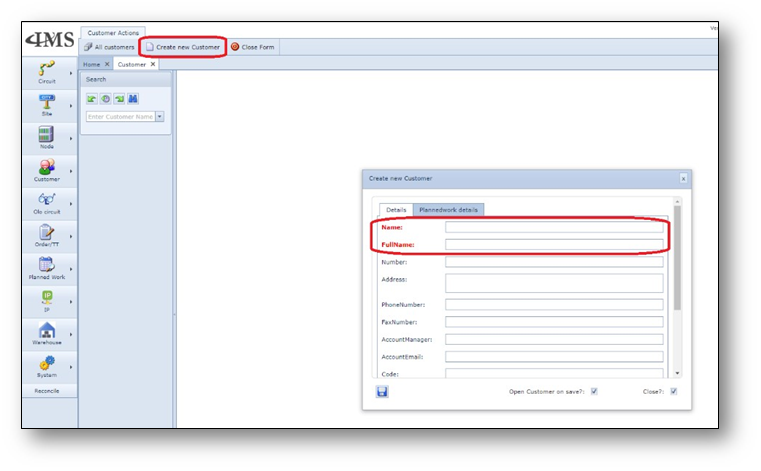
To create a new customer, click the “Create new Customer” button on the Customer Actions bar.
Fill in the details (Name and FullName are mandatory) and press save.
Screenshot: Create new Customer
Create a new customer contact
It is possible to relate one or more contacts to a customer.
To create a customer contact, open the Customer contacts form via the Customer main menu bar.
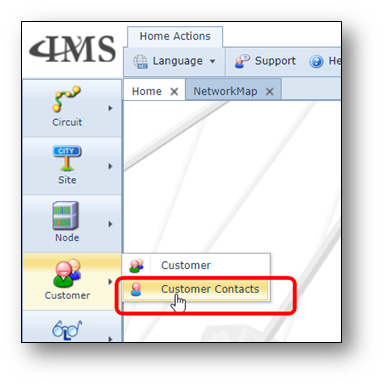
To create a new contact, press button “Create new Contact”. A pop-up window appears.
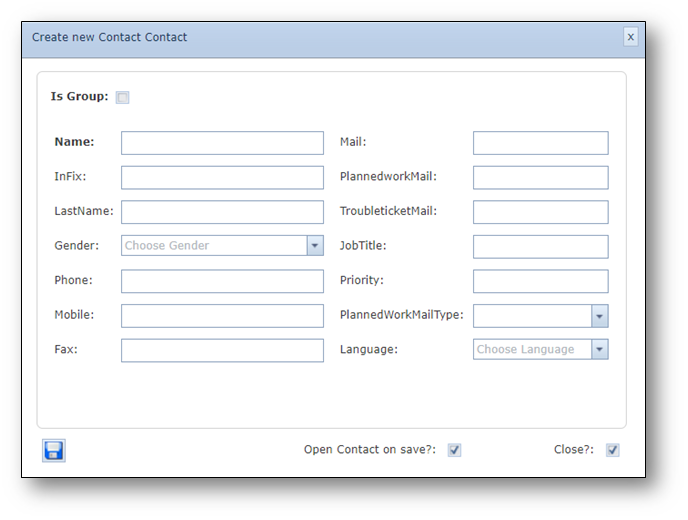
Name |
The first name of the contact person |
Infix |
Infix between first name and last name |
LastName |
Last/family name of the contact person |
Gender |
Male / Female |
Phone |
Phone number |
Mobile |
Mobiel number |
Fax |
Facsimile number |
Email address |
|
PlannedWorkMail |
In case contact person is receiving Planned Work (PW) notifications, to which email address the PW notifications need to be sent. |
TroubleTicketMail |
In case contact person is receiving Trouble Ticket (TT) notifications, to which email address the TT notifications need to be sent. |
JobTitle |
Job title of contact person |
Priority |
Priority |
PlannedWorkMailType |
In case contact person is receiving Planned Work (PW) notifications, what kind of notifications this person receives, an email text or calendar invitation per PW notification. |
Language |
Language of contact person, needed for communication such as Planned Work notifications |
After filling in the details, press save to store the new record.
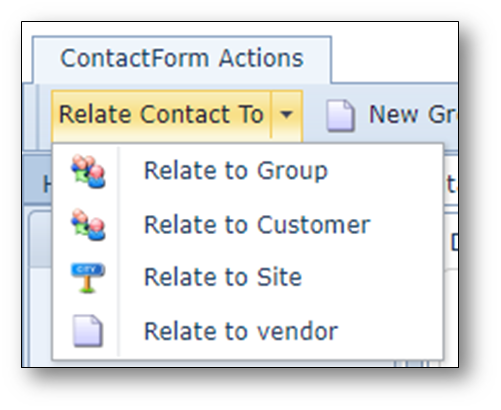
After creating the contact, the contact can be related to a group of contacts (department), to a
customer, to a Site or to a vendor.