There might be times when material in the warehouse (or network) is found to be faulty or defective.
Faulty materials returned to stock are set to a status of Defect, this allows them to then be sent to the supplier with a status of Returned To Supplier or vendor for repair or can be disposed of and removed from stock.

Material that is related to IMS Inventory items, like Cards or Nodes, can also be set to a Defect status directly from Inventory, which is automatically referenced in the Warehouse system.
The following steps are followed to register material as defective.
Status to Defect
The first step is to locate the item that is not working.
From the StockForm Actions module:
Click on the ItemsInStock tab
Use the filter fields (under each column name) to help locate the item that is to be sent back to the supplier, in this example the Purchase Order is well known and so the P.O. name is used for filtering.
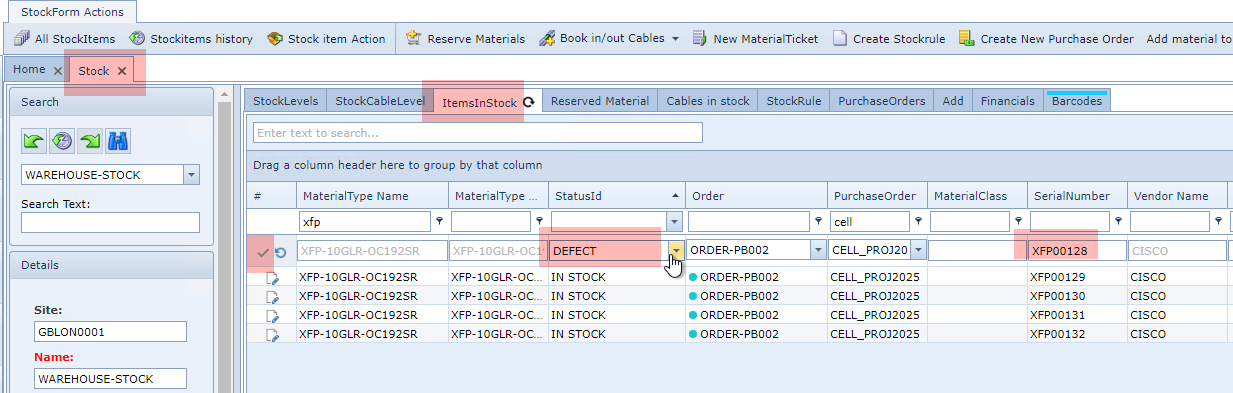
▪Click on the first column check box relating to the defective material - also note that serial number XFP00128 will be used as an example.
▪Edit the line item's StatusId field from IN STOCK to DEFECT - from the dropdown field options
▪Save the modifications by clicking on the green tick symbol at the start of the appropriate line item
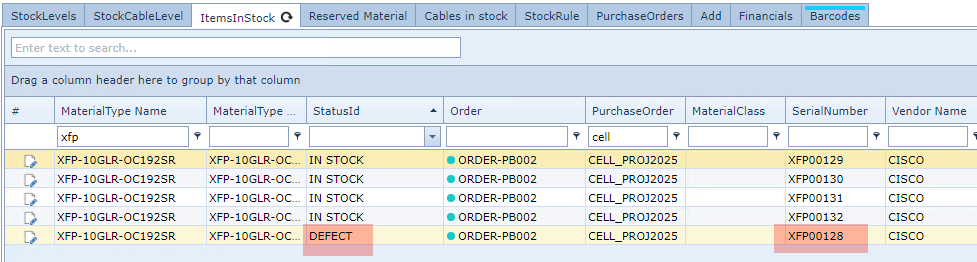
The result is shown in the following screenshot with the modified StatusId
Status of 'Returned to Supplier'
This now allows the defective item to be sent for repair - or replacement. This is simply achieved by another status change made from the Stock item Action feature - as follows:
From the StockForm Actions button bar:
Click on the Stock item Action option, which opens up the Stock item Action popup window
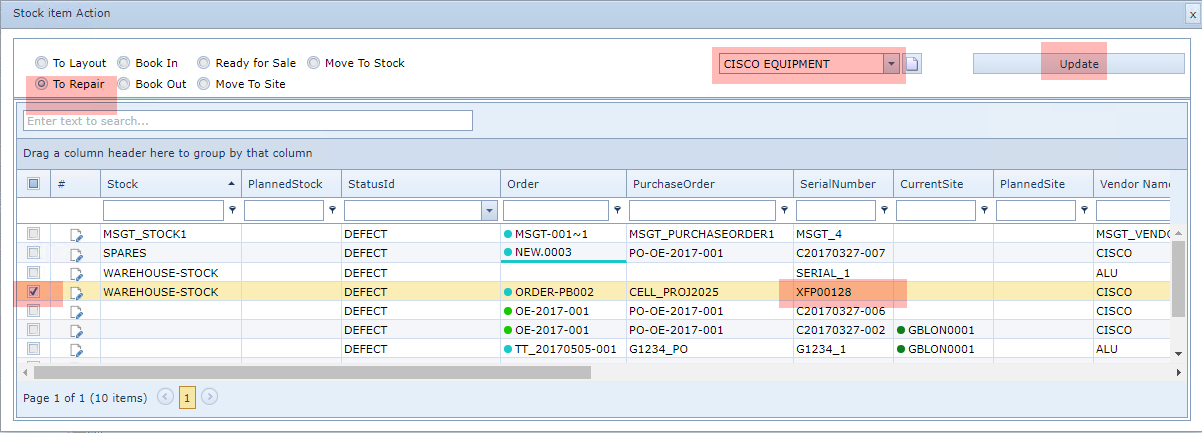
▪Click on the first column check box relating to the defective material
▪Click on the To Repair radio option - top left corner of popup window
▪Search for the appropriate Vendor name in the Enter Vendor Name dropdown field - top second from right - it could also be a Supplier's name.
▪Click on the Update button in the top right corner of the popup window
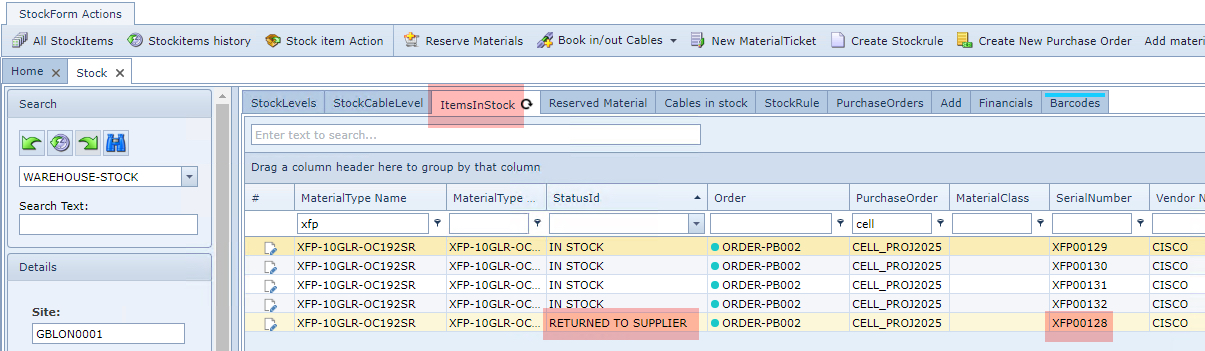
Confirmation of the Status change (Returned To Supplier) can be seen from the ItemsInStock tab of the Stock module, as in the following screenshot.
Return to Stock
Once the defective item has been repaired by the supplier or vendor, it can then be returned to stock. This is simply achieved by another status change made from the Stock item Action feature - as follows.
From the StockForm Actions button bar:
Click on the Stock item Action option, which opens up the Stock item Action popup window
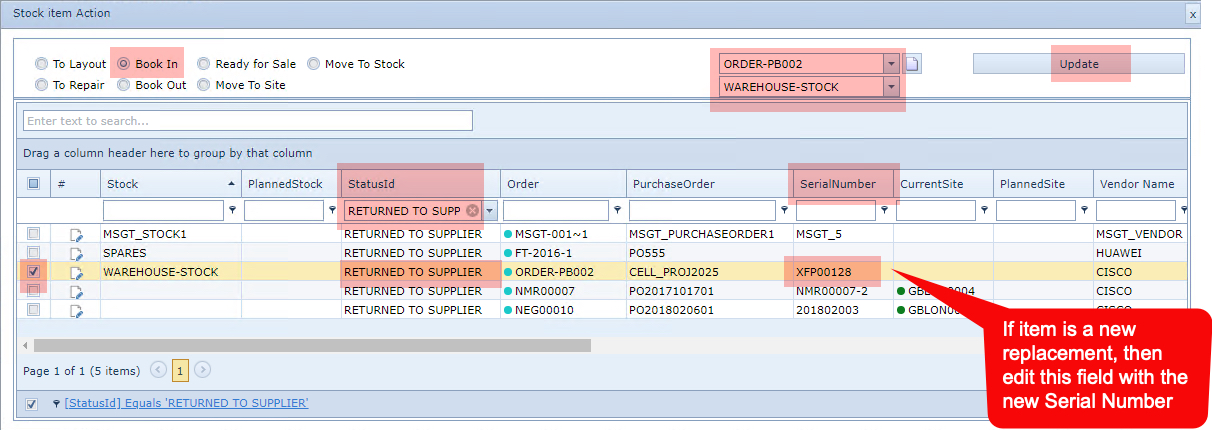
▪Click on the first column check box relating to the returned material - filter by StatusId column of Returned To Supplier to help locate the item.
▪Click on the Book In radio option - top left corner of the popup window
▪Search for the appropriate Order and Stock Name from the respective dropdown fields
NOTE: if the item has been replaced by a new one, then update the line item's Serial Number field with the new detail.
▪Click on the Update button in the top right corner of the popup window
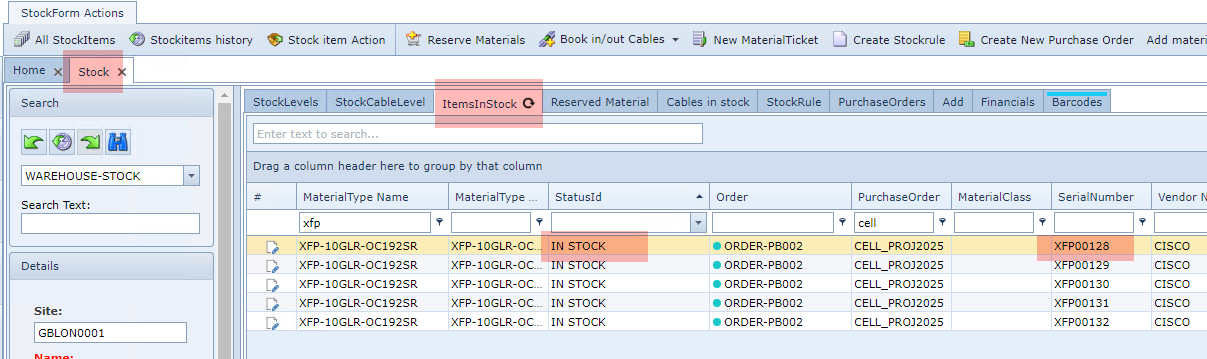
Confirmation of the automatically updated Status change can be seen from the ItemsInStock tab of the Stock module, as in the following screenshot
Tracking Stock History
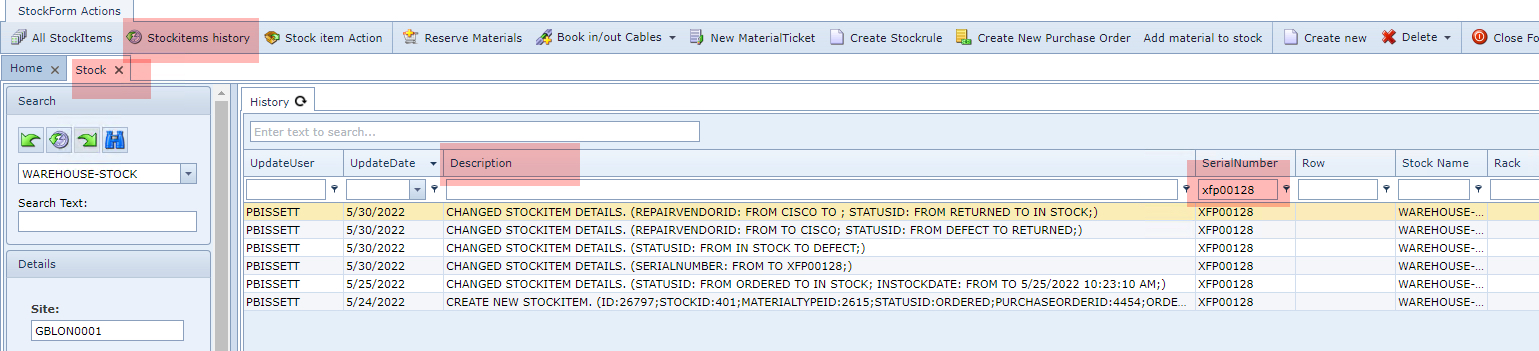
A useful IMS warehouse feature is the Stock Item History, which captures each warehouse item's life cycle. This is also particularly useful for legal requirements that demand a history of product items.
From the StockForm Actions button bar:
▪Click on the Stockitmes history option
Use the filter fields under each column name to locate a particular stock item
In this case the Serial Number is used.
In the following screenshot the item's history is shown by date order.