Modifying sub ranges is possible but is affected or restricted when IP addresses from those sub ranges have already been assigned to certain IMS objects like Nodes, or Ports, etc.
Domain
• |
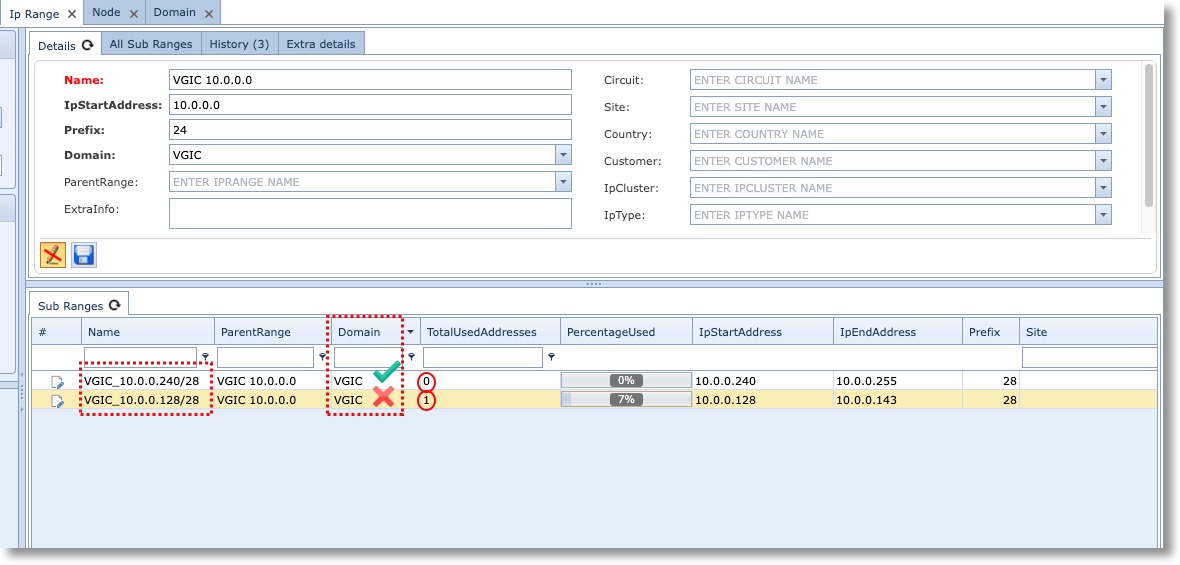
Click on the parent IP Range – from the Sub Ranges tab you will then select the required sub range for Domain name modification |
|
It will not be possible to modify the domain name of the second sub range as it already has one or more of its IP Addresses assigned to an IMS object – see the screenshot below |

• |
In the first column of the required Sub Ranges tab, click on the modify icon (paper and pen symbol) |
• |
From the dropdown symbol in the Domain column field, select the name of the new Domain |
• |
In the first column of the required Sub Ranges tab, click on the green tick icon to save the modification |
Change Prefix
From the IP sub range pane that requires a change of prefix, in this example changing sub range /28 to /26 …
• |
From the IPRangeForm Actions button bar click on the Change prefix option’s dropdown list |
• |
Select the required new prefix |

|
It will be required to manually modify the Name of the sub range to reflect the new prefix – in this case the changed prefix is now /26 so the Name of the sub range should reflect this i.e., VGIC_10.0.0.128/26. See the next screenshot |

Change Parent Range
Parent range changes are possible provided the sub range can fit into the new parent IP range structure and does not overlap with existing ranges of the new parent range.
▪ |
From the IP Range tab click on the modify icon (pencil) – bottom left of the Details tab |
▪ |
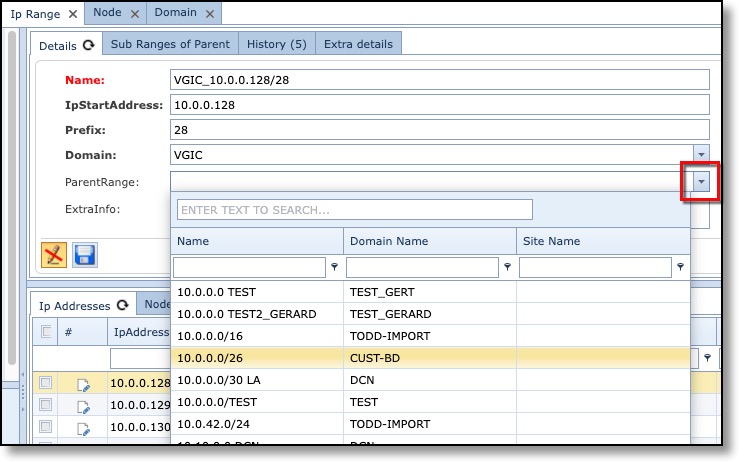
Click on the ParentRange field dropdown arrow and select the new Parent Range |
▪ |
Click on the Save icon next to the modify icon |