In order to merge sub ranges it’s a good idea to start from the parent IP range.

1 |
Locate the Parent IP Range containing the sub ranges to be merged |
2 |
Right click on the first of the merging sub ranges – in this example 10.0.0.160/27 |
3 |
Click on the Change Prefix option in the dropdown popup list |
4 |
Click on the second of the merging sub ranges – in this example 10.0.0.128/28 |
The result in this example is shown in the following screenshot

Next, is to rename the newly merged sub range name to reflect the new prefix of /26
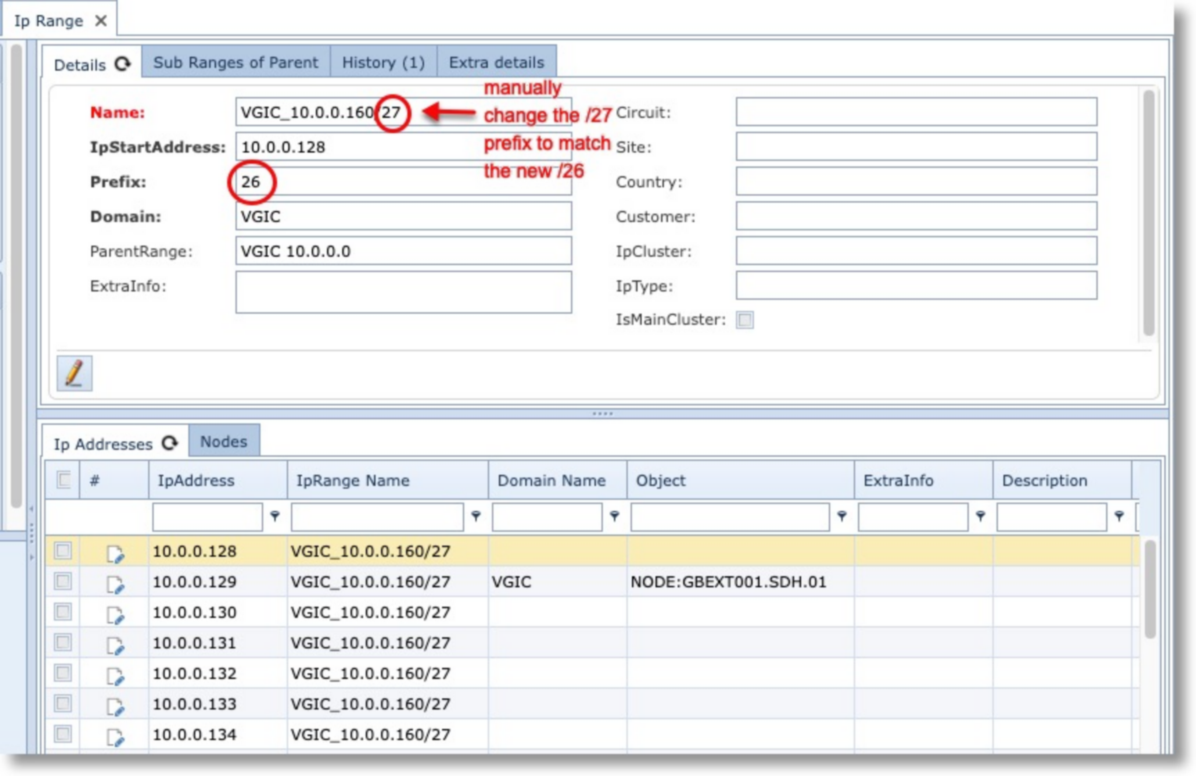
▪ |
From the newly merged sub range’s IP Range tab click on the modify icon (pencil) – bottom left of the Details tab |
▪ |
Rename the Name field to reflect the /26 prefix and then click the Save icon |