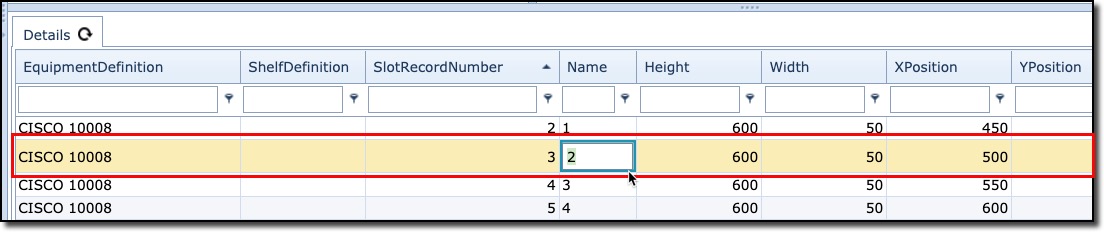
The Equipment Definition form contains three main sections in which detailed information about the equipment definition is laid out.

1 |
Graphical layout view of the equipment. Every rectangle is a slot which is defined and modified in section 2 and section 3 is a grid layout view - modification are also possible here. |
2 |
This section contains tab pages of related information of the equipment. These are used to store node type settings and creates the layout |
3 |
Details Grid. In this section the settings related to the layout are visible. Settings can be adjusted by double clicking on the row and modifying their values |
The screenshot below is showing how to modify settings data.
Slot Definition Display Modes
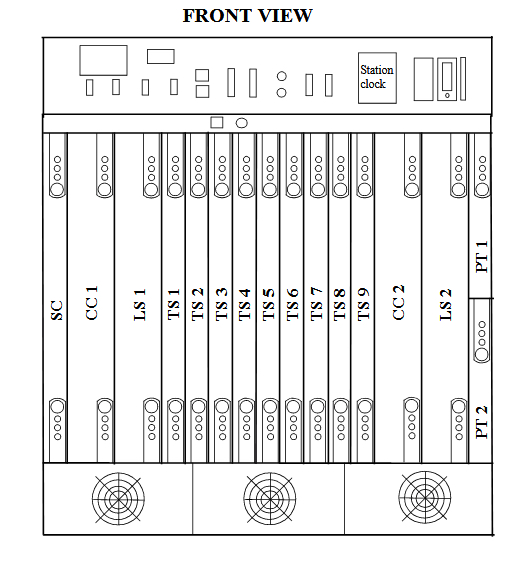
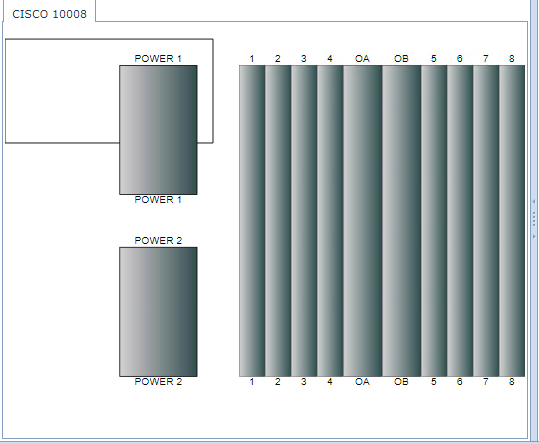
Displaying the slots of an equipment can optionally be segregated by their position within a shelf. Consider the diagram below which shows a complete shelf as seen from a Frontal view. This could easily be modelled in IMS, however seeing that it is a high density shelf, it might be preferable to see a more simplified view of this shelf.
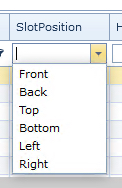
For this purpose, different slots can be displayed using the following 6 properties located in the Slot Position column of the Details grid.
The default choice is the Front option, as can be seen in the following screen shot ... all cards are displayed under the Front option.
However, when other display options are chosen, the Draw Slot Position drop down property will be displayed, as seen in the following screen shot. In this example a single slot, of type Power (board or card) has been modified to be shown with the Left group of slots.
▪From the Details Grid section, locate the line item containing the required Slot Position that needs changing
▪Double click on the Slot Position field and select the required display option from the drop down list provided - in this example, Left
▪Click on the Save Changes button in the lower right corner

As and when new display options are created for slot positions, then the drop down list for the Draw Slot Position toolbar will contain those required display options, as shown below:
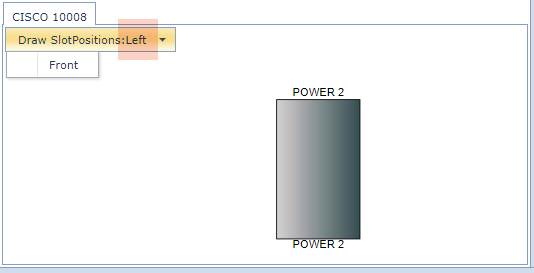
This toolbar has been added to the Equipment and the EquipmentDefinition control (forms). Once a Slot Definition has been set to the drawing option other than Front, the Draw Slot Position toolbar will be visible in the following forms of this type of Equipment Definition:
oEquipment Definition form
oCards Per Slot form
oNode Template form
oNode form
The toolbar will work exactly the same in each form.
Multi Shelf Equipment Slot Definitions
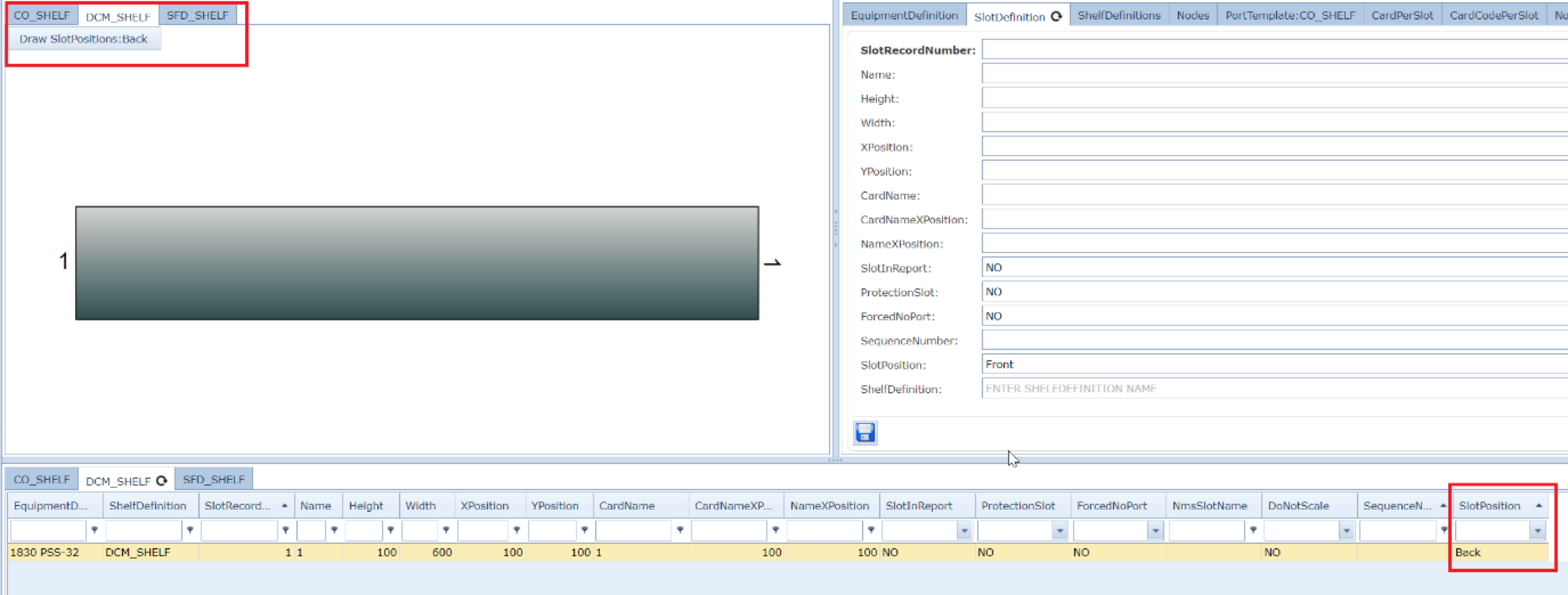
When it comes to Multi Shelf Equipment types, these are displayed in the same manner, under each tab that represents the individual shelves within the Multi Shelf Equipment. The following screen shot shows a 3 shelf equipment of which one has a Back view display option.