Creating a new node type involves people with a good knowledge about the network and the specific
equipment involved.
From the EquipmentDefinition Actions button bar:
• |
Click on the New icon |
This reveals the Create new EquipmentDefinition popup window.
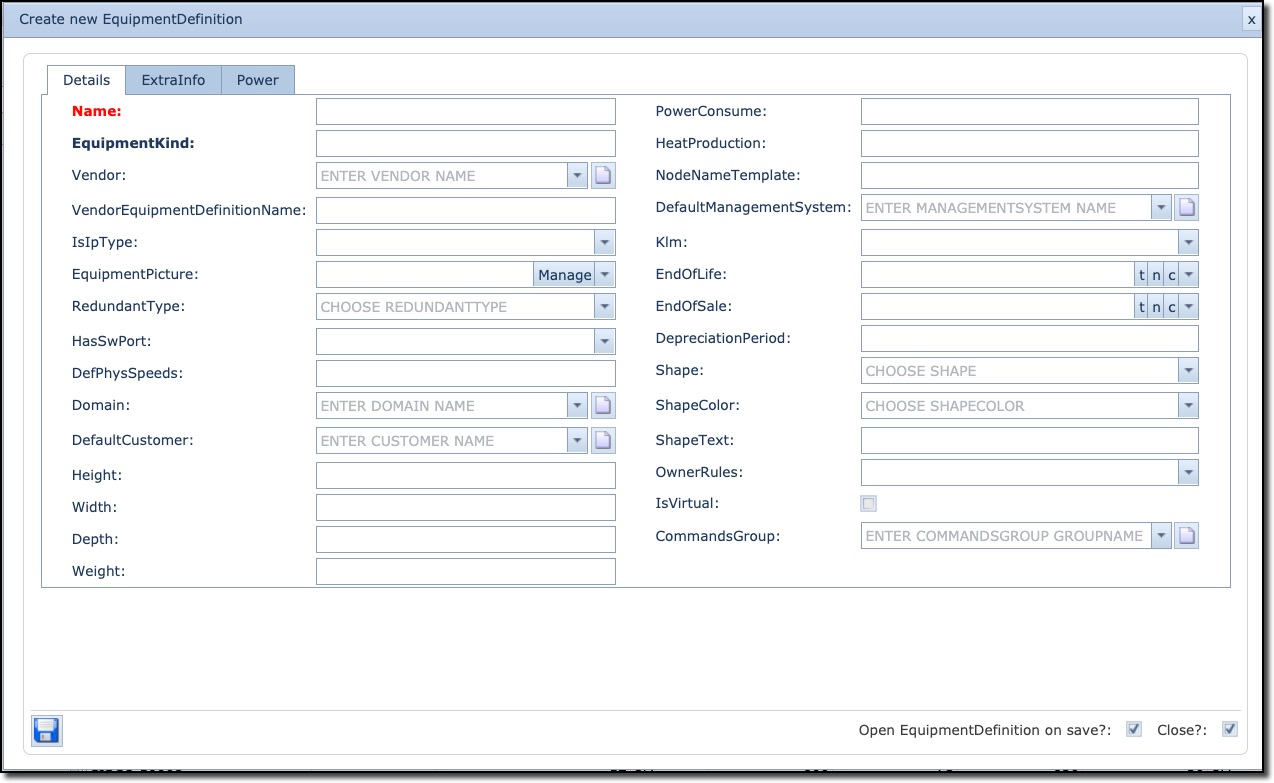
The mandatory fields must be completed:
Name |
The name of this new Equipment Definition instance |
EquipmentKind |
This is a free text field and depicts the general technology of the equipment or domain it relates to i.e., L3 Router, Mux, SDH, LANSwitch, Power Generator, etc. |
Vendor |
Select from a list of current vendors or create a new vendor using the new icon |
VendorEquipment DefinitionName |
This name can be different from the IMS one |
IsIpType |
Whether this is an IP router (on IP network) |
EquipmentPicture |
Add an existing JPG file to this Equipment Definition or manage pictures already in the system |
HasSwPort |
Whether the equipment has software ports |
DefPhysSpeeds |
Define capable speeds handled by this device. Speeds are pipe symbol separated |
Domain |
The IMS domain this definition will belong to, i.e., by geographical region, Technology type, customer, etc. – optional |
DefaultCustomer |
Used if this field is to be auto-populated when instances are created from this definition |
Height Width Depth Height |
Used for drawing equipment in IMS in the Main Tab and for rack drawings |
Weight |
Equipment weight as per vendor specification |
PowerConsume |
Power consumption details |
HeatProduction |
Heat produced figure - Used when calculating cooling needs for equipment rooms |
NodeNameTemplate |
If the node name has a template name associated with it |
DefaultManagementSystem |
Dropdown list of current management systems – option to create a new one |
Klm |
Typically used for legacy SDH/Sonet systems, determining the channelisation scheme. |
EndOfLife EndOfSale |
Dates used. Useful for reporting. |
DepreciationPeriod |
User defined time field for equipment’s depreciation term |
Shape ShapeColor ShapeText |
Display characteristics of this type of equipment in the network map |
OwnerRules |
Yes/No option |
IsVirtual |
i.e., Virtual Route Forwarding (VRF) for MPLS technology |
CommandsGroup |
Type of command line language used for management purposes |
Create Layout
To create a layout of the new equipment definition, the tab page Slot Definition is used.
The layout is created by assigning and drawing the slots as shown in the example given below:
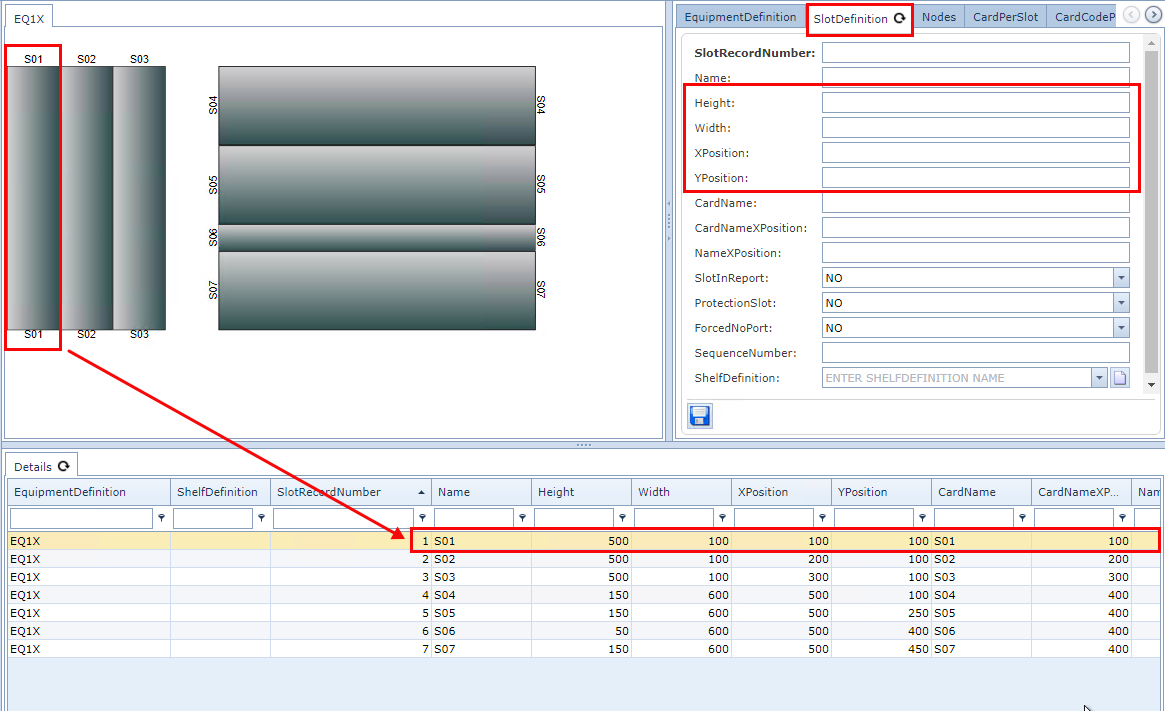
For above example, the following settings were used for slot 1:
Number |
1 |
Slot name |
S01 |
Height |
500 |
Width |
100 |
XPosition |
100 |
YPosition |
100 |
CardName |
S01 |
CardNameXposition |
100 |
NameXPosition |
100 |
Create a Multi-Shelf type
Some equipment types consist of multiple shelves or chassis.
In order to make this Equipment Definition into a multi shelf definition:
▪From the button bar select the Multi shelves icon

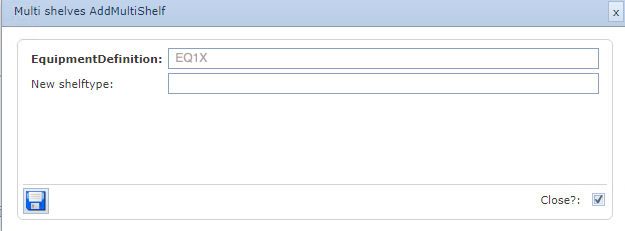
This opens up the Add Multi Shelf popup form:
The Equipment Definition field is auto populated (inherited value)
▪In the New shelftype field (shelf definition), type in the name for this shelf type in this current Equipment Definition instance
▪Click on the Save icon in the lower left corner of the popup.
The slots modeled earlier will be moved into the new shelf type for this Equipment Definition.
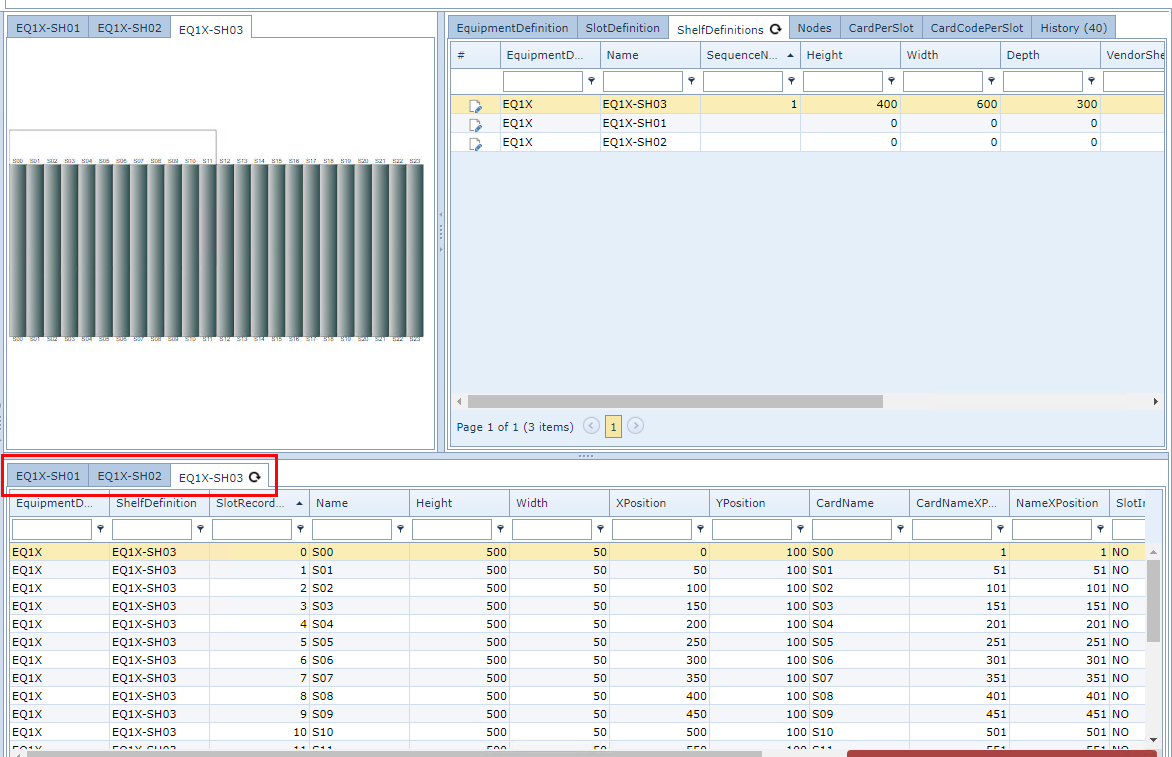
The following screenshot shows an Equipment Definition with three Shelf Definitions.