Introduction Extra Fields and Tabs
In case customized fields are needed, the IMS Admin user or someone with appropriate permissions can
use the Extra Field functionality to create such customized tab pages and fields.
Tab pages |
> Extra Field Groups
|
Fields |
> Extra Fields |
An Extra Field can pnly be placed on an Extra Field Group tab page, not in existing standard IMS forms.
Open Extra field Group form
The menu option for extra fields is located in the System menu, option ‘Extrafield Group’
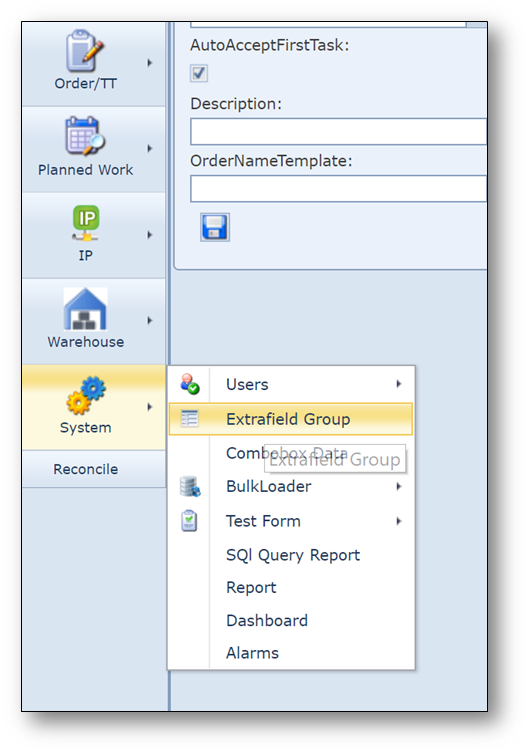
The Extrafield menu bar consists of the following options/buttons:

All sql checks: |
extra fields can be assigned to objects in IMS based on object characteristics, such as object type, IP type, Site type etc.
To know whether extra fields must be shown in IMS, sql checks can be defined that do the selection based on the required characteristics |
Add all missing permissions to all groups: |
to be able to work with extra fields the authorizations must be added to the user group(s), after all the fields didn’t exist before they were created. With this button those authorizations are added to all user groups. |
Create new ExtraFieldGroup: |
extra fields are related to extra field groups, extra fields can be added to existing groups or create a new group. |
Close Form: |
Close the Extrafield group form. |
By clicking the ‘Create new ExtraFieldGroup’ button, the following screen opens:
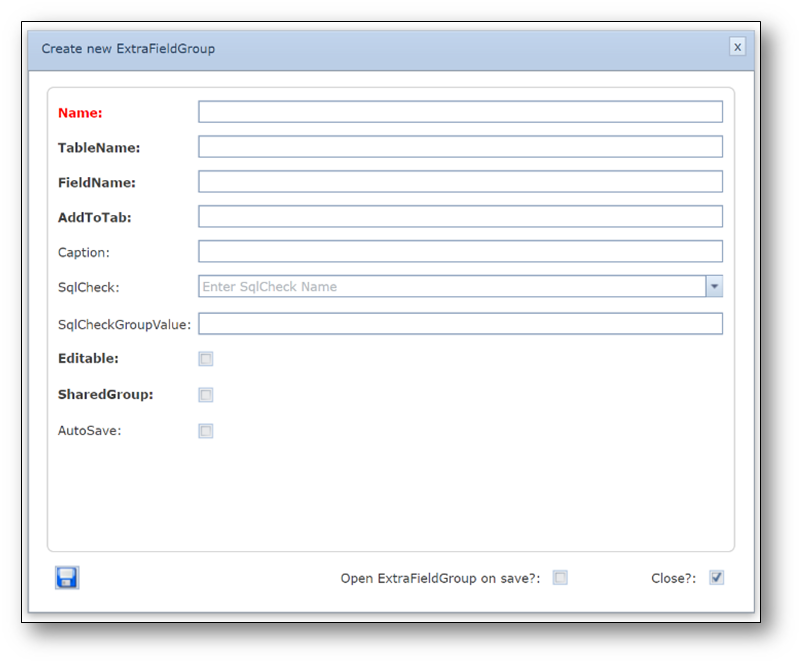
Name: |
name of the group |
TableName: |
name of the DB table to which the extra fields must be added |
FieldName: |
name of ID field of the table |
AddToTab: |
Tab name to which the group must be added as a tab page |
Caption: |
Name of the tab page |
SqlCheck: |
sql to be performed (or empty) |
SqlCheckGroupValue: |
Value against which the group will be displayed |
Editable: |
check, if the group must be editable by the users |
SharedGroup: |
check, if the group is used for Workflow extra fields |
AutoSave: |
check, if values must be saved directly in the DB |
An example of a group with extra fields:
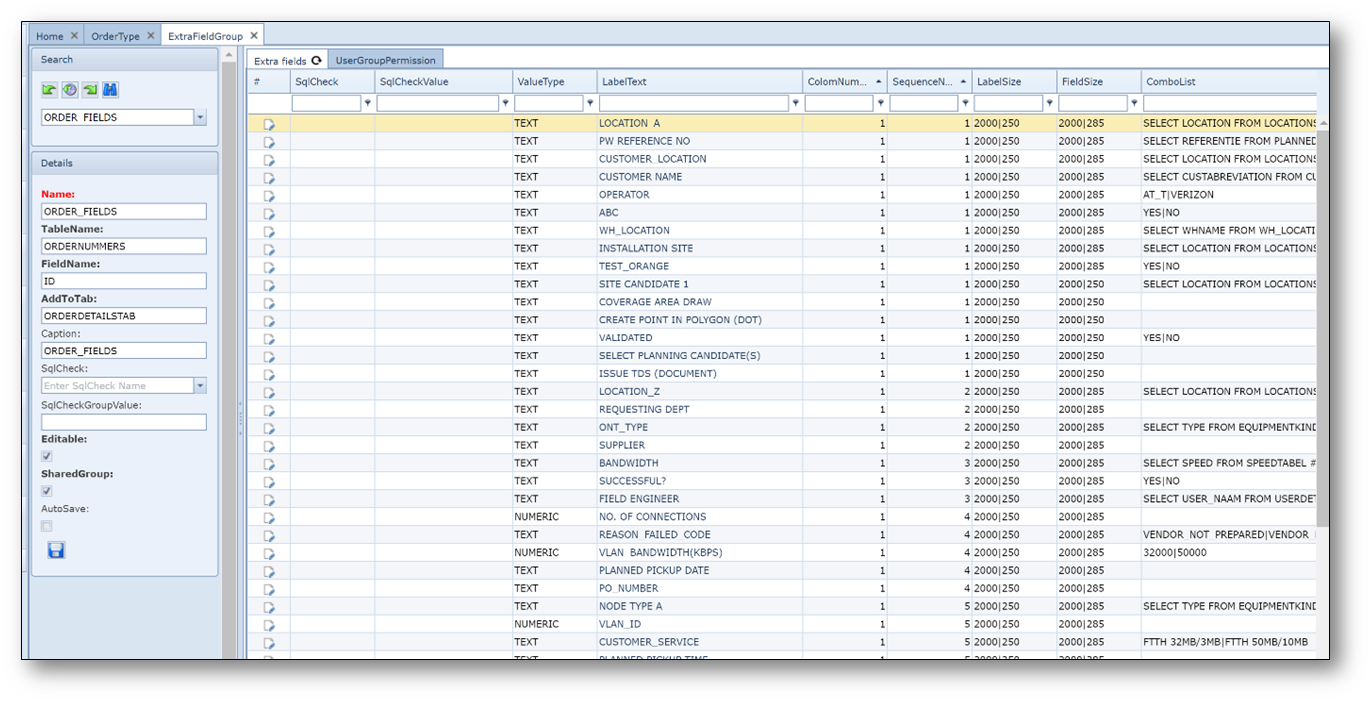
The extra fields matrix consists of the following columns:
SqlCheck: |
same as for the group, but now on field level |
SqlCheckValue: |
same as for the group, but now on field level |
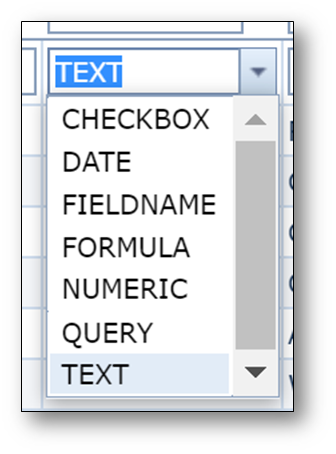
ValueType: |
type of field |
LabelText: |
name of the field as displayed |
ColomNumber: |
the fields can be arranged in columns and rows |
SequenceNumber: |
the row number in the column selected above |
Combolist: |
if applicable, a list of values separated by a piper “ | “ to choose |
DefaultValue: |
a default value to be displayed in the entry field |
FieldFormat: |
a template for the entry field (like ZIP code ‘NNNN AA’) |
ValueCriteria: |
limits to the values that can be entered |
ValuefromSql: |
the entry value is derived from a SQL query |
Mandatory: |
the entry field must be filled if checked |
X-pos: |
horizontal position of the field on the screen |
Y-pos: |
vertical position of the field on the screen |
The menu bar for the extra field options has the following options/buttons:

All Sql checks: |
same as for group level |
Add new Sql check: |
create a new Sql check to the field |
New extrafield: |
create a new extra field |
Add permission to group: |
add authorizations for the fields to the user group of the user |
Add all missing permissions to all groups: |
see above for extra field groups |
Create new ExtraFieldGroup: |
see above for extra field groups |
Delete: |
delete the entire extra field group |
Close Form: |
close the extra field form |
Tips & Handy tricks Extra fields
Layout Extra fields
Not only extra tabs and fields can be created, it is also possible to give it a special layout including sub-tabs.
This can be done with the LAYOUTSETTING field.
Below some examples:
LINK TO WABA ON BUSINESS MANAGER |
GroupName:=[GENERAL-]/<1> |
CUSTOMERS PERSONAL EMAIL |
GroupName:=[GENERAL-]/<1> |
CUSTOMERS VERTICAL |
GroupName:=[GENERAL-]/<1> |
API KEY |
GroupName:=[GENERAL-]/<1> |
SALES CONTACT FROM NEXMO |
GroupName:=[GENERAL-]/<1> |
ESTIMATED MONTHY VOLUME |
GroupName:=[GENERAL-]/<1> |
ESTIMATED PEAK MESSAGES / SECOND |
GroupName:=[GENERAL-]/<1> |
FACEBOOK MANAGER BUSINESS ID |
GroupName:=<2->/{CalcTab}/Business Template Registration Details| |
EMAIL ADDRESSED TO ADD TO WABA |
GroupName:=<2->/{CalcTab}/Business Template Registration Details| |
CUSTOMER NAME |
GroupName:=<2->/{CalcTab}/WhatsApp Provisioning Details| |
COUNTRY CODE |
GroupName:=<2->/{CalcTab}/WhatsApp Provisioning Details| |
DO YOU WANT USE A LVN |
GroupName:=<2->/{CalcTab}/WhatsApp Provisioning Details| |
WHATSAPP NUMBER |
GroupName:=<2->/{CalcTab}/WhatsApp Provisioning Details| |
ABOUT SECTION |
GroupName:=<2->/{CalcTab}/WhatsApp Provisioning Details| |
BUSINESS DESCRIPTION |
GroupName:=<2->/{CalcTab}/WhatsApp Provisioning Details| |
VERTICAL |
GroupName:=<2->/{CalcTab}/WhatsApp Provisioning Details| |
COMPANY EMAIL FOR WHATSAPP PROFILE |
GroupName:=<2->/{CalcTab}/WhatsApp Provisioning Details| |
WEBSITE |
GroupName:=<2->/{CalcTab}/WhatsApp Provisioning Details| |
ADDRESS |
GroupName:=<2->/{CalcTab}/WhatsApp Provisioning Details| |
URL TO LOGO |
GroupName:=<2->/{CalcTab}/WhatsApp Provisioning Details| |
Will result into:
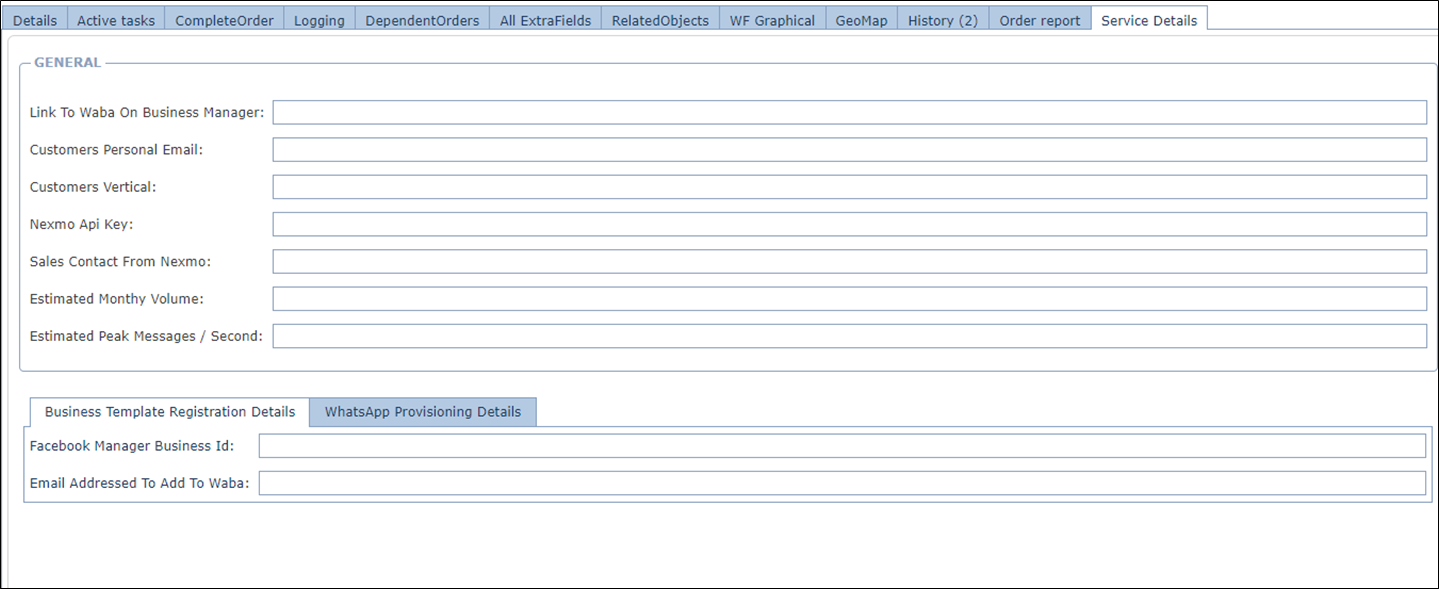
Fields dependent of each other:
Example 1:
Select ‘value’ from dual where ‘combolist value’ = ‘[#extrafieldlabel#]’ (see example below)
SELECT 'GEOGRAPHY' FROM DUAL WHERE 'SITE' = '[#IMS AREA#]'
UNION
SELECT 'OTHER' FROM DUAL WHERE 'SITE' = '[#IMS AREA#]'
UNION
SELECT 'ACTIVE EQ.' FROM DUAL WHERE 'EQUIPMENT' = '[#IMS AREA#]'
UNION
SELECT 'PASSIVE EQ.' FROM DUAL WHERE 'EQUIPMENT' = '[#IMS AREA#]'
UNION
SELECT 'PHYSICAL' FROM DUAL WHERE 'CIRCUIT' = '[#IMS AREA#]'
UNION
SELECT 'LOGICAL' FROM DUAL WHERE 'CIRCUIT' = '[#IMS AREA#]'
UNION
SELECT 'VIEWS' FROM DUAL WHERE 'CIRCUIT' = '[#IMS AREA#]'
UNION
SELECT 'CABLING' FROM DUAL WHERE 'CIRCUIT' = '[#IMS AREA#]'
UNION
SELECT 'BULK LOADER' FROM DUAL WHERE 'SYSTEM' = '[#IMS AREA#]'
UNION
SELECT 'EXTRA FIELDS' FROM DUAL WHERE 'SYSTEM' = '[#IMS AREA#]'
Fields dependent of each other with the use of a table:
Example 1:
SELECT DISTINCT FIELD2
FROM TABLE_XYZ
WHERE FIELD2 IS NOT NULL
AND
FIELD1 = '[#FIELD1#]'
ORDER BY FIELD2
(the values in column Field2 are related to the values in column Field1)
Or
Example 2:
SELECT DISTINCT FIELD3
FROM TABLE_XYZ
WHERE FIELD3 IS NOT NULL
AND
FIELD2 = '[#FIELD2#]'
ORDER BY FIELD3
(the values in column Field3 are related to the values in column Field2)
TABLE_XYZ
FIELD1 |
FIELD2 |
FIELD3 |
FIELD4 |
FIELD5 |
Value1 |
Value11 |
|
|
Value18 |
Value1 |
Value12 |
|
|
|
Value2 |
Value13 |
Value14 |
|
|
Value3 |
|
Value15 |
|
Value19 |
Value1 |
Value11 |
Value16 |
Value17 |
|
Value4 |
|
|
|
|
Value5 |
|
|
|
|
Value1 |
|
|
|
Value19 |
Value3 |
Value12 |
|
|
|