The IP management form is used to manage the IP address ranges and IP addresses.
Open IP range form
The IP range form can be opened via:
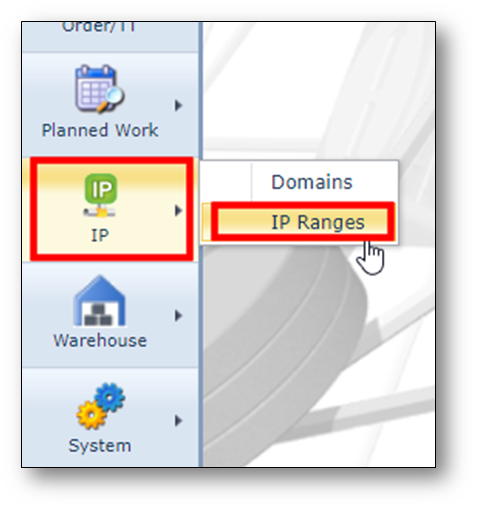
-IP > > IP ranges
IP range form overview
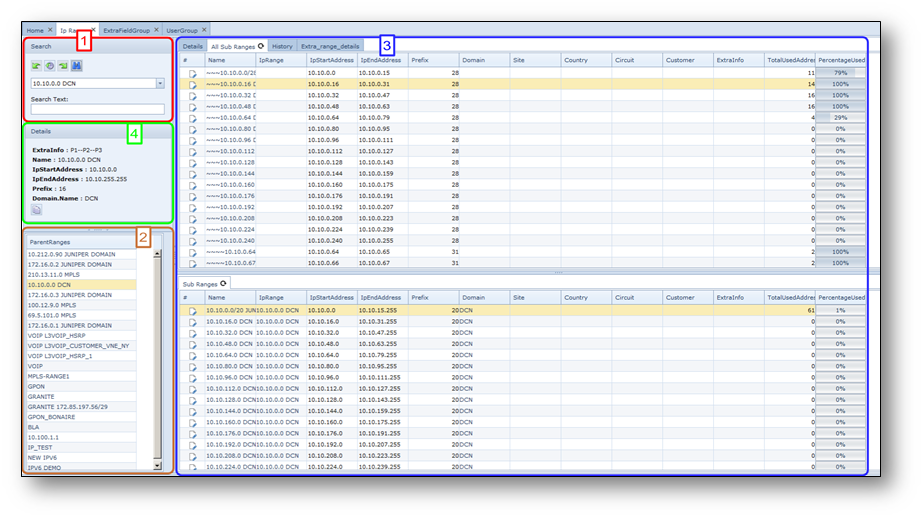
Section 1) (red)
Search form to find a specific range using the drop down menu of all ranges.
Search Text
Searching on all details related to IP address or IP range.
Section 2) (brown)
Overview of root ranges.
Single click will open the details in section 3, of that specific range.
Right click will provide a menu with additional options, which are explained in the following chapters.
Section 3) (blue)
Overview of range related information.
All Sub Ranges |
Details of subranges related to the selected range |
Details |
Editable information for selected range |
History |
History of changes done on selected range |
Extra details |
Possible to add Extra Fields tab, by means of the “Extra Fields” functionality in IMS, related to selected range |
: .
Section 4) (green)
Quick overview of details related to highlighted range in tree view.
Create New Range
To create a new IP range, press 
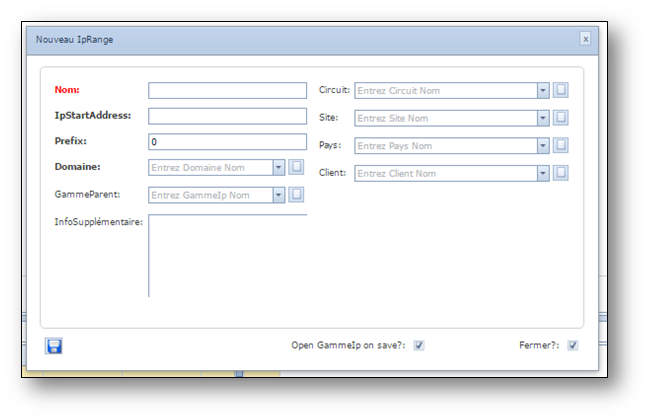
Section 1)
Mandatory parameters for each range.
Name |
A unique range name |
IPStartAddress |
The network address of the new range (This can be IPv4 or IPv6) |
Prefix |
Prefix of the new range (for IPv4: 0-32 and for IPv6: 0-128) |
Domain |
The domain to which the range needs to be assigned |
Parent |
The range name of which the new range needs to be the sub range |
Section 2)
Additional references for each range:
Circuit |
Related circuit name registered in IMS |
Site |
Related location name in IMS |
Country |
Related Country name in IMS |
Customer |
Related customer name in IMS |
Section 3)
Extra info |
A free text field. |
Create sub range
•Press create new range button  and fill additionally “Parent” with parent range name.
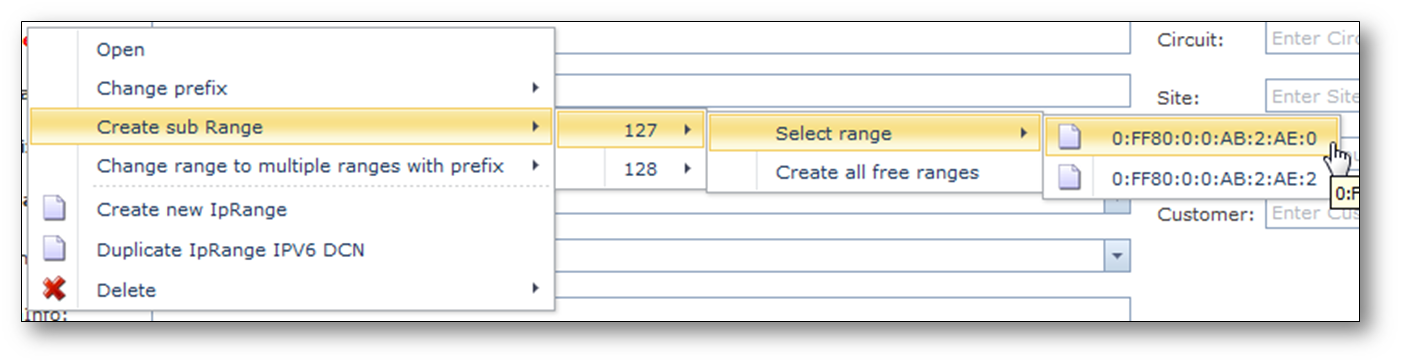
•Via Right mouse click on the Parent range in the tree and select the required sub prefix of “Create sub range”.
othen choose to create all possible subranges with “Create all free ranges”.
oor a specific range by selecting the start IP from “Select range”
Edit (sub) range
Step 1 Open the range:
Via Right mouse click on the range, select “Open” (1)
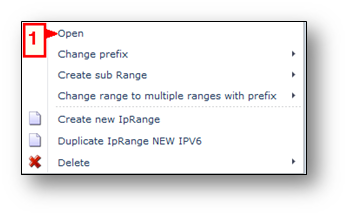
This will open the range in the right pane of the screen with the tab Details:
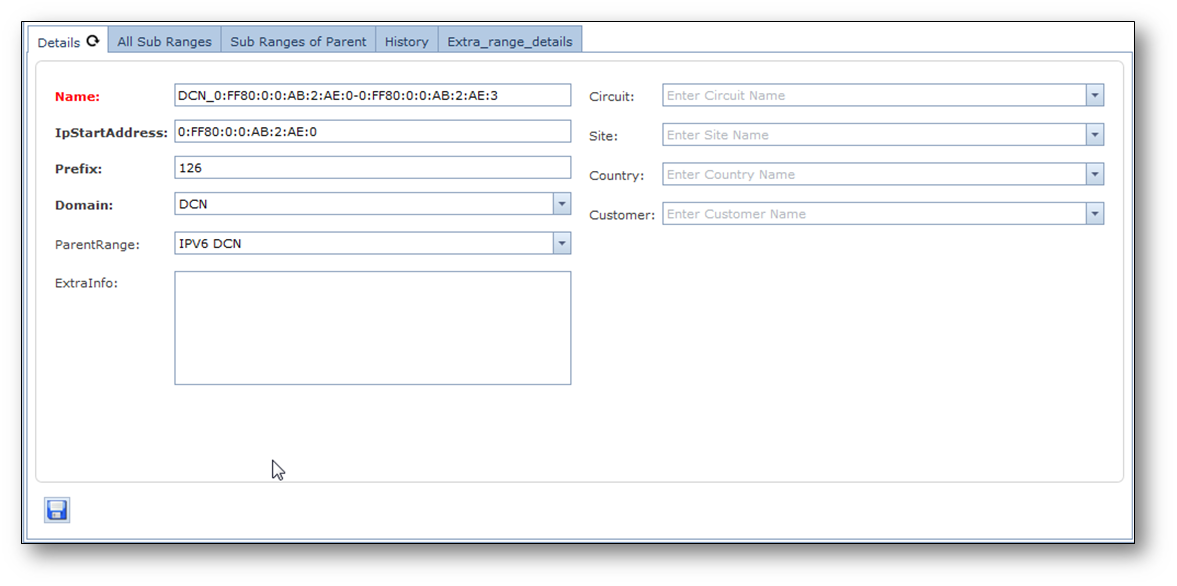
This enables to:
Modify details of the range : Site, Customer, Country, Circuit and Extra_info
Change the domain |
Assigning a sub range of a parent range to a different domain to distribute ranges to custom domains. The range is not allowed to overlap existing ranges in the new domain. |
Adjust range size |
adjusting the range size is only possible when there is no other range overlapped by the change, within the same parent range. |
Change the Parent |
Changing the parent will be allowed when the subrange fits in the parent range and does not overlap with existing ranges in the new parent range. |
Merging of (sub-)ranges
To aggregate ranges into one bigger range.

Starting point:
Steps:
1.Merge DCN_0:FF80:0:0:AB:2:AE:10/126 with DCN_0:FF80:0:0:AB:2:AE:14/126 , DCN_0:FF80:0:0:AB:2:AE:18/126 , DCN_0:FF80:0:0:AB:2:AE:1C/126
a.Right mouse click on range DCN_0:FF80:0:0:AB:2:AE:10/126
and select “Change Prefix” > “To:124 range(s) to merge:…..”
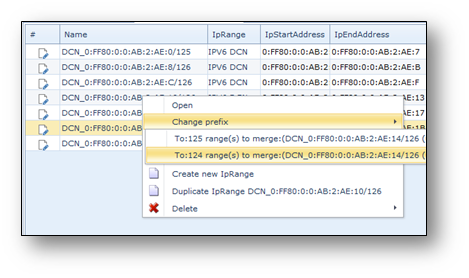
Result: 
Delete (sub) range
Characteristics:
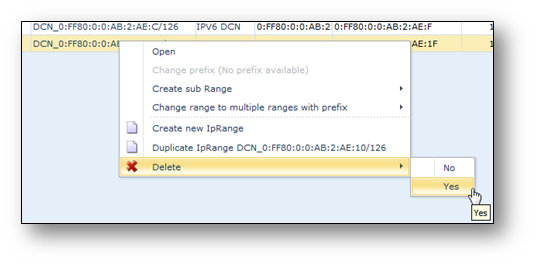
•Deleting a range is possible when there is no object assigned to any of the related IP addresses.
•When a parent range is removed its sub-ranges are migrated to its parent.
Delete is possible via right mouse click on range, in range tree. Select “Delete” > Yes
IP Address overview
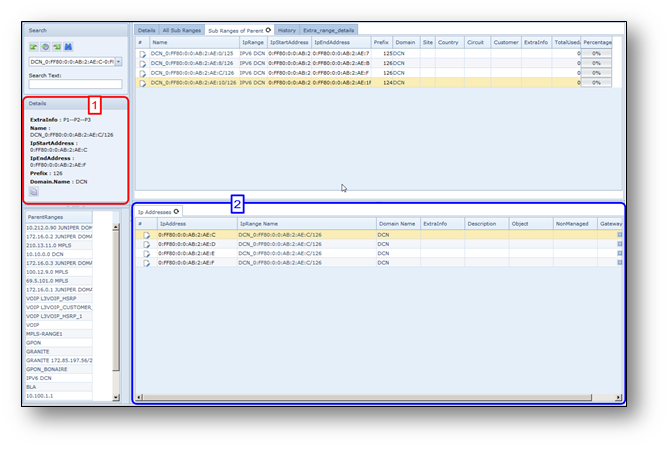
Section 1) (red)
The selected (sub) range details.
Section 2) (blue)
For the tab IP Address Table, the following details are specified.
IP address |
The IP address |
IPRange Name |
Name of the range |
Domain Name |
Name of the domain |
Extra Info |
Free format text field |
Description |
Description |
Object |
The name of an IMS object of type NODE, CARD, PORT, RESERVATION or POOL |
NonManaged |
Non Managed object |
Gateway |
The option to set one default gateway for this specific subnet |
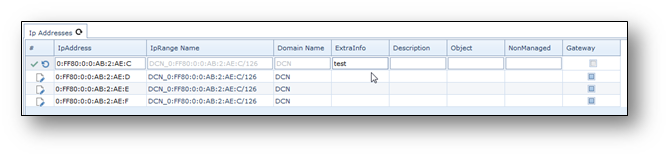
Assign IP Address
Right mouse click on IP address, in IP Address Table
•Select “Set in focus”
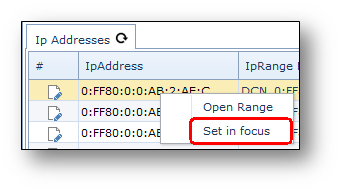
It is possible to assign the IP address to a node, card or port.
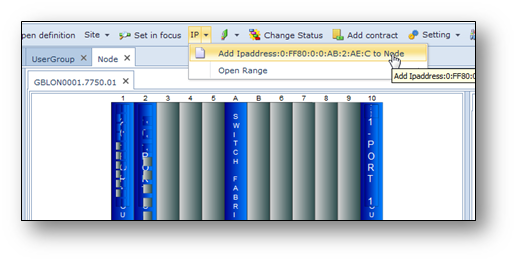
To a node:
Go to node and select toolbar option: “IP” > “Add IPaddress:…..”
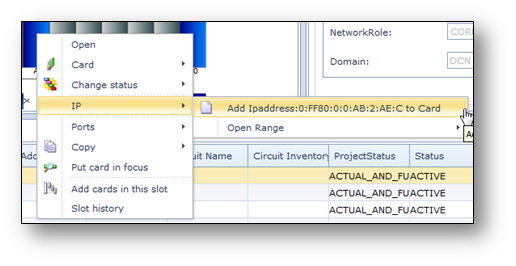
To a card:
Right mouse click on a card in a node and select “IP” > “Add IPaddress:….. to Card”
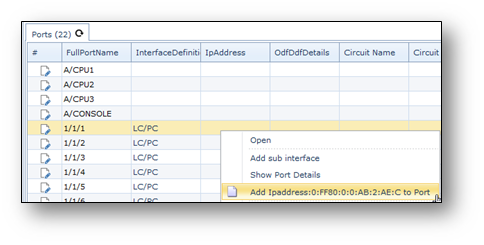
To a port:
Right mouse click on a port and select: “Add IPaddress:…. to Port”
Bulk loader usage IP management
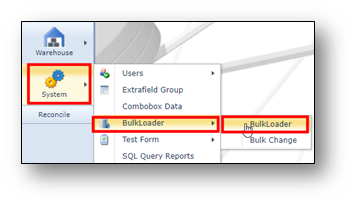
Bulkloaders can be found in IMS via menu: “System” > “BulkLoader” > “BulkLoader”
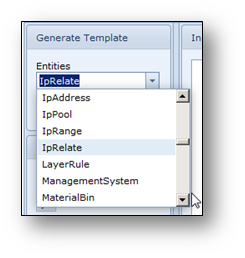
Here they can be selected from a list:
Valid for all bulkloaders:
Bold |
This is a mandatory field and cannot be left empty |
Red |
This is a unique value meaning only unique values can be provided. |
The IpRange bulkloader can be used to create new ranges.
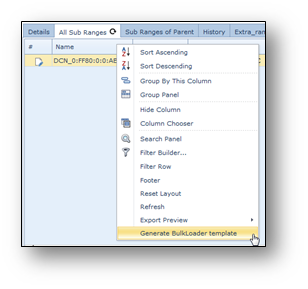
The template can also be made from a ip range grid:
Right mouse click on grid header and select : “Generate bulkloader template”
For this bulkloader the following fields are defined:
Rownum |
Sequence number |
Action |
ADD , UPDATE or DELETE |
Entity |
“IpRange” |
Id |
for ADD action, remove column |
Name |
New range name (must be a unique range name) |
DomainId |
The Domain to which it needs to be assigned. |
IPStartAddress |
Start IP address for the new range |
Prefix |
Subnet mask number without slash, e.g. 24 instead of /24 |
ParentRangeId |
When creating a subrange This field needs to be filled with the parent name |
CountryId |
Related Country name |
SiteId |
Related Site name |
CustomerId |
Related customer name |
CircuitId |
Related circuit name registered |
ExtraInfo |
Free format text field |
The IpAddresses bulkloader can be used to create new IP addresses.
The template can also be made from the Ip addresses grid:
Right mouse click on grid header and select : “Generate bulkloader template”