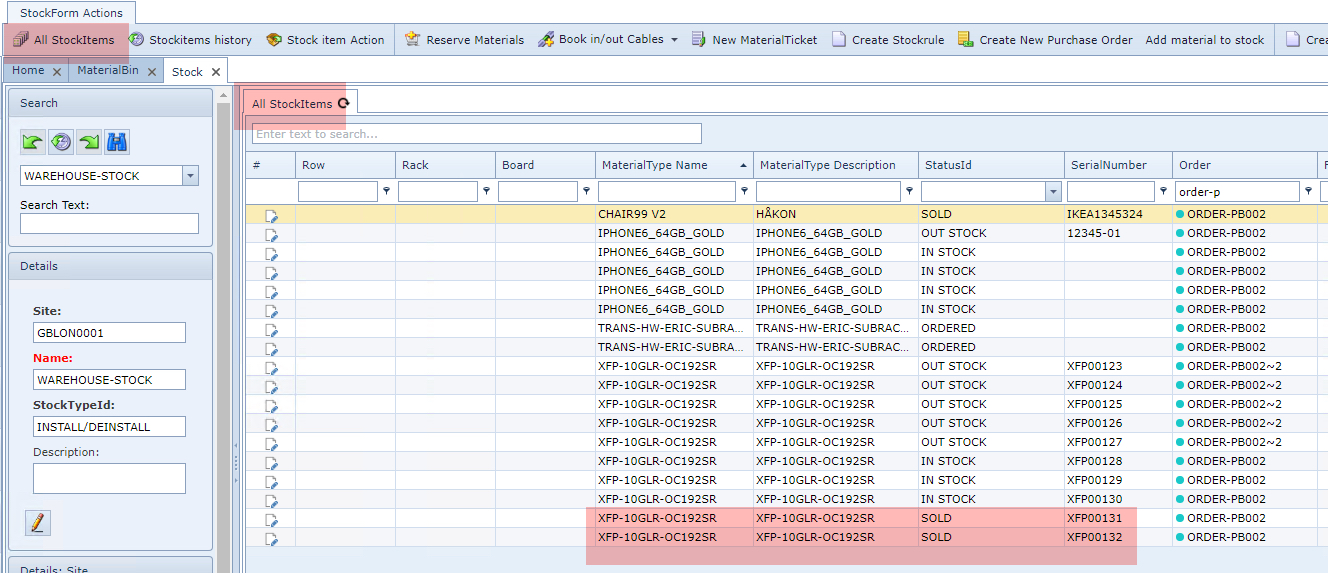
When it comes to selling or disposing of Warehouse material, it is a simple case of setting the item to a certain status and moving it to the appropriate 'Bin'.
A Bin is used to define a group of material items that is to be sold or disposed of. There are 2 default options for Bin Type - SALE and WASTE. These have no other functionality but to describe the Bins. Bin types can be managed from the Combo Box feature.
The first step is to locate the material that is to be disposed of. The term 'Ready For Sale' is used interchangeably for either disposing of material through selling it or treating it as a waste disposal.
Selecting Material Ready For Disposal
From the StockForm Actions button bar:
Click on the Stock item Action option
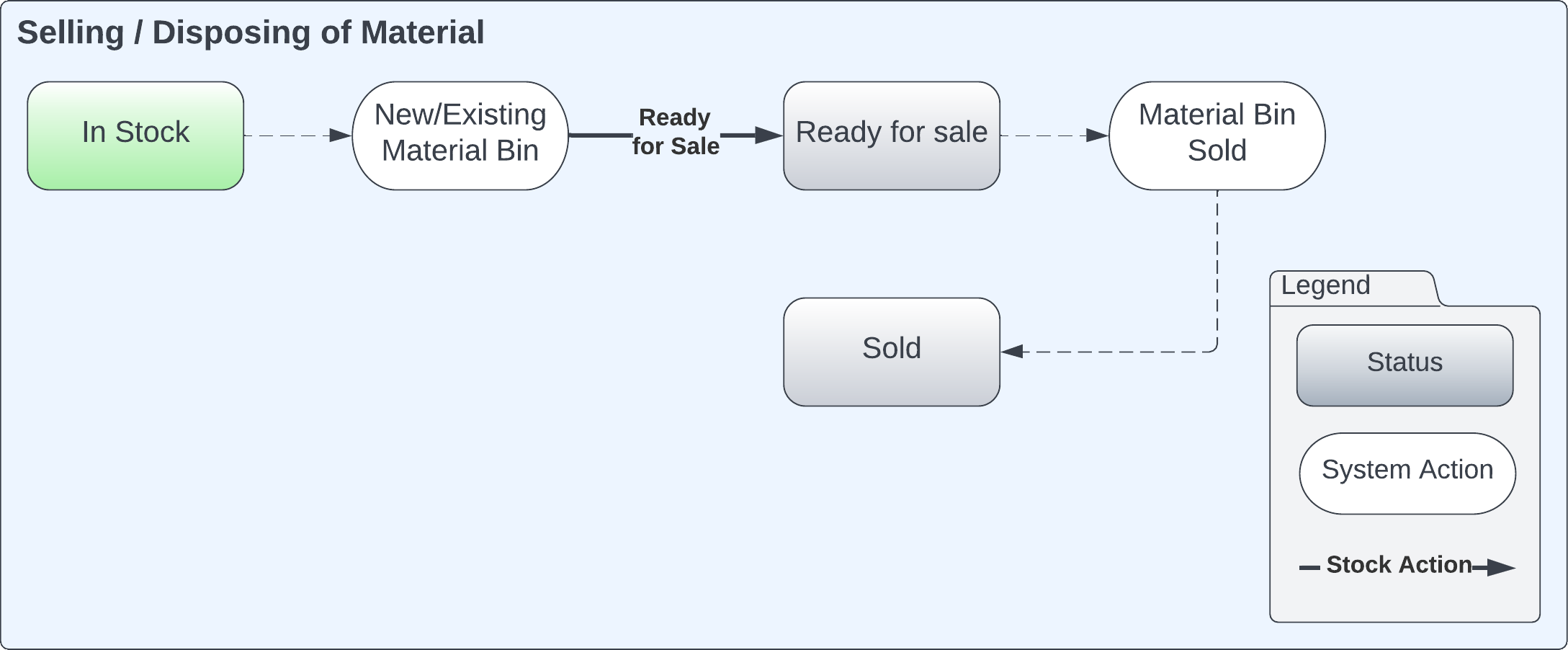
This opens up the Stock item Action popup window
Notice how the last 2 items in the screenshot below have already been processed for disposal - refer to their StatusId fields
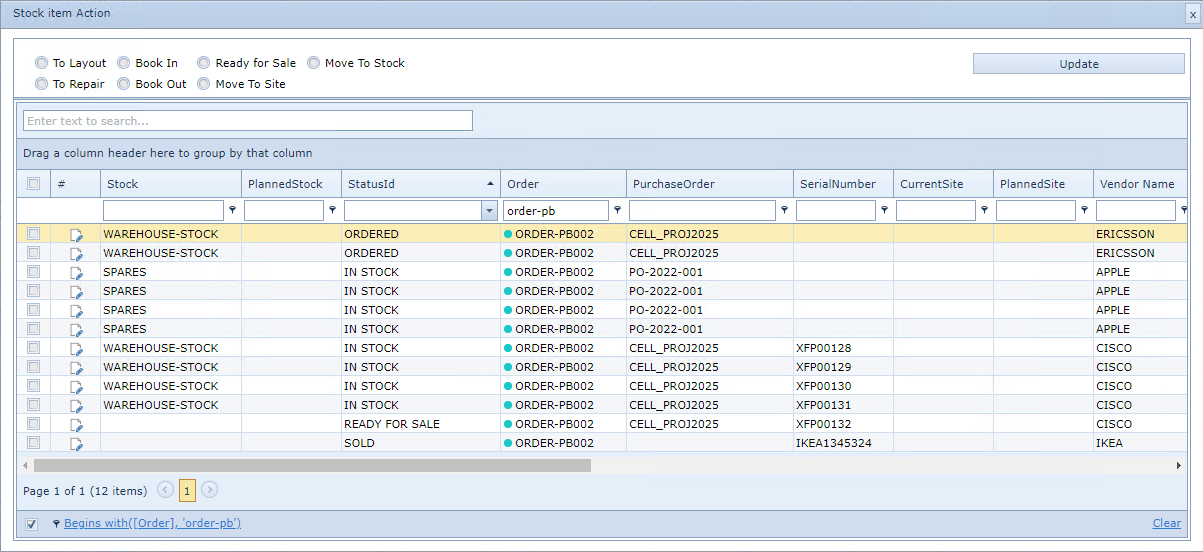
▪Select the material item required for disposal enabling the first column check box - use the filter fields under the column headings to help searching for the required material item
▪Click on the Ready for Sale radio button - top left corner of the popup window
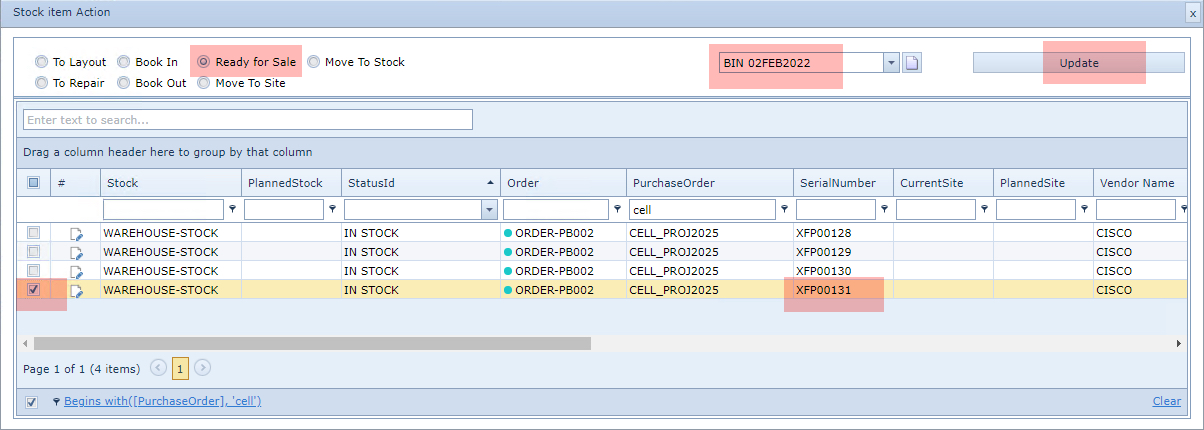
▪Click on the Material Bin name field and select the required Bin name
▪Click on the Update button - top right corner of the popup window
The material line item will now disappear from the popup window. It's StatusId has changed to Ready For Sale which can be observed under the All StockItems tab of the Stock Form as shown in the following screenshot. It can also be located under the MaterialBin feature which will be explained next.

Material Bin Process
This next section deals with the processing of the to-be disposed of stock material. Although the material referred to is no longer visible as part of the In Stock material, it is still part of the general stock inventory, as shown earlier.
As material is added to a Bin, the Status of the to-be disposed of material, will be 'Ready For Sale' - and as stated at the beginning of this section, the term Ready For Sale can also mean material that is to be disposed of as Waste.
The Bin is opened from the IMS Main Menu from the Warehouse module, and then by selecting the Material Bin option.

▪Search for the required Bin from the Search section of the MaterialBin form.
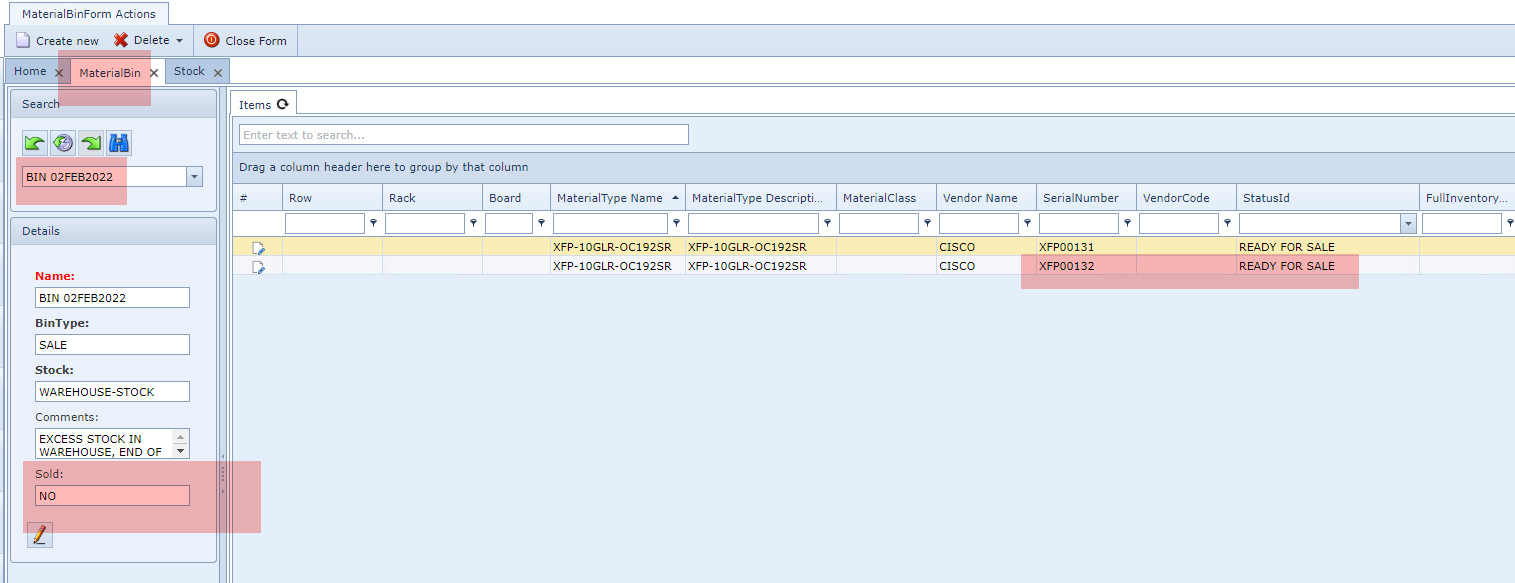
Notice the following points:
oThe Material item that was placed in a status of Ready For Sale in the previous section is shown. In the above example we now see that there are two items that are ready to be disposed of.
oIn the Details section, the Bin Type field is one of SALE. In this case the items are to be sold rather than got rid of as WASTE, which is the second option when creating Material Bins.
oThe field called Sold has a value of NO. This simply means that the Bin has yet to be processed for sale.
When the items of this Bin are ready for disposal - selling in this case - then:
▪Click on the Edit icon (pencil) in the lower left corner of the Details section
▪In the Sold field dropdown list, select the YES option
▪Click on the Save icon - next to the pencil icon.
This will now show the two items as SOLD, as seen in the StatusId column in the following screenshot

From now on, these disposed of items can also be seen from the Stock module's All StockItems option in the button bar