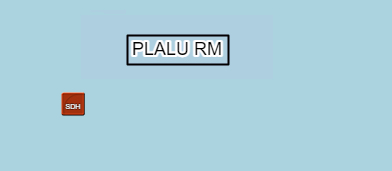
The Combobox Data feature enables setting up Smart Comments to be displayed in the Network Map for the following IMS objects::
oNode
oCircuit
oDDF/ODF
Access the Combobox Data
The Combobox Data feature is accessed from the IMS Main Menu as follows:
▪Select System and then from the dropdown list select Combobox Data
Create a new Smart Comment
From the ComboBoxDataForm Actions button bar:
▪Select the Create new option - the opens the Create new ComboBoxData popup window
▪Fill in the required information as described below
▪Click on the Save icon when finished - lower left corner of popup window
The Name field must:
ostart with NWMAPSMARTCOMMENTS_ this is a mandatory component required by the IMS system
ofollowed by the model name or object - one of 3 mentioned above
oand a descriptive short label - this lable will appear on the list of Smart Comments when using the Network Map
oeach section should be separated with underscores
The Selection field will contain the required SQL statement
othe last element is the #VALUE# component which will relate to the object selected in the Network Map at run time
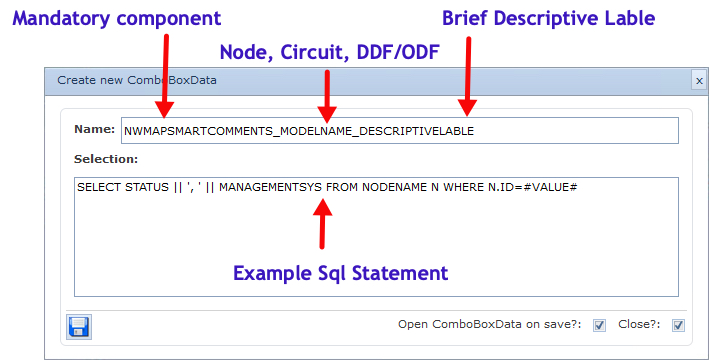
Example Smart Comment setup
The following screen shot is the result from the above example as seen in the Combobox Data form
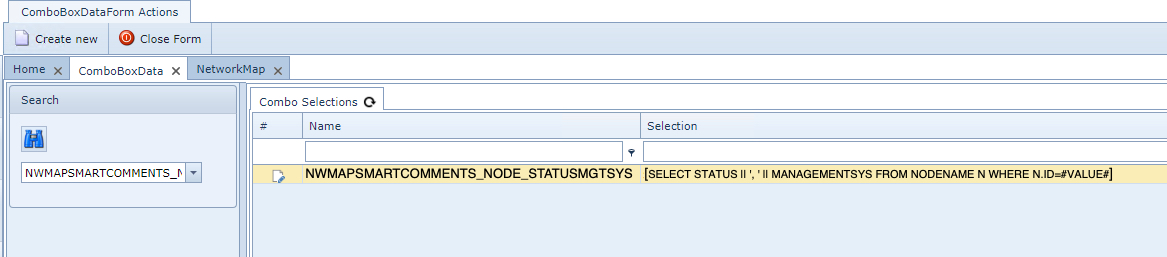
View Smart Comment
From the IMS Main
From the Network Map feature, which is accessed from the IMS Main Menu under the Node and then Network Map options, first ensure that the Comments item from the Map Display Options (eye icon) in the Network Map button bar is selected
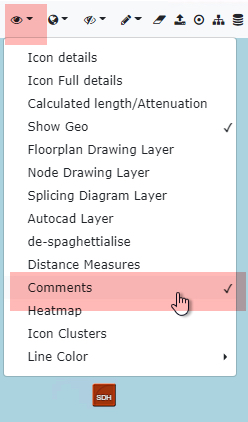
then follow these steps:
1 |
Left Click on the required object - in this example a Node - a red circle appears around the object |
2 |
Right Click on an empty area of the Network Map |
3 |
Select the required Smart Comment from the drop down list |
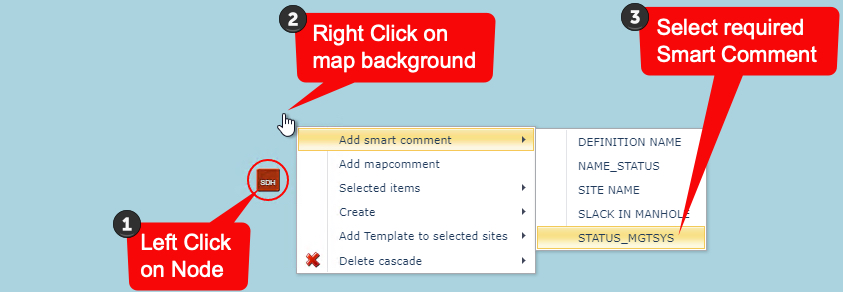
A lable will appear with the information gathered from the object's tables and in this example, the Status of PL (Planned) followed by the Management System name of the device.