|
There are a set of exercises that go with this section (TNM) which form part of the TNM Training. For further details on these, please contact your VC4 representative. |
Introduction
VC4’s Telephone Number Management feature enables operators to manage and allocate their telephone numbers as well as associating them to IMS objects like circuits, customers, nodes, and sites.
This makes for a powerful method of tracking numbers, making it ideal for reporting as well. Reporting can be based not only on allocation to other objects, but by usage (allocated or not) and dates i.e., created dates and expiry dates.
TNM can also be integrated through APIs with 3rd party systems.
Throughout this guide you will be presented with a mix of exercises and informational text. Should you choose to not complete the exercises, you can refer back to the text for a step-by-step instruction at a future date.
Practical Information
This document covers the main topics you need to know about IMS Telephone Number Management (TNM). Each chapter covers a topic corresponding to a specific feature in TNM.
Format
Throughout the document you might notice some icons. These are to draw your attention to specific and related information for your benefit.
Icon Keys
|
Tip |
|
Important Information |


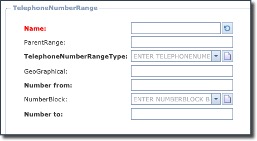
Mandatory fields
Fields labels in bold or red text are mandatory and must always be filled.
For training purposes:
It will be easier to work through the exercises if you associate your number ranges
with your name or some form of ID in order to search for and retrieve your number ranges from the pool
of many other number ranges in the DB.
The Customer form is accessed from the main menu bar, which when selected, reveals 2 more items in
the dropdown list [Customer, Customer Contacts].
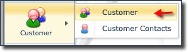
▪Click on the Customer object icon
Fill in the following details:
(X = your team number)
▪Name: CUST-X
▪Full Name: CUSTOMER-X
▪Click on the Save icon in the lower left of the popup window
|
|
In order to facilitate working through the exercises it is recommended that you associate your number ranges, K blocks, etc. with your name, or ID of some form, so as to help filter and find your ranges for easier working.
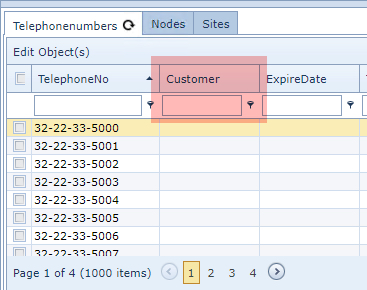
This screenshot shows how the Customer field can be used to filter for required numbers.
So for this purpose the first exercise will involve creating a new Customer instance, which you can then use to assign to your number ranges when you create them.
|