In order to create and administer reports, specific reporting Users will need the appropriate access to the Reporting module and features. This is accomplished through the Systems module in IMS.
Reporting Module Level Permissions
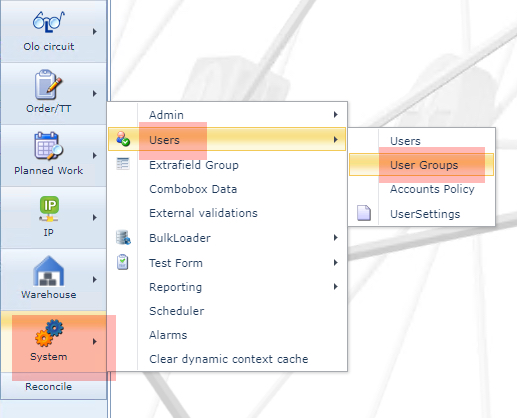
From the System module in the IMS Main Menu:
▪Click on the Users option, followed by User Groups in the dropdown lists
This opens up the User Group form.
From the Search area:
▪Select the required User Group instance that will be performing reporting duties, in this example a user group called READ/WRITE
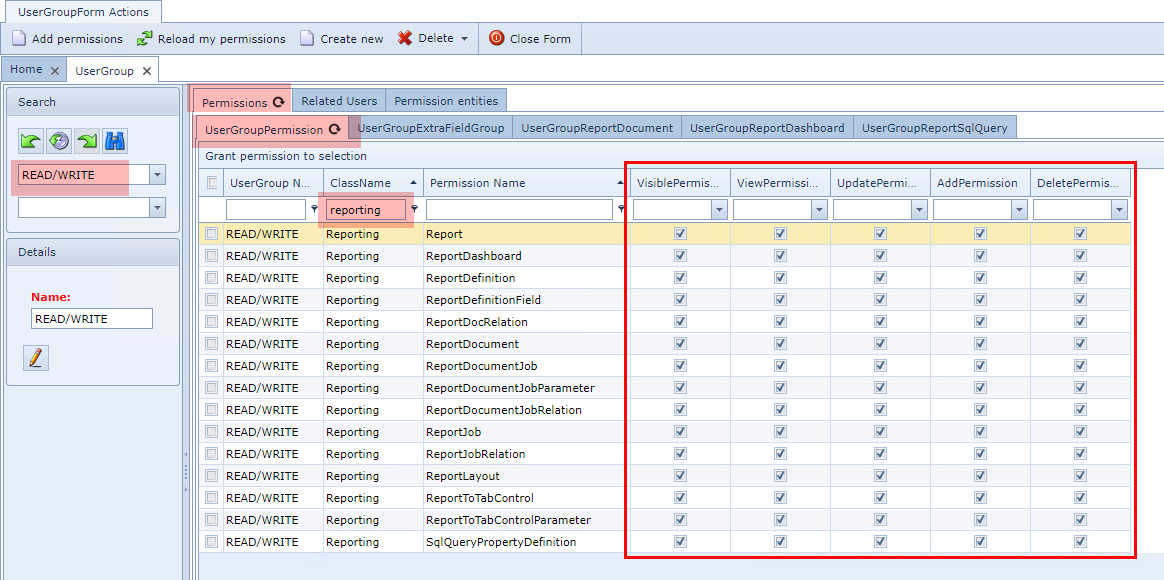
▪From the Permissions tab, select the sub-tab called UserGroupPermission
▪Filter the permissions and class list by typing in 'Reporting' in the filter field beneath the column header called ClassName
▪Enable all the options for the Reporting classes - as shown in the above screenshot.
▪Remember to click on the Save Changes button in the lower right corner
This will ensure that report creators have full feature access and reporting capabilities.
Document Level Permissions
Individual reports are also assigned three types of permissions: View, Update, and Delete. This is particularly useful when Users from other User Groups need to be given access to particular reports with their specific permissions.
▪From the Permissions tab, select the sub-tab called UserGroupReportDocument
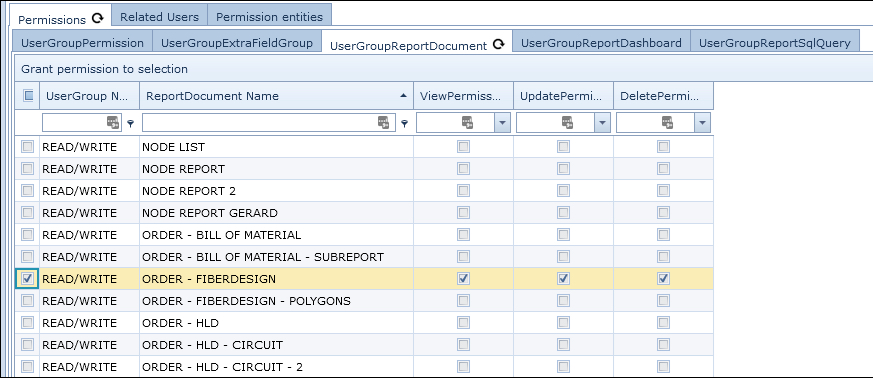
▪Locate a particular report document and enable or disable the permissions check boxes as required.
▪Remember to click on the Save Changes button in the lower right corner
The other two tabs called UserGroupReportDashboard and UserGroupReportSqlQuery also offer similar permissions functionality for those Reporting features
Other User Group Permissions
For Users in other User Groups who just need to view reports, then it is possible to assign them individual reports with View only permission - as shown in the following screenshot.
▪First Select the other required User Group - in this example READ ONLY - and locate the required report
line item
▪Click on the line's ViewPermission column option to enable the permission
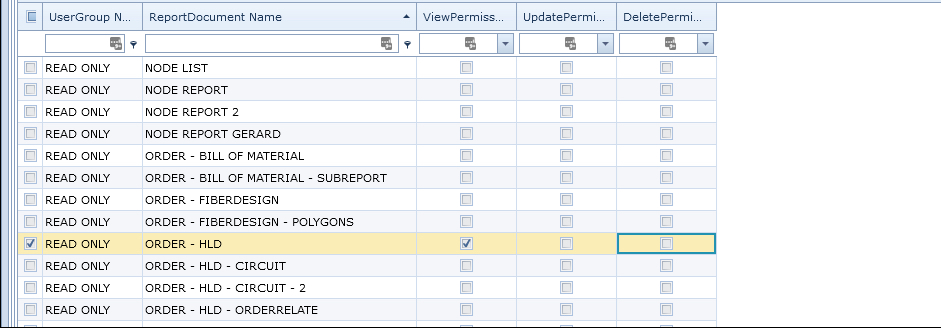
▪Remember to click on the Save Changes button in the lower right corner