User Data model

This chapter explains the user model.
The IMS application is a user-based system.
All persons and/or systems require a user account to be able to use the IMS functions and/or data.
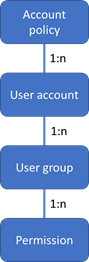
An account policy with several settings is in place which applies to all user accounts of 1 IMS environment.
An IMS environment can consist of multiple IMS applications (websites, webservices) accessing 1 database
where the database may contain multiple IMS schemas.
The account policy is an IMS global configuration and the details are explained in a separate chapter.
One or more user accounts can exist within an IMS environment.
Each user account has a password based on the account policy settings.
A user account can be related to one or more user groups.
Further details are explained in a separate chapter.
One or more user groups can exist within an IMS environment to which certain permissions are configured
that range from being able to open IMS, accessing certain forms with read only or write access.
Further details are explained in a separate chapter.
Block diagram: User data model relation
Account policy
In IMS there is an account policy in place which controls passwords related settings globally, meaning that
the account policy applies to all accounts in one IMS environment.
The account policy has been setup to allow for different settings based on the companies account and
password rules.
The Accounts Policy form can be accessed as follows:
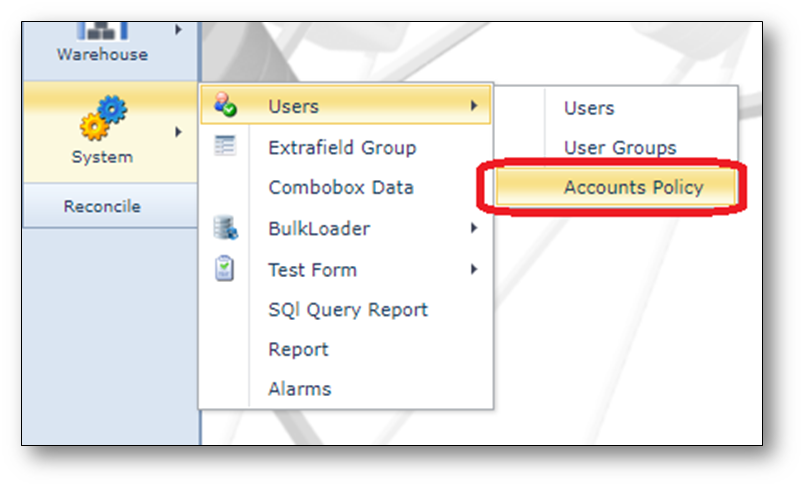
The account policy settings are divided into 2 categories, password policy and account lockout policy.
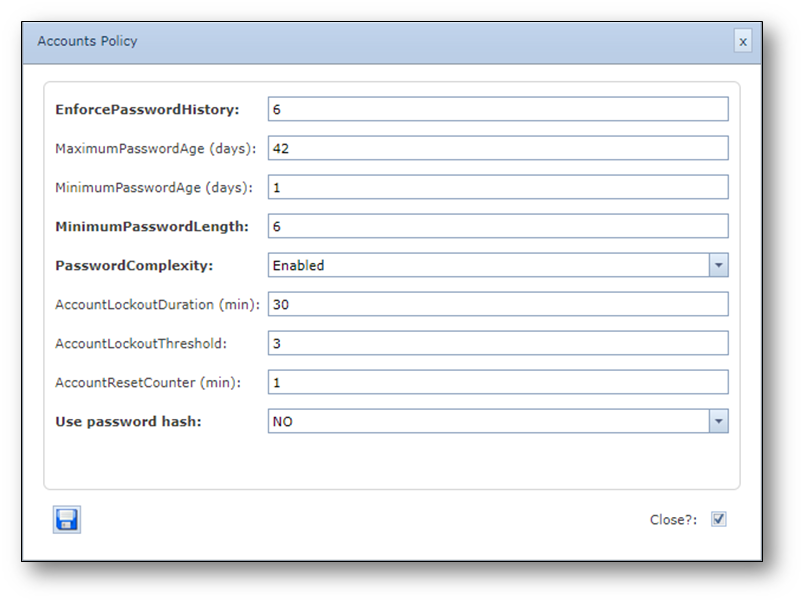
The following settings control the password policy:
•Enforce password history
This security setting determines the number of unique new passwords that must be associated with a
user account before an old password can be reused. The value must be between 0 and 24 passwords.
This policy enables administrators to enhance security by ensuring that old passwords are not reused
continually.
Default is 6
•Maximum password age
This security setting determines the period (in days) that a password can be used before the system
requires the user to change it. You can set passwords to expire after a number of days between 1 and
999, or you can specify that passwords to never expire by setting the number of days to 0.
If the maximum password age is between 1 and 999 days, the Minimum password age must be less
than the maximum password age. If the maximum password age is set to 0, the minimum password
age can be any value between 0 and 998 days.
Note: It is a security best practice to have passwords expire every 30 to 90 days, depending on your
environment. This way, an attacker has a limited amount of time in which to crack a user's password
and have access to your network resources.
Default is 42.
•Minimum password age
This security setting determines the period (in days) that a password must be used before the user
can change it. You can set a value between 1 and 998 days, or you can allow changes immediately
by setting the number of days to 0.
The minimum password age must be less than the Maximum password age, unless the maximum
password age is set to 0, indicating that passwords will never expire. If the maximum password age
is set to 0, the minimum password age can be set to any value between 0 and 998.
Configure the minimum password age to be more than 0 if you want Enforce password history to be
effective. Without a minimum password age, users can cycle through passwords repeatedly until they
get to an old favourite. The default setting does not follow this recommendation, so that an administrator
can specify a password for a user and then require the user to change the administrator-defined
password when the user logs on. If the password history is set to 0, the user does not have to choose
a new password. For this reason, enforce password history is set to 1 by default.
Default is 1
•Minimum password length
This security setting determines the least number of characters that a password for a user account may
contain. You can set a value of between 1 and 14 characters, or you can establish that no password is
required by setting the number of characters to 0.
Default is 6
•Password complexity
This security setting determines whether passwords must meet complexity requirements.
If this policy is enabled, passwords must meet the following minimum requirements:
oNot contain the user's account name or parts of the user's full name that exceed two
consecutive characters
oBe at least six characters in length
oContain characters from three of the following four categories:
oEnglish uppercase characters (A through Z)
oEnglish lowercase characters (a through z)
oBase 10 digits (0 through 9)
oNon-alphabetic characters (for example, !, $, #, %)
oComplexity requirements are enforced when passwords are changed or created.
Default is ‘Enabled’
•Use password hash
Store passwords by hashing
This security setting determines whether IMS stores passwords in the database using hashing
instead of encryption.
Hashing makes it almost impossible to turn a hash back into its original string, thus making it almost
impossible to determine the stored passwords should access be acquired to the IMS database.
Enabling or disabling the use password hash function requires users to change their passwords.
Default is No
The following settings control the account lockout policy:
•Account lockout duration (minutes)
This security setting determines the number of minutes a locked-out account remains locked out before
automatically becoming unlocked. The available range is from 0 minutes through 99,999 minutes.
If you set the account lockout duration to 0, the account will be locked out until an administrator explicitly
unlocks it.
If an account lockout threshold is defined, the account lockout duration must be greater than or equal to
the reset time.
Default is 30
•Account lockout threshold
This security setting determines the number of failed logon attempts that causes a user account to be
locked out. A locked-out account cannot be used until it is reset by an administrator or until the lockout
duration for the account has expired. You can set a value between 0 and 999 failed logon attempts.
If you set the value to 0, the account will never be locked out.
Default is 3
•Reset account lockout counter after
This security setting determines the number of minutes that must elapse after a failed logon attempt
before the failed logon attempt counter is reset to 0 bad logon attempts. The available range is 1 minute
to 99,999 minutes.
If an account lockout threshold is defined, this reset time must be less than or equal to the Account
lockout duration.
Default is 1
User groups and permissions
The User Group form can be accessed as follows:
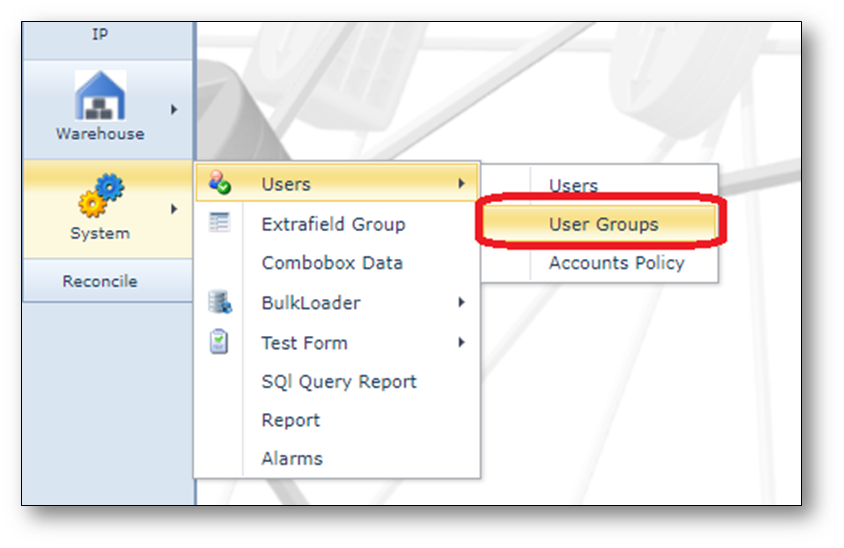
Here all user groups with their respective permissions can be found.
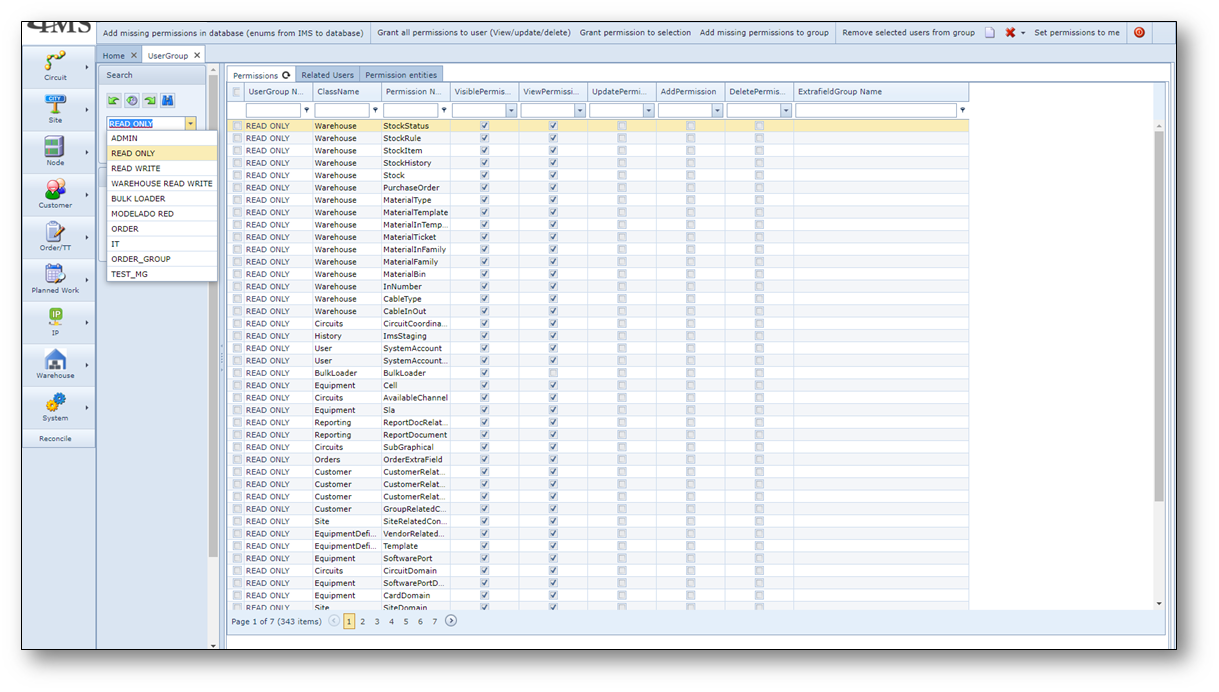
To be able to login to IMS the following minimum permissions must be set to at least 1 of the user groups that
is related to a user account.
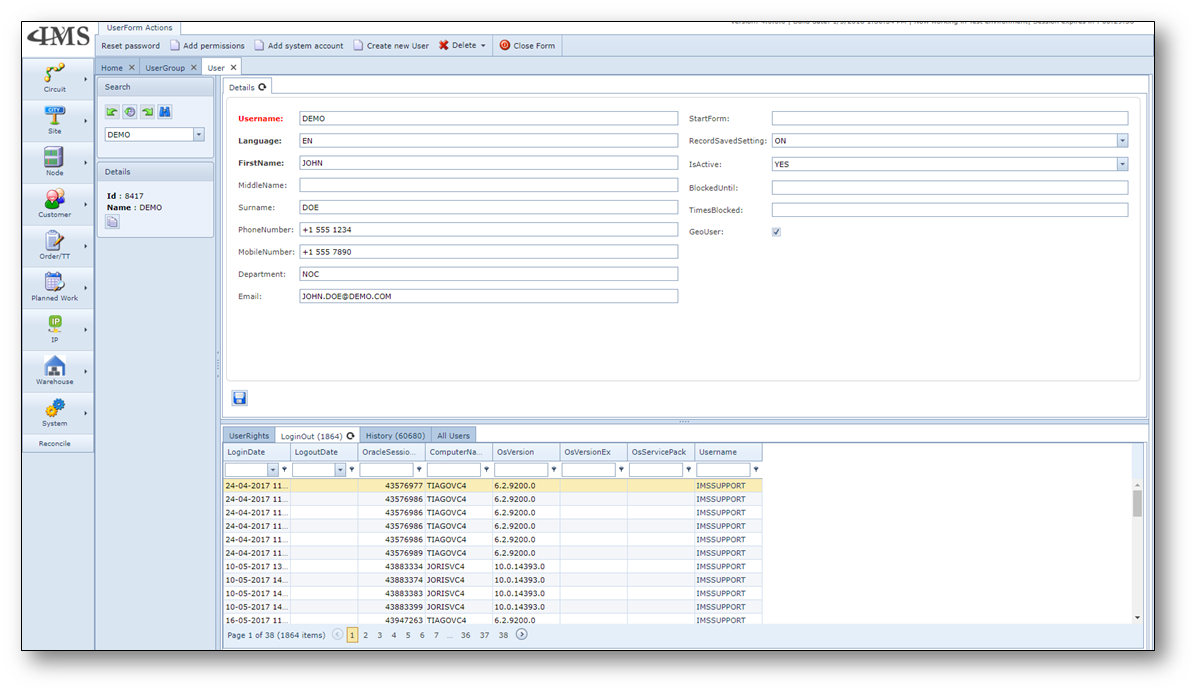
User Accounts
The User form to manage the IMS user accounts with the account details and relation to the user groups can
be accessed as follows:

A user account has mandatory attributes like the username, language and first name and some optional
attributes related to the person, functionality and state of the user account.
A user account without a relation to a user group has no permissions and cannot access IMS.
Upon creating a new user account, the initial password (in CAPITALS (!)) is the same as the user name.
Resetting the password forces the password to be the same as the user name.
Create new user account
To create a new user account, press button “Create new user” in user form.
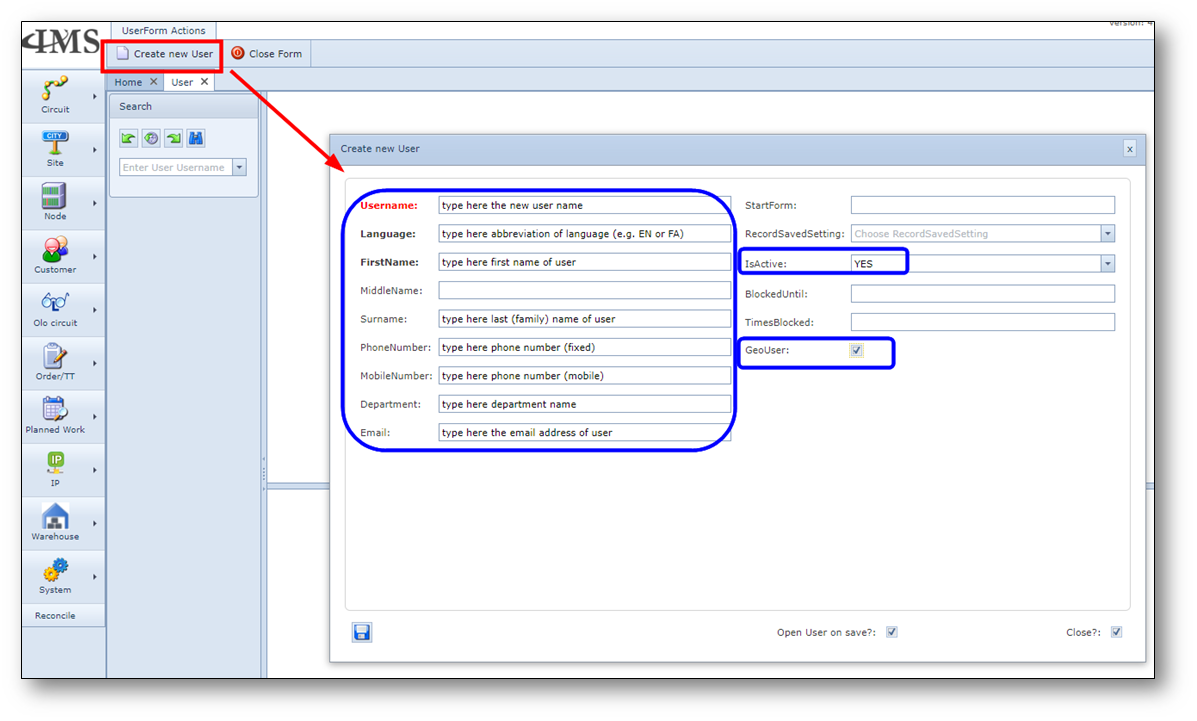
Fill in the fields in blue areas in screenshot. Press save.
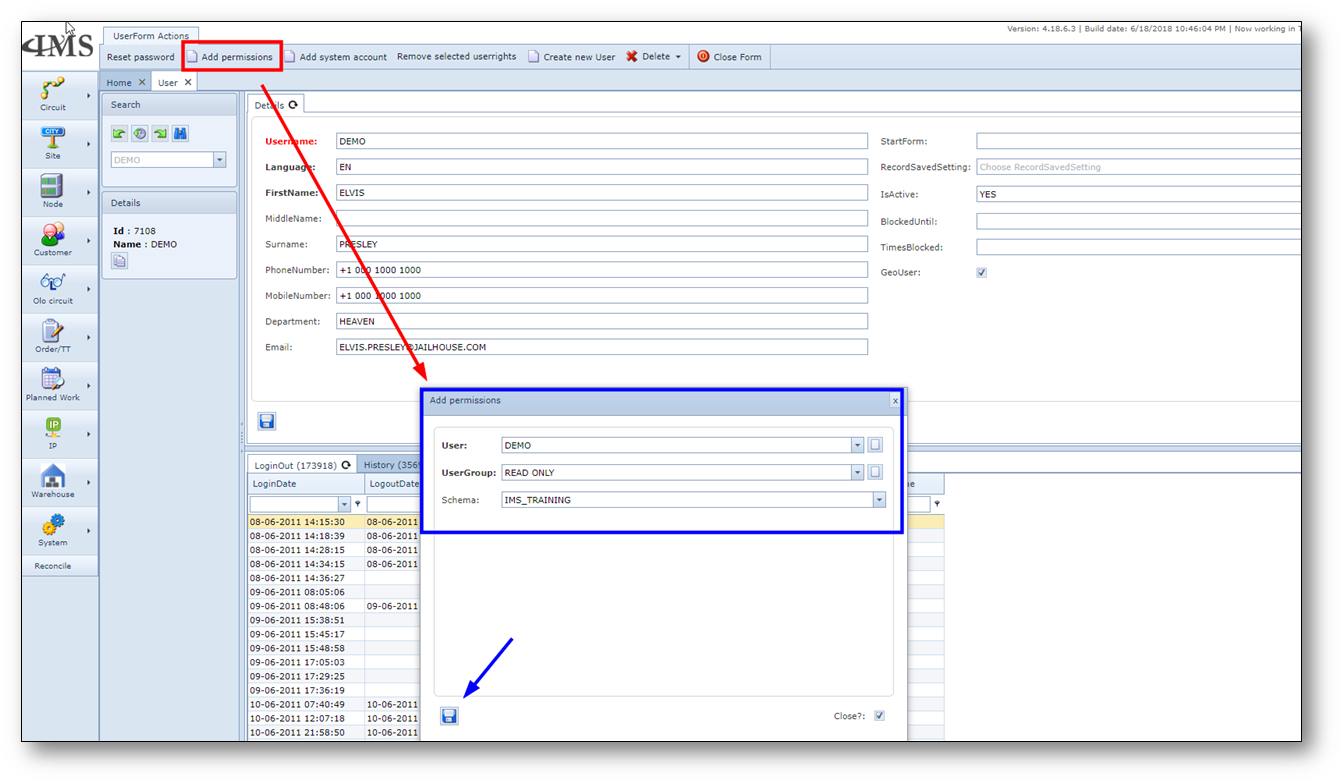
After creating the user, add permissions (related user group to environment).
Reset a user account
To reset a user account.
- Open user form
- Search for the user that needs a password reset
- Press button “Reset password”
