Once all the preliminary work of setting up number ranges and their prefixes is complete, telephone numbers and whole ranges can be assigned and unassigned to IMS objects.
Telephone Number Ranges can be related (assigned) to the following objects:
oSite
oNode
oOrder/TT
Telephone Numbers can be assigned:
oan Expiry Date
oa Status
oa Ported To OCN
oa Ported From OCN
oa Circuit
oa Customer
oa Nice Number
When a TNR is selected, all its telephone numbers are listed in the lower half Telephone numbers tab, with the following columns of information:
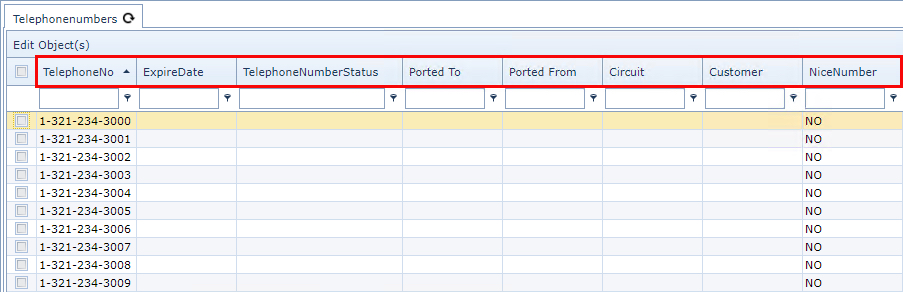
Telephone No |
Each telephone number, including its international code, code name fields, and individual number |
ExpireDate |
The expiry date designed to ensure that numbers are used regularly and do not sit idle for too long. Reports to governing bodies will include date fields like this one. |
Telephone Number Status |
Recognized Telephony status’ like: Assigned, Intermediate, Reserved, Aging, Admin, Donated to Pool. |
Ported To |
Whether this number has been ported to another phone service provider – Operator Company Number (OCN) |
Ported From |
Whether this number has been ported from another phone service provider – Operator Company Number (OCN) |
Circuit |
The circuit name that this number is associated to |
Customer |
The purchaser/owner of the number |
Nice Number |
A number also represents a letter – utilizing the alphanumeric characters on a phone's keypad i.e., 1-603-623-FIND equates to 1-603-623-3463 |
Assigning / Unassigning Telephone Numbers
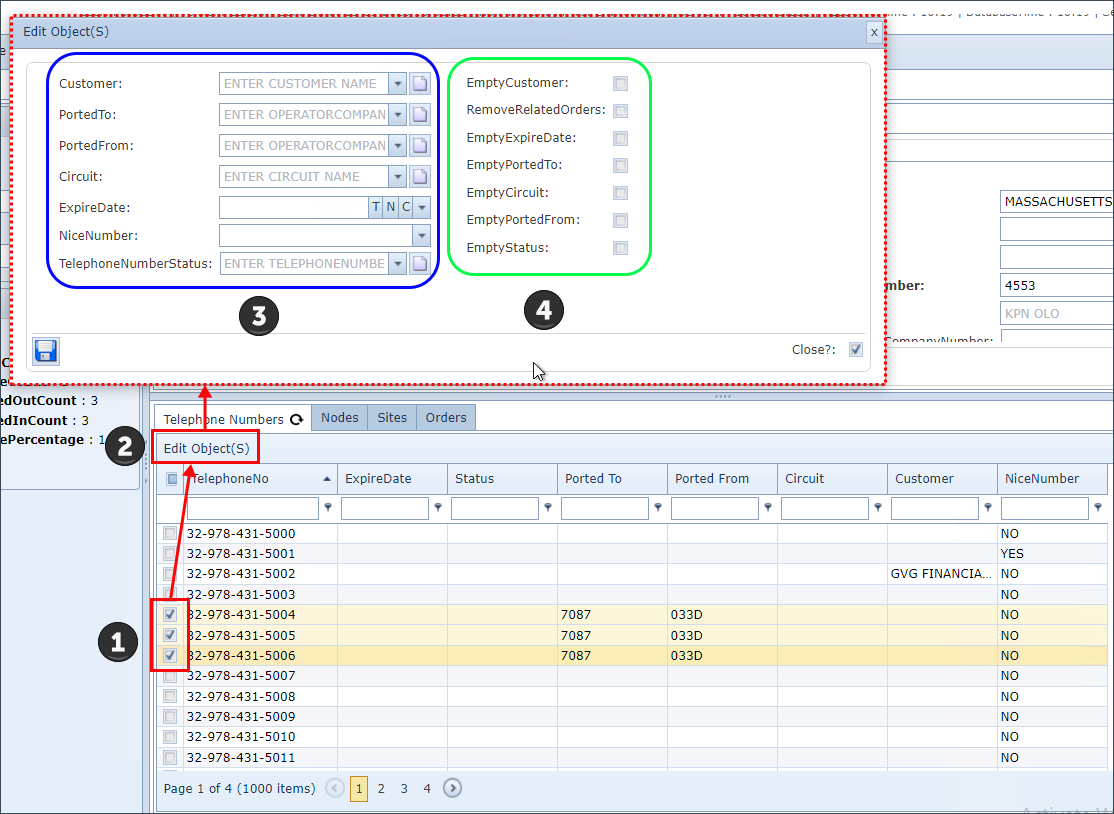
The use of Telephone numbers is achieved through the Edit Object feature in the Telephone Numbers Details area - lower half of the UI. Assigning (step 3) and unassigning (step 4) associations can be on an individual or several as required.
Both assigning and unassigning objects can be made at the same time |
|
Select one or more numbers by enabling the required check boxes in the first column |
|
Click on the Edit Object option in the Telephone Numbers Tab ribbon |
|
To assign objects to the number/s - select the required objects from the first column listed fields fields - blue square |
|
To unassign objects from the number/s - select the required objects from the second column listed fields - green square |




▪To complete the process, click on the Save icon in the lower left of the popup window
Relating Telephone Number Ranges
Whole Number Ranges can be related to Site, Node, and Order/TT objects.
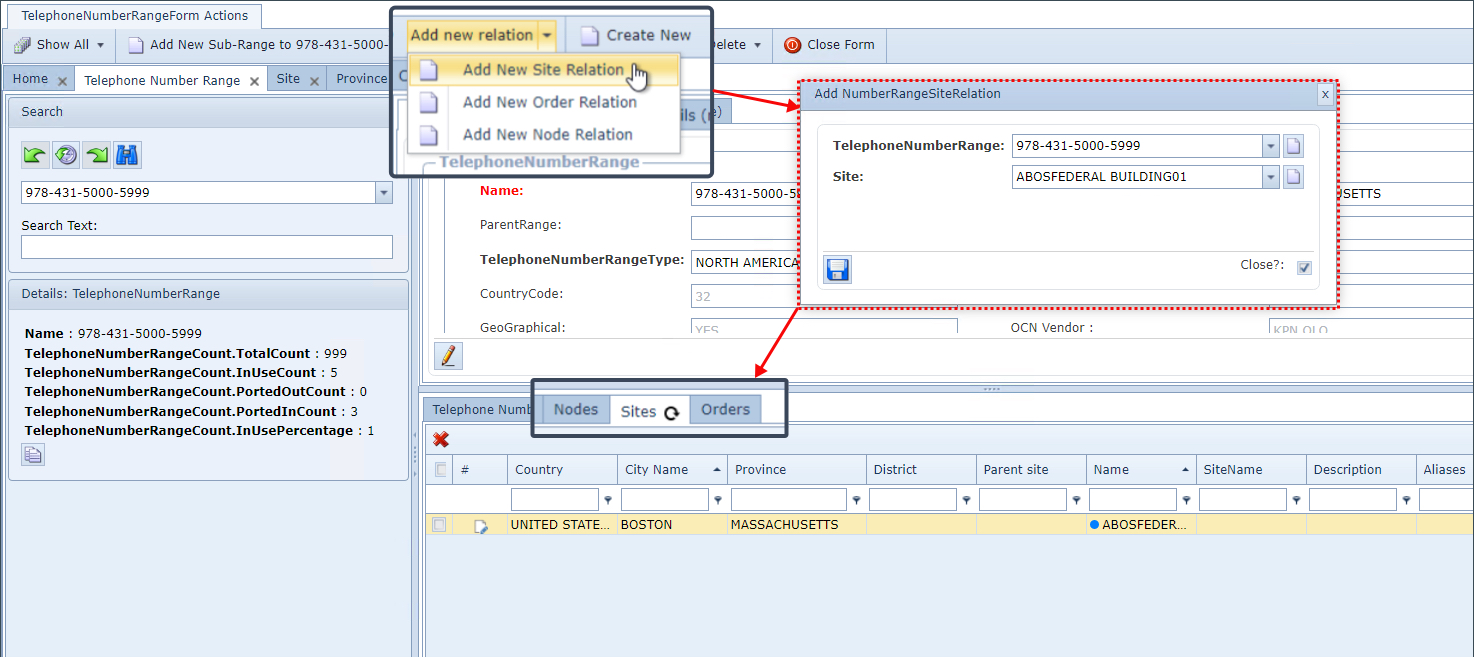
From the Telephone Number Range Form button bar:
▪Click on the Add New Relation option - a drop down list with three association options is given - Site, Node, or Order/TT
▪Select one of the 3 options - this open up a popup window
▪Make the required object selection from the drop down fields provided
▪To complete the process, click on the Save icon in the lower left of the popup window