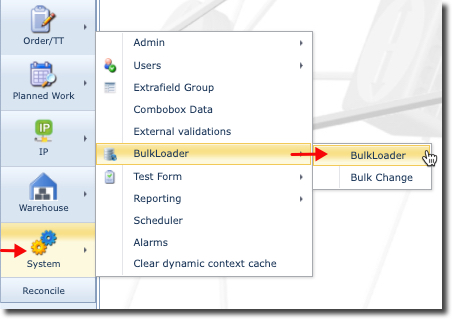
From the IMS Main menu bar:
▪ |
Click on the System icon |
▪ |
In the following dropdown list select Bulk Loader and then BulkLoader again. |
The BulkLoader Form is displayed.

The following screenshot shows the main BulkLoader form areas which are described below.
1 |
General Template |
|
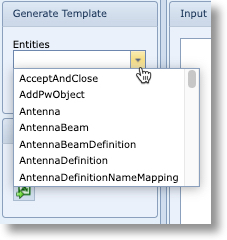
Typing in the Entities field will assist in filtering through the list. This contains a list of all the predefine BulkLoader instances. Currently there are 195. Clicking on the down arrow icon reveals a list of all the BulkLoaders in alphabetical order. Clicking the green spreadsheet icon (Generate Excel template) will generate an Excel file containing the BulkLoader data structure based on the BulkLoader entity selected from the Entities field. |
2 |
Upload File |
Excel file containing the data in the appropriate format. This file is loaded from a local server or PC. |
|
3 |
Input |
This area may contain user entered header and data rows ready for data loading, and is an alternative to the Upload File method, mentioned above. Two other icons are in the lower right corner of this pane. The ClearInput Box icon clears all contents from the Input pane. The LoadData icon starts the data loading processes, be it from the Upload file or the Input area |
|
4 |
Output |
This area displays the data load results, including any error messages |
|