Bulk loader
The column OrderId is also added to the bulk loader of the IP-address so you are able to related multiple orders to an IP-address at once.
As of release 23.1 Order/TTs can be related to IP Addresses therefore the OrderId field has been added to the Bulk Loader for IP Addresses enabling fast loading of multiple Order/TTs to an IP Address |
IP data can be added or updated to IMS IP objects by generating an excel Bulk Loader spreadsheet from the GUI – after which it is a case of adding new data or modifying the existing data with fresh data, using either the ADD or UPDATE statements.
In this example the IP Subrange object is used to generate the 3 existing rows already available and in the IMS database.
These rows can then be used as a template or guide to either add new data or alter existing data contained in the database.

▪ |
Right click on the column header of the IP data grid to reveal a dropdown list of further options |
▪ |
Click on the Generate Bulkloader template option |
▪ |
Click on ADD or UPDATE – depending on whether adding new or modifying existing data is required |
Once generated the excel file typically appears in the lower left of the GUI as follows:

Depending on the ADD or UPDATE, the resulting file will look similar to the screenshot below.
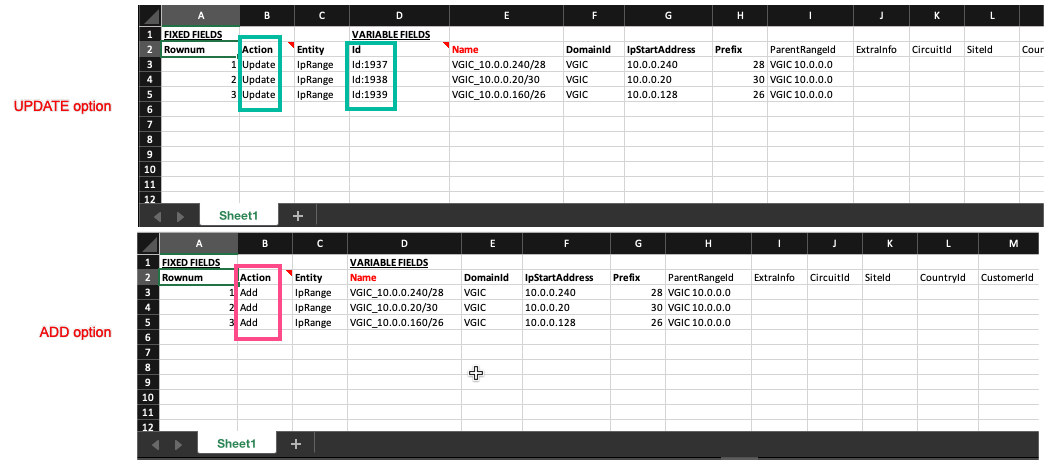
Notice the difference in columns as highlighted above, i.e., in the ADD option, no Id field column is required, as the IMS database will add new Ids as required.
These files can then be adjusted and modified accordingly.
|
It must be understood that if the above Bulk Loaders were to be used, care should be taken when considering the mandatory fields i.e., if you try and ADD these three existing entries, then IMS will reject the execution of the load on a ‘duplicate’ violation basis. |
Remember that for all Bulk Loaders … Bold column fields: are mandatory fields and cannot be left empty Red column fields: are unique fields and only unique values can be accepted. |

In this case we want to populate the CustomerId fields with a valid existing Customer entity.
▪ |
Insert into the CustomerId fields a valid Customer Name, in this example VGIC-01 |
▪ |
Copy rows 2 through 5
|
▪ |
Paste the contents into the Bulk Loader input section as in the screenshot below and click on the Load Data icon in the lower right of the section |


Should the loading complete successfully then you will receive feedback as follows, in the lower Output pane
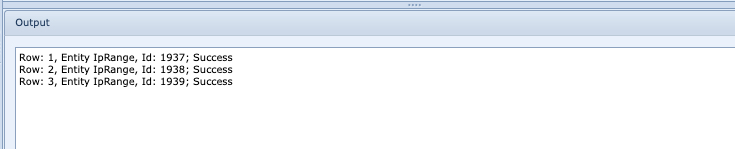
The result in the IP Range GUI will be as follows:
