This section covers the following:
➢Create an IP Reservation ➢Relate an IP Number to a Reservation ➢Multiple Reservations to one IP Number ➢Deleting ALL Reservations - IMSBatch |
The reservations feature is an IMS internal object whereby individual IP numbers can be assigned to a
reservations object.
Once assigned, these IP numbers cannot be assigned to other standard IMS objects like card and ports,
until they are removed from the reservations object, or the reservations end date has been reached –
the end date is an optional field.
|
Before you assign an IP number or range to a IP Reservation instance, the IP object must first be put into focus |

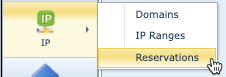
Create an IP Reservation
From the IMS Main Menu …
▪ |
Select the IP option, followed by the Reservations from the dropdown list provided |
▪ |
From the ReservationsForm Action button bar click on the Create new option |
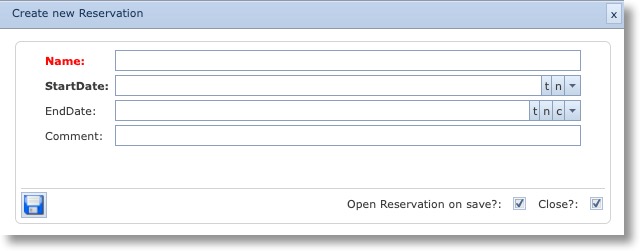
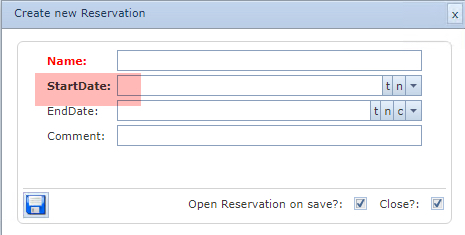
The Create new Reservation popup window opens up.
Fill in the details accordingly, the Name and StartDate
are mandatory
▪ |
Click on the Save icon to finish [lower left of the popup window] |
You can then review the end result as in the example screenshot below.

Relate an IP Number to a Reservation
There are several ways to relate an IP Number to a Reservation.
Method 1
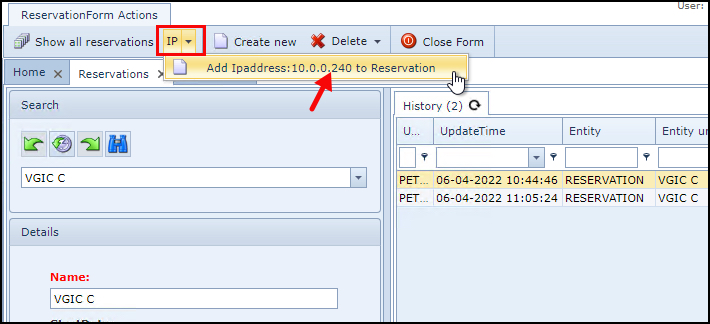
Once an IP Number has been set In Focus, then:
▪ |
From the ReservationsForm Action button bar, select the IP option |
▪ |
Select the Add Ipaddress:<ip number> to Reservation option |
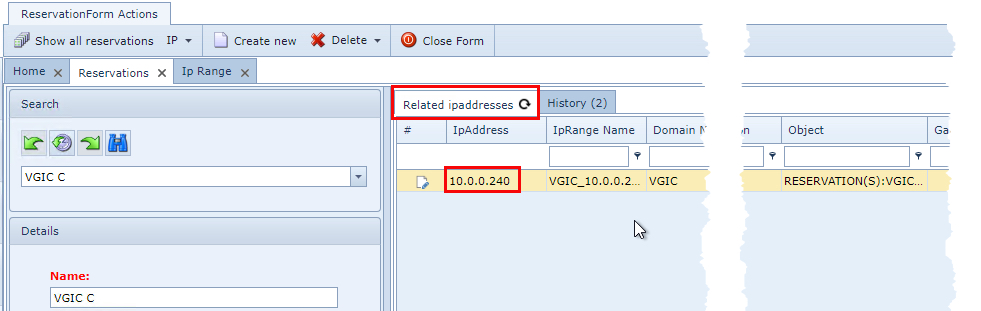
This will add the IP Number to the Reservation instance as shown in the following screenshot:
Method 2
From the IP Range tab in the IP module:
▪ |
Select the required IP Number from the Ip Addresses tab in the lower half of the GUI |
▪ |
Right click on the IP Number and select the Relate IpAssress to Reservation: <reservation name> |


Multiple Reservations to one IP Number
Method 1:
It is possible to relate multiple reservations to one IP address. This is achieved by first opening the required
Reservation instance from the Reservation option:
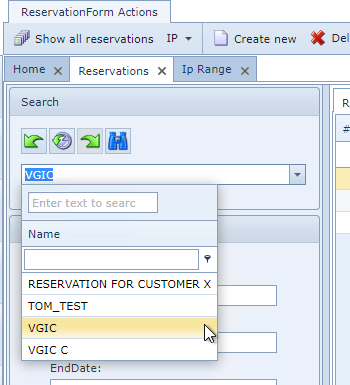
Then going to the required IP Range form, selecting ( right click) and assigning the IP instance with that
Reservation instance:
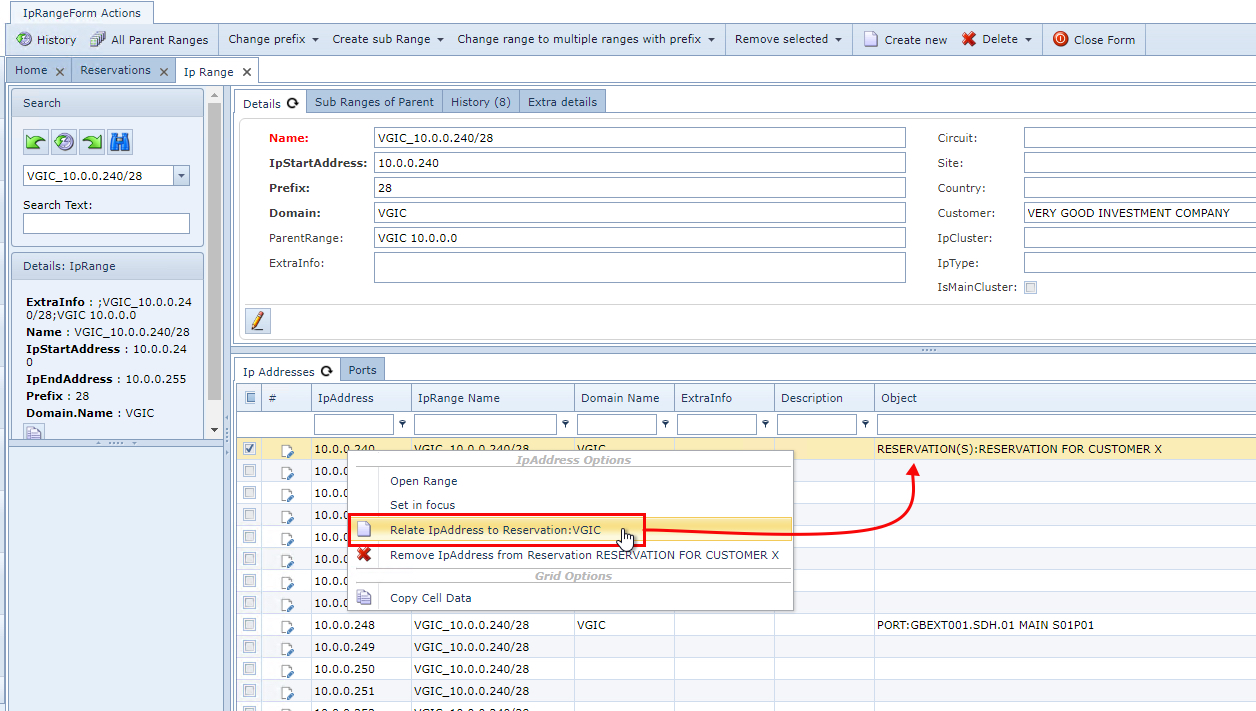
Note: For subsequent Reservation assignments, it will be necessary to first open the required Reservation
instance first and then repeat the above steps.
Method 2:
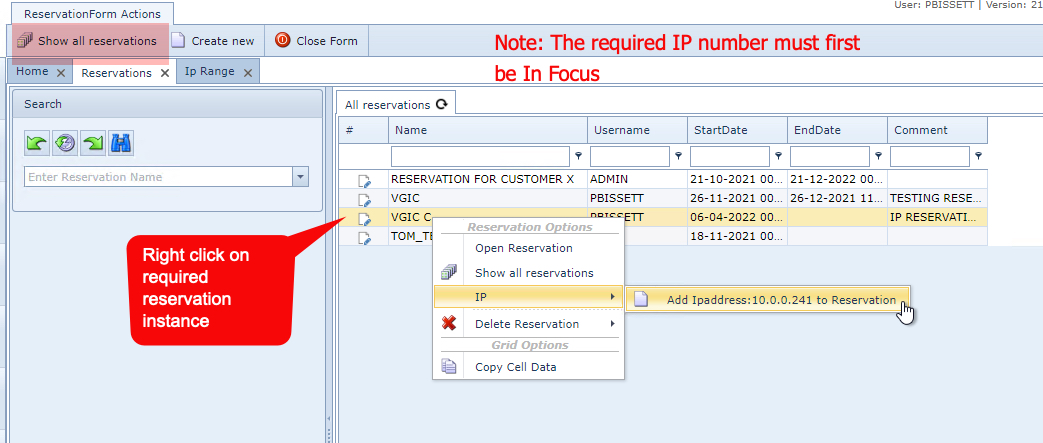
From the Reservation form:
•Select the Show all reservations option in the ReservationForm Actions button bar
•Right click on the Reservation instance name
•Select the IP option and locate the in focus IP number
Repeat the above steps for subsequent Reservation instance assignments
Deleting ALL Reservations - IMSBatch
The reservations are created with a mandatory start date and have an optional end date.
It is possible to enable the IMS Batch to delete all the reservations, including the related IP address
reservations which have passed the end date of the reservation.
The batch can be enabled via the following command line: IMSBatch.exe ProcessReservationEnddate