This topic covers:
oAdding Slack to a Cable
oUpdating Cable Slack
Fiber cables are given extra length to allow for future splicing work, and this is rolled up and placed in a manhole, handhole, or on a Pole. This extra length of cable is called slack and relevant information can be registered in the cable Circuit and Site objects. A cable's Circuit IMS form will not initially show Slack information. When Slack information is added, a new tab will appear in the Circuit form as well as the cable's related sites. These sites will be manhole, handhole, or pole types.
The Slack tab will appear in both the Circuit and Site objects that relate to the Cable circuit being worked on |
Adding Slack to a Cable
When adding Slack information for the first time:
First go to the Circuit module, locate and place the required cable circuit in focus. This is achieved by clicking on the Put circuit in focus option in the Circuit Form Actions button bar. Cable circuits should be of the CBL type speeds i.e., CBL1, CBL24. |
Once the required cable Circuit is in focus and then from the Network Map:
▪Right click on a related site that is a manhole, handhole, or pole.
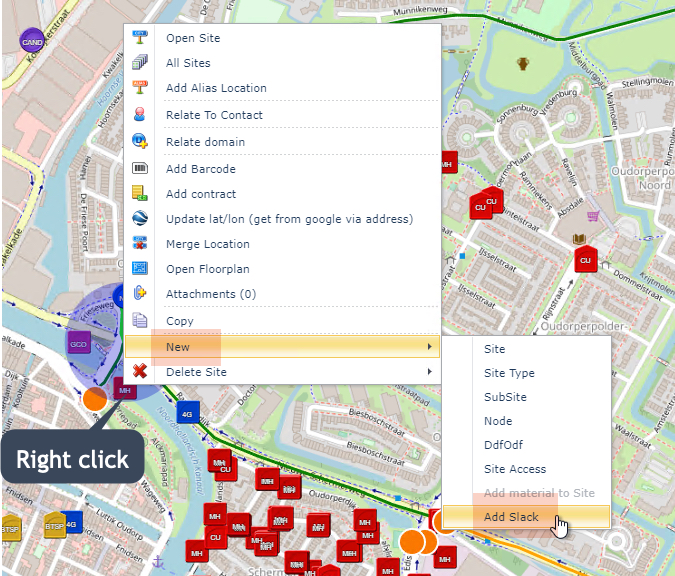
▪From the drop down list provided, select New followed by the Add Slack option
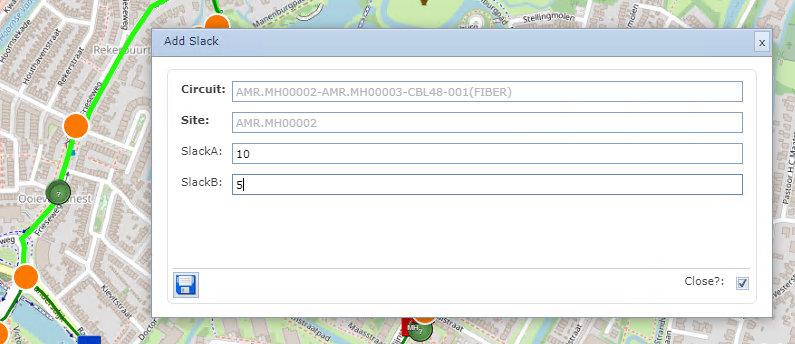
This opens up the Add Slack popup window relating to the cable Circuit that is In Focus. The Circuit and Site fields are pre-filled.
If only the total length of cable slack is known (i.e., metres or feet):
▪Type in the number that represents the known length of Slack in field SlackA
If information is known about the markers on the cable Slack:
▪Type in the number representing the start marker in field SlackA
▪Type in the number representing the end marker in field SlackB
▪ Click on the Save icon in the lower left corner of the popup window to complete this task
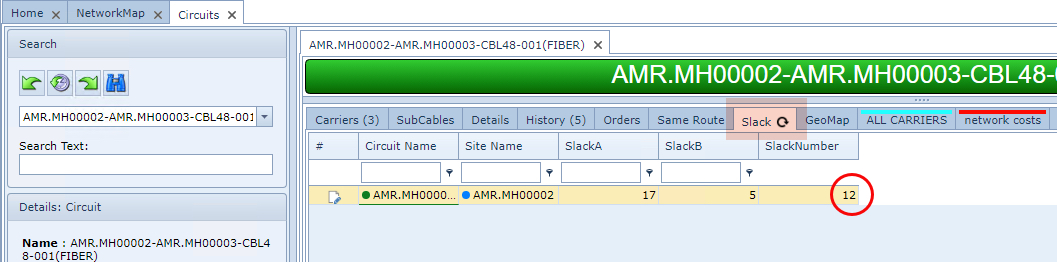
IMS will then calculate the difference and present this as the Slack Number in the Circuit Form. Returning to the cable in the Circuit module (or related Sites), the Slack tab is now visible. In the example screen shot below, 17 and 5 were entered and 12 is the calculated length of Slack.
Updating Cable Slack
Updating cable Slack information can be achieved from the related Circuit or Site object |
When repairs or splicing has been carried out in the field that involves consuming cable slack length, then updates to the Slack information in IMS can be processed as follows:
From the Circuit or Site form relating to the Cable instance being worked on:
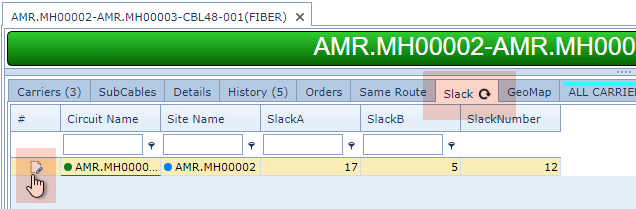
▪Select the Slack tab
▪Click on the Edit icon - leftmost in the row
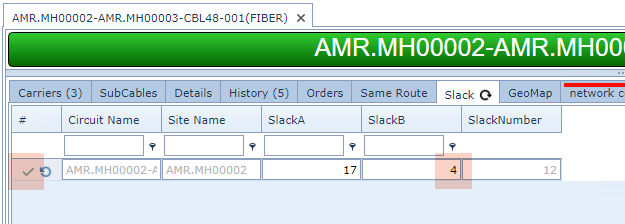
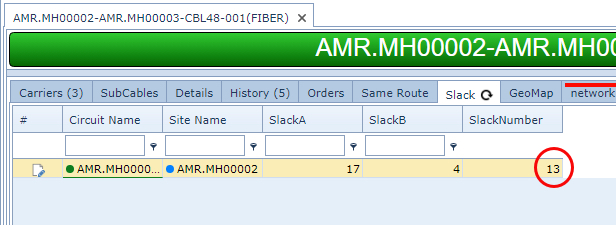
▪Make the necessary adjustments to the figures in the SlackA and/or SlackB columns - in the above example only the SlackB field is modified
▪Click on the Save icon (green tick) - leftmost in the row to conclude the updating process.
The Slack Number field will automatically be adjusted.