Introduction
A Bulkloader is functionality to upload data from excel into IMS.
The data must have a structured format as will be explained in this chapter.
Open Bulkloader form
To open the Bulkloader form, use the System menu > BulkLoader > BulkLoader
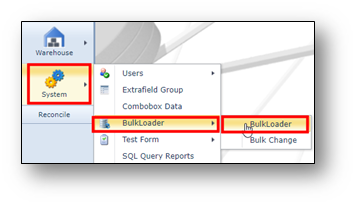
Find bulkloader formats
In the bulk loader screen, a list of all pre-defined bulk loaders can be found.
Use the pull-dowm menu to find the correct bulkloader format:
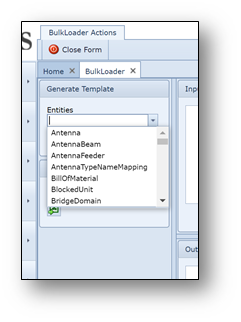
If a bulk loader is selected an Excel sheet will be generated by clicking the button:
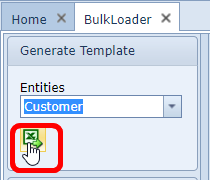
For example, the Customer bulk loader:
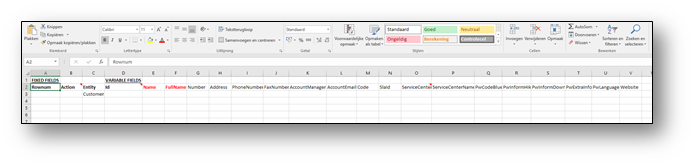
The first row displays ‘Fixed Fields’ and ‘Variable Fields’
Fixed Fields are the columns that cannot be removed and always need to be filled-in.
Variable Fields are the columns that are not mandatory.
The second row displays the column names that can be used to load data.
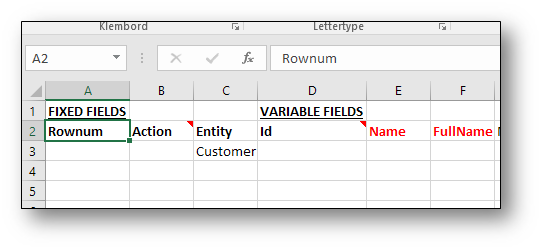
Fixed bulkloader fields
The following columns need always to be filled:
Rownum |
to identify all lines, so errors can be addressed |
Action |
Possible values: ADD - to add new records UPDATE - to update existing records DELETE - to delete existing records |
Entity |
Indicates the type of data that will be uploaded. Already filled-in when generating the sheet |
Id |
An ID field is an optional field (only optional if the name value is provided). This ID is the ID as known in the IMS database. This ID field will be automatically filled in when exporting a bulkloader from any other IMS form (explained later). |
Mandatory bulkloader fields
Each bulkloader data(entity) type has its own mandatory fields.
For example for loading sites have different mandatory fields then loading customers.
It is important to understand IMS can only load the records when the combination of records are unique to
be able to find the correct record to create new, update or delete.
If the ID field is not used, the RED fields indicates the "unique" property fields.
Some are easy to fill in (for example "name") but others may be more difficult, for example when loading
Extra fields or DDF/ODF cables.
Other bulkloader fields
The other fields will be specific for that type of data you want to upload.
Still some may be mandatory. If you forget to fill those in, IMS will provide you with an error message
after trying to upload.
Error messages
After you try to upload fields, and IMS cannot process it due to some errors, IMS will provide error
messages. Therefore it is mandatory to fill in the Rownum field (first field).
This rownum field is an ID field, used for uploading purposes only.
IMS will provide a response for each record you try to upload.
It will give SUCCESS or the error message.
You can upload same data again and again without any problem, IMS will just give an error stating
that the records already exist.
Pre-filled bulkoaders with data records
A nice and helpful IMS feature is to create bulkoaders with pre-filled (example) data, so you know
what to fill in.
For example, if you need to change existing data, it is possible to find this data in IMS first.
Say you have to update a few locations.
A possible way to get pre-filled data could be,
1- go to Site form, click all Sites button
2- filter to get the data you need, in below example screenshot it is filtered on customer field
3- on any header related to Site, richt click and choose option: Generate Bulkloader Template.
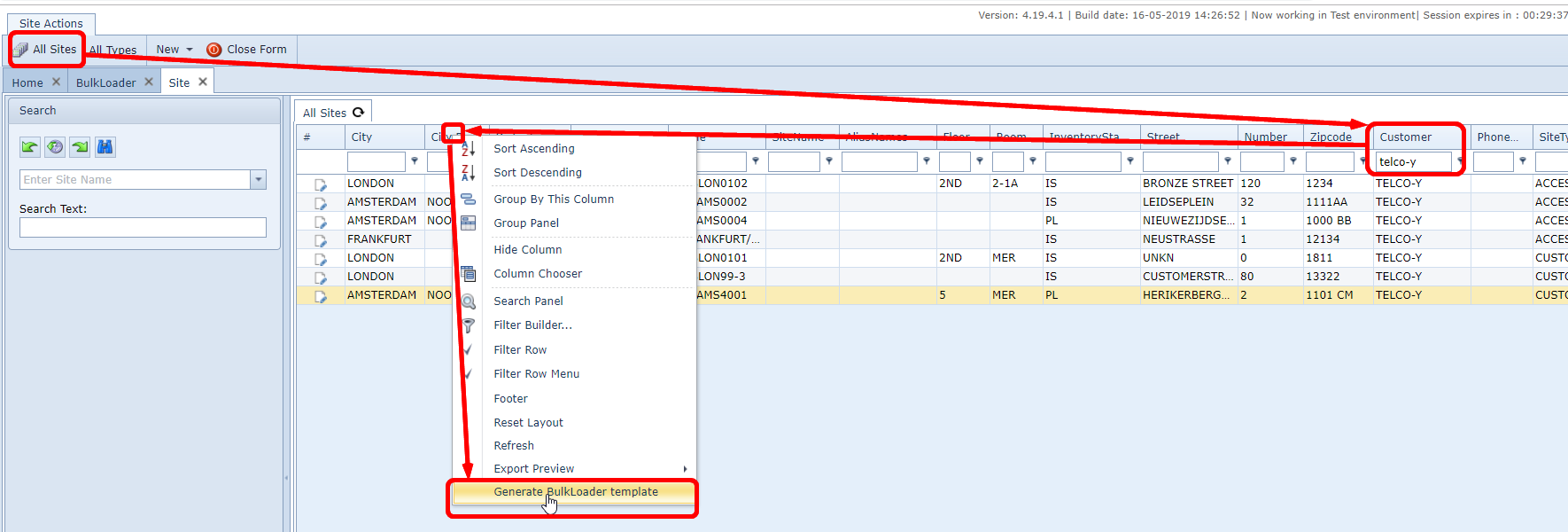
The export file will look something like:

The ID field (IMS database ID) is filled in, so if you want to update the site, you can use either the ID field
or the Name field. Or both filled will work too.
To create new records, the ID field must be empty.
The second field "Action" must be as explained earlier:
Action |
Possible values: ADD - to add new records ADDORUPDATE - IMS will decide, if new, it will add, or if existing, it will update. UPDATE - to update existing records DELETE - to delete existing records |
Uploading data
To upload data, fill in the bulkloader, see example below (taken from previous export - pre-filled data)
In below example, site data will be UPDATED (see second column).
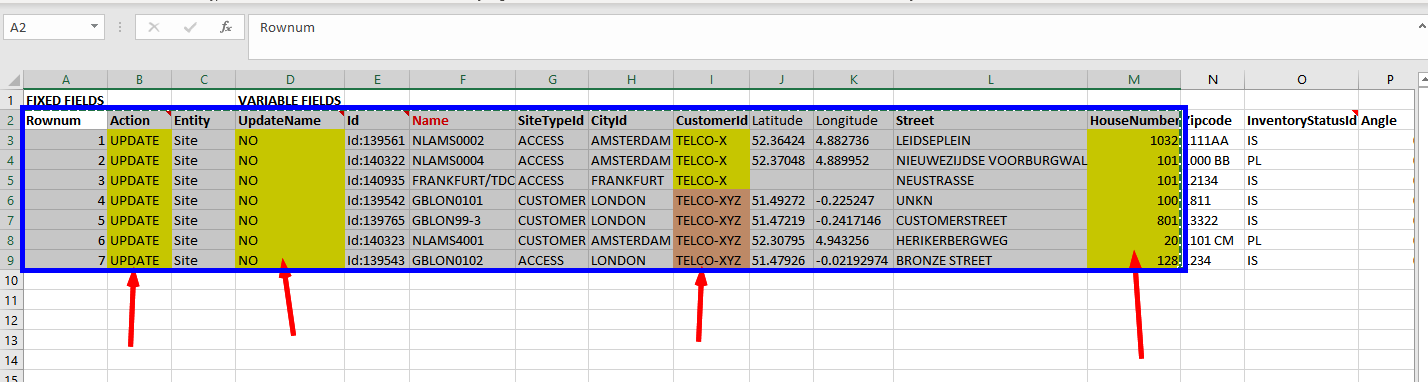
The entity (Column C) is "Site", so IMS will know you are trying to upload Sites.
In Sites bulkloader, you need to tell IMS to whether to update the site name (YES or NO) according to
the Site naming convention, in this case it is set to "NO".
In this exmaple we try to change the related "Customer" (column I) and HouseNumber (column M)
The first 3 customer records are valid entries, and the last 3 (highlighted in orange), they are invalid
customer names (they do not exist in IMS).
To upload the data, select the records. In this case the records in the blue circle are copied into
the upper part of the bulkloader screen, see below.
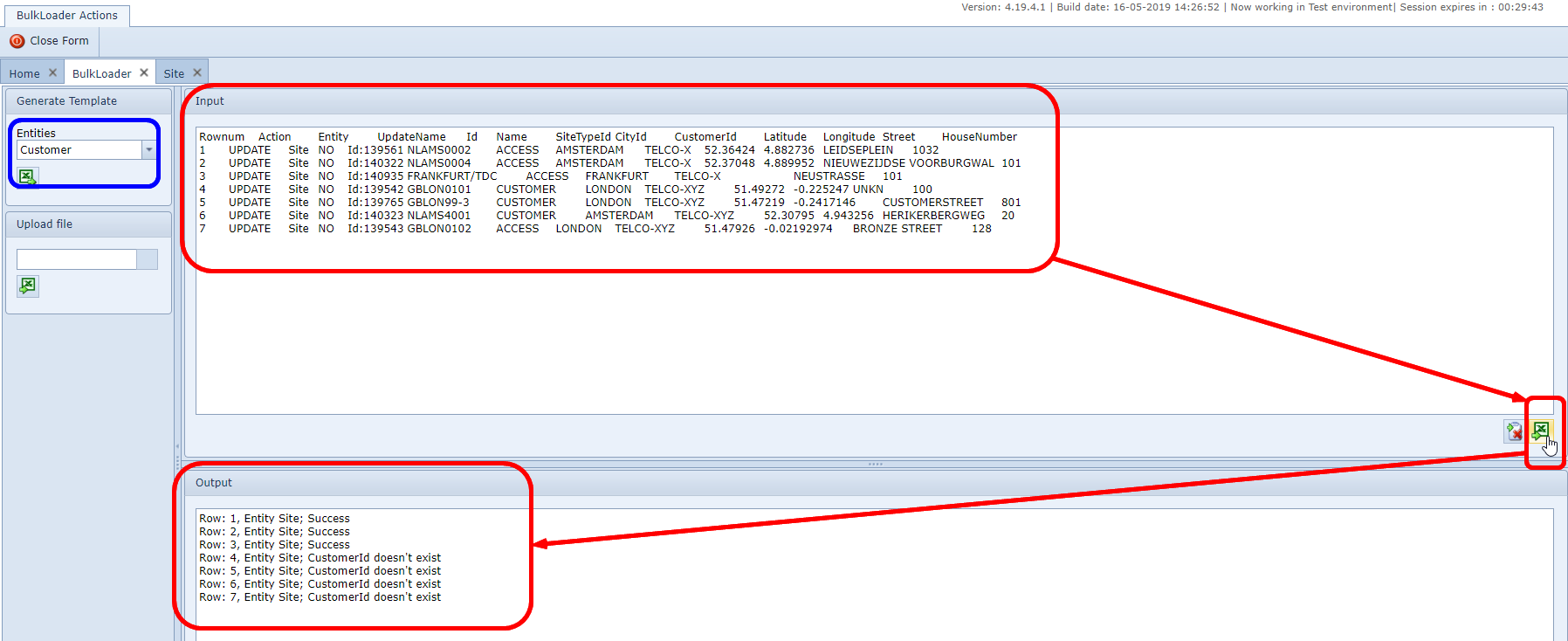
To run the bulkloader press the "excel" button on the right of the screen.
The output (result) will be shown in the lower part of the screen.
As expected the lowest 3 records give an error message, stating that the customerID does not exist.
The data in the excel can be updated and loaded again.
NOTE: you will see that it does not matter if the search pull down field has a different entity
(highlighted in blue in above screenshot)
Even it has Customer in the pull down field and the upload data is related to Sites, IMS will just understand
you want to upload sites.
Complex bulkloaders
Some bulkoaders are very straight forward. But some are more complex, not easy to fill in.
The next paragraphs provide some examples, to help you understand how to fill in those Bulkloaders.