Planned Work & Impact analysis
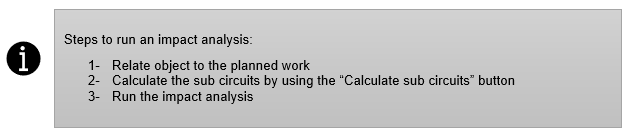
Before a Planned Work is carried out on the network, IMS can determine the impact of the Planned Work with regards to the customer services.
If so desired, IMS users can inform impacted customers via email. These emails can be sent from the IMS application using predefined Planned Work email templates.
Open Planned Work Form
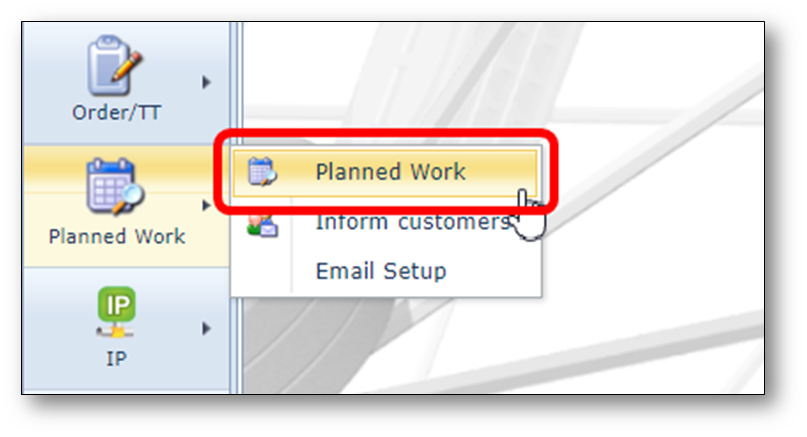
The Planned Work form can be opened using the menu on the left.
Find Planned Work
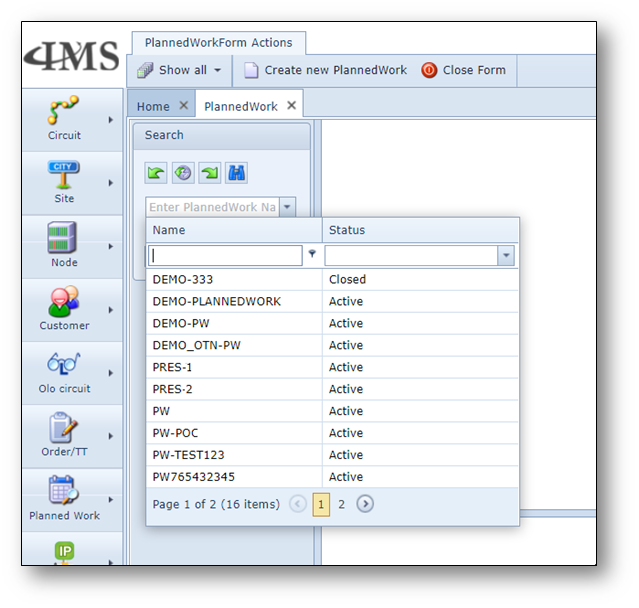
Any existing Planned Work can be found using the search field on the left.
Planned Work details
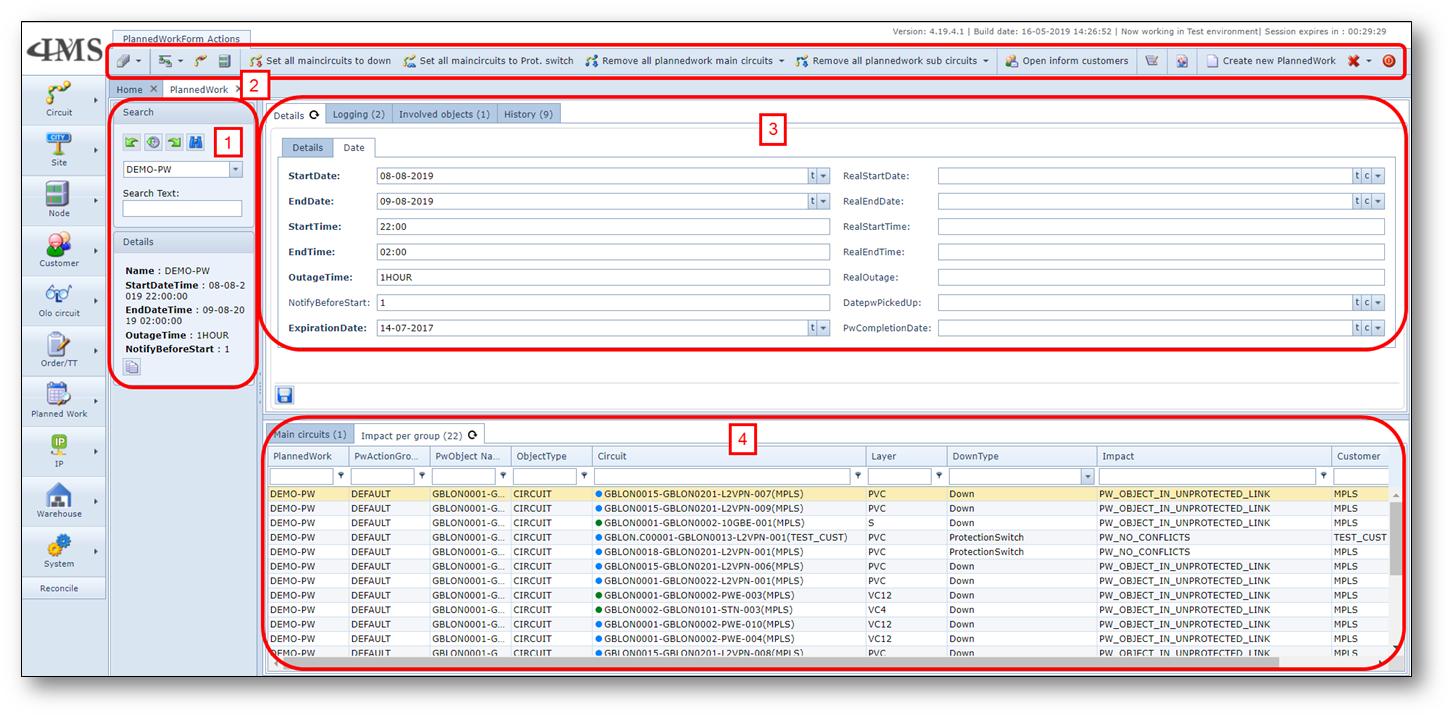
The Planned Work form exists of multiple areas of information.
See screenshot and the highlighted sections with numbers:
1. |
Search area and summary information below the search area |
2. |
Button bar |

Show all |
Show all Planned Works and Planned Work Categories |
Calculate sub circuits |
Calculates all circuits and connections that are starting, ending or passing through on the related object |
Run Impact Analysis |
Calculates per circuit and connection what the impact is. IMS will calculate if the services will have a protection switch or will go completely down. |
Add Objects |
Objects which can be added to a Planned Work and taken into account for impact analysis, Equipment, Card, Connection, Fiber/Copper cable, Duct/Span, Leased Line, Location |
Set all main circuits to down |
Forces all the main circuits into the impact down-type “Down” The impact analysis will use this down type in the calculations. |
Set all main circuits to Prot. switch |
Forces all the main circuits into the impact down-type |
Remove all plannedwork main circuits |
Using this button removes all main circuits from the opened Planned Work |
Remove all plannedwork sub circuits |
Using this button removes all sub circuits from the opened Planned Work |
Open inform customers |
Using this button opens the inform customers form |
Add logging |
Opens an additional window to add loggings to the planned work |
Add actiongroup |
Offers the option to create and realte an action group |
Create new PlannedWork |
Open the Create new PlannedWork form |
Delete |
Deletes Planned Work |
Close Form |
Close the Planned Work form |
3. |
Planned Work information area |
a.Details tab, with 2 sub tabs |
|
i.Details: fields to capture Planned Work information, including the Planned Work category, explained here below |
|
ii.Date: fields to capture date information, including the planned and actual information |
|
b.Logging tab, to add loggings use the “Add logging” button on the button bar |
|
c.Involved objects tab presenting all the objects involved in the Planned Work, to add objects here use the “Add objects” button on the button bar
|
|
d.History tab, list of historical action related to this Planned Work |
|
4. |
Impact circuit and services area |
e.Main circuits tab, presenting the main circuits impacted by the involved object |
|
f.Impact per group tab, presenting all the impacted circuits and services including the type of impact |
|
Inform customers
After the impact has been determined, customers can be informed via email functionality in IMS.
Responsible departments can create pre-defined email templates for different types of Planned Work.
The IMS communication module is multi-language.
To open the inform customers press the button “Open inform customers” button in the button bar.
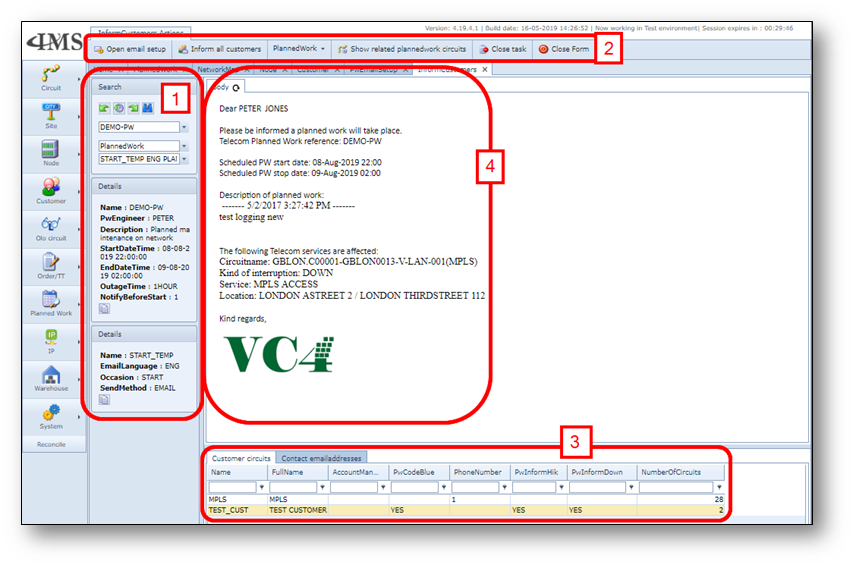
1. |
Search area and summary information below the search area |
In the search area the applicable template can be selected, examples of templates are:
-Start template planned work
-Update planned work
-End planned work
This email functionality can also be used for communication managing the Trouble Tickets in IMS, selecting “TroubleTicket” in the pulldown will give the user the option to select trouble ticket related email templates.
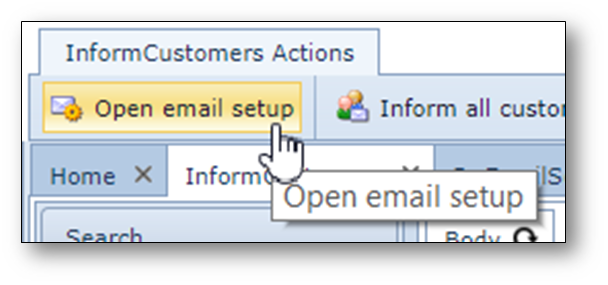
Managing the email templates is done in the email setup form which can be opened using the button
“Open email setup”
2. |
Button bar |

Open email setup |
Open the email setup form |
Inform all customers |
Button to inform all customers impacted |
PlannedWork |
Opens in a sub-menu the “PlannedWork” buttons |
Show related plannedwork circuit |
Opens in additional window the impacted circuits and services including the type of impact |
Close task |
Close the task |
Close form |
Close the Inform Customers form |
1. |
Impacted customer area with 2 tabs |
a.Customer circuits, presenting all the customers impacted including if they want to be informed based on the type of impact and the number of impacted services |
|
a.Contact email addresses, all contact persons from impacted customers who are registered in the customer form as contact person for planned works |

3. |
Email body text |
The email body text presents the email and information which will be send to selected customer
(in field 3, tab “Contact emailaddresses”), this information is completed based on the planned work information,
impact analysis and the email template, which are defined in the email setup form (PwEmailSetup).
Inform customers email setup
To create an email template the email setup form can be opened using the menu on the left.
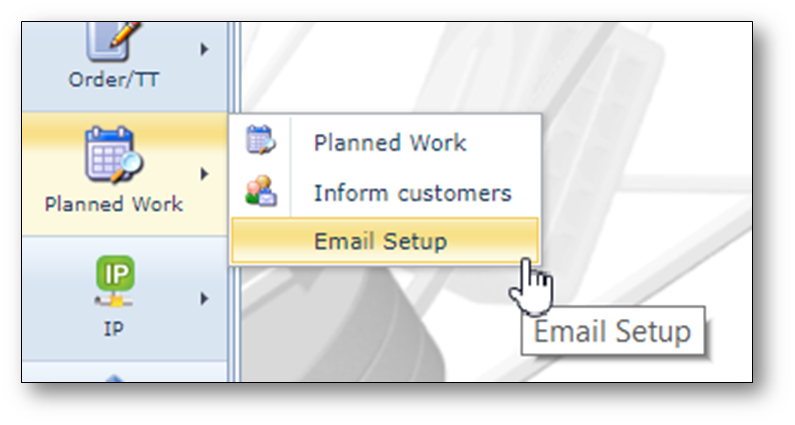
Or via the button “Open email setup” in the Inform customers form
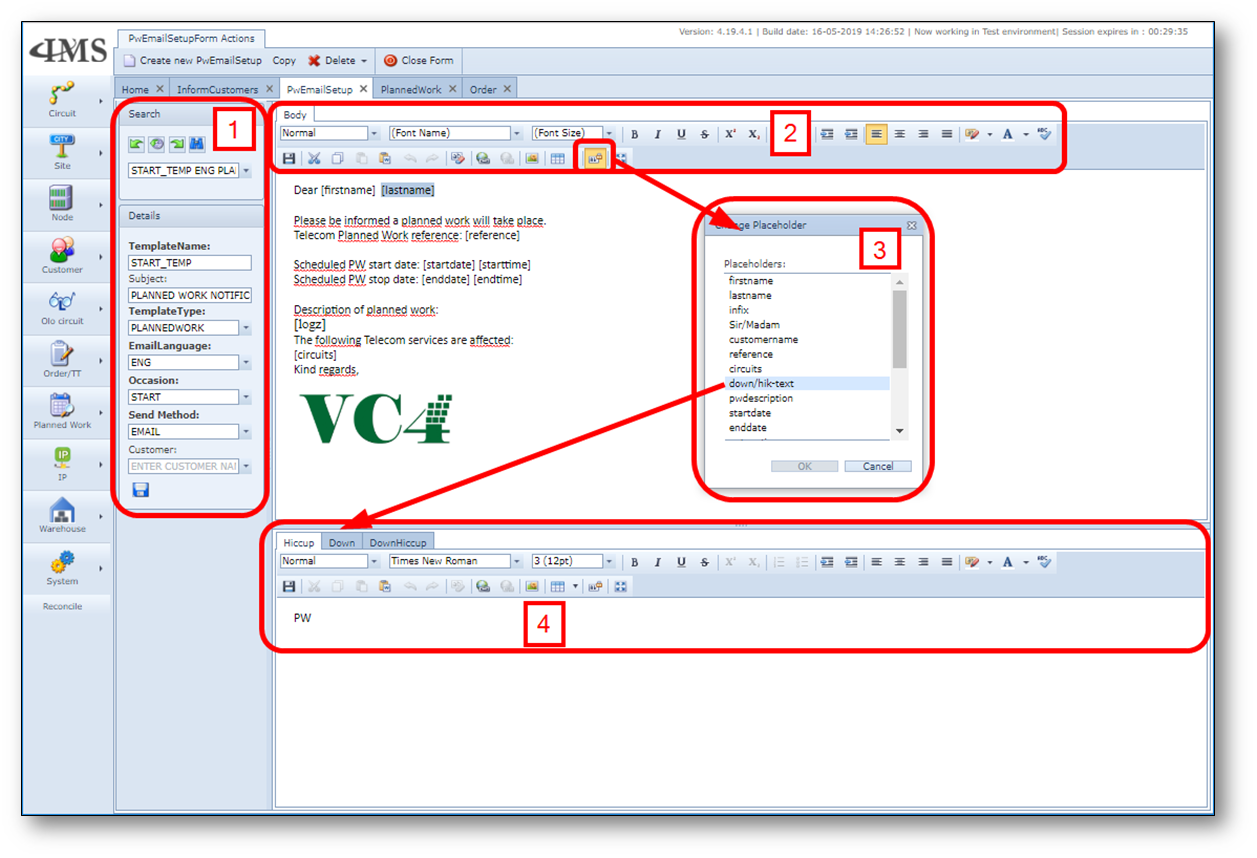
1. |
Search area and template select area. |
2. |
Email body setup and text formatting bar |
3. |
By using the button “Insert Placeholder” the user can include in the email template database fields (predefined and extra fields) like name of the customer contact person including first and/or last name, Planned Work date and time, loggings |
4. |
If the field from the “Insert Placeholder” [down/hickup] is used the area to define which text to be added depending on the type of interruption is captured in these tabs |