▪Open the required DDF/ODF containing free available ports
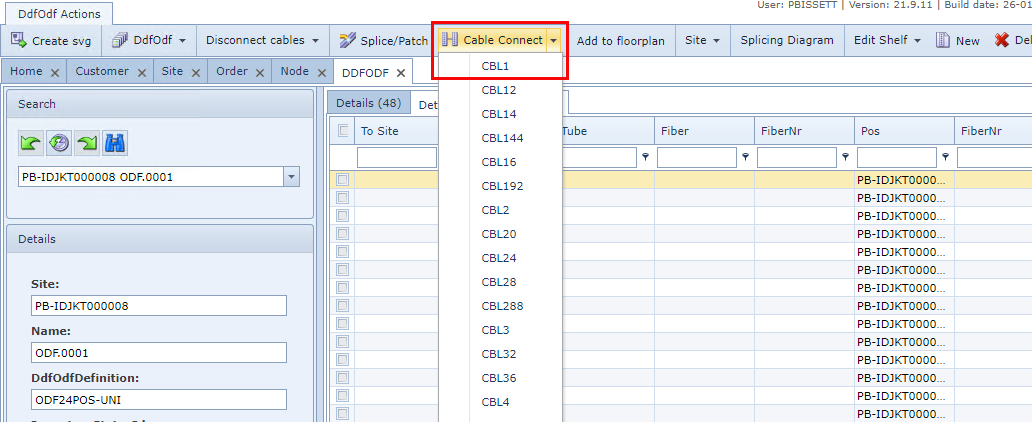
▪From the DDF/ODF Actions button bar select Cable connect button and then the CBL1 option
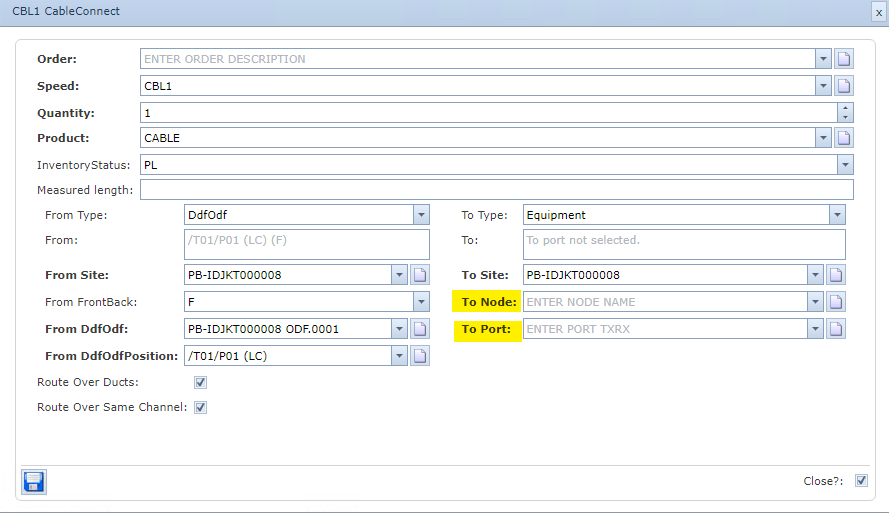
▪In the Cable Connect popup window, fill in the following details - the assumption is: start from DDF/ODF
on the left and connect to the Equipment on the right side of the popup
Order |
Order number - Automatically filled in if Order is in focus |
Speed |
Cable type, for example CBL1, for a normal patch cable |
Quantity |
Number of cables - for example 2 (TX-RX and RX-TX model) |
InventoryStatus |
Status of the new cables - for example PL, RFS or IS |
From Type |
DdfOdf or Equipment - assuming start point is DDF/ODF |
From Site |
Site name of DDF/ODF - now assuming start point is DDF/ODF |
From FrontBack |
B if BACK side F if FRONT side |
From DdfOdf |
Select a starting DDF or ODF name (should be auto populated) |
From DdfOdfPosition |
Starting DDF/ODF position (should be auto populated) |
To Type |
Equipment of DdfOdf - now assuming B side is Equipment/Node |
To Site |
Site name (should be auto populated) |
To Node |
Node Name - select from drop down field |
To Port |
Port name - select from drop down field |
Route over ducts |
disable |
Route over same channel |
disable |
•Click on the Save icon in the lower left of the popup window
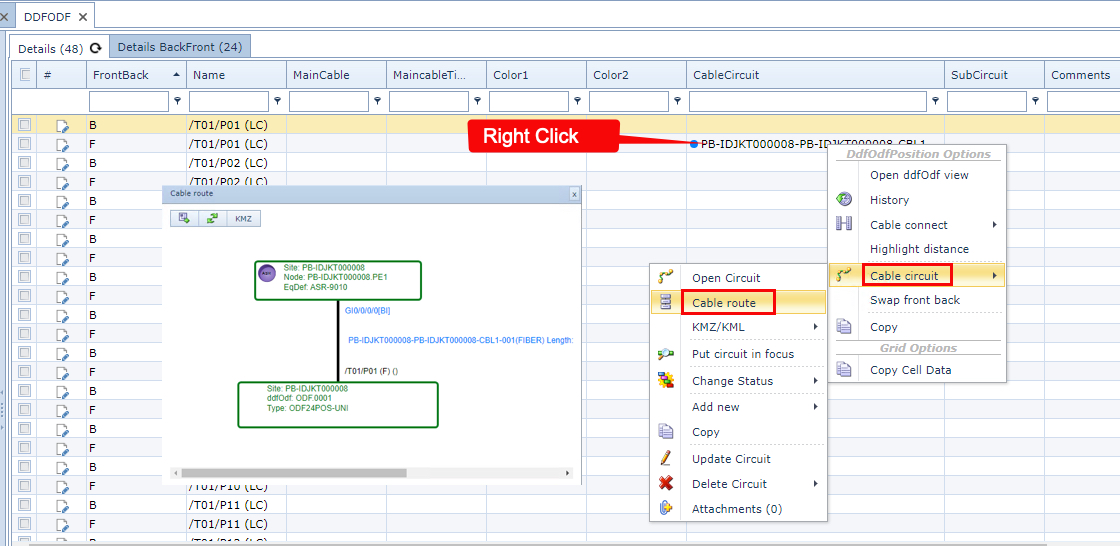
The cables are now connected. You can verify the cable route from ODF to Equipment as shown in
the following screenshot
•From the ODF grid, on the Cable circuit name, right click and choose Cable Circuit, and then Cable Route