This topic describes:
oSteps to create a new Extrafield Group
oApplying User Group permissions for the Extrafield Group
Create an Extrafield Group
From the ExtraFieldGroupForm Actions button bar:
▪Click on the Create new icon option
This opens up the Add ExtraFieldGroup popup window.
▪Fill in the fields of information as required - an example is given below as reference
▪Click on the Save icon in the lower left popup window when finished
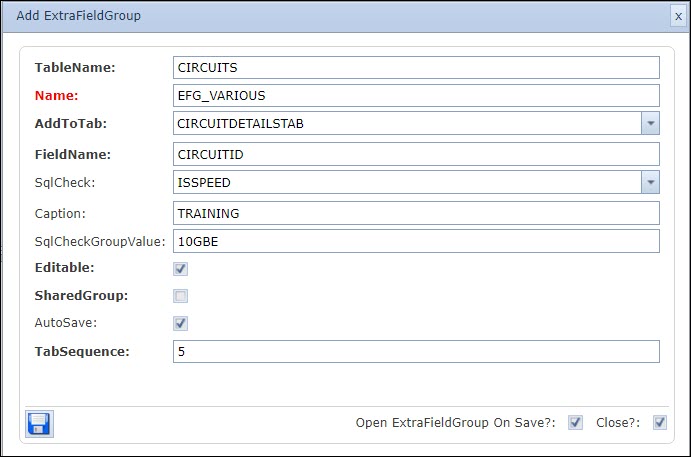
Please refer to the topic called Extrafield Group Details Area for more information for the field descriptions.
The Sql Check field contains the required instance selected from the drop down list - ISSPEED. These options are pre configured. Refer to the next screen shot. This field serves as a validator field. |

The Sql Check Group Value field contains a user defined value (10GBE in this case) which signifies that this Extrafield Group will be validated at run time when the Circuit form is opened, as this example is associated with the Circuit object - see Table Name and Field Name fields. Furthermore, this Extrafield Group tab will only appear if the Circuit chosen at the time, has a Speed value of 10GBE. Multiple entries can be entered in this field by using the pipe symbol as a separator i.e., 10GBE | 40GBE | 1GBE |
Example of an Extra Field Group - Fields are yet to be added and is covered in the next topic called Create New Extra Fields.

Extrafield Group Permissions
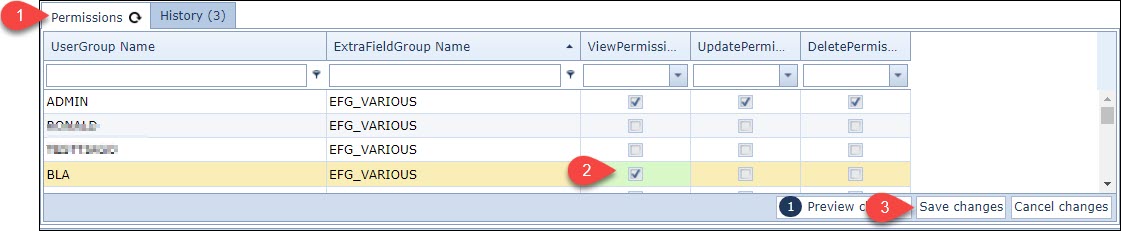
Once the Extrafield Group has been saved, then a User Group(s) has to be assigned. This is achieved by selecting the Permissions Tab and following the 3 steps as shown in the following screen shot:
▪Select the Permissions Tab
▪Select from the 3 available permissions options: View, Update, Delete against the required User Group Name(s)
▪Click on the Save Changes option in the lower right corner of the Permissions Tab