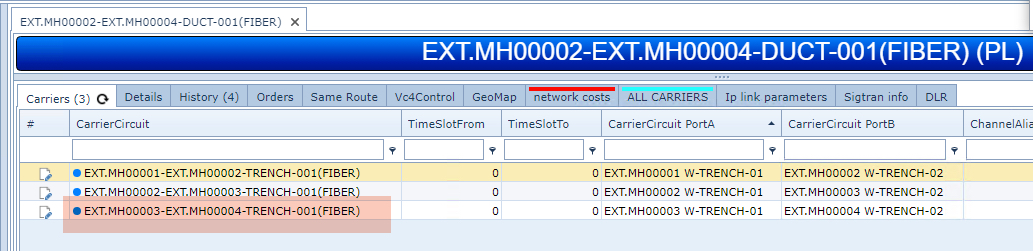
Ducts are modelled as Circuits and are routed in Trench Circuits.
There are 3 methods that can be used to create Duct Circuits, and the screen shot below shows 2 typical scenarios where Ducts are placed into Trenches.

In Scenario A, the Duct will run from Manhole to Manhole (MH) via multiple Transition Points (TP), which means the Duct will be laid into several Trench connections. This is a typical scenario.
In Scenario B, the Duct is laid into only 1 short Trench span.
Method determination:
oWhen a Duct is required to go into a single Trench Connection only, Method 1 can be used.
oWhen a Duct has yet to be created over multiple Trenches, Method 2 below is recommended.
oWhere there is already a Duct in place - and the Auto Routing feature will not be used - Method 3 is recommended.
Method 1 – used when a Duct is only going into 1 Trench Connection.
▪Right click on the required single Trench line
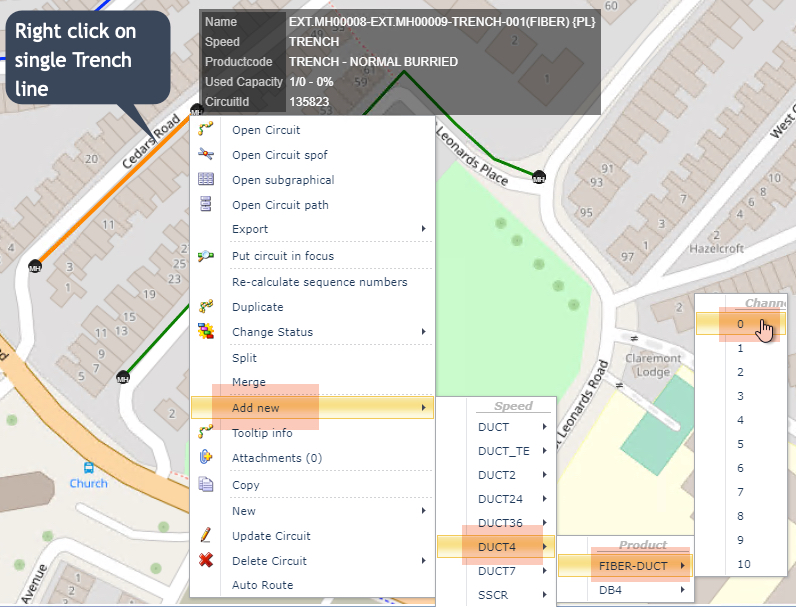
The Duct options displayed may differ, depending on the IMS installation and Duct designs |
▪From the drop down list provided, select the following options: Add new | Duct[n] | FIBER-DUCT | Channel[n]
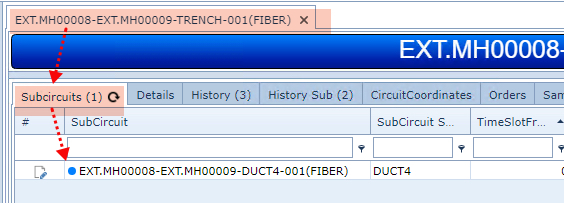
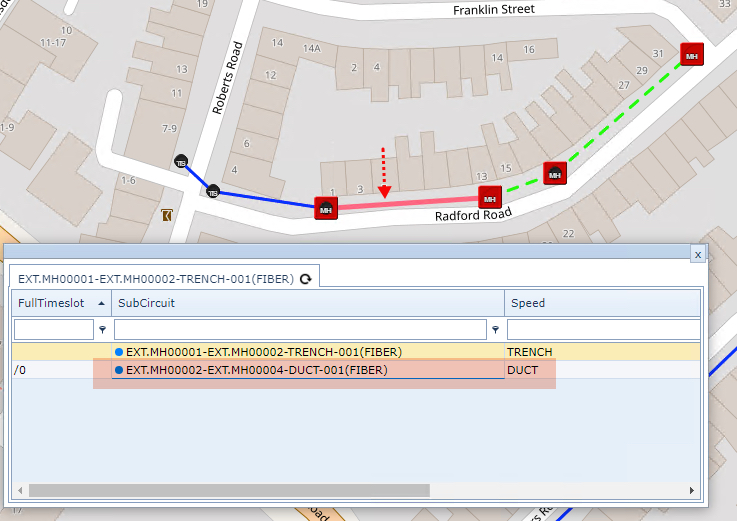
This will automatically create the Duct Circuit and nest it within the Trench Circuit. Validating this can be made by opening the Trench Circuit and selecting the Sub Circuits tab, as shown in the following screen shot.
Method 2 - over multiple Trench hops and using the Calculate Routing feature
Locate the required Trench sections on the Network Map and decide which are the 2 endpoints that will be needed for the new Duct Circuit.
▪Select the starting point with a Left click, a red circle will appear
▪Hold down the Shift key and left click on the end point
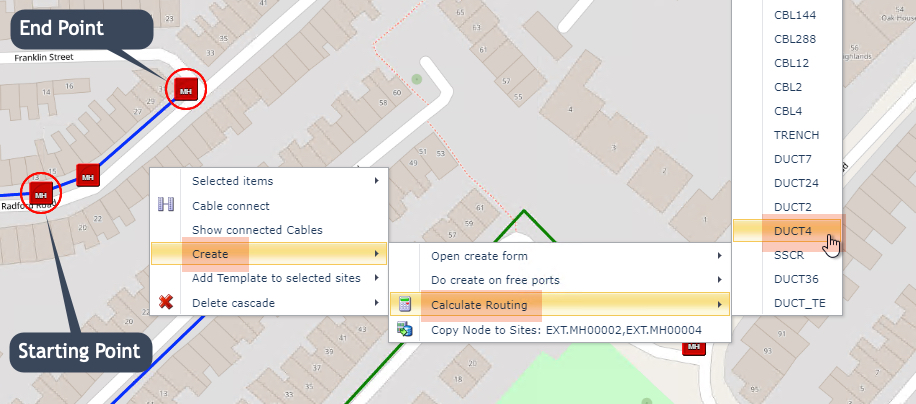
▪Right Click on the Network Map background - then from the drop down menus select: Create | Calculate Routing | DUCT[n]
This opens up the Duct's routing form popup window showing the associated Trench Connections according to the Calculate Routing feature.
Other Connection options may be selected as required.
▪Click on the Create CCT button.
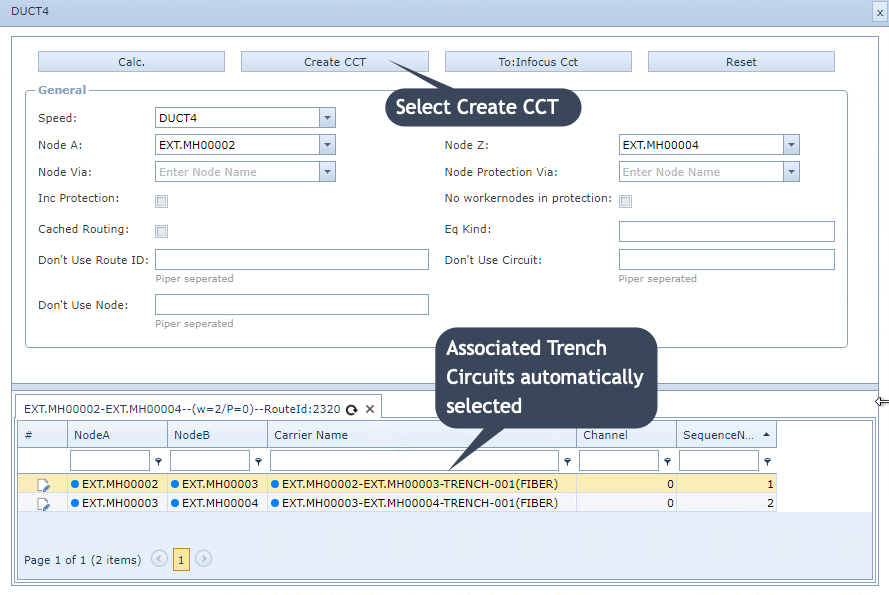
A new pop-up window appears with the routing ID number filled in.
▪Fill in any new details or amend any existing ones as required
▪Click on the Save icon in the lower left of the popup to finish
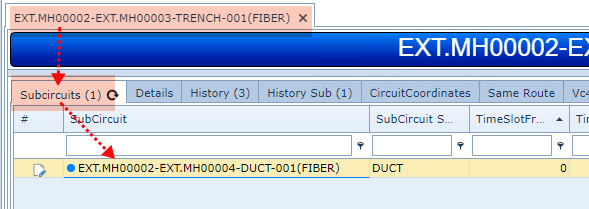
This Duct can be quickly verified by opening up one of the Trench Circuits from the Network Map (Right click | Open Circuit) and selecting the Sub Circuits tab as shown in the screen shot below.
Method 3 - if Duct Circuit exists - i.e., extending an existing Duct Circuit
The following example shows how to extend a Duct Circuit from the Network Map. In this case, the required Duct extends 2 hops (from right to left) as shown in the next screen shot with the dashed green lines.
▪Locate the required Duct Circuit and set it to in-focus, this will then highlight the Duct on the Network Map.
▪Right click on the Trench Circuit - blue line next to the dashed green line.
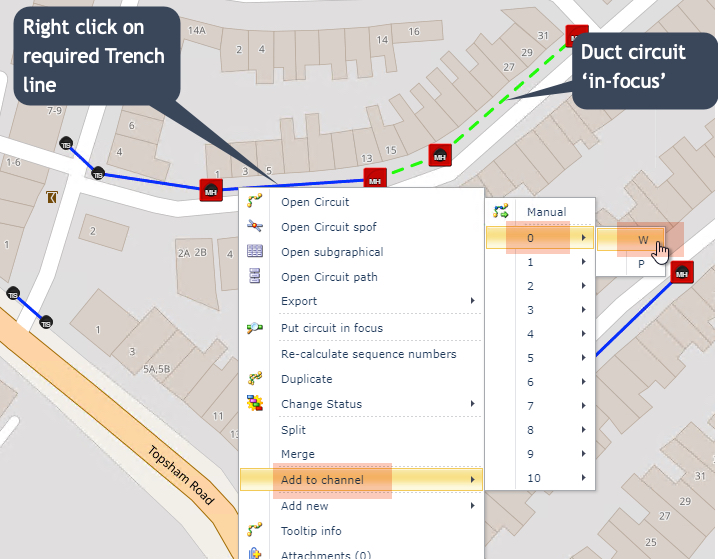
▪From the drop down list of options select Add to channel and then select the next available or required channel number - in this example channel 0 is available
The extra drop down list of W and P in this example means that the Speed / Bandwidth representing this Trench Circuit includes a Worker and Protection option. |
The Manual option in the drop down list, produces a popup window giving the user detailed visibility of the trench Connection and enabling not only the required channel and W or P selections but also ability to modify the existing channel information including the removal of any channels.
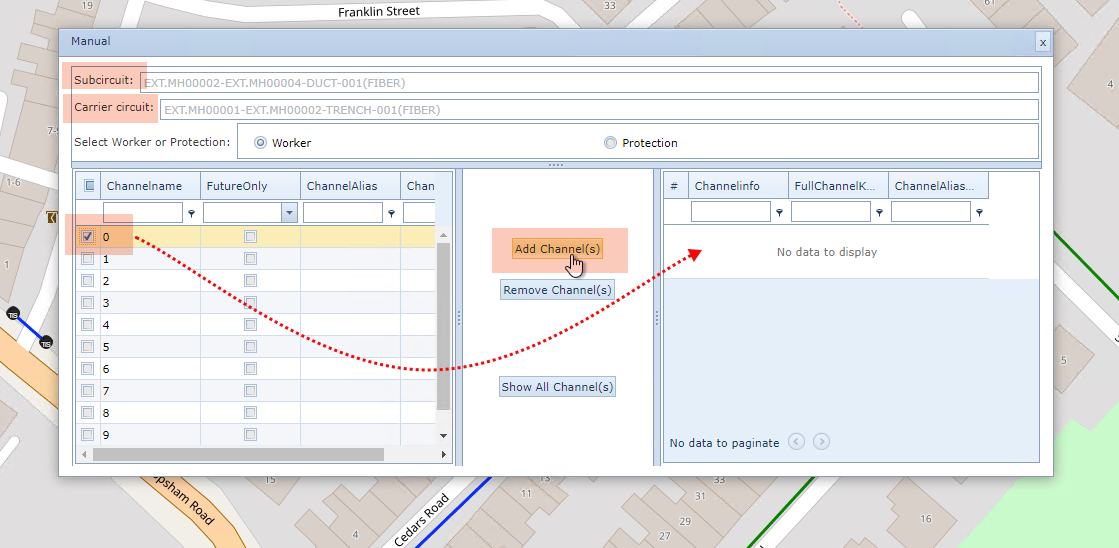
To confirm the success of the Duct Circuit either:
1.Left click on the Trench line, or
2.Open the Duct Circuit's form and select the Carriers tab