In the Node form equipment can be registered. These are typically the network elements or any other
type of equipment, active or passive that are no patch-panel, DDF, ODF types.
Open Node Form
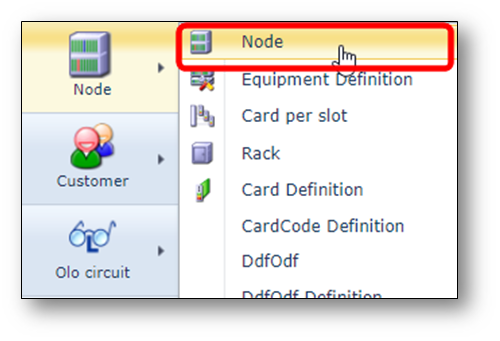
The node form can be opened using the menu on the left.
Find node
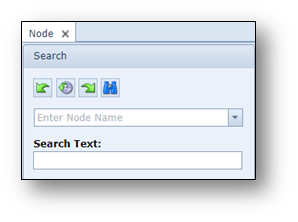
Any existing node/equipment can be found using the search field on the left.
Node details
The node form exists of multiple areas of information.
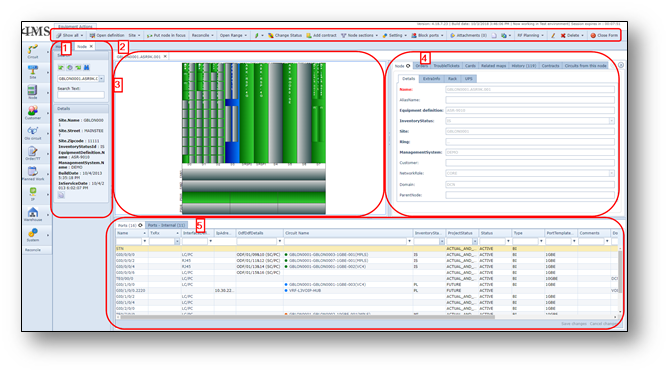
1-Search area and summary information below the search area.
2-Button bar

Show all |
Show all nodes, shelves, sites or find all sub-circuits of the node |
Open definition |
Open the node definition form of the node |
Site |
Perform Site actions directly from the Node form |
Put node in focus |
Set the node in focus |
Add Ipaddress |
Add an IP-address to the node |
Cards |
Perform cards actions, like open, remove, change status |
Change status |
Change the status of the node, shelves and/or cards |
Add contract |
Add a contract to the node |
Node sections |
Display the node sections form to see how the node is connected to the network |
Setting |
Change DCN/Synchronization settings |
Block ports |
Block or unblock ports |
New |
Create a new node |
Copy |
Copy the node |
RF Planning |
Functions specific to radio planning objects |
Edit |
Edit the node details |
Delete |
Delete the node |
Close Form |
Close the Node form |
3-Graphical layout of the equipment:
a.Each rectangle is a slot |
a.When a slot is grey – no card is inserted in that slot |
a.When a card is inserted, the colour of the card represents the status of that card: |
Blue |
status: Planned (PL) |
Purple |
status: Ready for Service (RFS) |
Green |
status: In Service (IS) |
Brown |
status: Ready for Cease (RFC) |
Red |
status: Out of Service (OOS) |
a.A card can have sub-slots with sub-cards (or SFP/XFP cards) |
a.A slot can have a card and/or slot label |
4-Node information:
a.Node general info:
|
Details |
general information of the node, such as name and type |
Extra Info |
more information, such as dates, serial number, etc |
Rack |
information about the rack where node is implemented (if registered) |
UPS |
information about the UPS (Uninterruptible Power Supply) |
b.Orders – showing the related order(s) of this specific node/equipment |
c.Trouble Tickets – showing the related Trouble Ticket(s) of this specific node / equipment |
d.Cards – lists all cards inserted in the node, with related card details such as slot number, card type/code, serial number, etc. |
e.Related Maps – lists all Network Map names where this node is present. |
f.History – lists all historical actions related to this specific node/equipment. |
g.Contracts – lists all contracts related to this node |
h.Circuits from this node – lists all connections that are starting or ending on this equipment. |
i.Rack – provide information in which rack this equipment is implemented and on which position in the rack. |
j.Reconcile – in case the equipment is reconciled via a NMS/EMS/NE network interface this tab will show information about the latest status of the reconcile process, including any discrepancy with the network. |
Create New Node
To create a new node/equipment, press “new” button in the Node Form. A pop-up form appears, see
screenshot.
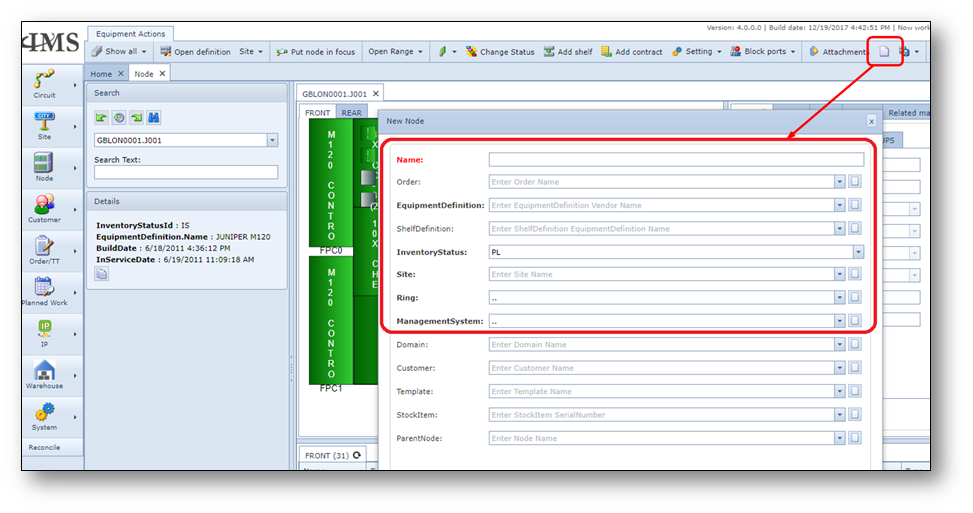
Fill in the information, at least the mandatory fields and press save.
When the equipment type of the new node exists of shelves, then the shelf details must be filled in as
well.

Add cards
Most active equipment (shelves) have cards that handle the traffic of the equipment.
When planning the node or making the node configuration in IMS, the cards can be inserted into the
slots of the equipment or into the slots of cards (card-in-card configuration).
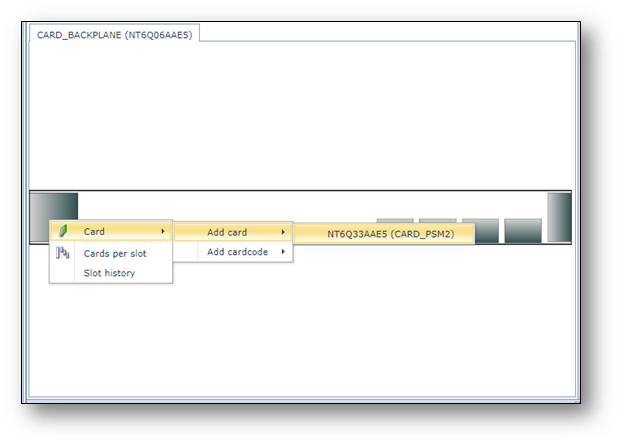
To add a card into a slot, place your mouse on top of an empty (grey) slot, click with right mouse.
Via the right mouse option, select the correct card. Below an example screenshot.
Update status of cards
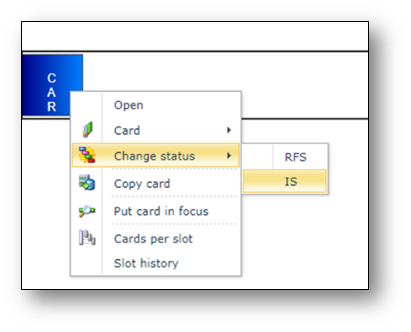
To update the status of a card, right click on the specific card and chose option “Change status”
and then the new status. Kindly note that IMS will only give you the valid status change options.
Update Node Status
To update the status of the node, use the button “change status” in the node form.
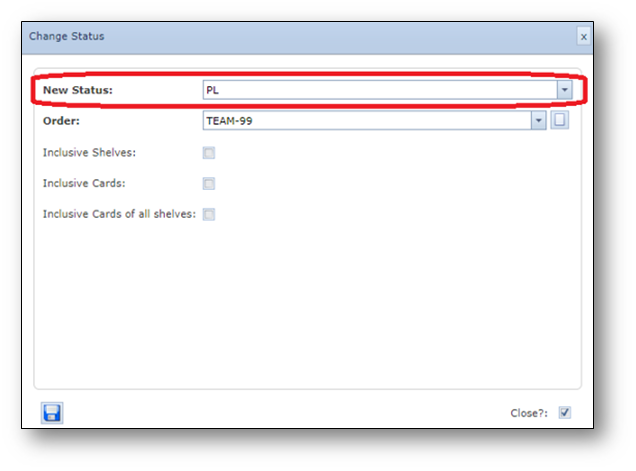
A pop-up window appears.
Fill in the following information:
New status: |
New node status |
Order: |
Order number related to the status change |
Including shelves: |
Use this tick box if all the node shelves must be changed to the new (same) status as well. |
Including cards: |
Use this tick box if all the cards in the shelf must be changed to the new (same) status as well. |
Including cards of all shelves |
Use this tick box if all the cards of the node (all shelves) must be |
