Finance in IMS
1.General
In IMS Finance you can control your debtors by making the invoices in IMS and register the incoming payments. Additionally, it is possible to record the revenue per invoice.
If your invoices are past their due date, you can create a list of all the invoices past there due date and send reminders to your debtors.
It is even possible to plan the to be expected invoices ahead and from these invoices you can create a list of all “invoices to be sent”. So, you won’t forget anything.
2.InNumber
Before you can register an invoice, you must create an In Number in the system. You can create an In Number
by choosing the Warehouse menu option followed by the option In Number.
(see also chapter Warehouse in the Help documentation)
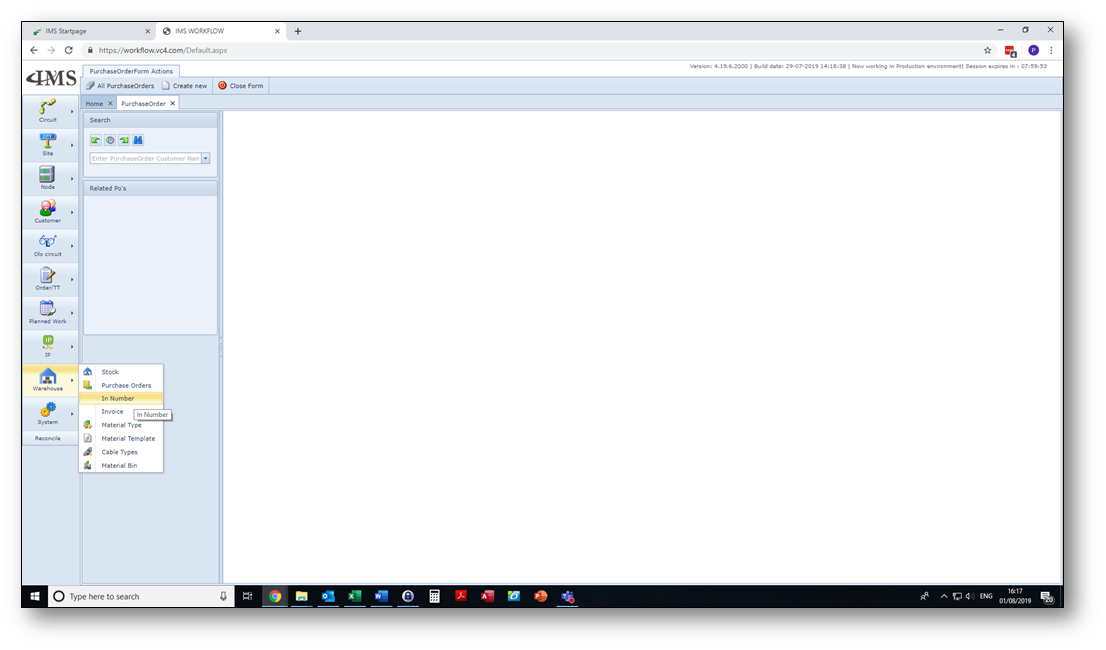
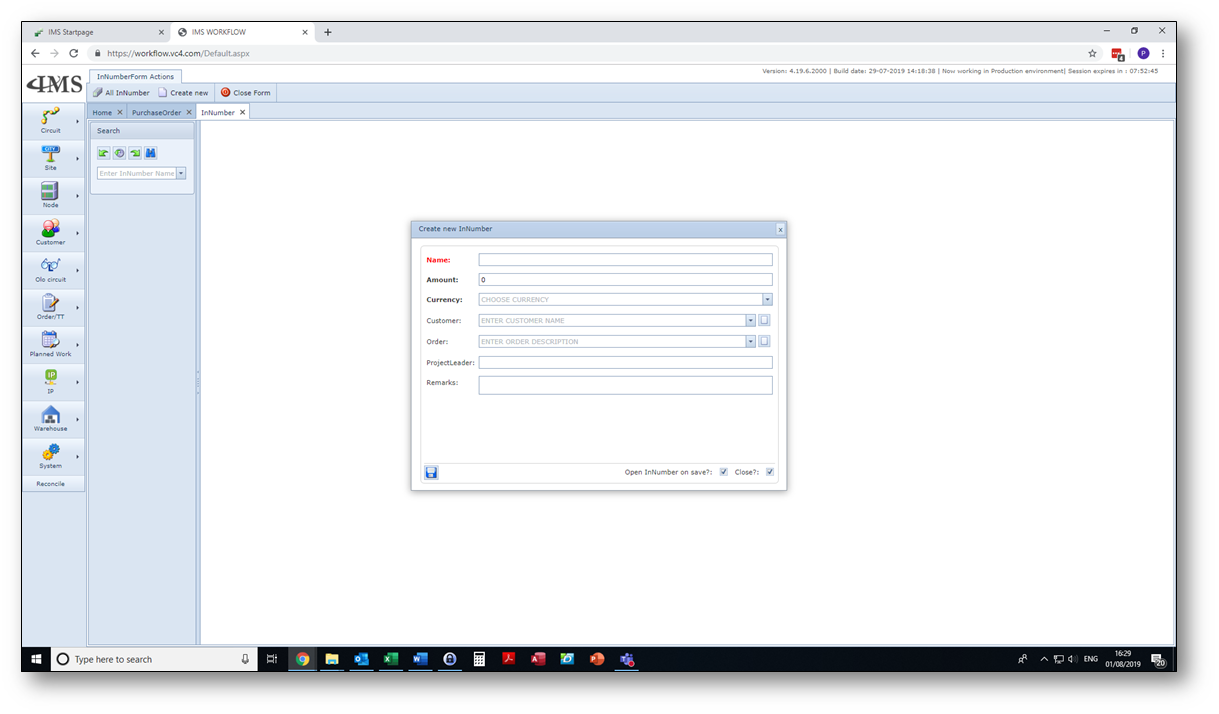
When you select the button “Create New” a pop-up box will appear.
In this box the following fields must be completed:
•Name: This is the name or number you assign to your In Number. You can use the name of your client/debtor or
| any other number or name, but make sure that it’s meaning is known within your company. Even better, |
| use company guidelines for naming. |
•Amount: This is the budget, which can be used per client/debtor.
•Currency: this is also a popup box; you can choose the appropriate currency.
All other fields are not highlighted, this means they are optional. But if your In Number isn’t your client/debtors name,
you should select the name of the customer in the next field.
After you created the In Number the following step is to create the Purchase Order in the system.
3.Purchase Order
Before you can register your invoices, you must create a Purchase Order.
To create a Purchase Order, select the menu option Warehouse and choose Purchase Orders.
(see also chapter Warehouse in the Help documentation)
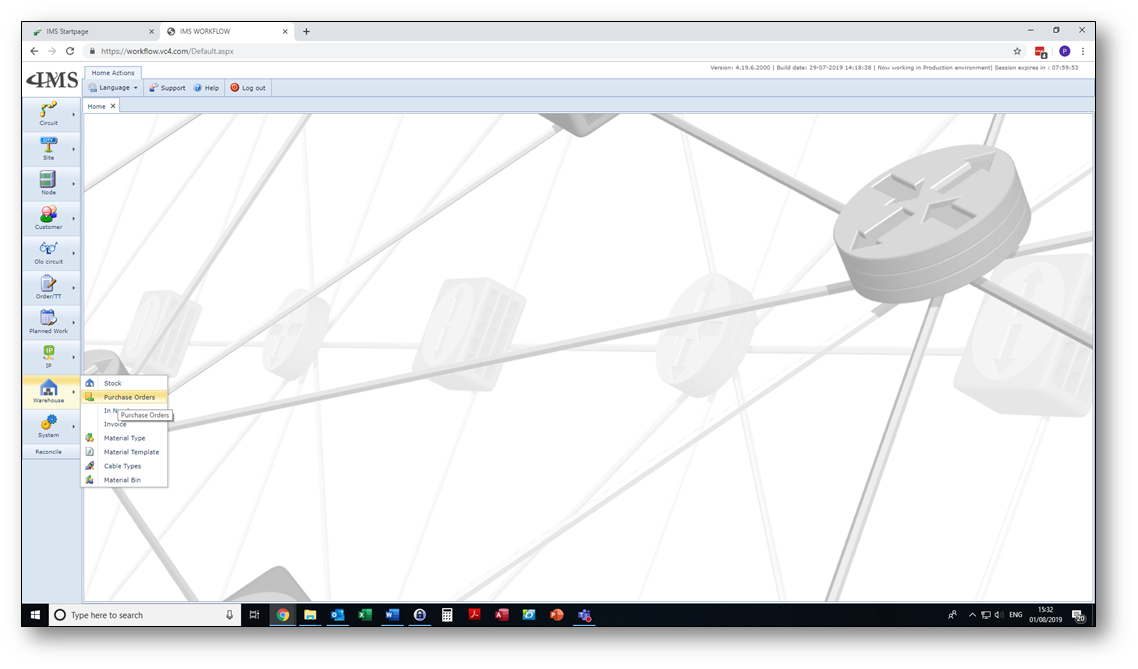
In order to create a new Purchase Order, select the button “Create New”.
When creating a new Purchase Order, a pop-up box will appear.
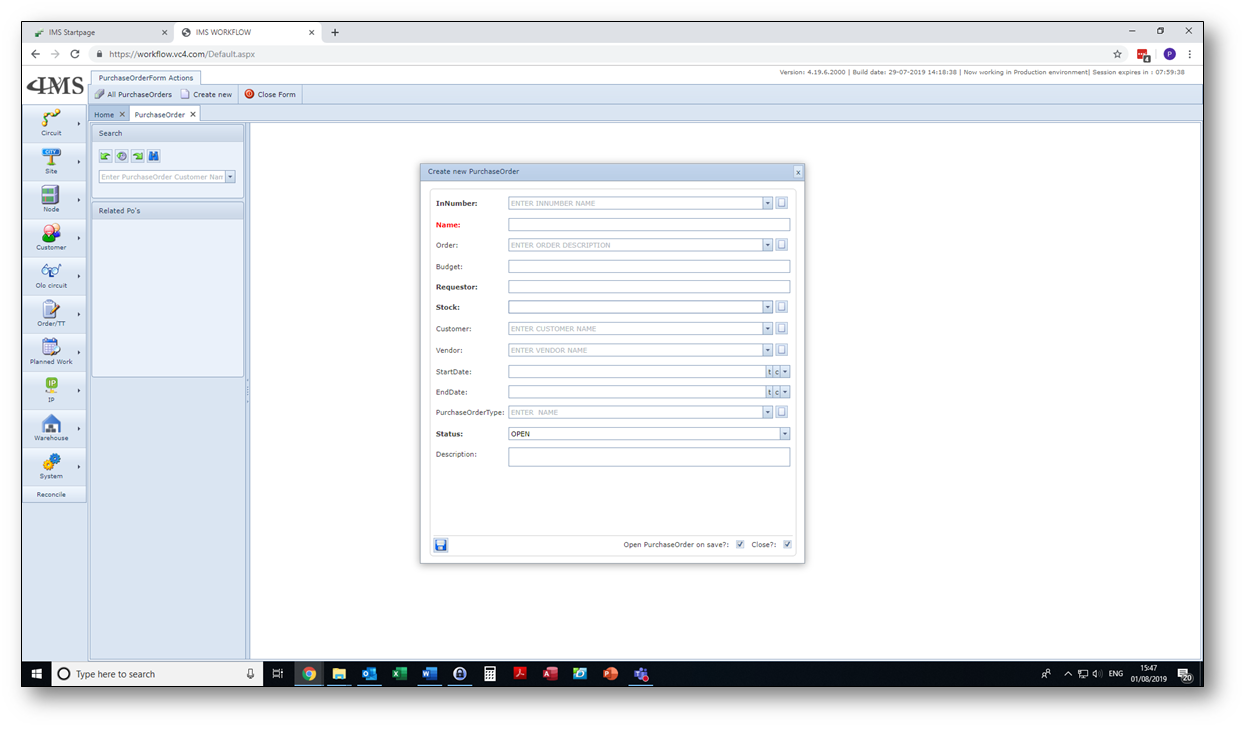
You must fill in the following fields:
•InNumber: any number or name (like the name of the client f.i.) can be used (see chapter 2),
| if you don’t know remember the number you can select it from the pulldown option. |
•Name: The name or number of the Purchase Order; in general, this PO has been provided by the client.
| Use the Purchase order number of your client/debtor if you have one. Referring to that Purchase Order |
| is a lot easier if you register that number here. |
•Requestor: This is the person in your company who requested the Purchase Order.
•Stock: Here you state which products your client has purchased from you.
•Status: Select the status of the Purchase Order. The options are open, closed or pending (see below).
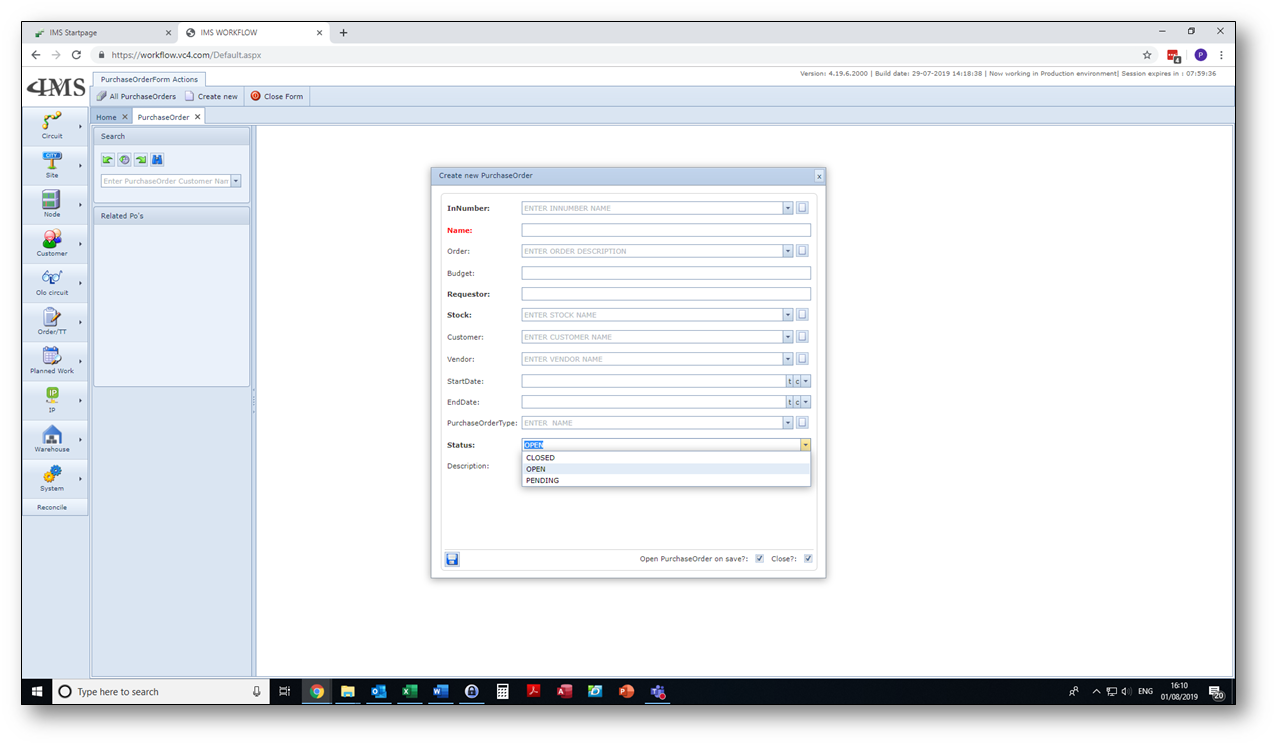
When you have created the Purchase Order, you are ready to register the invoice.
4.Invoice
How to register an invoice in IMS?
Select the menu option Warehouse and choose Invoice.
(see also chapter Warehouse in the Help documentation)
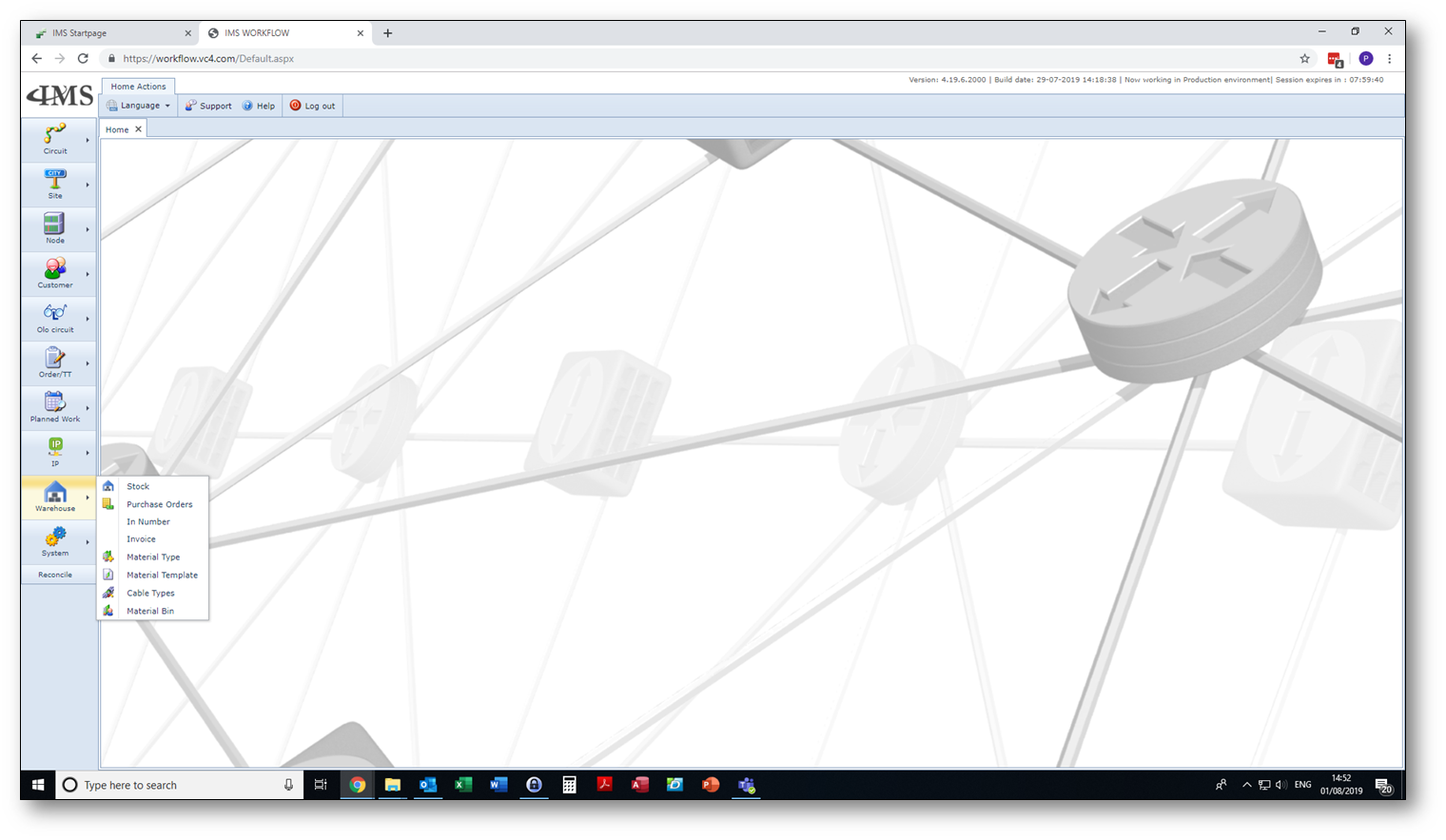
After you select the option invoice, the following screen appears:
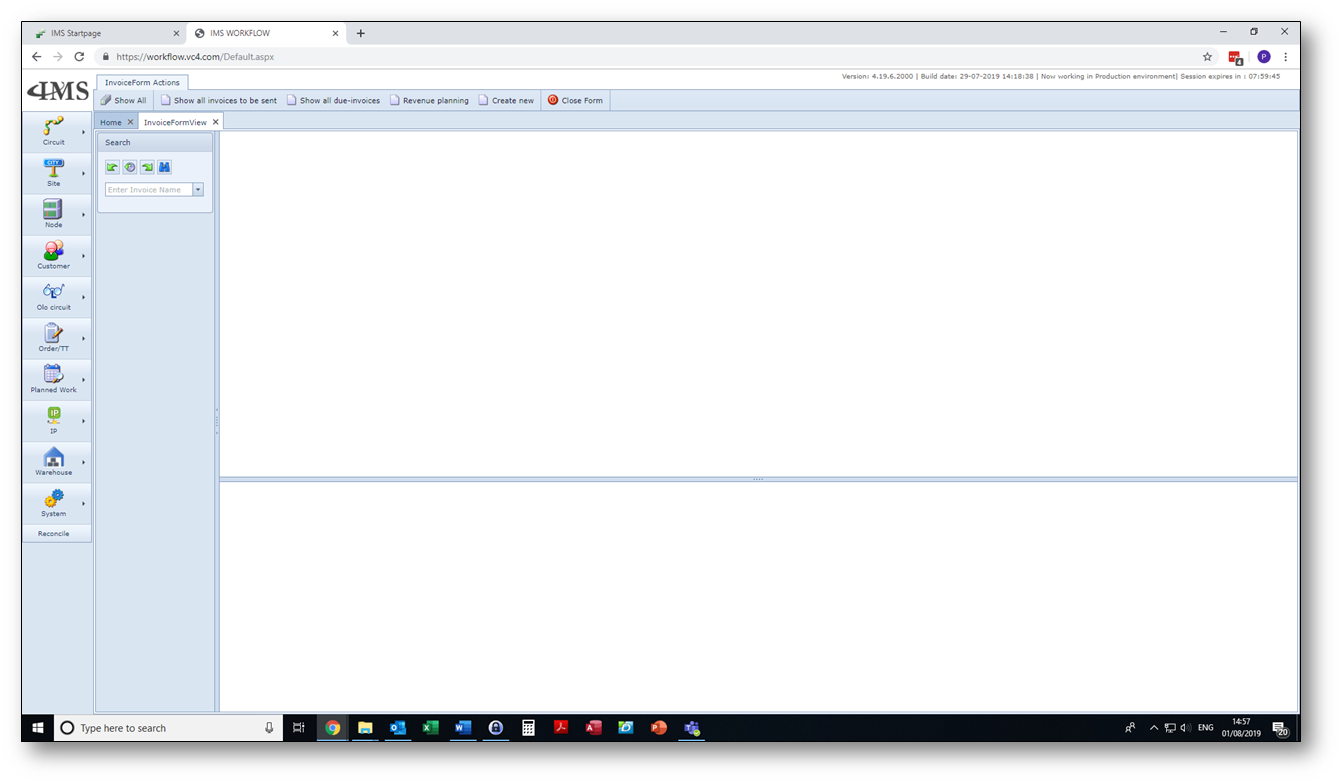
Press the button: “Create New”, a pop-up box pops appears:
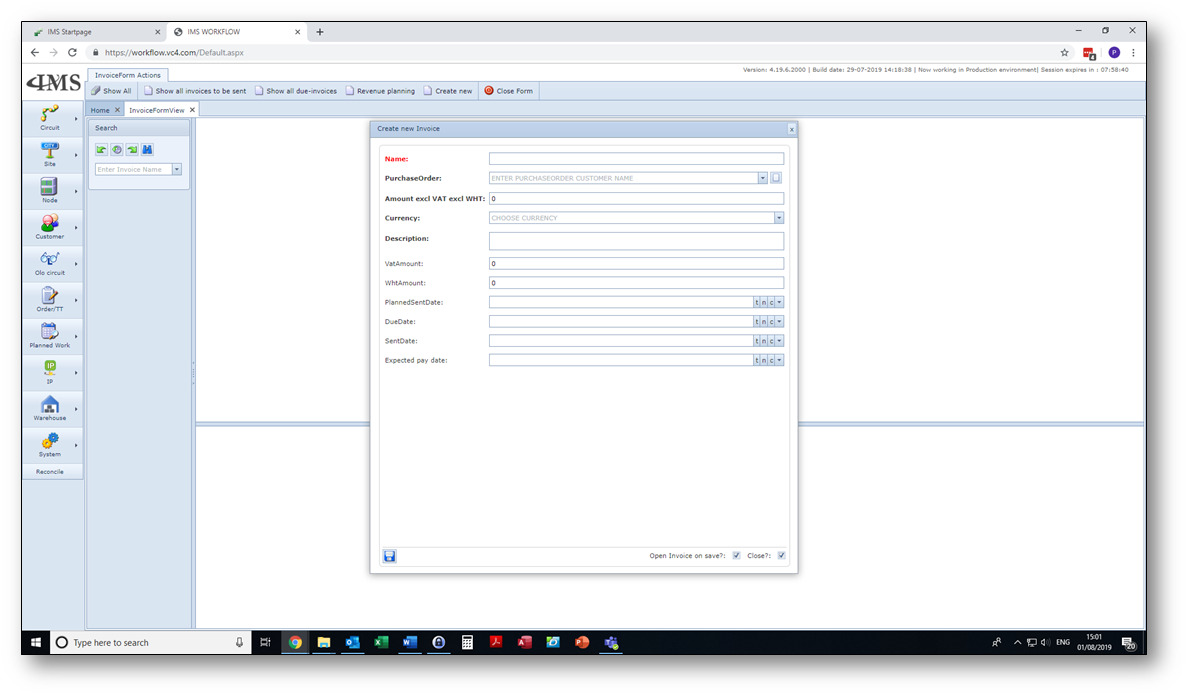
In the pop-up box the following items are mandatory:
•Name: The new invoice name or number according to your company's rules or according to
| your country’s tax regulations. |
•Purchase Order: You have registered the Purchase Order in the step before
| (see chapter 3; Purchase Order). You can select this Purchase Order form the drop-down menu. |
•Amount excl. VAT and excl. WHT: This is the nett amount for the invoice you are creating.
| This amount is without Value Added Tax and without Withholding Tax. The invoice amount can be the same |
| as the total price of the Purchase Order, but if you are invoicing partial deliveries against the Purchase Order, |
| you must divide the total Purchase Order amount over the invoices. |
•Currency: this is also a drop-down field. You can select the appropriate currency.
•Description: The invoice description, as mentioned on the invoice. This can be the description on
| the Purchase Order, so our client/debtor can recognize what the invoice is about. Use a sensible description, |
| especially when the Purchase Order doesn’t give much detail. Your client/debtor must know what you mean |
| (it must make sense). |
In case you need to add VAT or WHT, please fill in these options as well in the pop-up box. It makes it a lot easier
if you fill these items right away. The options in bold are mandatory. When you have saved the invoice, the invoice
will appear under the mentioned purchase order. When you’ve created the invoice, there are some options you can
choose by selecting the invoice and click the right mouse button.
The options are:
1.Open Invoice: If you select this option, you open the invoice you have created.
2.New payment: If you select this option, you can add a payment to the invoice (see below). You need to fill in the amount you have received, the transfer costs and the early payment discount if applicable. Furthermore, you choose:
a.The currency: but only when the currency is different than the currency mentioned on your invoice.
b.The bank account number: the account number in which the amount is received.
c.The description: as per your bank statement (or any other description you desire)
d.The date: of the payment.
5. Revenue planning
New revenue planning (see below). Enter here the year to which the revenue of the invoice should be allocated.
You can choose more years by changing the amount and years to divide the revenue over multiple invoices/years.
Show all invoices to be sent: If you choose this option, you get a pop-up box with all the scheduled invoices
that can be sent to your customers. You only see data, when you have planned your invoices ahead of time
and use the option of Planned Sent Date.
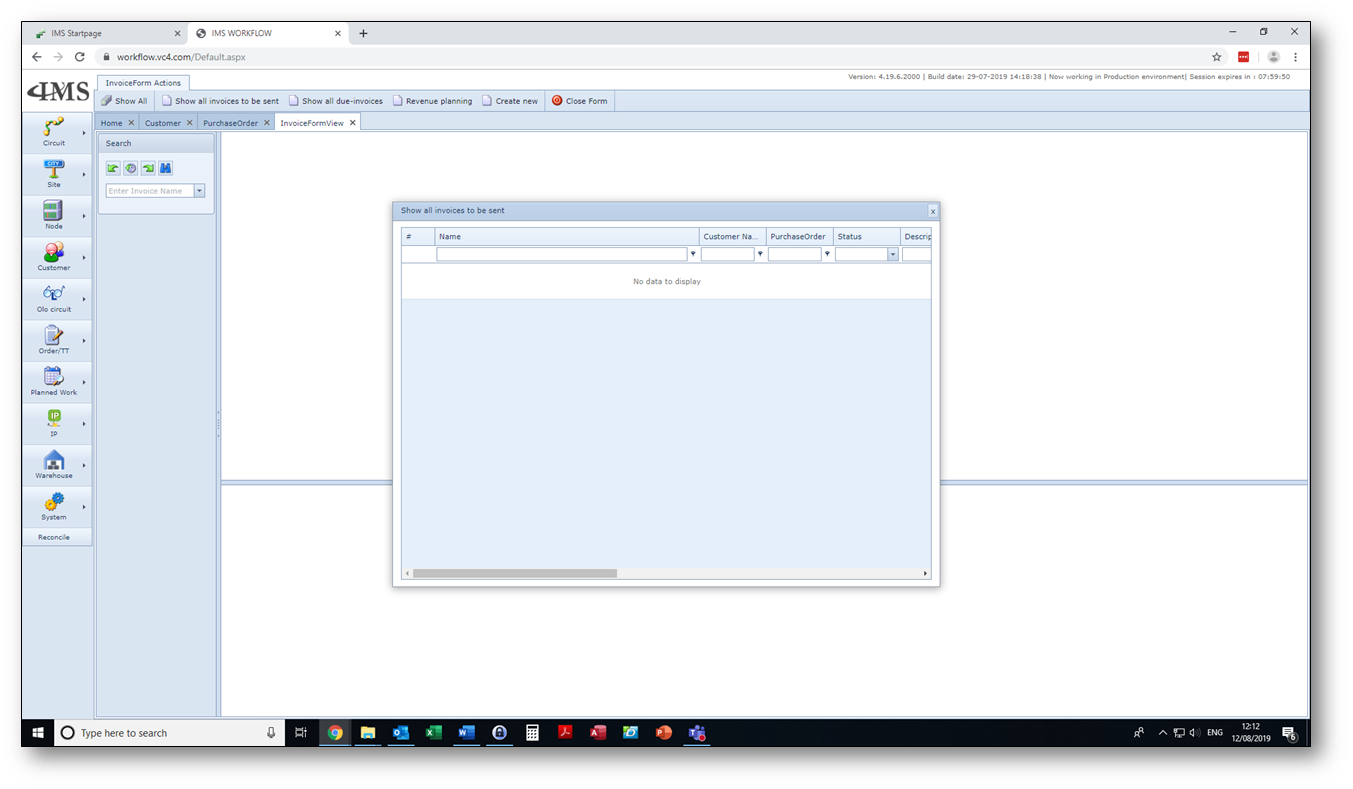
Show all due invoices: When the expiration date of your invoice has is past due, these invoices will appear
in the overview.
Revenue planning: In this overview all invoices and the year of revenue are mentioned.
Delete invoice (No or Yes): this item is self-explanatory
Copy Cell Data): this item is self-explanatory
The following options can also be found under the warehouse planning – option invoice:
1.Show all invoices to be sent;
2.Show all due invoices;
3.Revenue planning.
When you've created all In Numbers, Purchase Orders and all invoices, these are visible under option Customer.
For each customer the In Numbers, Purchase Orders, Invoices, Due Invoices and payments will be shown in a separate tab.