Creating a new Document based Report
From the IMS main vertical button bar menu, click on:
System, then Reporting, followed by the Document option

Figure 21 - Reporting tool menu
This opens up the Details and Designer panes
|
From here you can also search for an existing report from the Details pane. |

As we want to create a new report, we will select the Create New button from the Report Actions bar.

Figure 22 - Create New Report
This opens up the Create new ReportDocument popup window

Figure 23 - New Report popup window
NOTE: When a report is under development it is advisable to ensure that the option called IsPrivate remain enabled (its default setting). Should the report be required to be visible and accessible by other users, then disable this option.
Complete the following fields and options:
| Name: | SiteReport<+ team number> |
| Username: | <this will auto populate> |
| IsPrivate: | <ticked option: available just for your user login> |
| <unticked option: available for other users> |
LayoutData: <only used when you copy and paste the xml content from another report – see Figure 24>
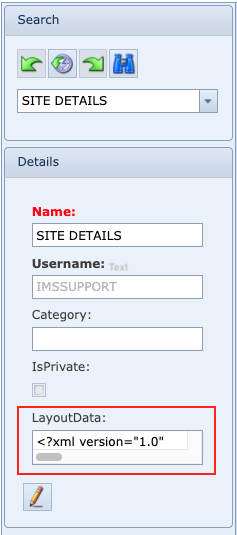
Figure 24 - Layout Data from another existing report
▪Click the Save icon in the bottom left of the popup window to proceed onto creating the report.
|
It is worth remembering to save your work regularly throughout the process of creating any report, please go ahead and do that now as follows: |
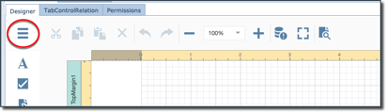
▪From the Designer tab, click on the Main Menu icon
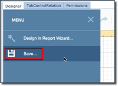
▪Click on the Save option
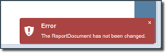
▪You will receive an acknowledgment, either a green Successful message or if there is an error (lower right hand corner) – usually means that no changes have been detected since the last Save action
You will now see the following screen layout in which there are several reporting components as explained in the next screenshot and table:
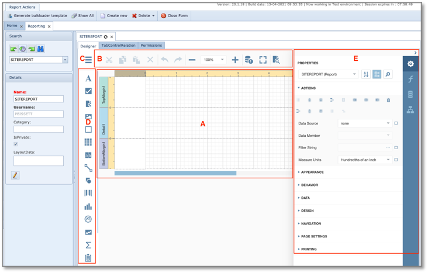
Figure 25 - Report Development Screen
A |
Design Surface |
B |
Main Toolbar |
C |
Main Menu |
D |
Toolbox |
E |
Properties Panel |
Tab Control Relation
The Tab control Relation tab contains the information needed when the given report needs to be associated to an IMS Object so that it can be run from that object's instance.
In the screenshot below we can observe that the report called WO-ORDERS9 will be run from the Orders object.

The following table provides a description of each field contained in the Tab Control Relation tab:
TabControlName |
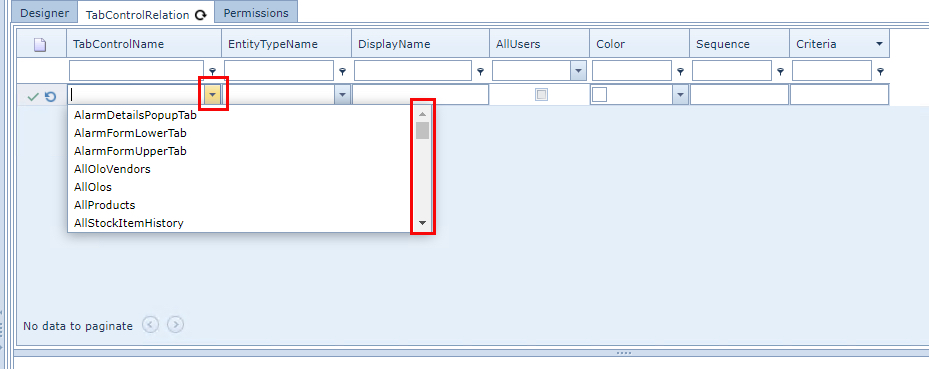
This field determines where or in which tab this report will appear with regards to the IMS object mentioned in the next field called EntityTypeName. The dropdown field will provide a list of all the available IMS Object Tabs or Forms in which this report can be attached to. Please see the section further on called Tab Control Name for further details. |
|
|
EntityTypeName |
This field determines which IMS Representational Model Entity this report will get its data from. |
|
|
DisplayName |
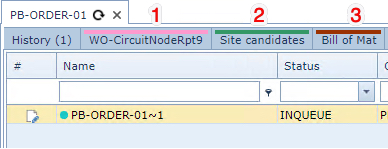
This is the name given to this report with reference to how it will be displayed in the IMS Object instance. In this example it is WO-CircuitNodeRpt9 accessed from the Order/TT object. |
|
|
AllUsers |
Check box option should this report be available to all IMS users across the IMS platform |
Color |
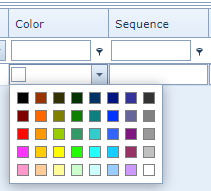
Dropdown list providing the user with a report tab highlight color of their choice - shown as a color bar above the DisplayName |
|
|
Sequence |
Numerical value determining the horizontal position where the Report tabs appear in the related IMS object instance - see the screenshot below. In this example, there are 3 related reports to this Order/TT instance. For each of these reports a numerical value determines where they appear as preferred by the user. Please note that if no numerical value is selected then IMS will attach the Report tab at the rightmost end of the screen |
|
|
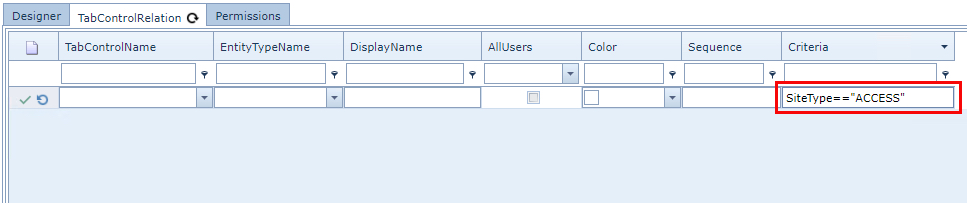
Criteria |
A field that uses IMS based representational table model information to further filter result sets for this report. An end user with knowledge of the IMS representational table models may use this field. In this example the report would be run and produce a result set - provided any record meets the criteria of Site Type equal to ACCESS |
|


Tab Control Name
|
For the TabControlName field, you can search for this through the drop down options given, or if you are uncertain of the TabControlName needed for example, the Site object, then navigate to a Site object instance (in IMS) and <Ctrl + Left Click> on any of the existing tabs of information, which will cause a popup window with relevant detail that we need. See figure below. |

Locating the Tab Control