➢Introduction
➢Enabling IAM
➢2FA and TOTP - Time-based One-Time Password
➢Enabling Mandatory 2FA
Introduction
IAM stands for Identity and Access Management and is an authentication system for systems and resources. Users and roles are configured and maintained in the IAM system.
IMS supports using multiple authentication systems, such as Active Directory, SAML2Now, and now IAM. It uses the the OAuth 2.0 protocol.
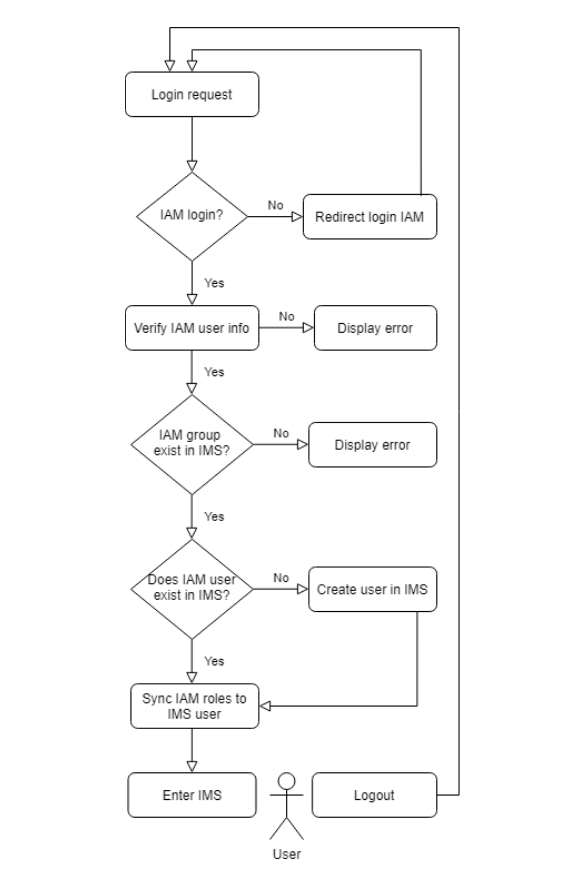
The system flow is as follows:
Enabling IAM
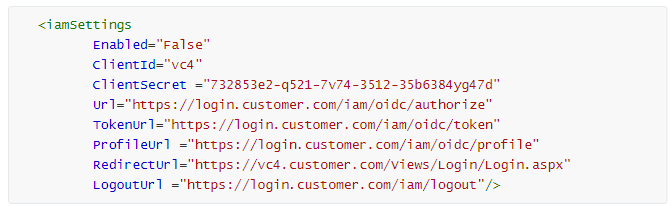
To enable IAM, the IMS.config file (server side) must include the iamSettings section inside the sessionInfo section.
It must contain the following attributes:
Enabled = True/False |
This enables/disables the use of IAM. If enabled, IMS will skip the regular login screen and automatically redirects to the IAM system |
ClientId = [string] |
The identifier of the application which must be known to the IAM system |
ClientSecret = [string] |
A secret of the application which must also be known to the IAM system |
Url = [string] |
The location where the login screen of the IAM system can be found |
TokenUrl= [string] |
The endpoint where the token can be obtained |
ProfileUrl= [string] |
The endpoint where the profile of the user can be obtained |
RedirectUrl= [string] |
The location of the IMS application |
LogoutUrl= [string] |
A URL to automatically logout of IAM |
Example Config file:
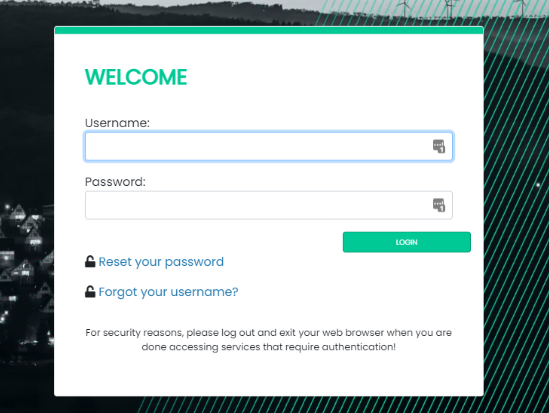
Once a user navigates to the IMS URL, they will be redirected to the IAM logon page:
After login the user will be asked for the token (2nd factor):
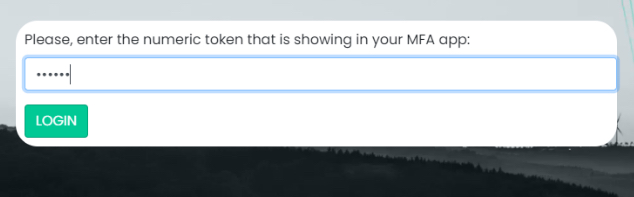
If the token is valid, the user will be redirected to the IMS application.
On logging out of the IMS application, the user will be redirected to the IAM logout page.
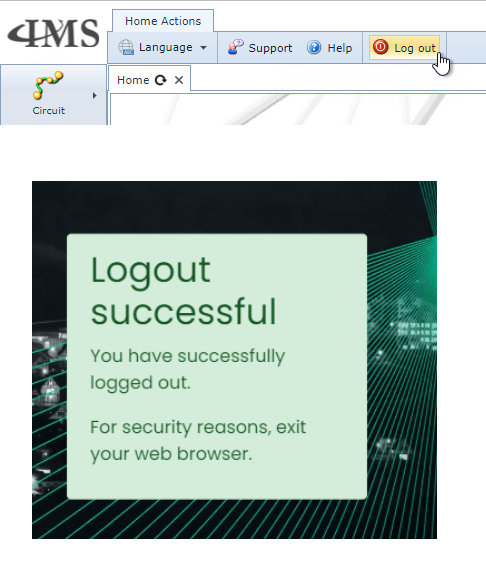
|
If IAM is enabled then all existing user accounts using SAML or AD will be disabled |
2FA and TOTP - Time-based One-Time Password
It also possible to login using a one-time password as the second factor without using an external authentication system.
There are two modes available for this; mandatory and optional. The use of an optional 2FA is enabled by default.
2FA - Administrative Setup Steps
To allow a user to use 2FA:
▪Navigate to the IMS Main and click on the System option
▪In the drop down list provided select: Reporting followed by SQL Query
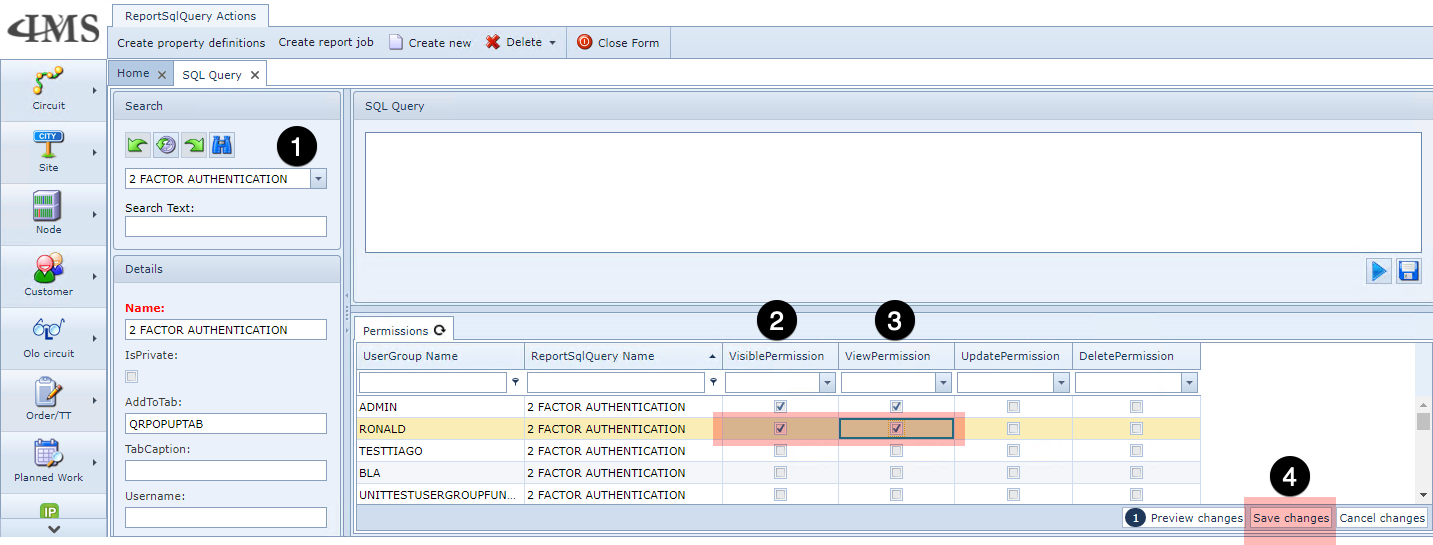
▪In the Search area, select 2 FACTOR AUTHENTICATION from the dropdown list field
▪Enable the required user's Visible Permission
▪and their View Permission
▪Click on the Save Changes button
2FA - IMS User Steps
▪Navigate to the IMS Main and click on the System option
▪In the drop down list provided select: Users followed by Users
▪In the Search area, select your User Name which opens up the User Form
▪From the Button Bar select the 2FA option which opens up the QR Code popup window
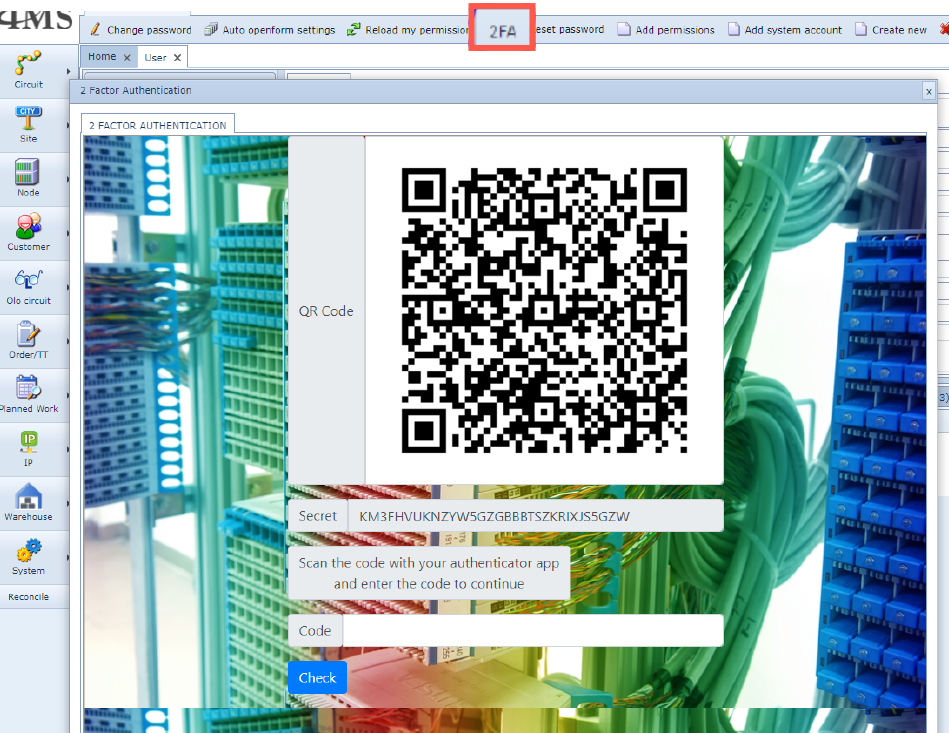
▪Scan the code using a mobile application such as Google Authenticator or Authy
o or use the code contained in the Secret field to use in other applications such as LastPass or Bitwarden
The applications, mentioned above, will generate a code
▪Type in this code into the Code field as shown in the above screen shot, and click on the Check button
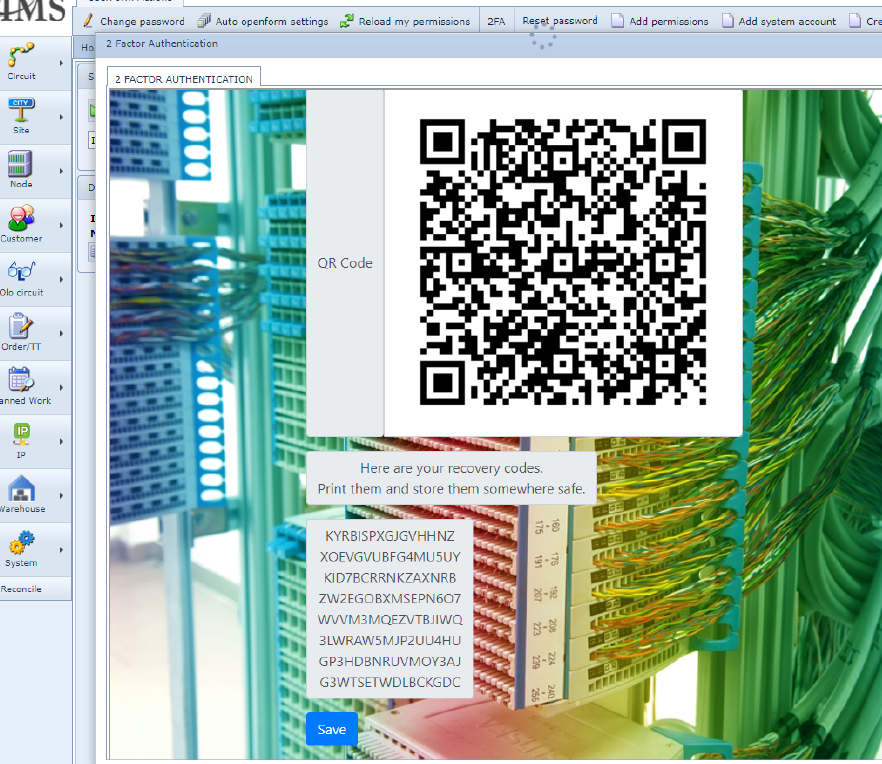
▪If successfully verified, the user will be presented with 8 recovery codes - one time only use
Loss of Device or Secret Code
In case of loss of a device or account, which holds your second factor secret code i.e., LastPass or Bitwarden, use one of the 8 recovery codes to re-enter the IMS account and proceed to remove 2FA (explained below) and then re-enable 2FA to register a new device, following the 2FA - IMS User Steps mentioned above.
Log back in - the normal login screen will be presented
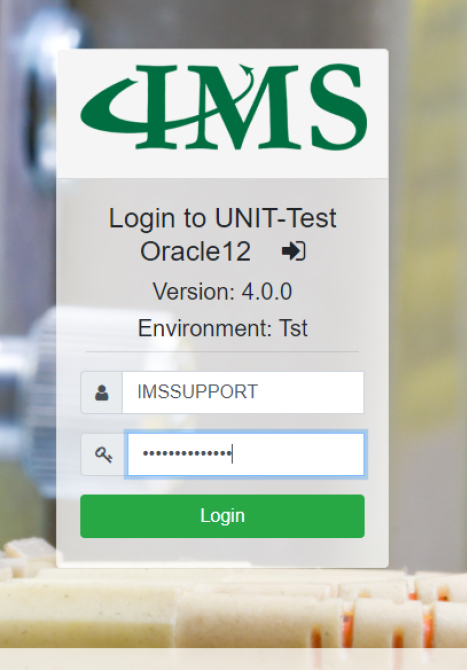
▪Once the Login button is clicked, a Security Code login popup window is displayed
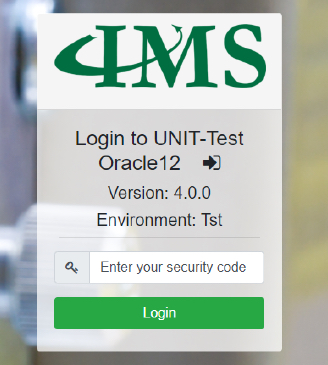
▪Enter the Security Code in the field provided and click the Login button to complete the process
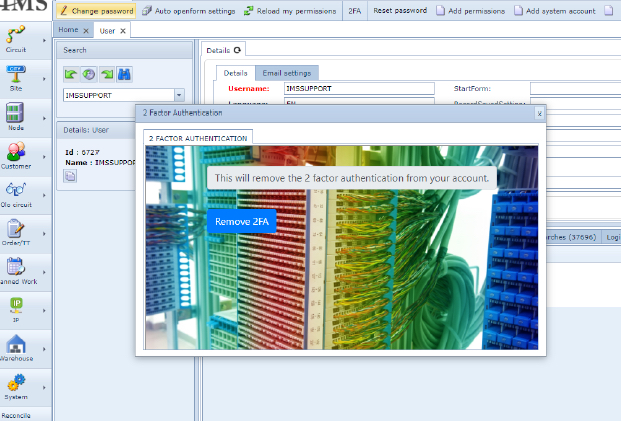
Removing 2FA
▪From the Button Bar select the 2FA option
▪In the popup window click on the Remove 2FA button
Enabling mandatory 2FA
This is a Server side operation for administrative staff.
In the IMS.config file, the following attribute is to be added:
Require2FA="True"
No special privileges are required on the SQL-Query record and the user will be redirected to the 2FA page once the they log in - if the account is not already 2FA enabled.