As stated earlier, there is only one account policy, with settings that are common across all user accounts (global policy) in a single IMS environment.
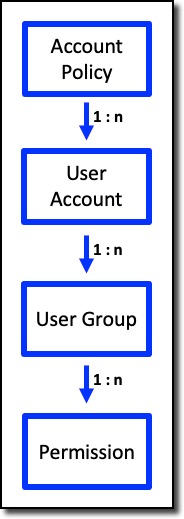
The account policy is set up according to a company's network and business security and access policies i.e., password length, number of tries before lockout, password history, and so on.
Accessing Accounts Policy
From the IMS Main menu bar:

▪ |
Click on the System icon |
▪ |
In the following dropdown lists select Users and then Accounts Policy |
The Accounts Policy popup window form is displayed.
The following screenshot is an example of an existing IMS policy.
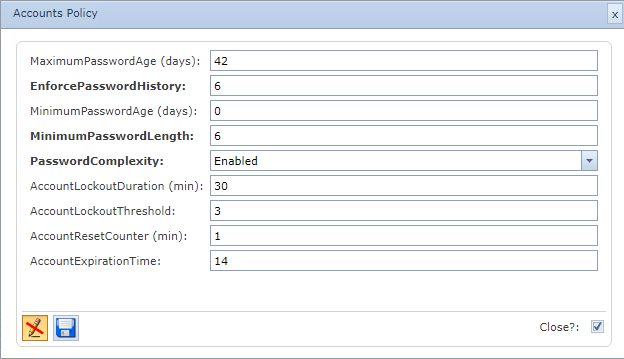
There are two parts to the Accounts Policy:
o |
Password policy |
o |
Lockout policy |
Password Policy
MaximumPasswordAge (days) |
This security setting determines the period (in days) that a password can be used before the system requires the user to change it. You can set passwords to expire after a number of days between 1 and 999, or you can specify that passwords to never expire by setting the number of days to 0. If the maximum password age is between 1 and 999 days, the Minimum password age must be less than the maximum password age. If the maximum password age is set to 0, the minimum password age can be any value between 0 and 998 days.
Note: It is a security best practice to have passwords expire every 30 to 90 days, depending on your environment. This way, an attacker has a limited amount of time in which to crack a user's password and have access to your network resources. Default: 42. |
Enforce password history |
Determines the number of unique new passwords that must be associated with a user account before an old password can be reused. Enhances access security by ensuring that old passwords are not reused too often. Field value: 0 – 24 (zero means feature is disabled) Default: 6 |
|
|
MinimumPasswordAge (days) |
This security setting determines the period (in days) that a password must be used before the user can change it. You can set a value between 1 and 998 days, or you can allow changes immediately by setting the number of days to 0. The minimum password age must be less than the Maximum password age, unless the maximum password age is set to 0, indicating that passwords will never expire. If the maximum password age is set to 0, the minimum password age can be set to any value between 0 and 998. Configure the minimum password age to be more than 0 if you want Enforce password history to be effective. Without a minimum password age, users can cycle through passwords repeatedly until they get to an old favourite. The default setting does not follow this recommendation, so that an administrator can specify a password for a user and then require the user to change the administrator-defined password when the user logs on. If the password history is set to 0, the user does not have to choose a new password. For this reason, enforce password history is set to 1 by default. Default: 1 |
Minimum Password Length |
This security setting determines the least number of characters that a password for a user account may contain. You can set a value of between 1 and 14 characters, or you can establish that no password is required by setting the number of characters to 0. Default: 6 |
Password Complexity |
This security setting determines whether passwords must meet complexity requirements. If this policy is enabled, passwords must meet the following minimum requirements: •Not contain the user's account name or parts of the user's full name that exceed two consecutive characters •Be at least six characters in length •Contain characters from three of the following four categories: oEnglish uppercase characters (A through Z) oEnglish lowercase characters (a through z) oBase 10 digits (0 through 9) oNon-alphabetic characters (for example, !, $, #, %) •Complexity requirements are enforced when passwords are changed or created. Default: Enabled |
Use password hash |
Store passwords by hashing This security setting determines whether IMS stores passwords in the database using hashing instead of encryption. Hashing makes it almost impossible to turn a hash back into its original string, thus making it almost impossible to determine the stored passwords should access be acquired to the IMS database. Enabling or disabling the use password hash function requires users to change their passwords. Default: No |
Lockout Policy
Account lockout duration (min) |
This security setting determines the number of minutes a locked-out account remains locked out before automatically becoming unlocked. The available range is from 0 minutes through 99,999 minutes. If you set the account lockout duration to 0, the account will be locked out until an administrator explicitly unlocks it. If an account lockout threshold is defined, the account lockout duration must be greater than or equal to the reset time. Default: 30 |
Account lockout threshold |
This security setting determines the number of failed logon attempts that causes a user account to be locked out. A locked-out account cannot be used until it is reset by an administrator or until the lockout duration for the account has expired. You can set a value between 0 and 999 failed logon attempts. If you set the value to 0, the account will never be locked out. Default: 3 |
Account Reset Counter (min) |
This security setting determines the number of minutes that must elapse after a failed logon attempt before the failed logon attempt counter is reset to 0 bad logon attempts. The available range is 1 minute to 99,999 minutes. If an account lockout threshold is defined, this reset time must be less than or equal to the Account lockout duration. Default: 1 |
AccountExpirationTime |
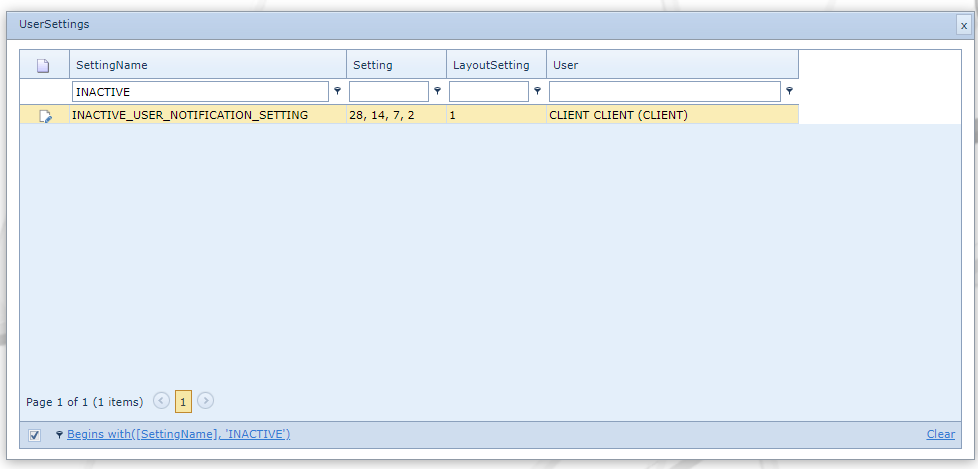
Number of days of inactivity by a user before the account is locked as inactive. Email notifications can be sent out to the user, warning them of impending account expiry. The number of notifications is set in the UserSettings feature, accessed from the IMS Main Menu : System : Users : UserSettings and then typing in the number of days that pass before a reminder is sent. Values are comma separated if more than one notification is required. Refer to the screenshot below.
The emails are pre coded in IMS and look similar to the following 2 examples: **Default expiration mail:** Hi <username> , Your account has been disabled due to inactivity. Last time you have logged into IMS: 24/04/2022. **Default notification mail:** Hi <username> , Because of inactivity, your account will expire in 7 days on 29/05/2022. Please login to prevent your account from being disabled.
User created reports can also be sent out with the email notification by simply creating two reports that best meet informational requirements. See the next section for details, called Notification Reports Setup.
|
|
|
Notification Reports Setup
The above mentioned email notification content can be replaced with a report that contains the relevant information for the notification - each customer can create their own accordingly.
For the expiration mail, the report name must be named: INACTIVE_USER_REPORT_EXPIRED
For the advanced notification mail, the report must be named : INACTIVE_USER_REPORT
In both the reports the following properties must be included:
oUserId
oDaysLeft
oExpirationDate
A batch command called ProcessInActiveUserMail must also be running to send the notifications and should be configured to be run twice a day. Please contact your VC4 representative to discuss this topic.
It is beyond the scope in this section to describe how to create reports, the following sections in IMS Help File are useful sources of related information:
IMS Basics - User Guide
oReporting
oOrder/TT > Email Notification with Reports