Navigating through IMS
The screenshot below gives an overview of a typical IMS screen divided into multiple sections which
have been highlighted, numbered and briefly explained below.

1 = The main IMS button bar
2 = The buttons related to the opened form giving the user access to the form related functions.
3 = The currently opened forms
4 = The search area located on all the different forms in IMS
5 = The details of the active (opened) object within the form
6 = The opened objects which have been kept for easy access
7 = The opened object on this form
Each section is explained in more detail on the following pages.

IMS main button bar
The main IMS main button bar giving access to all the forms in IMS categorized per topic. Each button
has one or more forms underneath it explained below.

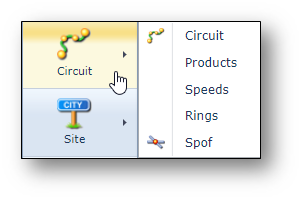
The “Circuit” menu contains:
Circuit |
= form to manage connections, circuits and services. |
Products |
= form to manage product codes or type of customer services. |
Speeds |
= form to manage the circuit types and layering rules. |
Rings |
= form to manage the ring topologies for certain networks like SDH or WDM. |
Spof |
= form to calculate SPOFs (Single Point of Failures) in the network. |
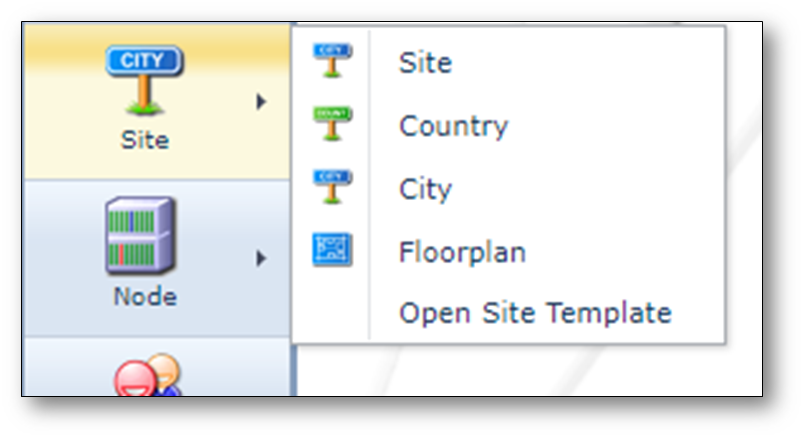
The “Site” menu contains:
Site |
= form to manage the sites or locations |
Country |
= form to manage the countries. |
City |
= form to manage the cities, regions and provinces. |
Floorplan |
= form to manage the plan or grid type overview of the floor of a site. |
Open Site Template |
= form to manage the site templates (standard site configurations)
|
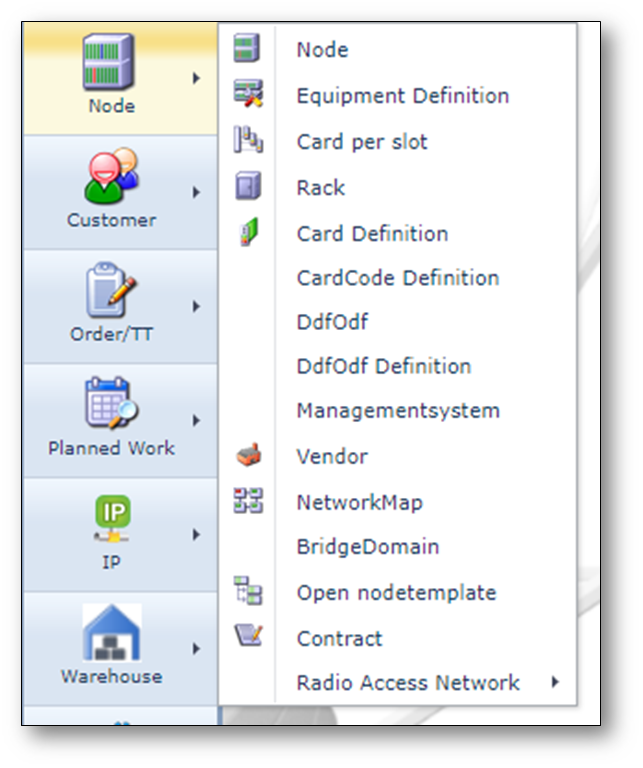
The “Node” menu contains:
Node |
form to manage the active equipment (managed elements). |
Equipment Definition |
form to manage the node types or equipment blueprints are managed. |
Card per slot |
form to manage the rules which card types are assigned to which (equipment) slots of the different node types |
Rack |
form to manage the racks/cabinets |
Card Definition |
form to manage the card types or card blueprints. |
CardCode Definition |
form to manage the vendor codes of the different card types |
DdfOdf |
form to manage the passive equipment like patch panels, trays, DDFs and ODFs. |
DdfOdf Definition |
form to manage the DDF, ODF and patch panel types or blueprints |
Managementsystem |
form to manage the management systems of the different networks |
Vendor |
form to manage the vendors/suppliers. |
NetworkMap |
form that gives a graphical and/or geographical overview of the network or parts of the network. This form also offers a set of functions to add, change and delete network objects. |
BridgeDomain |
form to manage the registration of bridge domains in IP networks. |
Open node template |
form to manage the standard configurations or templates of equipment. |
Contract |
form to manage different vendor contracts, like a support contract with certain SLA’s. |

•Radio Access Network is an option with 3 more options:
RF Planning |
form to manage the planning of the radio access networks. |
Antenna Types |
form where the different antenna types or blueprints are managed. |
AntennaBeam Types |
form where the different antenna beam types or blueprints are managed. |
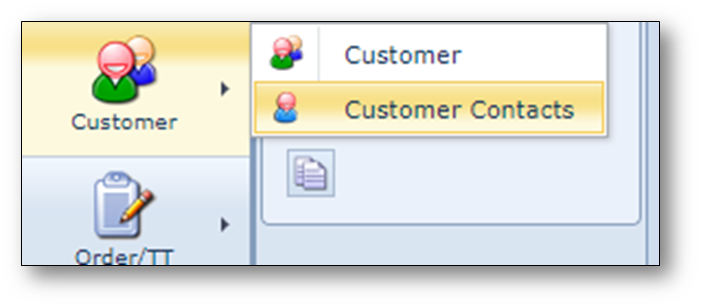
The “Customer” menu contains:
Customer |
form where the customers are managed. |
Customer Contacts |
form to manage contact persons of the customers |

The “OLO circuit” menu contains:
OLO circuit |
form to manage Leased Lines (OLO – Other Licensed Operator) connections. |
OLO products |
form to manage products related to OLO connections. |

The “Order/TT” menu contains:
Order/TT |
form to manage the orders and trouble tickets. |
Order Type |
form to manage the different order types and their workflows |
Queue |
form to manage the different (department) queues of the orders |
Planning |
form to manage the order tasks in calendar view. |

The “Planned Work” menu contains:
Planned Work |
form to manage the planned works (scheduled maintenance) and the related impact on the network. |
Inform customers |
form where the outcome of impact analysis of the planned works can be managed and communicated to customers. |
Email Setup |
form where the e-mail templates are managed used for informing customers of planned works. |

The “IP” menu contains:
Domains |
form to manage the IP domains. |
IP Ranges |
form to manage the IP address ranges and IP addresses |
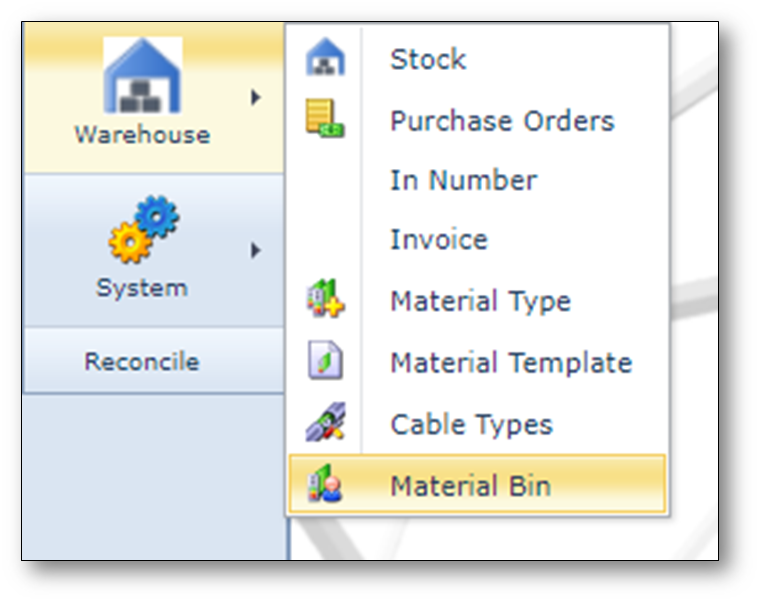
The “Warehouse” menu contains:
Stock |
form to manage the assets in and outside the warehouses/stocks. |
Purchase Orders |
form to manage the Purchase Orders |
In Number |
form to manage the investment (project) amount for Purchase Orders |
Invoice |
form to manage the invoices. |
Material Type |
form to manage the material or equipment types or blueprints |
Material Template |
form where standard equipment sets, or configurations are managed (easier for ordering). |
Cable Types |
form to manage the different types of cables are managed. |
Material Bin |
form where material can be assigned to bins (for selling to a third party) or send to scrap.
|
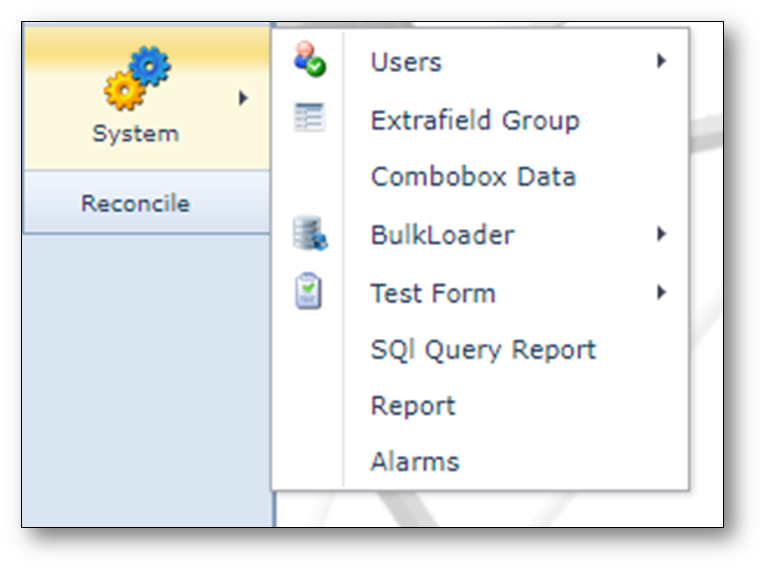
The “System” menu contains:
“Users” with 3 more options: 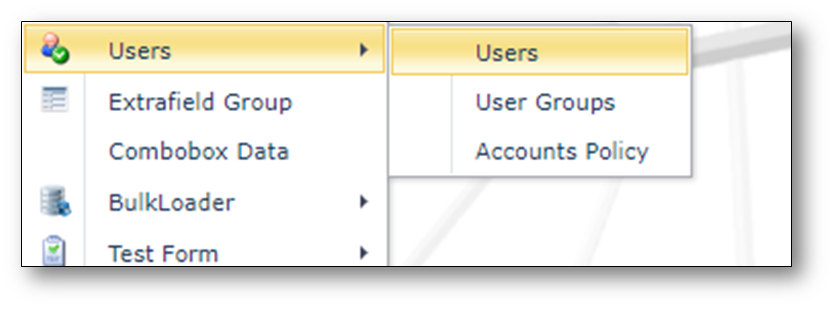
•Users |
form to manage the user accounts. |
•User Groups |
form to manage the user groups and permissions |
•Account Policy |
form to manage the account policies, like password Requirements. |
Extrafield Group |
form to manage the customized tab pages and fields. |
Combobox Data |
form to manage the content of the variable combo boxes |
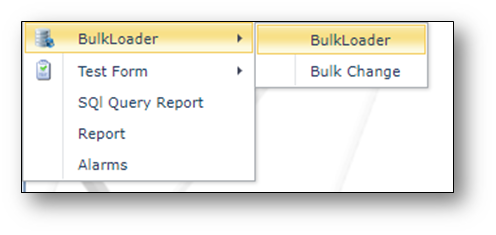
BulkLoader has 2 more options:
•BulkLoader |
form where data can be modified in bulk by means of bulk loader excel templates. |
•Bulk Change |
form where data can be modified in bulk. |
Test form |
is for application managers. |
SQL Query Report |
form where custom reports are managed using SQL. |
Report |
form where custom reports are managed using built-in reporting functionalities. |
Alarms |
is for application managers. |

Search area
The search area is present on all forms in IMS and offers an easy and standardized way in navigation
through the objects on the forms.

The 4 buttons offer the following functions, explained from left to right:
•Previous |
Go back to the previously looked up object. |
•History |
show 20 of your previous looked up objects. |
•Next |
Go forward to the next looked up object which is only usable when you have used the previous button. |
•Search |
left click to search for anything matching the string entered in the search field or right click to clear the screen. |
The search (pull-down) field is used to search for objects matching the entered string in the field or
when pressing the pull-down button is used to look for objects based on filters.
The Search Text field is used to search for objects that contain part of the entered string in their object name.
Note: not all forms have this “Search Text” field.
Object status
By default, newly created objects like circuits, nodes, cards, etc. get the status PL which can be
updated to another status manually or by an automatic process. Please find below a list of the
statuses used in IMS with the objects to which it applies.
PL – Planned (color blue)
This is the default status for new objects in IMS. The “PL” status is used for the objects: Site, Circuit,
OLO Circuit, Node, Shelf, Card, DDF/ODF and RAN objects. Objects with “PL” status are allowed to
have changes.
RFS – Ready For Service (color purple)
This status is used for objects to indicate that they are present (installed) in the network but not yet
fully operational or carrying live traffic. Like the PL status, objects in this “RFS” status can have
changes. The RFS status is used for the objects: Circuit, OLO Circuit, Node, Shelf, Card, DDF/ODF.
IS – In Service (color green)
This status is used to indicate that the objects are present and operational, possibly carrying live
traffic, in the network. Configuration changes are not allowed. The IS status is used for the objects:
Site, Circuit, OLO Circuit, Node, Shelf, Card, DDF/ODF.
MI – Migration (color orange)
This status is used for the “Circuit” object only and is used to plan a change or migration of the circuit,
for example a change in the circuit route or change of (equipment) port. This status offers the
functionality to keep a view on the current/actual state of the circuit and the newly planned/future state
of the circuit next to each other.
RFC – Ready For Cease (color brown)
This status is used to indicate that the objects are still present in the network and operational, possibly
carrying live traffic, but that they are planned to be removed. Changes are not allowed. The RFC
status is used for the objects: Circuit, OLO Circuit, Node, Shelf, Card, DDF/ODF.
OOS – Out Of Service (color red)
This status is used to indicate that the objects are no longer present or active in the network and the
related date disconnected and saved in the history. The OOS status is used for the objects: Site,
Circuit, OLO Circuit, Node, Shelf, Card, DDF/ODF.
Object history
Almost all objects in IMS have a history which keeps tracks of the object’s lifecycle throughout IMS
and all changes are logged in the history.