Drag and Drop features
The following information relates to the drag and drop functionality available in various IMS objects. Some areas include Grid, Lookup, and Draw Object.
In general, every entity can be dragged from a grid to another grid, which will trigger an update of the receiving grid line to set the corresponding property to match the dragged object.
Circuit Drag to Node Port
A circuit instance can be dragged from the Circuit tab over to a Node tab (hover) - which will open the Node form at the same time, and then drop the Circuit instance onto the required port in the Port grid (lower half).
▪Click and drag the Circuit name band and drag it over (hover) the Node Tab which should already have the required and opened node form:
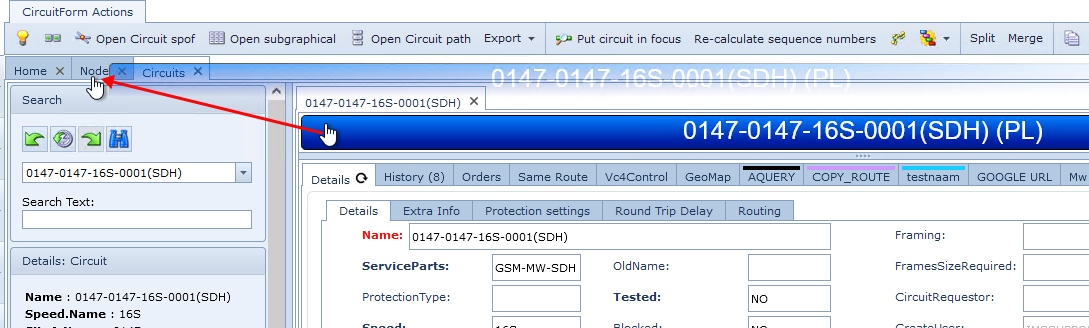
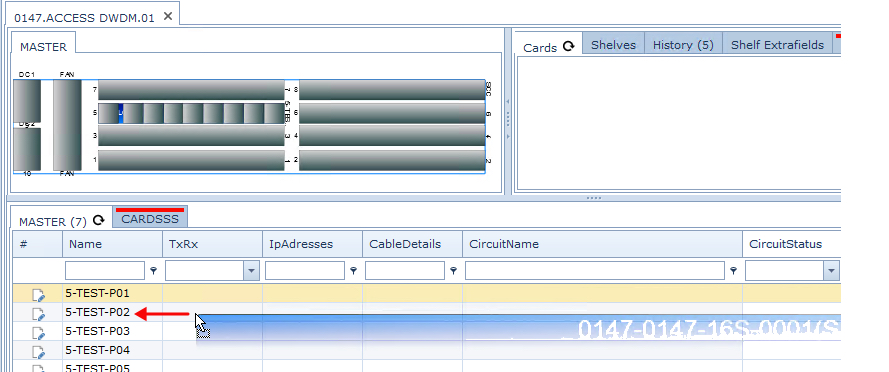
▪Hover over the Node tab which will open the Node form and drop the Circuit onto the port grid over the required port - in this example the second port ... P02
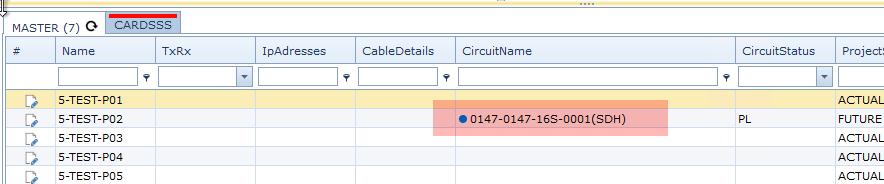
▪Once the mouse is released, the Circuit name will appear under the CircuitName column
Circuit Drag to another port in Port Grid
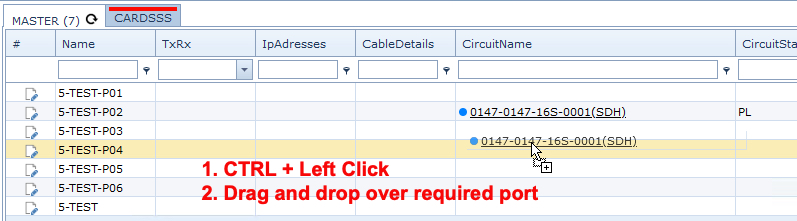
If a Circuit is in a Planned status, it can be dragged and dropped from one port of the port grid to another as shown in the following screen shot:
▪CTRL and left click on the Circuit name - P0-2, and drag it onto the required port, in this example P04
Applies to Nodes, Circuits, and Locations:
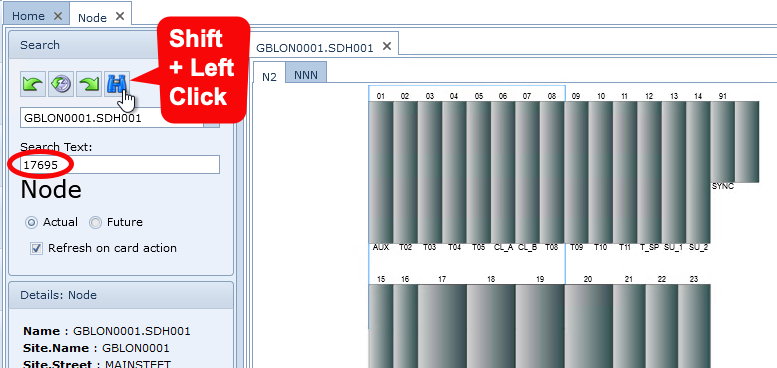
When the object's ID is known, it can be searched for in the form's Search Text field and then followed by a SHIFT + Left Click on the Binocular icon