This section contains extra general information:
Tool-tips - Card and Slot
Tool-tip info option has been added to the right-mouse-button menu for cards and slots. This will open the tool-tip text in a pop-up window.

From an individual Port list at Node level, it is possible to directly obtain its cable route image, by a right click on the port name, then selecting the Cable Route option in the list provided.

Node - Search by ID
This tip applies for the following IMS objects: Node, Circuits, and Sites.
If you know the ID (number) of a particular node instance, then you can type that ID into the search field, then press the Shift + Right Click on the Binocular icon. If the ID number is located in the database, then the Node details will be displayed in the usual Object Form area.

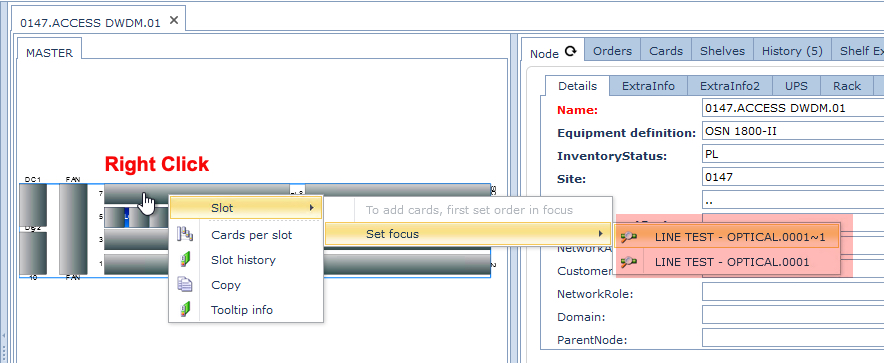
Empty Slot - Assign an Order
When an Order/TT is not in focus:
Using the mouse right click action, assign an Order/TT to an empty slot from a drop down list of the last few focused orders previously used.
On a Node diagram:
▪Right Click on a card (blue background

▪From the drop down options list select the Add port to card option which open up an Add port to card popup window

▪Fill in the port details as required
▪Click on the Save icon when finished - lower left corner of popup window
Adding Attachments to Cards
▪Right Click on a card (blue background)
▪From the drop down options list select the Attachments option which open up an Add attachments popup window
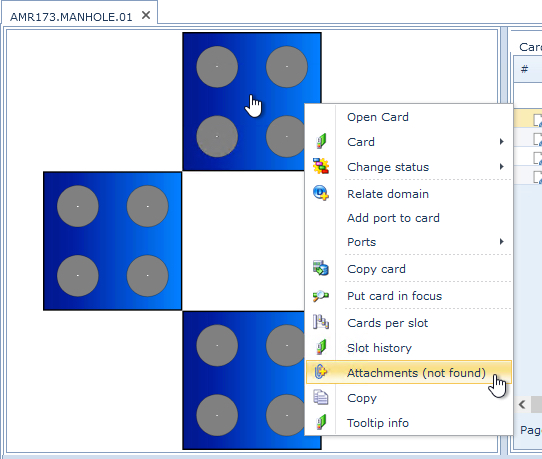
Locate the file to attach and click on Save to finish .