Work in progress - Nov 2022
Documentation to follow soon.
Access Scheduler
From the IMS Main Menu:
▪Select System | Scheduler
This opens up the Job Form

Scheduler Job Form
Job Form Button Bar [1]
The following table describes all the button options:
Update All Next-Run-Times |
Refreshes the Next Run Time column with up-to-date data |
New |
BulkLoadJob |
Create a new scheduled Bulk Loading event |
ReportDocumentJob |
Create a new scheduled Document event |
|
ReportSqlQueryJob |
Create a new Sql Query event |
Close Form |
Close the Scheduler module |
Scheduled Jobs Tab
The Scheduled Jobs tab contains a list of all the existing Scheduled Jobs with their details in the various columns that make up the All Jobs grid.
The following table describes all the Column fields:
Name |
User defined name for this Scheduled job |
|
IsEnabled |
Yes |
Ensures that this job will be run on the scheduled date and time |
No |
This job will be ignored on the scheduled date and time |
|
Description |
A brief description of what this scheduled job will accomplish |
|
Owner |
The IMS User Name of the person responsible for this scheduled job |
|
Current State |
None |
This scheduled job has not yet started |
Completed |
This scheduled job has run and completed successfully |
|
Failed |
This scheduled job has started but failed along the way. |
|
Running |
This scheduled job has started and is yet to finish |
|
StartsOn |
Date and time settings this scheduled job will start on [Date and time select widget] |
|
EndsOn |
Date and time settings this scheduled job will end on [Date and time select widget] |
|
Next Run Time |
The date and time for the next run for this scheduled job - this relates to the Day of Week and Cron expressions that are set up in this scheduled job's Triggers component when the job was created |
|
Last Execution |
Date and time indicator of this scheduled job's last run |
|
Last Result |
The status of this scheduled job's last executed run |
|
Scheduler Calendar
The Scheduler Calendar provides a view of all the scheduled jobs in chronological order including past scheduled jobs. There are a number of various ways to display scheduled jobs in the Calendar. Some are mentioned as follows:

Default Calendar View

Scheduled Jobs in the top listing grid appear in the Calendar below according to their set Dates and Times
Display Options for the Scheduler Calendar
By Right Clicking on the Calendar background various display options are provided to best suit a User's style of working. Examples are given as per the following screen shots:
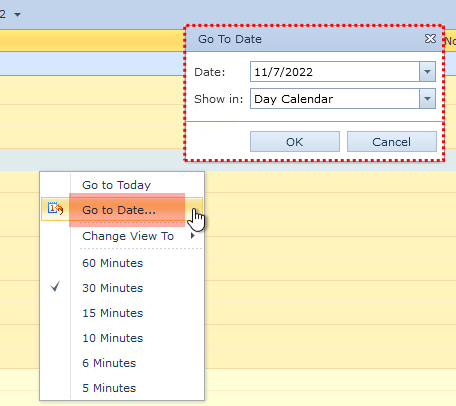
Go To Date Popup to select a specific date to be displayed
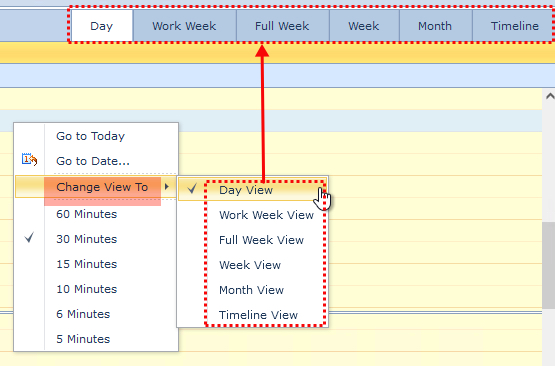
Change View To: provides another way to access the already displayed Time option bar
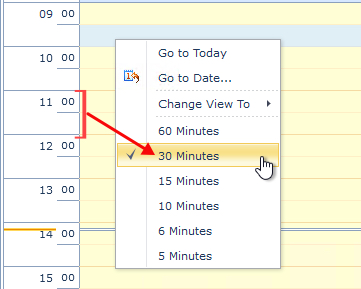
Time in Minutes option: from 1 hour down to 5 minutes granularity view in the Calendar
Create a New Scheduler Event
There are 3 event option to select from when creating a new Scheduler event. They can be seen from the drop down list of the New option in the JobForm Actions button bar.
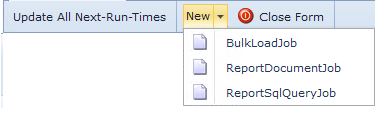
oBulkLoadJob
oReportDocumentJob
oReportSqlQueryJob
When one of these options is selected, the corresponding Add... popup window displays
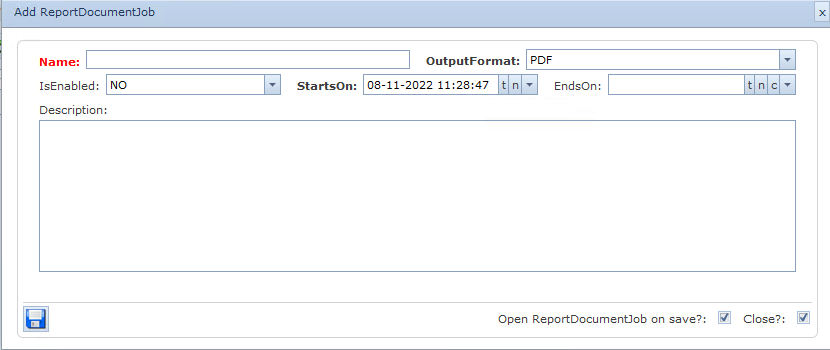
▪Fill in the fields of information as required - a description of which are given above under Scheduled Jobs Tab
▪Click on the Save icon in the lower left of the popup window
Once complete, the Scheduled Job will appear in the All Jobs pane in the information grid
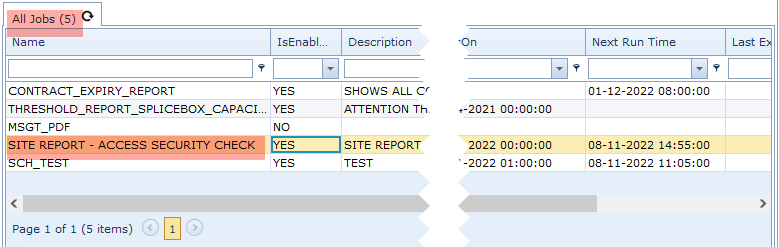
▪Left Click on the newly created Scheduled item under the Name column item in the information grid - in this example one is highlighted in the above screen shot
This opens the Scheduled item's tab which reveals a new button bar and contains a further 5 sub-tabs:
Job Form Button Bar [2]
Depending on what option is chosen when creating a new Scheduler event, one of the follow-on button bars will be displayed:



Run Job |
Executes the current Scheduled Job |
Add trigger |
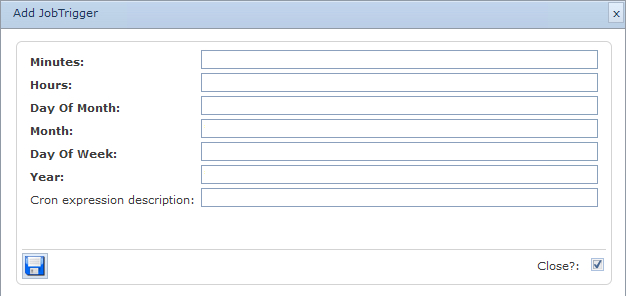
Opens up a popup window form to complete details of how often to run this Scheduled Job within its Start and End dates
oMinutes: minutes past the hour - values: 0 - 59 - format 60 minutes [00] oHours: the hour in the day this scheduled event will be run at - format 24 hours [00] ▪comma separated if more than once an hour i.e., 11am, 1pm, 5pm require values of: 11, 13, 17 oDay of Month: the day in a given month to run the scheduled event - values: 1 - 31 ▪comma separated if more than once a month i.e., 2nd, 15th, 29th require values of: 2, 15, 29 oMonth: the month the scheduled event will be run - values: 1 - 12 - format month [00] ▪comma separated if more than one month i.e., Jan, Jul, Oct require values of: 1, 7, 10 oDay of Week: Day/s during the week for the scheduled event to be run - values: 0 - 6 ▪comma separated if more than one day a week i.e., Sunday, Tuesday, and Friday require values of: 0, 2, 5 oYear: the year in which this scheduled event will first take place - format YYYY ▪comma separated if more than one year i.e., 2022, 2023 require values of: 2022, 2023 |
Special Trigger Symbols:
The following symbols can also be applied in the above mentioned fields:
* [asterisk] |
Depending on which field it is placed in, the scheduled event will execute every Minute, Hours, Day of Month etc., It stand to reason that using this in the Minute or Hours fields might not be suitable |
||
? [question mark] |
This symbol represents a no value / empty field
|
||
/ [forward slash] |
Repeat in step form - i.e., Year: 2022/2 means every 2 years starting from 2022 |
Add action |
ftp |
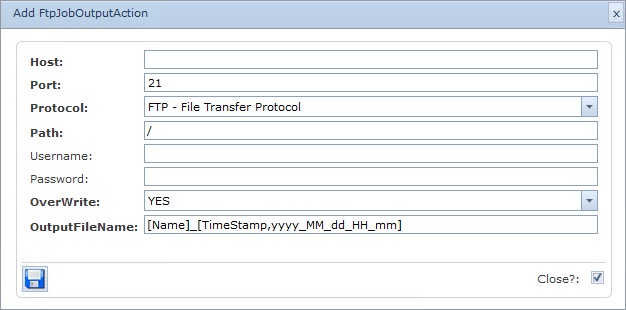
Send results of Scheduled event via FTP : Popup window opens
Protocol options: FTP, FTPS, SFTP Output Filename: default set to scheduled event name with a date and time stamp |
Send results of Scheduled event via email : Popup window opens
Format options: Plain text body, HTML body Output Filename: default set to scheduled event name with a date and time stamp
|
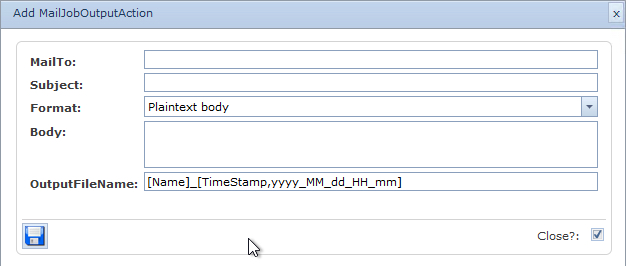
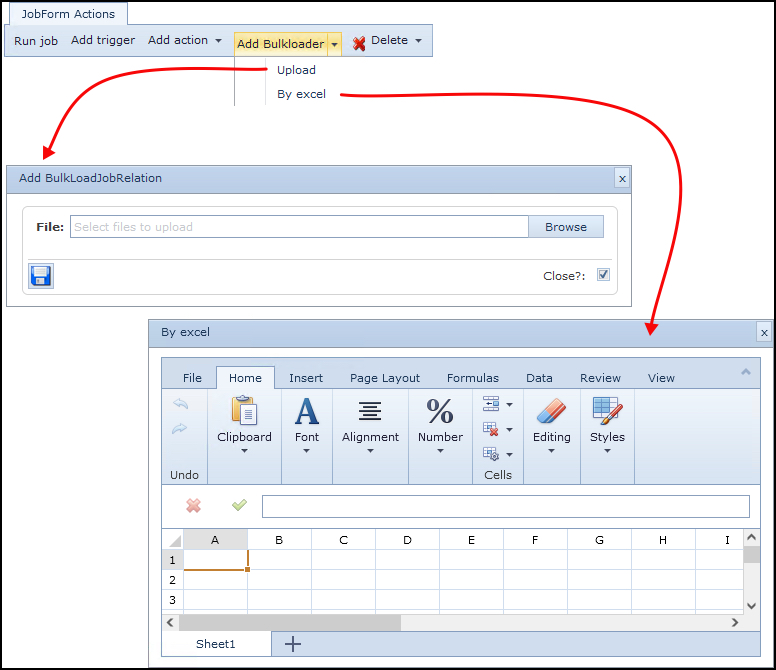
Add ... oBulkloader oreportdocument oreportsqlquery |
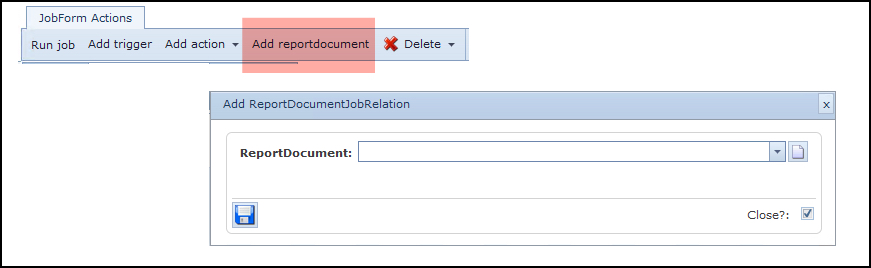
Add a Bulkloader, Report, or Sql Query document that has been created previously to be run as part of this Scheduled event
|
Popup windows for Adding Bulkloader, Report, or Sql Queries:
Bulkloader options:
oUpload an existing Bulkloader file
oCreate one from the Excel app
Report Document
Sql Query Document

Delete |
Option to delete the entire Scheduled Job instance |