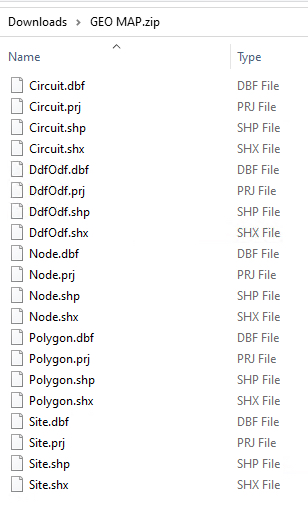
A shapefile is of a non-topological format used for storing the geometric location and attribute information of geographic features. Geographic features in a shapefile can be represented by points, lines, or polygons (areas).
➢Point features are zero dimensional and have no area: Well, Post Office, Temple, Hospital, Church, School - In IMS this could be: Site, Node, DDF/ODF
➢Line or linear features are one dimensional with no area: Road, River, Highways, Rail track, Street, Coastlines - In IMS this could be: Circuit with a Speed of Trench
➢Area features are two dimensional with an area: Pond, Soil Type, Lake, Reserved Forest, political, state, county boundaries, climate zones - In IMS these are Polygons
The following screen shot is an example of a third party GIS application exporting a shapefile, containing geographical attribute data. In this case, Point Geometry, and it can be loaded into IMS as part of a Site.

Shapefiles can be Imported into and Exported from IMS.
Importing Shapefiles into IMS (Network Map)
There are two processes to be carried out when setting up Shapefiles in IMS:
➢Creating mappings between the ShapeFile and IMS entity - described in the Admin User Guide
➢Importing the ShapeFile
Accessing Shapefile
From the IMS Main Menu:
▪first select the Node option followed by Network Map

This opens up the Network Map form.
Import a Shapefile
From the NetworkMap Actions button bar:
▪Select the Import option
▪and from the drop down list select ShapeFile

This opens up the ImportShapeFile window.

EntityTypeName |
Select the IMS entity - in this case; Site - importing the Shapefile into Site entity |
Action |
Add, Update, or Delete - when importing, select Add |
EntityMapping |
This links to the related ComboBox setup to the shapefile mapping |
File |
Browse for and select the shapefile/s to be used |
Order |
This Order will be used in the #ORDERID# placeholder in the corresponding ComboBoxData Shapeimport Mapping instance |
FirstRecordOnly |
Used when there is a large sample of import data and a test run is first required |
Bulkloader Input |
Displays the created Bulkloader records |
Bulkloader Output |
Displays the results of the processed records |
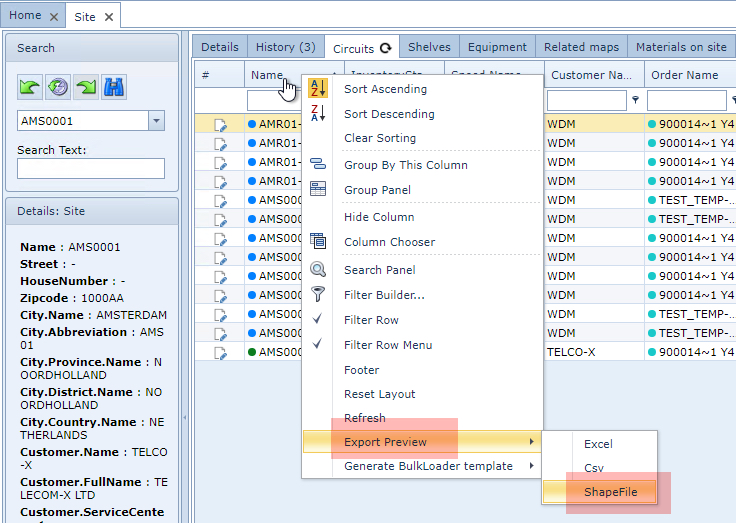
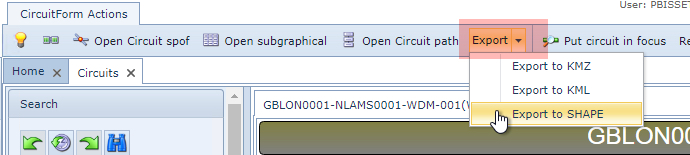
Exporting IMS objects to a shapefile can be achieved from the Network Map, Circuit, and OrderTT objects' button bars and from the Site object, if it contains a Circuits Tab.
From the Site Object grid:
By right clicking on the Name column title and selecting Export Preview followed by the ShapeFile option in the drop down list.
From the button bars:
Circuit object
Order/TT

Network Map

Once exported, the contents of the Shape file will be downloaded to the user's local machine in a Zip file, typically to the Download folder. The following screen shot shows the content of and exported Shape file: