To be able to work faster, instead of creating everything one by one, templates can be used to create
multiple objects in 1 go.
Site Template |
A site template creates multiple objects (nodes, DFs/ODFs/PPs/Spliceboxes) in a new or existing site.
A site template needs at least 1 node template or 1 DDF/ODF template, but can have multiple templates related (1 site : n object templates) |
Node template |
A node template creates a node (or multiple nodes) of a specific node configuration, optionally including shelves and cards (and sub-cards). |
DDF/ODF template |
A DDF/ODF template creates an DDF/ODF/PP/Splicebox (or multiple) of a specific DDF/ODF/PP/Splicebox configuration. |
Site template
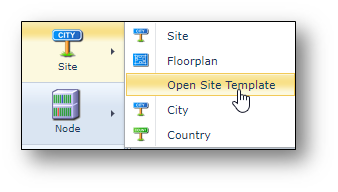
To open the Site template form, use option “Open Site template” in the Site menu.
Existing site templates can be found using the search field on the left.
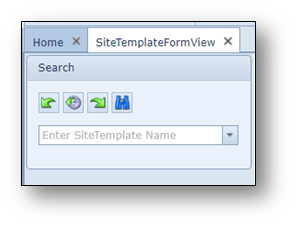
Once the template is opened, some tab pages appear.
If there are no tabs in the screen, it means there are no objects related to this site template yet.
There can be two different tabs, one for nodes and one tab for DDF/ODFs.
The quantity field indicates how many of such equipment should/will be created.
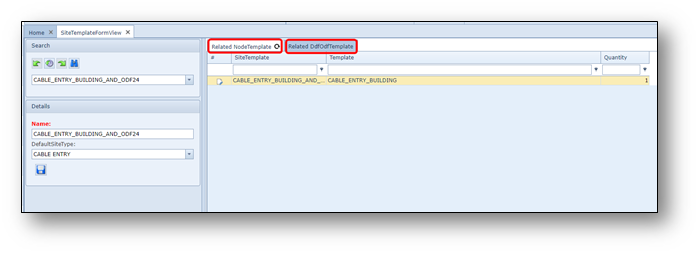
Site template button bar
Once a template is opened, the following button bar is visible in the screen.

From left to right:
New NodeTemplate relation |
To relate a new Node Template to the Site Template |
New DdfOdfTemplate relation |
To relate a new DDFODF Template to the Site Template |
New DdfOdfTemplate |
To create a new DDFODF Template |
Create new SiteTemplate |
To create a new Site Template |
Delete > YES |
To delete the Site Template that is opened in the form |
Close Form |
To close the Site Template form |
Create a new site template
To create a new site template, press the “Create new SiteTemplate” button.

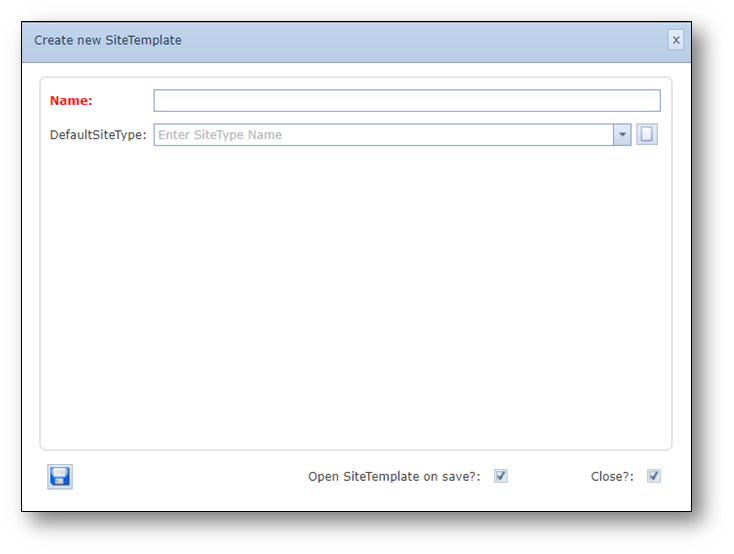
A pop-up screen appears:
Fill in:
-the new Site Template name
-The Default Site Type
and press save.

A new site template has been created, but nothing is related yet.
Now a node template and/or a DDFODF template must be related.
Relate Node template
To relate a node template, press the button “New NodeTemplate relation”
A pop-up window appears.
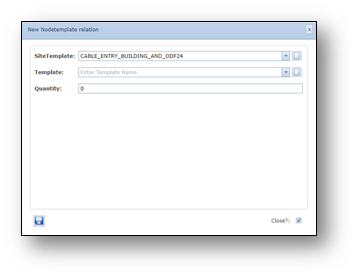
Find the right node template using the “Template” pull down field and the number of nodes that should be
created (“Quantity” field) and press save.
If you need a new node template, create this node template first, see chapter “Create node template”
Relate DDFODF template
To relate a DDFODF template, press the button “New DdfOdfTemplate relation”
A pop-up window appears. Find the right node template using the pull down field and press save.
If you need a new DDFODF template, create this template first, see chapter “Create DDFODF template”
Node Template
Open Node Template form
To open the node template form, go to the menu on the left of screen: Node > Open Node template.
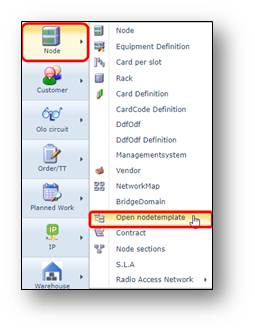
Find node template
To find an existing node template, use the search field
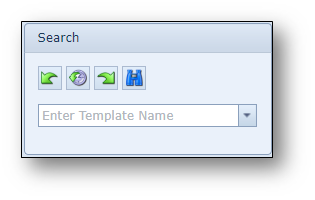
Create new Node Template
To create a new node template, press the new button in the Node Template form
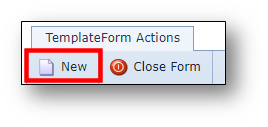
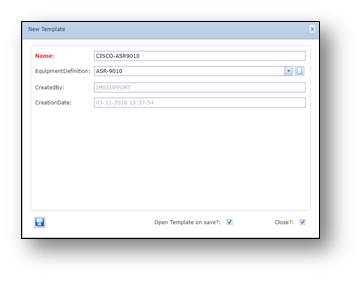
A pop-up window appears:
Fill in the (Node Template) name and
Equipment Definition.
Press save.
The new Node Template will be opened.
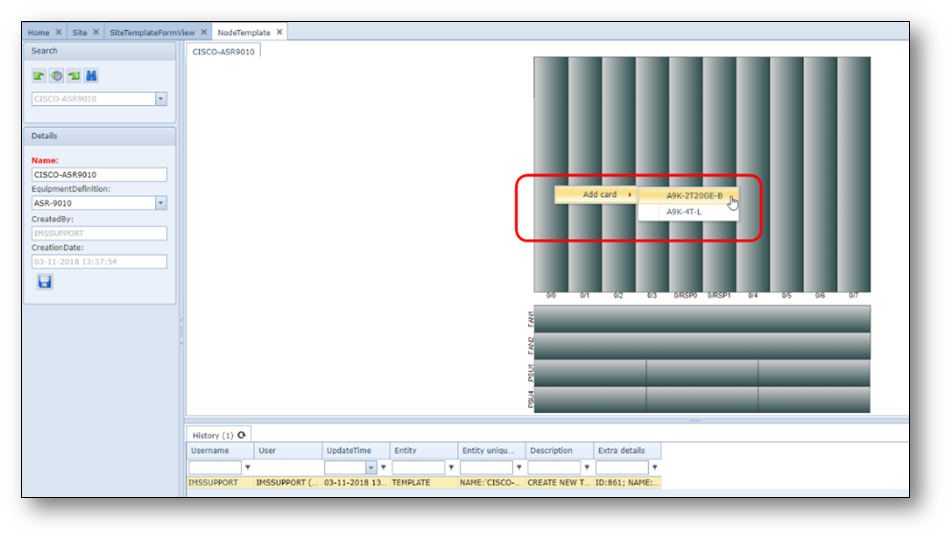
Add cards to Node Template
When a node definition exists of slots where cards can be inserted, these pre-selected cards can
be inserted in the node template. Each time a new node is created using this template,
those cards will be already inserted.
To insert cards, place your mouse above an empty slot and use the right mouse menu to add the cards,
see example screenshot below:
DDFODF Template
Create new DDF/ODF Template
To create a new DDF/ODF Template, open the site template form first.
In the Site Template Form, click on button:
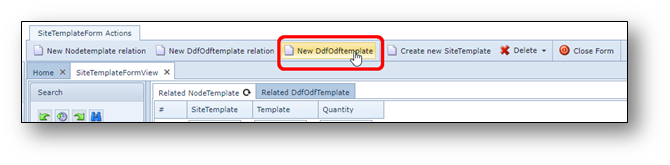
A pop-up form appears:
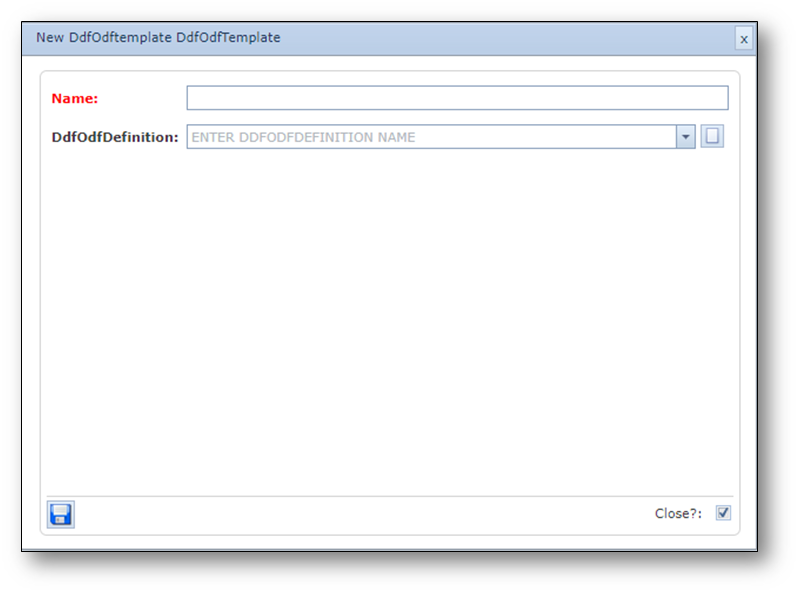
Fill in the name of the DDFODF Template and select the DDFODF Definition name.
Press save.
Now this DDFODF template can be used to relate to the site template (use button NewDdfOdfTemplete relation
in the Site Template form).