Certain Cards contain slots of their own in which other cards are applied i.e., small form-factor pluggable also known
as SFP. We refer to these slots within cards as Subslots.
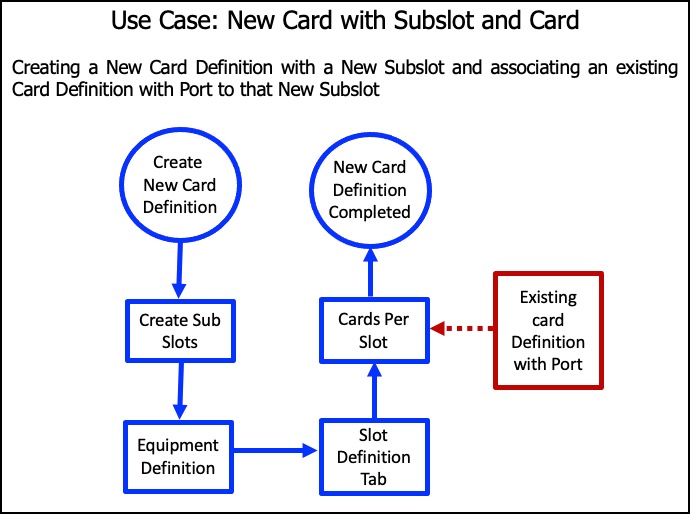
The following diagram helps to show this process flow in IMS.
Certain Cards contain slots of their own in which other cards are applied i.e., small form-factor pluggable
also known as SFP. We refer to these slots within cards as Subslots.
The following diagram helps to show this process flow in IMS:
Adding Sub Slots to a Card Definition or Card Code Definition requires modifying the actual equipment
definition of the card. For this purpose when the Create Subslots option is selected (see screenshot below)
from the CardCodeDefinitionForm Actions button bar, two main events take place in the GUI:

a. |
The Actions button bar changes to include the EquipmentDefinition and Remove subslots feature options, as shown in the screenshot |
a. |
When the EquipmentDefinition icon option is selected, the EquipmentDefinition form tab opens ready to modify the definition to include the sub slot |

From the Card Code Definition or Card Definition Actions button bar:
▪ |
Click on the Create subslots icon. The Button Bar changes to include new icon options as explained further above |
▪ |
From the Button Bar click on the EquipmentDefinition icon option – this opens the EquipmentDefinition form tab |
▪ |
From the EquipmentDefinition form, click on the SlotDefinition tab |
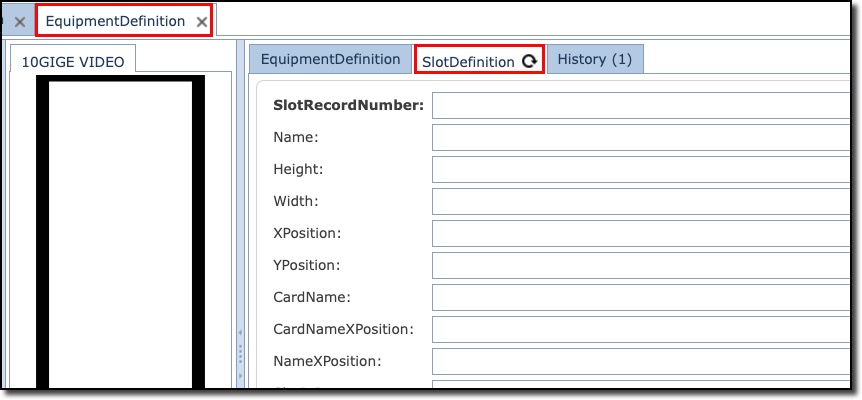
Fill in the fields of information as required, remembering that if this is the first sub slot for the Card Code Definition, the SlotRecordNumber field will be 1
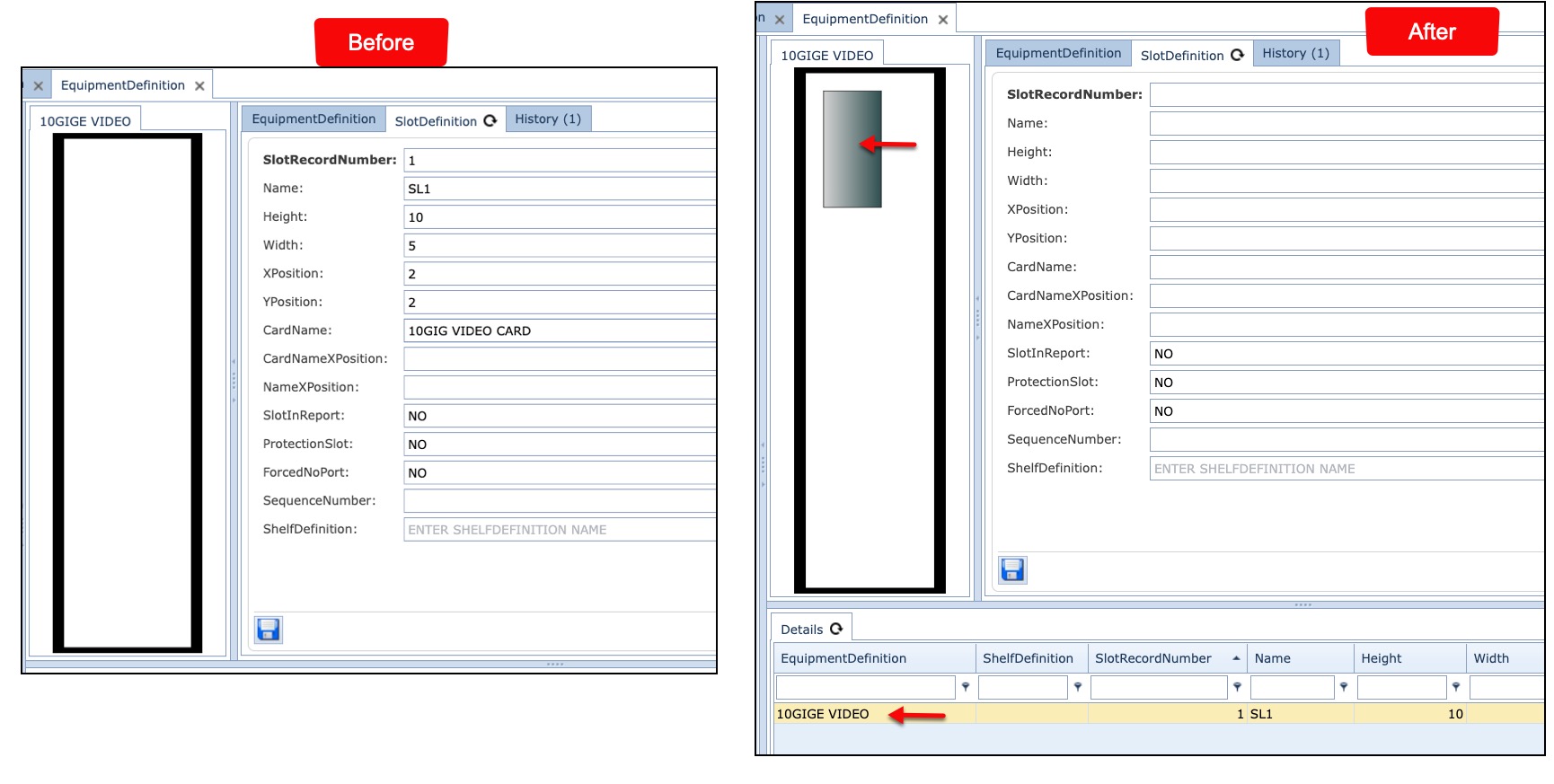
For graphical display purposes it is important that the Height, Width, XPosition, and YPosition fields are filled in accordingly and in relation to the parent Car Code definition or Card definition i.e., the subslot measurement details will be smaller as they are contained within the parent card.
The following two screenshots show a ‘before’ and ‘after’ view once the measurements fields have been filled in.
In the next section a card definition is added to this subslot.