On an opened Node instance, the following functionality is available from the Equipment Actions button bar:

Show all |
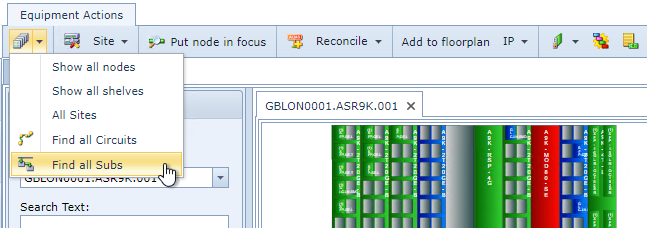
A convenient way to show other IMS objects in their own tabs: Entire network: nodes, shelves, and sites This node’s related: Circuits and sub-circuits - see the section below called Find all Circuits and Subs |
|
Open definition |
Opens this node’s equipment definition in its own tab |
|
Site |
Perform Site related actions directly from the Node form |
|
Put node into focus |
Put this node in focus – see related note below |
|
Add to floor-plan / Remove from floor-plan |
Place this object into a floor-plan. Width and depth of the node.equipment definition must be defined. Alternatively, if it is already in a floor-plan, then the Remove from floor-plan option will be displayed |
|
Add alias |
Give this node an alias name (alternative name) |
|
Reconcile |
Reconcile (Node) |
reconcile feature for node object |
Disconnect NMSId |
disconnect this node from its current NMS |
|
IP |
Option to open the existing assigned IP range window or remove existing assigned IP address from the node |
|
Cards |
Perform Card related actions directly from the Node form i.e., create new card definition for this node, add new slot to card relation, and setting cards to required status’ |
|
Change Status |
Change this node’s status and related IMS objects including Shelves, Cards, SubNodes, and Circuits |
|
Contract |
Add an existing contract or create a new contract to add to this node. |
|
Node sections |
Displays the node-to-node sections: Present and Future physical sections, and Logical circuits in a new tab |
|
DCN/Sync |
Change DCN/Synchronisation settings (Data Communication Network). Causes that node to update/resync its timing |
|
Block ports |
Typically used for planned work events, or when a port is known to be defective to prevent use |
|
Relate to Order/Ticket |
Relate this node to an existing in focused order |
|
Attachments |
Allows this node to have documents associated with it, either from an existing source folder, or you can browse for a different location to then perform an upload. |
|
Sub node |
Associate this node (as a parent) to a child node/s, provided that the parent/child equipment definitions have previously been established |
|
New |
Create a new node instance |
|
Copy |
Copy a node or shelf (current one by default). A popup window allows to quickly create a new node/shelf, with option to also copy any associated circuits |
|
RF Planning |
Functions specific to radio planning objects |
|
Delete |
Delete this node: YES/NO |
|
Close form |
Closes this entire node tab leaving only the Home tab displayed |
|
|
Setting a node in focus is an easy way to assign all newly created objects to that node without having to fill in the node name every time you are creating new objects related to it |

Find all Circuits and Subs
By selecting either of these two features; ...Circuits or Subs ...
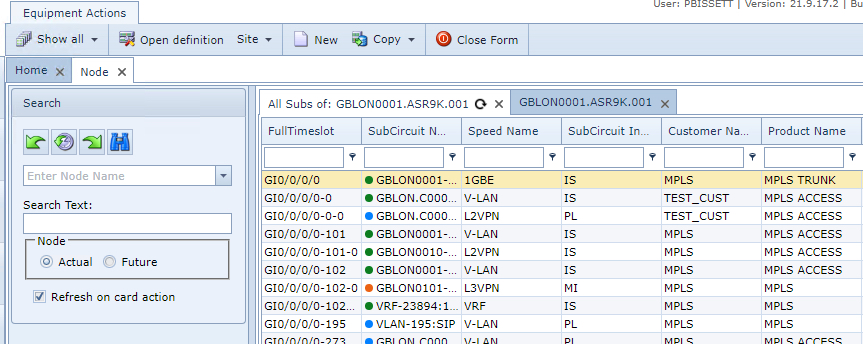
... the appropriate list of circuits will be shown in its own tab within the Node form